1. Kupu Whakataki
This manual provides essential information for the setup, operation, maintenance, and troubleshooting of your PlayStation 4 Console, Model CUH-1001A. The PlayStation 4 is a home video game console developed by Sony Interactive Entertainment, featuring an integrated AMD Jaguar processor, 8 GB of RAM, and a 500 GB internal storage drive. It supports both wired and wireless internet connectivity and includes a Blu-ray Disc/DVD drive for physical media.
The console comes equipped with a DualShock 4 Wireless Controller, Model CUH-ZCT1U, designed for enhanced gaming interaction. Please read this manual thoroughly to ensure proper use and to maximize your gaming experience.
2. Ihirangi mokete
Manatokohia ko nga mea katoa kei raro nei kei roto i to kete:
- PlayStation 4 Console (Model CUH-1001A)
- DualShock 4 Wireless Controller (Model CUH-ZCT1U)
- Tauera HDMI
- Waea hiko
- USB Charging Cable for Controller
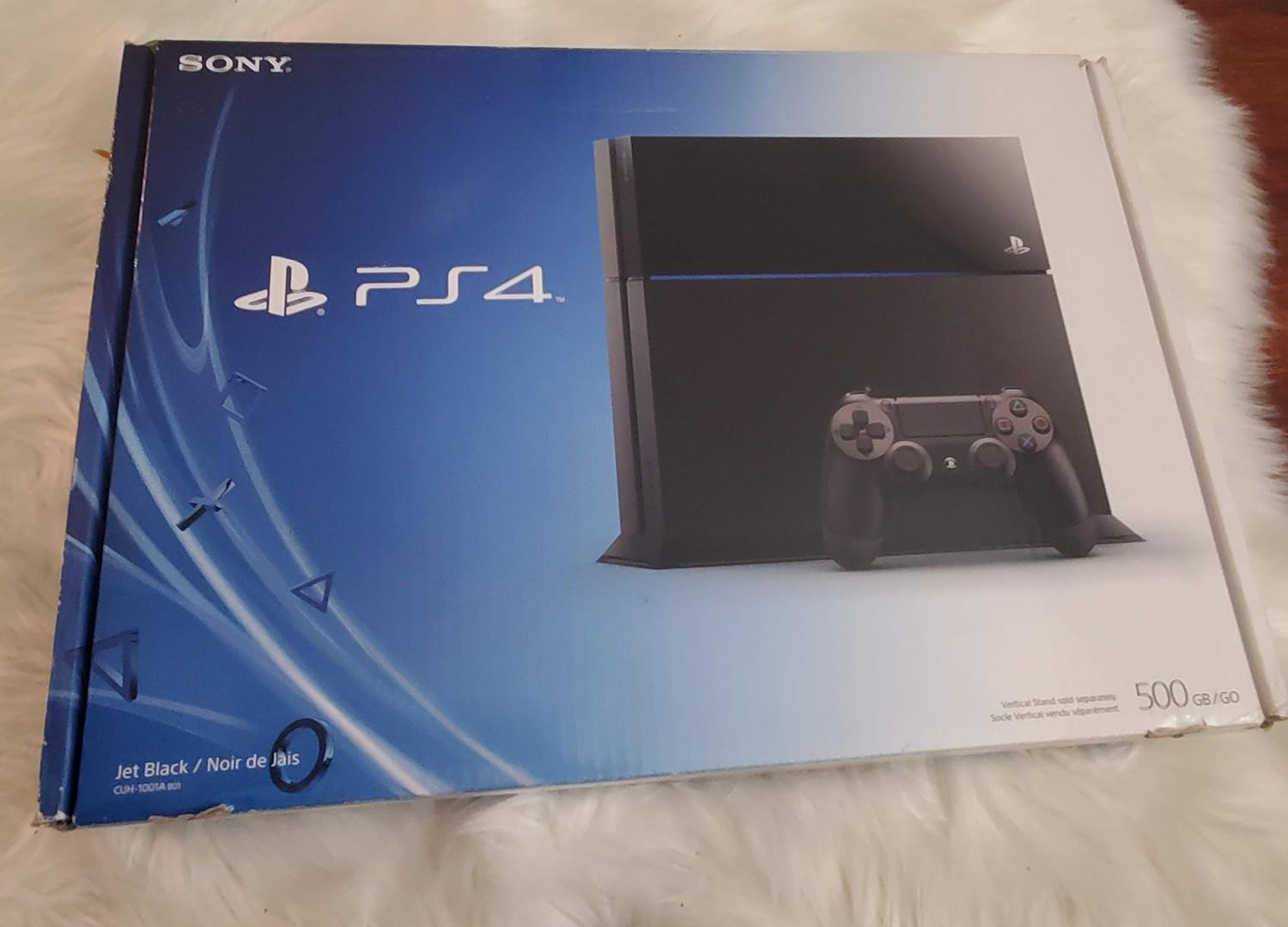
Image 2.1: PlayStation 4 Console and DualShock 4 Controller.

Image 2.2: PlayStation 4 Console with included accessories such as cables and controller.
3. Tatūnga
3.1 Te hono i te Papatohu
- Whakanohoia te Papatohu: Position your PlayStation 4 Console on a flat, stable surface with adequate ventilation. Ensure there is sufficient space around the console for airflow.
- Hono ki te pouaka whakaata: Connect one end of the supplied HDMI cable to the HDMI OUT port on the back of the PS4 console and the other end to an HDMI input on your television.
- Hono Hono: Insert the power cord into the AC IN connector on the back of the PS4 console, then plug the other end into a wall outlet.
3.2 Connecting the DualShock 4 Wireless Controller
- Tūhono Pūmana: Use the supplied USB charging cable to connect the DualShock 4 controller to a USB port on the front of the PS4 console.
- Kaiwhakahaere Takirua: Press the PlayStation button (PS button) on the controller. The controller will pair with the console and the light bar will glow.
3.3 Tatūnga Pūnaha Tuatahi
Upon first power-on, follow the on-screen instructions to complete the initial system setup, which includes language selection, internet connection setup (Wi-Fi or Ethernet), date and time settings, and user profile hangahanga.
4. Nga Tohutohu Whakahaere
4.1 Kei te Hiko / Weto
- Hei Whakahiko: Press the power button on the front of the console or the PS button on a paired controller.
- Hei Whakaweto: From the function screen, select (Mana) > Whakawetohia te PS4. Alternatively, press and hold the power button on the console for at least 7 seconds until the system beeps twice.
- Aratau okioki: From the function screen, select (Mana) > Whakauruhia te Aratau okiokinga.
4.2 Te Whakatere i te Atanga Kaiwhakamahi
Use the DualShock 4 controller's directional buttons or left analog stick to navigate the PS4's home screen. The X button typically confirms selections, and the O button cancels or goes back.
4.3 Inserting and Ejecting Discs
- Hei Kōkuhu: Gently slide a Blu-ray Disc or DVD into the disc slot on the front of the console with the label side facing up. The system will automatically pull the disc in.
- Hei Whakaputa: Select the disc icon from the home screen and press the OPTIONS button, then select Tukua Kōpae. Alternatively, press the eject button on the front of the console.
4.4 DualShock 4 Wireless Controller Usage
- Kei te utu: Connect the controller to the PS4 console using the USB charging cable. The light bar will slowly blink orange while charging and turn off when fully charged.
- Āhuatanga: The controller features a six-axis motion sensor, improved vibration, a clickable touchpad, dual analog sticks, and pressure-sensitive buttons.
5. Tiaki
5.1 Te horoi i te Papatohu
Regularly clean the console to prevent dust buildup, which can affect performance. Use a soft, dry cloth to wipe the exterior. Do not use liquid cleaners or abrasive materials. Ensure ventilation ports are clear of obstructions.
5.2 Whakahōu Pūmanawa
Keep your PS4 system software updated to the latest version for optimal performance and access to new features. Updates can be downloaded automatically when connected to the internet or manually via the system settings.
5.3 Hard Drive Replacement
The 2.5-inch 500 GB hard drive in your PS4 console is replaceable. Refer to the official PlayStation support website for detailed instructions if you wish to upgrade or replace the internal storage drive. Improper replacement can void your warranty.
6. Te Raru
If you encounter issues with your PlayStation 4 Console, try the following common troubleshooting steps:
- Kore Mana: Ensure the power cord is securely connected to both the console and a working electrical outlet. Try a different outlet.
- Kore he Putanga Ataata: Verify that the HDMI cable is firmly connected to both the console and the TV. Ensure your TV is set to the correct HDMI input. Try a different HDMI cable or port.
- Kaiwhakahaere Kaore i te Whakautu: Ensure the controller is charged. Reconnect the controller to the console with the USB cable and press the PS button to re-pair it.
- Nga Take Hononga Whatunga: Check your internet router and modem. For Wi-Fi, ensure the console is within range. For wired connections, check the Ethernet cable. You can test your internet connection in the PS4's network settings.
- Ka Whakatio/Tutuki te Pūnaha: Try restarting the console. If the issue persists, consider rebuilding the database from Safe Mode (power off the console, then press and hold the power button until you hear two beeps).
For more detailed troubleshooting guides and support, please visit the official PlayStation support webpae.
7. Whakatakotoranga
| Āhuahira | Taipitopito |
|---|---|
| Tau tauira | CUH-1001A |
| Raukaha Rokiroki | 500 GB HDD (replaceable 2.5-inch) |
| Tukatuka | AMD 'Jaguar' x86-64, 8 Cores |
| Tukatuka Whakairoiro | 1.84 TFLOPS, AMD Radeon™ based graphics engine |
| Maharahara | 8 GB GDDR5 |
| Puku Optical | Blu-ray Disc / DVD Drive |
| Hononga | Ethernet (10BASE-T, 100BASE-TX, 1000BASE-T), Wi-Fi (IEEE 802.11 b/g/n), Bluetooth 2.1 (EDR) |
| Tauranga | HDMI OUT, Digital Out (optical), USB 3.0 (x2), AUX port |
| Ahu (Ahua) | 22 x 20 x 9 inihi (55.88 x 50.8 x 22.86 cm) |
| Taumaha (Ahua.) | 7.93 lbs (3.6 kg) |

Whakaahua 7.1: Whakamuri view of PlayStation 4 Console, illustrating various ports for connectivity.
8. Pūtāhui me te Tautoko
For information regarding the product warranty, please refer to the warranty card included with your console or visit the official PlayStation website. For additional support, including frequently asked questions, software updates, and service information, please visit the official PlayStation support portal:


