1. Te Timata
1.1 Ihirangi mokete
Verify that all items are present in your Ultimate Ears Boom 2 package:
- Ultimate Ears Boom 2 Bluetooth Speaker
- Moroiti-USB Uira Whakatau
- Pūurutau Hiko (kei te rereke ma ia rohe)
1.2 Te Whakataki i to Kai-korero
Before initial use, fully charge your Ultimate Ears Boom 2 speaker. Connect the micro-USB cable to the charging port on the speaker and the other end to the power adapter, then plug into a wall outlet. The LED indicator will show charging status.

The Ultimate Ears Boom 2 speaker, ready for charging.
1.3 Takirua Nihokikorangi
Hei hono i tō kaikorero ki tētahi pūrere Bluetooth:
- Press and hold the Power button on the top of the speaker until you hear a tone and the LED flashes white.
- I tō pūrere pūkoro, whakatere ki ngā tautuhinga Nihokikorangi.
- Select 'UE Boom 2' from the list of available devices.
- Once connected, you will hear a confirmation tone from the speaker.

Runga view of the speaker, highlighting the power and Bluetooth pairing buttons.
1.4 Ultimate Ears App
For enhanced control and additional features, download the Ultimate Ears app from your device's app store (iOS 9.0 or later required for Apple devices, Android compatible). The app allows for remote power control, equalizer adjustments, and PartyUp mode.
2. Speaker Operation
2.1 Hiko / Whakaweto
Press the Power button located on the top of the speaker to turn it on or off. A distinct sound will indicate the power status.
2.2 Mana Rōrahi
Adjust the volume using the large '+' and '-' buttons located on the side of the speaker. You can also control the volume from your connected Bluetooth device.
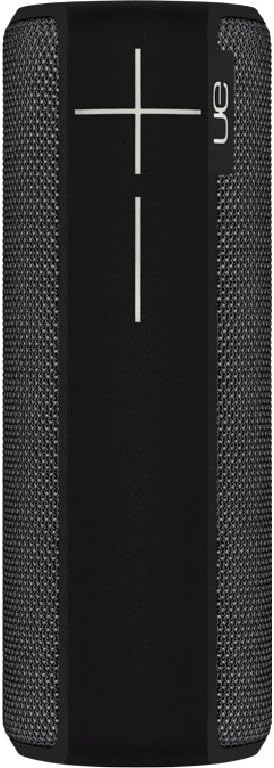
Te taha view of the speaker, featuring the prominent volume control buttons.
2.3 Music Control (Tap Gestures)
The Boom 2 features tap controls for music playback:
- Paato Kotahi: Tap the top of the speaker once to play or pause the current track.
- Paoa Rua: Tap the top of the speaker twice to skip to the next track.
2.4 Tūnga Pūhiko
To check the battery level, press both the '+' and '-' volume buttons simultaneously. The speaker will announce the remaining battery percentage.
2.5 Waterproof and Durability Features
The Ultimate Ears Boom 2 is designed to be waterproof (IPX7 rated) and shockproof. It can be immersed in water up to 1 meter for 30 minutes. Ensure the charging port cover is securely closed before exposing the speaker to water.

The speaker's waterproof design allows for use in various environments.

The Ultimate Ears Boom 2 demonstrating its water resistance.
2.6 PartyUp Mode (Connecting Multiple Speakers)
Use the Ultimate Ears app to connect multiple Boom speakers together for a more expansive sound experience. Follow the instructions within the app to activate PartyUp mode.
3. Tiaki me te Tiaki
3.1 Nga Tohutohu horoi
Hei horoi i tō kaikorero, whakamahia he mea ngohengohe, he meaamp cloth. Avoid using harsh chemicals or abrasive cleaners, as these can damage the speaker's finish or waterproof seals. Ensure the charging port is dry before charging.
3.2 Pūhiko Roa
To maximize battery life, avoid fully discharging the speaker frequently. Charge the speaker regularly, and if storing for an extended period, ensure it has at least a 50% charge.
3.3 Rokiroki
Store the speaker in a cool, dry place away from direct sunlight and extreme temperatures. Ensure the charging port cover is closed to prevent dust and debris from entering.
4. Aratohu Rapanga
4.1 Karekau he Mana
- Ensure the speaker is charged. Connect it to the power adapter and allow it to charge for at least 15 minutes before attempting to power on.
- Patohia me te pupuri i te paatene Mana mo etahi hēkona.
4.2 Nga Take Hononga Nihokikorangi
- Ensure the speaker is in pairing mode (flashing white LED).
- Whakawetohia me te Nihokikorangi i runga i to taputapu pūkoro.
- Forget 'UE Boom 2' from your device's Bluetooth list and attempt to re-pair.
- Move the speaker closer to your device; the maximum range is approximately 33 meters (100 feet).
4.3 Karekau he oro, he iti ranei te reo
- Whakanuia te oro i runga i te kaikorero me to taputapu hono.
- Me mohio kei te hono tika te korero ma te Nihokikorangi.
- Check if the audio source on your device is playing correctly.
4.4 Sound Distortion
- Lower the volume on both the speaker and your connected device.
- Me whakarite te ororongo file or streaming quality is not low.
- Neke atu i ngā pūtake pea o te pokanoa (hei tauira, ngā pouara Wi-Fi, ētahi atu taputapu Nihokikorangi).
4.5 Nga Take Hononga Taupānga
- Ensure your mobile device's operating system meets the app's requirements (iOS 9.0+).
- Restart the app or reinstall it.
- Ensure the speaker's firmware is up to date via the app.
5. Whakatakotoranga Hangarau
| Āhuahira | Whakatakotoranga |
|---|---|
| Ingoa Tauira | Puma 2 |
| Tau tauira | 984-000557 |
| ASIN | B0141208EA |
| Hangarau Hononga | Nihokikorangi, USB |
| Hangarau Whakawhitiwhiti Ahokore | Nihokikorangi |
| Pūrere Hototahi | Computers, Smartphones (Android, iOS) |
| Ora Pūhiko | Tae atu ki te 15 haora |
| Whakatauranga parewai | IPX7 (tae atu ki te 1 mita mō te 30 meneti) |
| Awhe Morahi | 33 mita (100 putu) |
| Mana Putanga Puoro | 25 Watts |
| Hunga Hua | 6.7D x 6.7W x 18H cm (approx. 15 x 5 x 5 cm; 0.54 grams) |
| Aratau Putanga Ororongo | Karapoti |
| Puna Mana | Ma te Puhiko (1 te pākahiko Lithium Polymer kei roto) |
6. Pūtāhui me te Tautoko Kiritaki
6.1 Rarangi Whaiti
The Ultimate Ears Boom 2 comes with a Limited Warranty. For specific details regarding warranty coverage, terms, and conditions, please refer to the warranty documentation included with your product or visit the official Ultimate Ears webpae.
6.2 Tautoko Kiritaki
If you encounter any issues not covered in this manual or require further assistance, please contact Ultimate Ears customer support through their official website. For return policies or issues related to your purchase, consult the retailer's (e.g., Amazon.it) help pages.


