1. Kupu Whakataki
Welcome to your new OMEGA OWLR151U 150 Mbps Wi-Fi Router. This device is designed to provide a reliable and efficient wireless network for your home or small office. It integrates the functions of a router, wireless access point, 4-port switch, and firewall into a single unit. This manual will guide you through the installation, configuration, and maintenance of your router to ensure optimal performance.
2. Hua Neke Atuview
The OMEGA OWLR151U router supports the IEEE 802.11n wireless standard, offering wireless speeds of up to 150 Mbps on the 2.4 GHz frequency band. It features one WAN port for internet connection and four LAN ports for wired devices, along with a fixed 5 dBi antenna for enhanced signal coverage. The integrated firewall provides basic network security.

Whakaahua 2.1: Mua view of the OMEGA OWLR151U Wi-Fi Router, showing its compact design and single antenna.
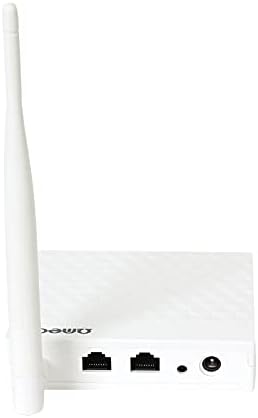
Whakaahua 2.2: Whakamuri view of the OMEGA OWLR151U Wi-Fi Router, highlighting the WAN port, LAN ports, and power input.
3. Tatūnga
3.1 Ihirangi mokete
- OMEGA OWLR151U Wi-Fi Router
- Pūurutau Hiko
- Tauira Itarangi
- Aratohu Tāutanga Tere (mēnā kei roto)
3.2 Hononga Miihini
- Hononga Hiko: Connect the provided power adapter to the router's power port and then plug it into an electrical outlet. Ensure the power LED on the router illuminates.
- Hononga WAN: Connect an Ethernet cable from your modem (or internet service provider's wall jack) to the WAN tauranga i runga i te pouara.
- LAN Connection (Optional): To connect a computer or other wired device, use an Ethernet cable to connect it to one of the LAN ports on the router.
3.3 Whirihoranga Tuatahi
- Atanga Pouara Uru: Tuwhera a web browser (e.g., Chrome, Firefox) on a computer or device connected to the router (either via Wi-Fi or Ethernet).
- Whakauruhia te Wāhitau IP: In the browser's address bar, type the router's default IP address (commonly
192.168.1.1or192.168.0.1). Refer to the label on the bottom of your router for the exact IP address and login credentials. - Takiuru: Tāuruhia te ingoa kaiwhakamahi me te kupuhipa taunoa (hei tauira,
admin/adminoradmin/password). - Whāia te Ruānuku Tatūnga: Once logged in, you will typically be guided through a Quick Setup Wizard. Follow the on-screen instructions to configure your internet connection and Wi-Fi settings (SSID and password).
- Tiaki Tautuhinga: After configuring, save your settings and restart the router if prompted.
4. Mahi
4.1 Hononga Pūrere
- Hononga Wi-Fi: On your wireless device (smartphone, tablet, laptop), search for available Wi-Fi networks. Select the SSID (network name) you configured during setup and enter the Wi-Fi password.
- Hononga Itarangi: For wired devices, simply connect an Ethernet cable from the device to any of the router's available LAN ports.
4.2 Te Uru Atu ki ngā Tautuhinga Pouara
To modify advanced settings, such as port forwarding, parental controls, or security options, access the router's web interface using the IP address and login credentials as described in Section 3.3.
5. Tiaki
5.1 Whakahoutanga Firmware
Tirohia te tuhinga mana a te kaihanga i ia wā website for available firmware updates. Firmware updates can improve performance, add new features, and enhance security. Follow the instructions provided by the manufacturer for the update process.
5.2 Tautuhi Tautuhi
If you encounter persistent issues or forget your login credentials, you can perform a factory reset. With the router powered on, use a paperclip or a thin object to press and hold the reset button (usually a small pinhole on the back or bottom) for approximately 5-10 seconds. The router will restart with its factory default settings.
5.3 Te horoi
Use a soft, dry cloth to clean the exterior of the router. Do not use liquid cleaners, aerosols, or solvents, as these can damage the device.
6. Te Raru
6.1 Kaore he Uru Ipurangi
- Taki Hononga: Ensure all cables (power, WAN, LAN) are securely connected.
- Tīmataria anō ngā Pūrere: Whakawetohia tō pouwhanga me tō pouara, tatari mō te 30 hēkona, kātahi ka whakakāhia te pouwhanga i te tuatahi. Kia tino hono te pouwhanga, whakakāhia te pouara.
- Verify WAN Settings: Takiuru ki te pouara web interface and check the WAN settings to ensure your internet connection type (e.g., DHCP, PPPoE) is correctly configured.
6.2 Wi-Fi Not Visible or Cannot Connect
- Wi-Fi Whakahohe: Confirm that the wireless function is enabled in the router's web atanga.
- Kupuhipa Tika: Takiruatia kei te whakauru koe i te kupuhipa Wi-Fi tika (he take-tairongo).
- Porearea Hongere: In the router settings, try changing the Wi-Fi channel to a less congested one (e.g., 1, 6, or 11).
6.3 Slow Connection Speed
- Tauranga Pouara: Position the router in a central location, away from obstructions and other electronic devices that may cause interference.
- Pūmanawa: Me mohio kei te hou tonu te firmware o to pouara.
- Ngā Pūrere Tūhono: Too many devices connected simultaneously can reduce speed. Consider limiting usage or upgrading your internet plan.
7. Whakatakotoranga
- Tauira: OWLR151U
- Paerewa Ahokore: IEEE 802.11n, compatible with 802.11 b/g
- Tere Ahokore: Tae atu ki te 150 Mbps
- Tae Auautanga: 2.4 GHz
- WAN Tauranga: 1 x 10/100 Mbps
- Hononga LAN: 4 x 10/100 Mbps
- Antenna: 1 x 5 dBi fixed antenna
- Kawa Haumarutanga: WEP (Note: WEP is an older security protocol. For enhanced network security, consider using WPA2 or WPA3 if supported by your devices and network.)
- Nga waahanga motuhake: Integrated Router, Wireless Access Point, 4-Port Switch, Firewall
- Ngā Pūrere Hototahi: Personal Computer, Tablet, Smart Television
- Pūnaha Mahi: RouterOS (as specified by manufacturer)
8. Nga Korero Whakaputanga
Information regarding the product warranty for the OMEGA OWLR151U Wi-Fi Router is not available in the provided details. Please refer to your purchase documentation, the product packaging, or contact the retailer where you purchased the device for specific warranty terms and conditions.
9. Tautoko
For technical assistance, troubleshooting beyond the scope of this manual, or further inquiries, please refer to the contact information provided with your purchase. Specific support contact details for Omega products are not available in the provided information. You may also visit the official Omega product support webpae mena kei te waatea.


