Pukapuka Kaiwhakamahi mō te Frontier Arris NVG 589
Model: NVG589
Kupu Whakataki
The Arris NVG589 is a versatile DSL Modem and Wireless Router designed to provide high-speed internet access and home networking capabilities. This device integrates modem, router, and voice capabilities into a single unit, supporting DSL connections, wireless networking (802.11a/b/g/n), and multiple Ethernet ports. It is equipped to handle various home networking needs, including data over coaxial (HPNA) and Voice over IP (VoIP) lines.
This manual provides detailed instructions for setting up, operating, and maintaining your NVG589 device, along with troubleshooting tips for common issues.
Nga korero haumaru
Please read all safety instructions before using this product. Failure to follow these instructions could result in injury or damage to the device.
- Kaua e tukuna te taputapu ki te wai, ki te makuku ranei.
- Kaua e waiho te taputapu ki te tata ki nga puna wera penei i nga radiators, rehita wera, umu, me etahi atu taputapu (tae atu ki ampkaiwhakaora) e whakaputa ana i te wera.
- Whakamahia te urutau hiko anake me te taputapu.
- Me whakarite kia tika te hau; kaua e aukati i nga whakatuwheratanga hau.
- This device may include a backup battery slot (battery not included). Maintaining the battery is the customer's responsibility. Failure to replace a worn-out battery may lead to a loss of voice service during power outages and may damage the device. For replacement battery specifications and disposal information, contact ARRIS support.
- Ko tenei hua te tikanga mo te whakamahi o roto anake.
Legal Disclaimer: This device is in good working condition but may require specific configuration or compatibility adjustments for certain telecommunication systems. The seller cannot guarantee universal compatibility with all telco systems.
Ihirangi mokete
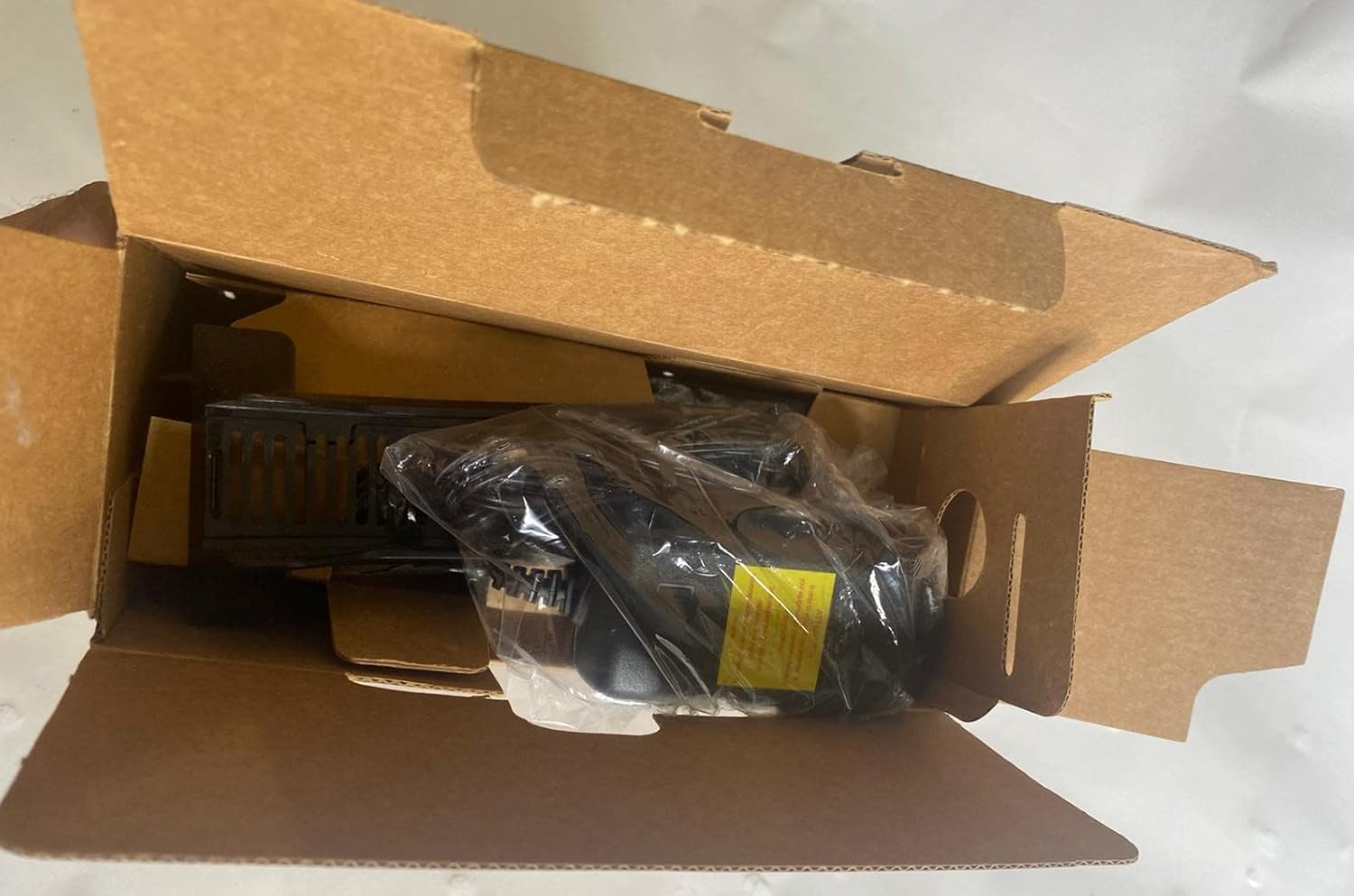
Manatokona kei roto katoa nga taonga ki to kete:
- Arris NVG589 DSL Modem/Wireless Router
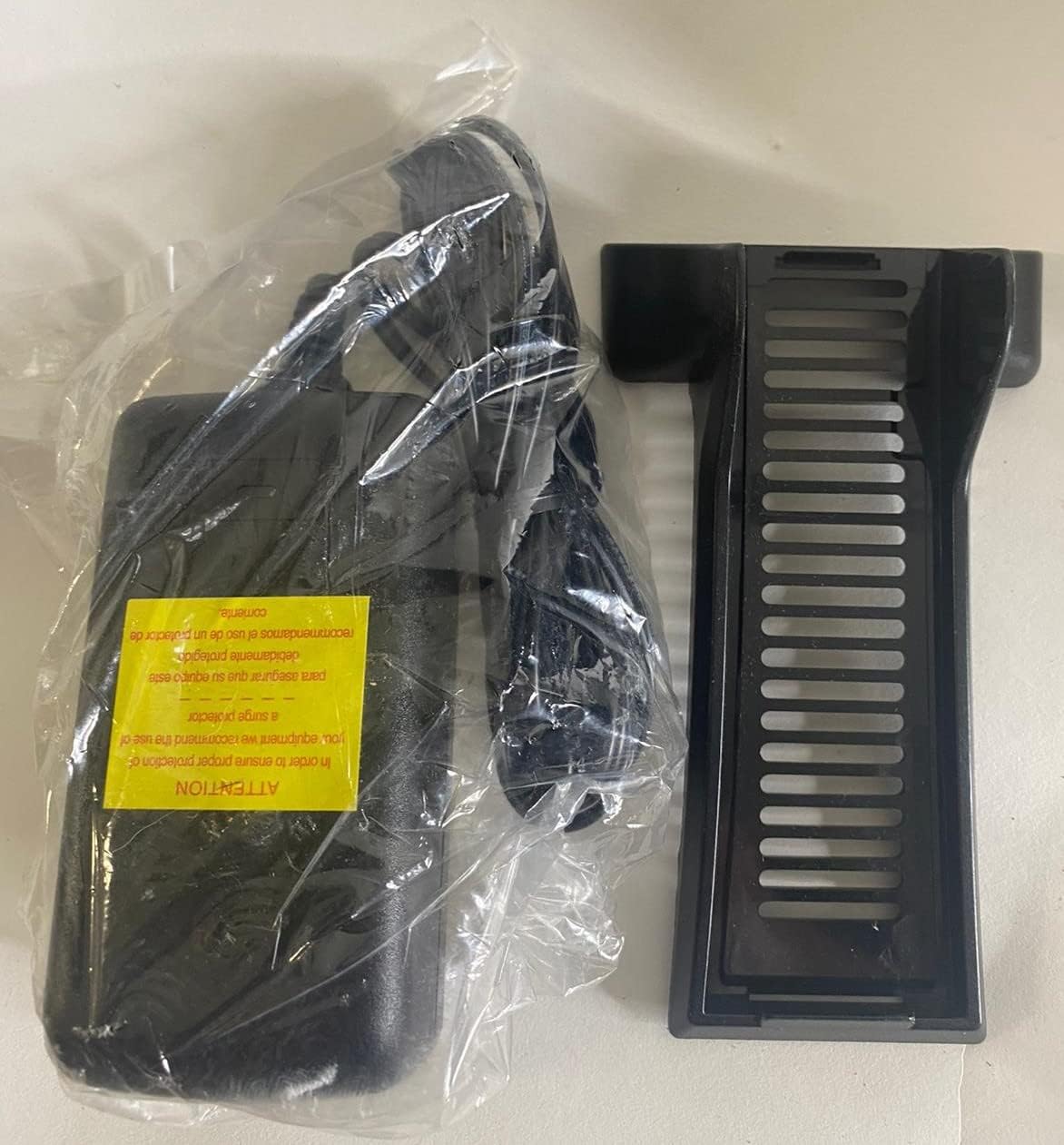
- Pūurutau Hiko
- Tauira Itarangi
- RJ11 Cable (for DSL connection)
- Vertical Stand (optional, for upright placement)

Image: Contents of the Arris NVG589 package, showing the modem, power adapter, and included cables.

Image: The power adapter and the optional vertical stand for the Arris NVG589.
Ka mutu te huaview
Familiarize yourself with the various components and indicators of your Arris NVG589.
Tohu Paewhiri o mua
Whakaahua: Taha view of the Arris NVG589, highlighting the status indicator lights.
- Mana: Ka tohu i te mana mana o te taputapu.
- Pūhiko: (If battery installed) Indicates battery status (charging, low, etc.).
- Itarangi: E tohu ana i te ngohe i runga i ngā tauranga LAN Ethernet.
- Ahokore: E tohu ana i te tūnga o te whatunga Wi-Fi.
- HomePNA: Indicates activity on the HomePNA (coaxial) port.
- Broadband 1 & 2: Indicate the status of the DSL broadband connection(s).
- Ratonga: Indicates the status of the internet service connection.
- Phone 1 & 2: Indicate the status of the VoIP phone lines.
- USB: Indicates activity on the USB port.
Tauranga Paewhiri Whakamuri
Whakaahua: Rear view of the Arris NVG589, displaying all connectivity ports.
- Mana: Ka hono ki te urutau hiko.
- Tautuhi: Small button to reset the device (use a paperclip).
- Phone Lines (1 & 2): RJ-11 ports for connecting analog telephones for VoIP service.
- Raina taura: F-connector for HomePNA (coaxial) data devices.
- Ethernet (1-4): RJ-45 ports for connecting wired devices (computers, gaming consoles, etc.).
- DSL: RJ-11 port for connecting to the DSL line from your wall jack.
- USB: USB port for future use or connecting compatible devices.
- ONT: Optical Network Terminal port (typically for fiber connections, may not be used for DSL).
Paepae Raro

Whakaahua: Raro view of the Arris NVG589, displaying product information and warnings.
The bottom panel contains important information such as the default Wi-Fi Network Name (SSID), Wi-Fi Password, and Device Access Code. It also includes a warning regarding the optional backup battery.
Aratohu Tatūnga
Follow these steps to set up your Arris NVG589 modem/router:
- Whakaturia te Pūrere: Place the NVG589 in a central location in your home, away from obstructions and heat sources, to ensure optimal Wi-Fi coverage.
- Honoa te Raina DSL: Connect one end of the RJ11 cable (phone cable) to the DSL port on the rear of the NVG589 and the other end to your wall's DSL jack.
- Hono Hono: Plug the power adapter into the Power port on the rear of the NVG589, then plug the other end into an electrical outlet. The Power indicator on the front panel should light up.
- Taria mō te Whakatinanatanga: Allow several minutes for the device to power on and establish a connection. The Broadband 1, Broadband 2, and Service indicators should eventually turn solid green, indicating a successful internet connection.
- Tūhono Pūrere Waea (Kōwhiringa): For wired connections, connect an Ethernet cable from one of the yellow Ethernet ports (1-4) on the rear of the NVG589 to the Ethernet port on your computer or other network device.
- Connect Wireless Devices: On your wireless device (smartphone, laptop, tablet), search for available Wi-Fi networks. Select the network name (SSID) found on the bottom label of your NVG589. Enter the Wi-Fi Password (also on the bottom label) when prompted.
- Connect Phone Lines (Optional): If you have VoIP service, connect your analog telephone(s) to the Phone Lines 1 & 2 ports using standard phone cables.
Mahi
Once your Arris NVG589 is set up, it will automatically manage your internet connection and local network. Here are some basic operational aspects:
- Uru Ipurangi: The device provides internet access to all connected wired and wireless devices.
- Whatunga Wi-Fi: The NVG589 broadcasts a Wi-Fi network. You can find the default network name (SSID) and password on the label on the bottom of the device. For security, it is recommended to change the default Wi-Fi password via the device's web atanga.
- VoIP Service: If configured, the device supports two VoIP lines for phone service.
- Web Atanga: You can access the modem's configuration settings by typing its IP address (usually 192.168.1.254) into a web browser. You will need the Device Access Code from the bottom label to log in.
Te tiaki
Regular maintenance helps ensure the longevity and optimal performance of your NVG589.
- Te horoi: Dust the device regularly with a soft, dry cloth. Do not use liquid cleaners or aerosols.
- Whakahau: Me whakarite kia kaua e purua nga kohao hau. Ko te rere o te hau tika ka aukati i te wera.
- Whakahōu Firmware: Tirohia i ia wa i te kaihanga website for firmware updates. Firmware updates can improve performance, add features, and fix bugs.
- Tīmata Anō: If you experience slow performance or connectivity issues, try restarting the device by unplugging the power cord for 10 seconds and then plugging it back in.
Raparongoā
Anei nga otinga mo nga take noa ka pa ki a koe:
| Raruraru | Take pea | Rongoā |
|---|---|---|
| Kāore he Rama Tohu Hiko | Ko te urutau hiko kaore i te hono, kei te he te putanga. | Me whakarite kia mau te mono o te urutau hiko ki te pūrere me te putanga hiko e mahi ana. Whakamātauria tētahi atu putanga. |
| Broadband/Service Lights Not Solid Green | DSL line not connected, service issue, or modem not synced. | Check RJ11 cable connection to DSL port and wall jack. Restart the modem. If issue persists, contact your internet service provider. |
| No Internet Access (Wired) | Ethernet cable loose, network adapter issue, or modem not providing internet. | Ensure Ethernet cable is securely connected to both the modem and your device. Check modem's internet status lights. Restart both modem and computer. |
| No Internet Access (Wireless) | Kupuhipa Wi-Fi hē, Wi-Fi kua monokia, tohu pokanoa ranei. | Verify Wi-Fi password. Check if Wireless indicator is on. Move closer to the modem. Restart the modem. |
| Kāore te Ratonga Waea e Mahi Ana | Phone cable loose, VoIP service not active, or modem issue. | Ensure phone cables are securely connected to the Phone Lines ports. Check Phone 1/2 indicators. Restart the modem. Contact your service provider if VoIP service is not active. |
| Tere Ipurangi Puhoi | Network congestion, Wi-Fi interference, or service plan limitations. | Reduce number of active devices. Optimize Wi-Fi channel. Consider upgrading your internet plan. Restart the modem. |
Whakatakotoranga Hangarau
| Āhuahira | Whakatakotoranga |
|---|---|
| Ingoa Tauira | Arris NVG589 |
| Momo Ahokore | 802.11a/b/g/n |
| Karaehe Band Auautanga | Takitahi-Band |
| Hangarau Hononga | Ethernet, USB, HPNA, WiFi, Optical Network Port |
| Taumaha Tūemi | 1.8 pauna |
| Rahi Hua (LxWxH) | 10.2 x 7.7 x 3.5 inihi |
| Tae | Pango |
| Voltage | 12 Volts |
| Pūnaha Mahi | Arris proprietary firmware |
| Nga Waahanga kei roto | Ethernet cable, RJ11 cable, power cord |
Pūtāhui me te Tautoko
This Arris NVG589 device typically comes with a limited manufacturer's warranty. Please refer to the original purchase documentation or contact your service provider for specific warranty terms and conditions.
For technical support, troubleshooting assistance beyond this manual, or warranty claims, please contact your internet service provider or visit the official ARRIS support website. You can often find additional resources, FAQs, and contact information on their support pages.
Tautoko ARRIS: www.arris.com/consumer


