Kupu Whakataki
This manual provides comprehensive instructions for the operation and maintenance of your ONN X5 HiFi Music Player. Please read this manual thoroughly before using the device to ensure proper functionality and to maximize your listening experience. The ONN X5 is designed to deliver high-fidelity audio playback in a compact and user-friendly format.
Ka mutu te huaview
The ONN X5 is a portable HiFi music player featuring a 2.0-inch TFT screen and an aluminum alloy shell. It supports a wide range of audio formats, including lossless files, and offers expandable storage via a MicroSD card.
Āhuatanga matua:
- Ororongo Pono-Teitei: Supports WAV, FLAC, ALAC, APE, OGG lossless formats, and high-definition music up to 24Bit/192 KHz.
- Whakaatu: 2.0-inch TFT screen (176x220 pixels) for clear navigation and information display.
- Rokiroki: 8GB internal memory, expandable up to 32GB with a MicroSD/TF card.
- Hoahoa Roa: Lightweight aluminum alloy body (60g) for enhanced durability and reduced external interference noise.
- Atanga Kaiwhakamahi: Intuitive key-based operation.
- Ētahi atu āhuatanga: FM Radio support.
- Pūhiko: High-capacity rechargeable lithium polymer battery.
- Tautoko Reo-maha: English, Russian, Korean, German, Japanese, Polish, Indonesian, Chinese.
Tahora Pūrere:

Whakaahua: Mua view of the ONN X5 HiFi Music Player, showing its display and control buttons. The screen displays track information, audio quality (e.g., 24BIT, 88HHZ), and playback status.

Whakaahua: Taha view of the ONN X5 HiFi Music Player, illustrating the location of the MicroSD card slot on the right side of the device.

Whakaahua: Mua me muri view of the ONN X5 HiFi Music Player. The back panel shows the model number "X5" and branding information.
Tatūnga
1. Te Whakataki i te Pūrere:
- Connect the ONN X5 to a power source using the provided USB cable.
- Ko te tohu o te pākahiko kei runga i te mata ka whakaatu te mana utu.
- A full charge is recommended before first use. The device uses a high-capacity rechargeable lithium polymer battery.
2. Inserting a MicroSD/TF Card:
- Locate the MicroSD/TF card slot on the side of the player.
- Gently insert a compatible MicroSD/TF card (up to 32GB) into the slot until it clicks into place.
- Ensure the card is inserted correctly to avoid damage.

Image: Contents of the ONN X5 package, showing the player, USB charging cable, and other accessories. This illustrates the components available for setup.
3. Te Whakawhiti Puoro Files:
- Connect the ONN X5 to your computer using the USB cable.
- The device will appear as a removable storage drive.
- Tōia me te maturuturu te oro e hiahiatia ana files (MP3, WMA, APE, FLAC, WAV, ALAC, OGG) into the player's internal storage or the MicroSD card.
- Tangohia marietia te pūrere i tō rorohiko i mua i te momotu i te taura USB.
Nga Tohutohu Whakahaere
Hiko Whakaka/Weto:
- To power on, press and hold the power button (usually marked with a universal power symbol) until the screen illuminates.
- Hei whakaweto, pehia me te pupuri i te paatene hiko kia mutu ra ano te taputapu.
Whakaterenga:
The ONN X5 uses physical buttons for navigation. Refer to the device layout for button identification.
- VOL: Te whakatika i te rahinga.
- M (Tahua): Accesses menus and confirms selections.
- Ngā Pātene Pere (< / >): Navigate through menus, select tracks, or fast forward/rewind during playback.
- Pātene Hiko: Also functions as a play/pause button during music playback.
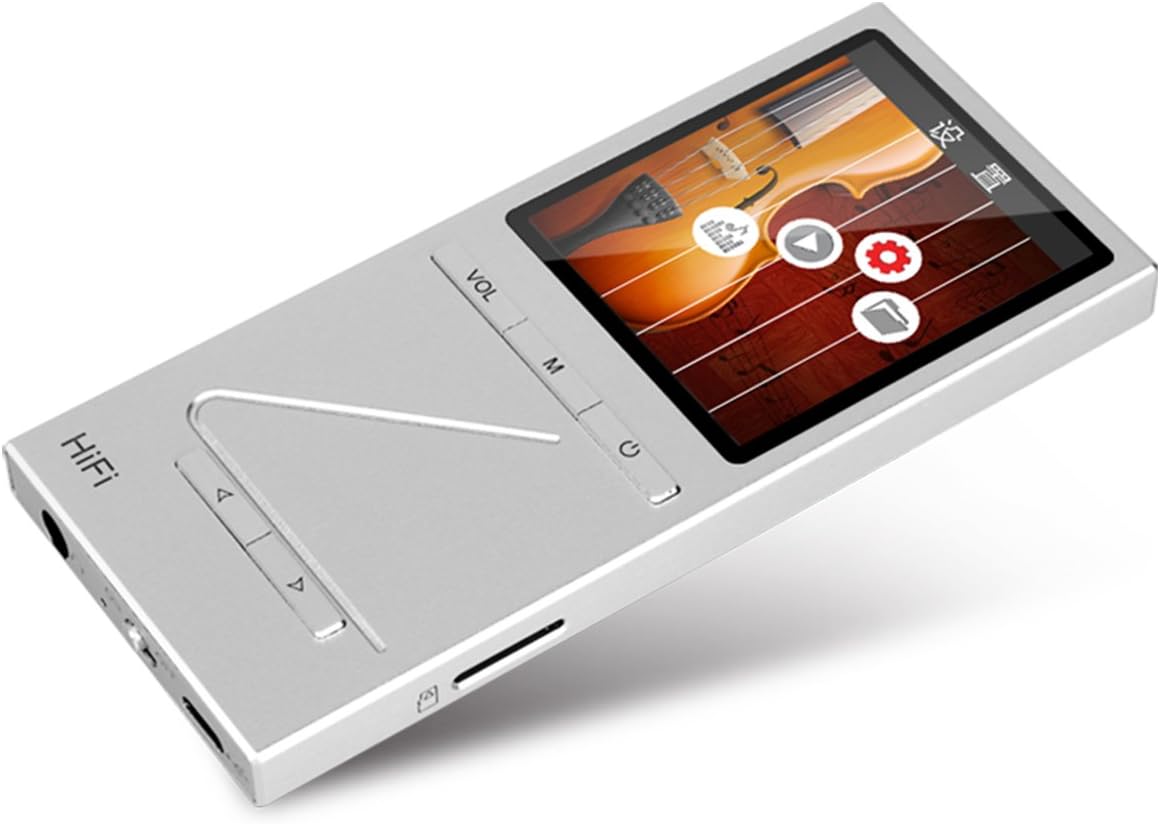
Whakaahua: Koki view of the ONN X5 HiFi Music Player, showing the screen with various menu icons, indicating the user interface for navigation.
Whakahoki Waiata:
- From the main menu, navigate to "Music" or "Files".
- Browse through your folders and select a track to play.
- Press the Power/Play button to start or pause playback.
- Use the arrow buttons to skip tracks or fast forward/rewind.
- Adjust volume using the VOL button.
Radio Irirangi:
- Navigate to the "FM Radio" option from the main menu.
- Whakamahia nga paatene whakatere ki te matawai mo nga teihana, ki te whakatangi-a-ringa ranei ki te auau.
- Ensure headphones are connected as they often act as the antenna for FM radio.
Tautuhinga Reo:
The device supports multiple languages. To change the language:
- Go to "Settings" from the main menu.
- Select "Language" and choose your preferred language from the list (English, Russian, Korean, German, Japanese, Polish, Indonesian, Chinese).
Te tiaki
- Te horoi: Whakamahia he kakahu maeneene, maroke hei horoi i te taputapu. A ape i nga kai horoi wai, i nga taonga abrasive ranei.
- Rokiroki: Whakaorangia te kaitakaro ki tetahi waahi makariri, maroke atu i te ra tika me te wera nui.
- Tiaki Pūhiko: Hei whakaroa i te ora o te pākahiko, karohia te tuku katoa i te pākahiko. Me utu te taputapu i nga wa katoa, ahakoa kaore i te whakamahia mo nga wa roa.
- Aukati i te Paanga: The aluminum alloy shell provides durability, but avoid dropping the device or subjecting it to strong impacts.
- Puranga wai: Ehara tenei taputapu i te parewai. A ape i te pa ki te wai, te makuku nui ranei.
Raparongoā
Device Will Not Power On:
- Me whakarite kia utua te pākahiko. Honoa te pūrere ki tētahi pūtake hiko, ā, tukua kia utua mō te 30 meneti pea i mua i te ngana ki te whakakā anō.
- Try performing a hard reset (if applicable, refer to manufacturer's specific instructions for hard reset, usually involves holding power button for an extended period).
Kore Oro:
- Tirohia te taumata oro, kia mōhio ai kāore i te wahangu.
- Verify that headphones or external speakers are properly connected.
- Test with different headphones or audio output devices.
- Me whakarite te ororongo file is not corrupted or in an unsupported format.
Kāore e taea te whakawhiti Files:
- Ensure the USB cable is securely connected to both the player and the computer.
- Try a different USB port on your computer or a different USB cable.
- Verify that the device is recognized by your computer as a removable drive.
- Check if the MicroSD card is properly inserted and not full.
Kāore te Mata e Urupare / Kua Whakatio:
- Press and hold the power button for approximately 10-15 seconds to force a restart.
- If the issue persists, ensure the battery is charged.
Whakatakotoranga
| Āhuahira | Taipitopito |
|---|---|
| Tau tauira | X5 |
| Waitohu | ONN |
| Rahi Mata | 2.0 Inches TFT (176x220 PIXEL) |
| Mahara o roto | 8 GB |
| Rokiroki Whakawhanui | MicroSD/TF card up to 32 GB |
| Ngā Hōputu Ororongo Tautokohia | APE, FLAC, ALAC, WAV, WMA, OGG, MP3 (up to 24Bit/192 KHz) |
| Hangarau Hononga | Aux, USB |
| Āhuahira Motuhake | Irirangi FM |
| Pūhiko | 1 Lithium Ion battery required (High-capacity rechargeable lithium polymer) |
| Taumaha Tūemi | 7 hekere (tata ki te 0.2 Kirokaramu) |
| Ahu mōkihi | 6.21 x 4.7 x 1.2 inihi |
| Kaihanga | SZTZWY |
Pūtāhui me te Tautoko
For detailed warranty information, please refer to the warranty card included with your purchase or visit the official ONN product support website. For technical assistance or further inquiries, please contact ONN customer support through their official channels.


