1. Kupu Whakataki
The Monoprice USB 3.0 to SATA Converter Adapter (Model 114597) provides a convenient solution for connecting various SATA drives to a computer via a USB port. This adapter facilitates data transfer and access for 2.5-inch SATA hard drives (HDD) and solid-state drives (SSD), 3.5-inch SATA HDDs, and 5.25-inch optical drives (CD-ROM, DVD-RW, Blu-ray DVD).
This manual provides instructions for the proper setup, operation, and maintenance of your Monoprice USB 3.0 to SATA Converter Adapter.
2. Nga Hua o te Hua
- Supports USB 3.0 speeds up to 5 Gbps for fast data transfer.
- Enables easy and quick access to external storage devices.
- No external power required for 2.5-inch HDDs/SSDs.
- Includes a 12 VDC power adapter for 3.5-inch HDDs/SSDs and 5.25-inch optical drives.
- Compatible with 2.5"/3.5" SATA HDD/SSD, BLU-RAY DVD, CD-ROM, DVD-ROM, CD-RW, DVD-RW, and DVD+RW combo devices.
3. Ihirangi mokete
Tena koa tirohia kei roto i to kete nga mea e whai ake nei:
- Monoprice USB 3.0 to SATA Converter Adapter (Model 114597)
- 12 VDC Power Adapter (for 3.5" drives and 5.25" optical drives)

Image: Monoprice USB 3.0 to SATA Converter Adapter with its 12VDC power adapter.
4. Tohutohu Tatūnga
4.1. Connecting a 2.5-inch SATA HDD/SSD
For 2.5-inch SATA hard drives or solid-state drives, no external power adapter is required as the device is bus-powered via USB.
- Connect the SATA connector of the adapter to the 2.5-inch SATA drive. Ensure a firm connection.
- Connect the USB 3.0 connector of the adapter to an available USB port on your computer. For optimal performance, use a USB 3.0 port.
- The drive should be recognized by your operating system.
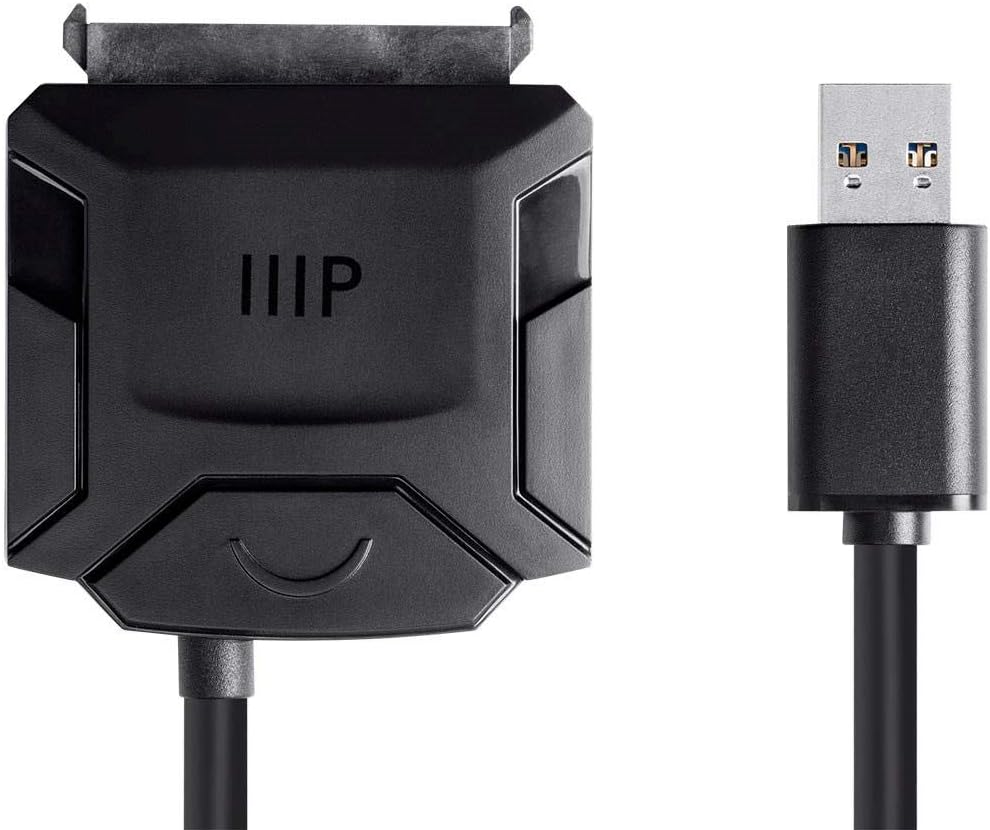
Whakaahua: Kati-ake view of the adapter's SATA and USB connectors.
4.2. Connecting a 3.5-inch SATA HDD/SSD or 5.25-inch Optical Drive
For 3.5-inch SATA hard drives/SSDs or 5.25-inch optical drives, the included 12 VDC power adapter is required.
- Connect the SATA connector of the adapter to the 3.5-inch SATA drive or 5.25-inch optical drive. Ensure a firm connection.
- Connect the 12 VDC power adapter to the adapter's power input port.
- Plug the 12 VDC power adapter into a standard power outlet.
- Connect the USB 3.0 connector of the adapter to an available USB port on your computer. For optimal performance, use a USB 3.0 port.
- The drive should be recognized by your operating system.

Whakaahua: Runga view of the Monoprice USB 3.0 to SATA Converter Adapter.
5. Nga Tohutohu Whakahaere
Once the adapter and drive are properly connected, your computer's operating system should automatically detect the drive. It will appear as a removable storage device, similar to an external hard drive or USB flash drive.
- Te Uru Raraunga: You can access, transfer, and manage files on the connected drive using your computer's file explorer (e.g., File Explorer on Windows, Finder on macOS).
- New Drives: If connecting a brand new drive, it may need to be initialized and formatted before it can be used. Refer to your operating system's documentation for instructions on disk management.
- Tango Haumaru: Always safely eject the drive from your operating system before physically disconnecting the adapter or the drive. This prevents potential data corruption or loss.
6. Tiaki
To ensure the longevity and proper functioning of your Monoprice USB 3.0 to SATA Converter Adapter, follow these maintenance guidelines:
- Kia ma te urutau kia kore e pehu. Whakamahia he kakahu ngohengohe, maroke mo te horoi.
- Store the adapter in a dry environment, away from direct sunlight and extreme temperatures.
- Āta karohia te whakapiko, te kume rānei i ngā taura, nā te mea ka kino pea ngā waea o roto.
- Do not expose the adapter to liquids or high humidity.
7. Te Raru
7.1. Kaore i te Mohiotia te Puku
- Ensure all connections (SATA, USB, and power adapter if applicable) are secure and fully inserted.
- For 3.5-inch drives or optical drives, confirm the 12 VDC power adapter is correctly connected to the adapter and plugged into a working power outlet.
- Ngāna ki te hono i te urutau ki tētahi atu tauranga USB i tō rorohiko.
- Test the adapter with a different SATA drive, or test the drive with a different adapter/enclosure to determine if the issue lies with the adapter or the drive.
- Check your computer's Disk Management (Windows) or Disk Utility (macOS) to see if the drive is detected but unformatted or unallocated.
7.2. Ngā Tere Whakawhiti Pōturi
- Ensure the adapter is connected to a USB 3.0 port on your computer for optimal speeds. USB 2.0 ports will operate at slower speeds.
- Verify that the connected drive itself supports USB 3.0 speeds.
- Close other applications that might be consuming significant system resources or disk I/O.
7.3. Power Issues with Optical Drives (e.g., Blu-ray)
- Some Blu-ray drives may require more power than this adapter can supply, even with the included 12 VDC power adapter. If you experience instability, read errors, or the drive repeatedly cycles on/off, consider an alternative power source or a different adapter designed for higher power optical drives.
8. Whakatakotoranga
| Waitohu | Monoprice |
| Tau tauira | 114597 |
| Connector Type (Host) | USB 3.0 |
| Connector Type (Device) | SATA (Data & Power) |
| Momo Tauera | USB |
| Pūrere Hototahi | 2.5" / 3.5" SATA HDD/SSD, 5.25" Optical Drives (CD-ROM, DVD-RW, Blu-ray DVD) |
| Tere Whakawhiti Raraunga | Tae atu ki te 5 Gbps (USB 3.0) |
| Whakauru Mana | USB bus-powered for 2.5" drives; 12 VDC power adapter for 3.5" drives and 5.25" optical drives |
| Rahi Hua (L x W x H) | 14.73 x 13.97 x 6.35 cm |
| Tae | Mā |
9. Pūtāhui me te Tautoko
For detailed warranty information, technical support, or to register your product, please visit the official Monoprice webpaetukutuku, whakapā atu ranei ki te ratonga kaihoko Monoprice tika. Puritia to riirii hoko mo nga kereme whakamana.


