Kupu Whakataki
This manual provides detailed instructions for the setup, operation, and maintenance of your Thrustmaster T16000M FCS HOTAS (Hands On Throttle And Stick) flight control system. The system includes the T.16000M FCS flight stick, featuring H.e.A.R.T magnetic precision technology, and the TWCS (Thrustmaster Weapon Control System) throttle, featuring S.M.A.R.T technology. This system is designed for use with PC platforms running Windows 10, 8, 7, and Vista (32-bit and 64-bit).
Ka mutu te huaview
The Thrustmaster T16000M FCS HOTAS system is comprised of two main components: the T.16000M FCS Joystick and the TWCS Throttle. Each component offers a range of controls for precise flight simulation.
T.16000M FCS Joystick
The joystick features advanced precision with 3D (Hall Effect) magnetic sensors, ensuring accurate control. It includes a total of 16 action buttons and 4 independent axes.
- Tika: H.e.A.R.T (Hall Effect Accurate Technology) magnetic sensors for enhanced accuracy.
- Axes: 4 independent axes, including a twist rudder controlled by rotating the stick.
- Pātene: 16 action buttons with braille-style physical identification.
- POV Hat: One 8-way Point of View (POV) hat switch.

Whakaahua 1: Mua view of the Thrustmaster T16000M FCS HOTAS system, showing both the joystick and the throttle unit.
TWCS Throttle
The TWCS throttle unit provides comprehensive control over engine power and other aircraft functions, utilizing S.M.A.R.T (Sliding Motion Advanced Rail Tracks) technology for smooth and precise movement.
- Hangarau: S.M.A.R.T technology for smooth sliding motion.
- Pātene: 14 action buttons, including two 4-way switches, 3 standard buttons, one 2-position slider, and one push mini-stick.
- POV Hat: One 8-way Point of View (POV) hat switch.
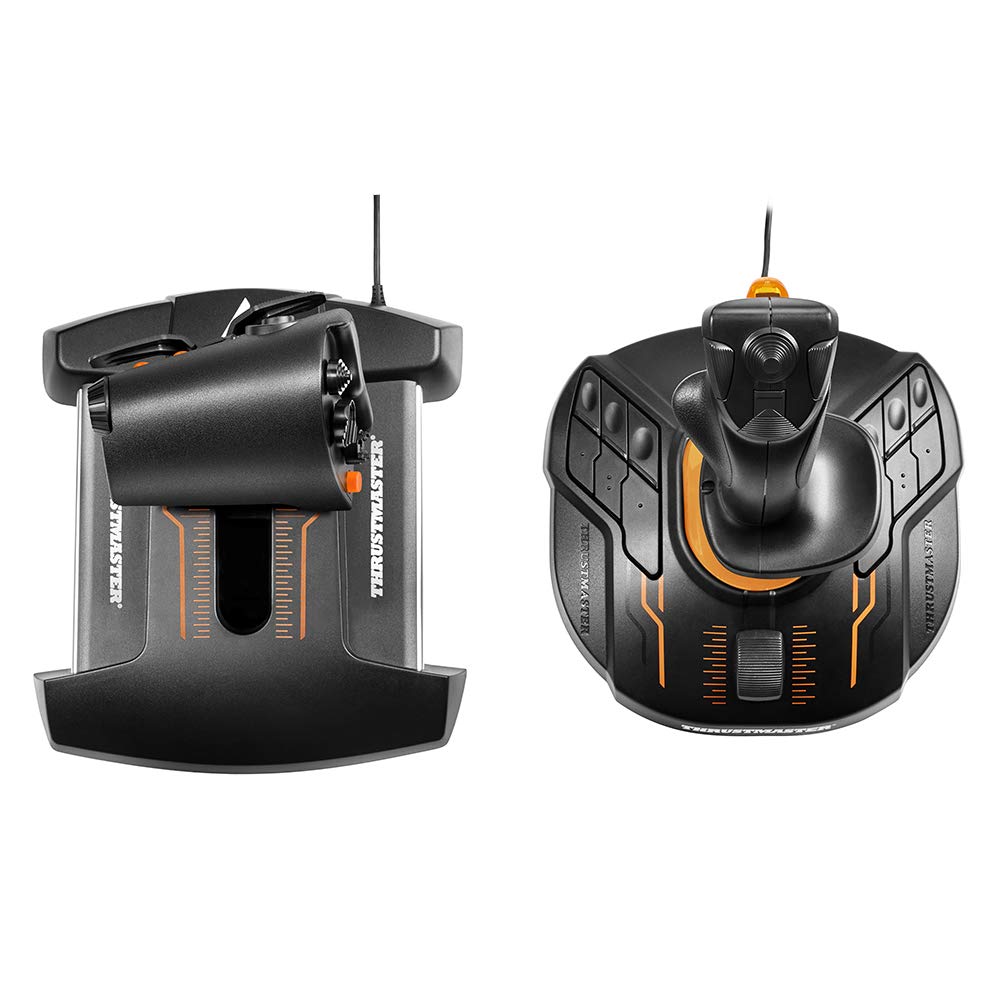
Whakaahua 2: Runga-raro view of the Thrustmaster T16000M FCS HOTAS, illustrating the layout of controls on both the joystick and throttle.
Tatūnga
Follow these steps to set up your Thrustmaster T16000M FCS HOTAS system.
- Whakaritenga Pūnaha: Ensure your PC runs Windows 10, 8, 7, or Vista (32-bit or 64-bit).
- Tāuta Atekōkiri: Before connecting the devices, download and install the latest drivers and software from the official Thrustmaster support webpae. Mā tēnei ka tino pai te mahi me te urunga atu ki ngā āhuatanga katoa.
- Connect Joystick: Plug the USB cable from the T.16000M FCS Joystick into an available USB port on your PC.
- Hononga Ārai: Plug the USB cable from the TWCS Throttle into an available USB port on your PC.
- Āhukahuka Pūnaha: Your operating system should automatically detect and configure the devices. Verify successful installation through your PC's Device Manager.
- Whirihoranga Pūmanawa: Launch the Thrustmaster TARGET software (if installed) to customize button mappings, axis sensitivities, and create profiles for specific games.
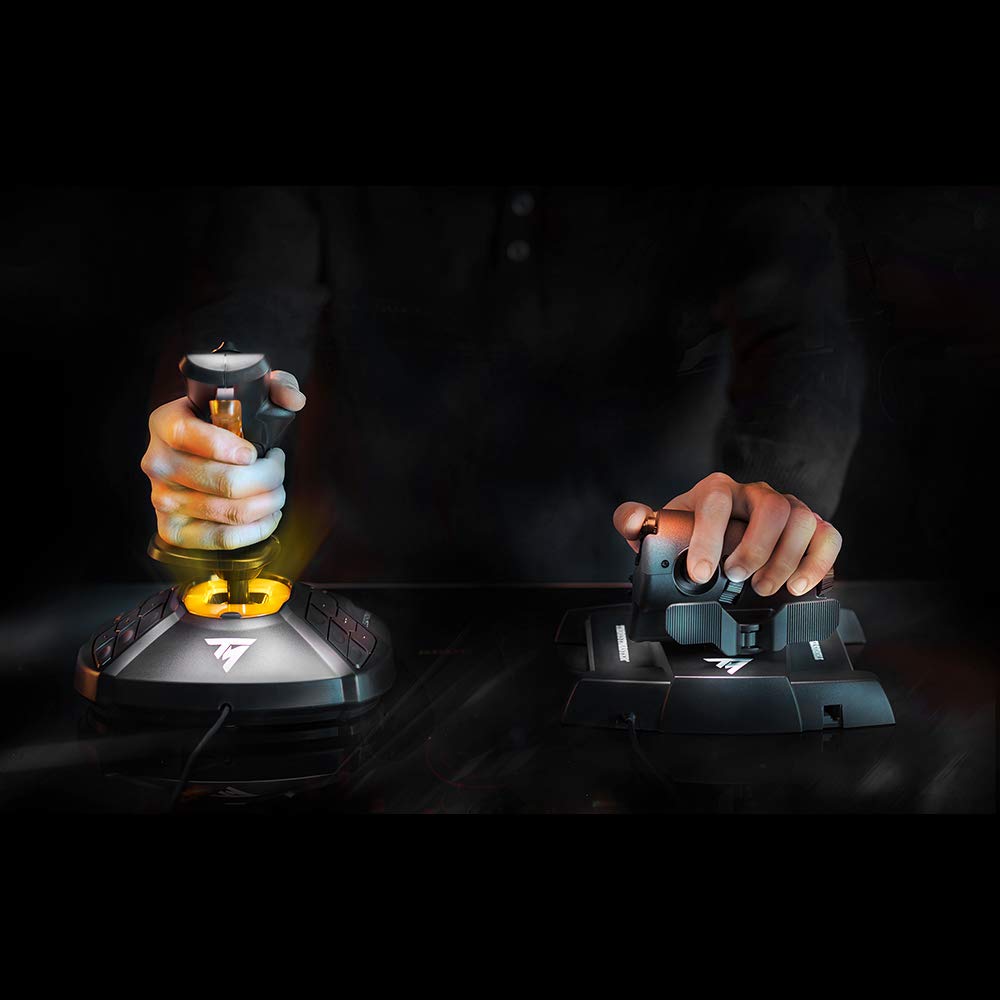
Figure 3: A user's hand on the T.16000M FCS Joystick, demonstrating typical grip during setup or operation.
Nga Tohutohu Whakahaere
This section outlines the basic operation of the T16000M FCS HOTAS components.
Te Mahi Joystick
- Pitch & Roll: Move the joystick forward/backward for pitch control and left/right for roll control.
- Yaw (Rudder): Twist the joystick handle left or right to control the yaw axis (rudder).
- Keu: The primary trigger on the front of the stick is typically used for firing weapons.
- Pātene: Utilize the 16 programmable action buttons for various in-game functions such as gear, flaps, targeting, etc.
- POV Hat: The 8-way POV hat switch is commonly used for camera views or quick menu navigation.
Mahi Katere
- Mana pana: Slide the main throttle lever forward and backward to adjust engine thrust. The S.M.A.R.T technology ensures smooth and precise movement.
- Mini-Stick: The push mini-stick on the throttle can be used for precise camera control or strafing in space simulations.
- Switches & Buttons: The 14 action buttons, including 4-way switches and a slider, can be assigned to functions like speed brakes, landing gear, weapon selection, or communication.

Figure 4: A user's hand on the TWCS Throttle, demonstrating the ergonomic design and accessible controls.
Te tiaki
Proper maintenance ensures the longevity and optimal performance of your flight control system.
- Te horoi: Use a soft, dry cloth to clean the surfaces of the joystick and throttle. Avoid abrasive cleaners or solvents.
- Parenga puehu: When not in use, cover the devices to prevent dust accumulation, especially in the throttle's sliding mechanism.
- Whakaha Uepu: Avoid sharp bends or excessive tension on the USB cables to prevent damage.
- Rokiroki: Whakaorangia nga taputapu ki te waahi makariri, maroke atu i te ra tika me te wera nui.
Raparongoā
If you encounter issues with your Thrustmaster T16000M FCS HOTAS, refer to the following common solutions.
- Pūrere Kaore i te Mohiotia:
- Ensure USB cables are securely connected to both the devices and the PC.
- Ngana ki tetahi atu tauranga USB.
- Reinstall the latest drivers from the Thrustmaster support webpae.
- Tīmataria anō tō PC.
- Buttons/Axes Not Responding:
- Check in your game's control settings if the buttons/axes are correctly mapped.
- Calibrate the devices through Windows Game Controller settings or Thrustmaster's TARGET software.
- Ensure no other conflicting input devices are connected.
- Throttle Movement Not Smooth:
- Dust or debris might be in the sliding mechanism. Gently clean the throttle track.
- Consider applying a small amount of non-conductive, plastic-safe lubricant (e.g., Nyogel 767A) to the rails if the issue persists and you are comfortable with advanced maintenance.
Whakatakotoranga
| Tau tauira | 2960778 |
| Hunga Hua | 10.71 x 9.02 x 10.39 inihi |
| Taumaha Tūemi | 4.84 pauna |
| Hototahi | PC (Windows 10, 8, 7, Vista - 32-bit and 64-bit) |
| Kaihanga | Kaiwhakahaere Matua VG |
| Te Ra Tuatahi Wātea | Pipiri 19, 2016 |
| Te Ra Whakaputa | Oketopa 10, 2016 |
Pūtāhui me te Tautoko
For warranty information, technical support, and additional resources, please visit the official Thrustmaster support website. You can find drivers, firmware updates, and FAQs there.
Tuhipoka: Ka rereke pea nga kupu whakamana mo ia rohe me te kaihokohoko. Tena koa pupuri i to tohu hoko.


