Kupu Whakataki
Welcome to the iRobot Roomba 960 Robot Vacuum Cleaner User Manual. This guide provides essential information for setting up, operating, and maintaining your Roomba 960 to ensure optimal performance and a clean home. Please read this manual thoroughly before using your robot.
Ka mutu te huaview
The Roomba 960 is designed to provide a thorough clean of your home with advanced navigation and powerful suction. It features a comprehensive cleaning system that adapts to different floor types and navigates around obstacles.
Nga waahanga matua
- 5x Suction Power: Delivers powerful suction for deep cleaning.
- Tangle-Free Rubber Brushes: Dual multi-surface rubber brushes prevent hair tangles, ideal for pet owners.
- Hangarau Kimi Paru: Identifies and focuses on dirtier areas for a more concentrated clean.
- vSLAM Navigation: Maps your home to navigate in neat, efficient rows, ensuring complete coverage.
- Hononga Wi-Fi me te Mana Taupānga: Control your robot from anywhere using the iRobot HOME App.
- Hototahitanga Kaiawhina Reo: Works with Google Assistant and Alexa for hands-free cleaning.
- Automatic Recharge & Resume: Returns to its Home Base to recharge and then resumes cleaning until the job is done.
Waehanga

The Roomba 960 robot vacuum cleaner shown from the top, alongside a smartphone displaying the iRobot HOME app interface.

The Roomba 960 robot, its Home Base charging station, and the power cord, illustrating the complete package.

He taha ki raro view of the Roomba 960, highlighting the dual multi-surface rubber brushes, side brush, and the transparent dustbin.

The Roomba 960 positioned near a Virtual Wall Dual Barrier, demonstrating its ability to create invisible boundaries.
Tatūnga
1. Place the Home Base
Select a location for the Home Base that is on a hard, level surface against a wall, with at least 0.5 meters (1.5 feet) of clear space on each side and 1.2 meters (4 feet) in front. Ensure there are no obstacles blocking the robot's path to the Home Base.
2. Akona te Patahiko
Plug the Home Base into a power outlet. Place your Roomba onto the Home Base, ensuring the metal charging contacts on the robot align with those on the Home Base. The battery indicator will pulse amber while charging and turn solid green when fully charged.
3. Connect to Wi-Fi and iRobot HOME App
Download the iRobot HOME App from your device's app store. Follow the in-app instructions to connect your Roomba to your home Wi-Fi network. The app allows you to control your robot, schedule cleanings, and access additional features.

A person interacting with the iRobot HOME app on their smartphone, demonstrating remote control capabilities for the Roomba.

The iRobot HOME app displaying a 'Fully Charged' status for the Roomba, indicating readiness for a cleaning cycle.
Nga Tohutohu Whakahaere
Te Timata i te Huringa Whakapai
- Timata A-ringa: Pehia te MAA button on the robot.
- Mana Taupānga: Use the iRobot HOME App to start, stop, or pause cleaning from anywhere.
- Tono Reo: If connected to Alexa or Google Assistant, simply say commands like "Alexa, ask Roomba to start cleaning."

The Roomba 960 robot vacuum cleaning a room, illustrating its systematic navigation pattern for comprehensive coverage.

The Roomba 960 positioned near a Google Home smart speaker, demonstrating its compatibility with voice assistants for convenient control.
Whakaritea Nga Whakapai
Use the iRobot HOME App to set up daily or weekly cleaning schedules. Your Roomba will automatically start cleaning at the designated times.
Using Virtual Wall Barriers
The included Virtual Wall Dual Barrier creates an invisible barrier that Roomba will not cross. Use it to keep Roomba in specific rooms or away from delicate items. It has two modes: Virtual Wall mode (straight line barrier) and Halo mode (circular barrier).
Aratau Rapu Para
When Roomba encounters a concentrated area of dirt, it will activate Dirt Detect mode, moving back and forth over the area to ensure a thorough clean.
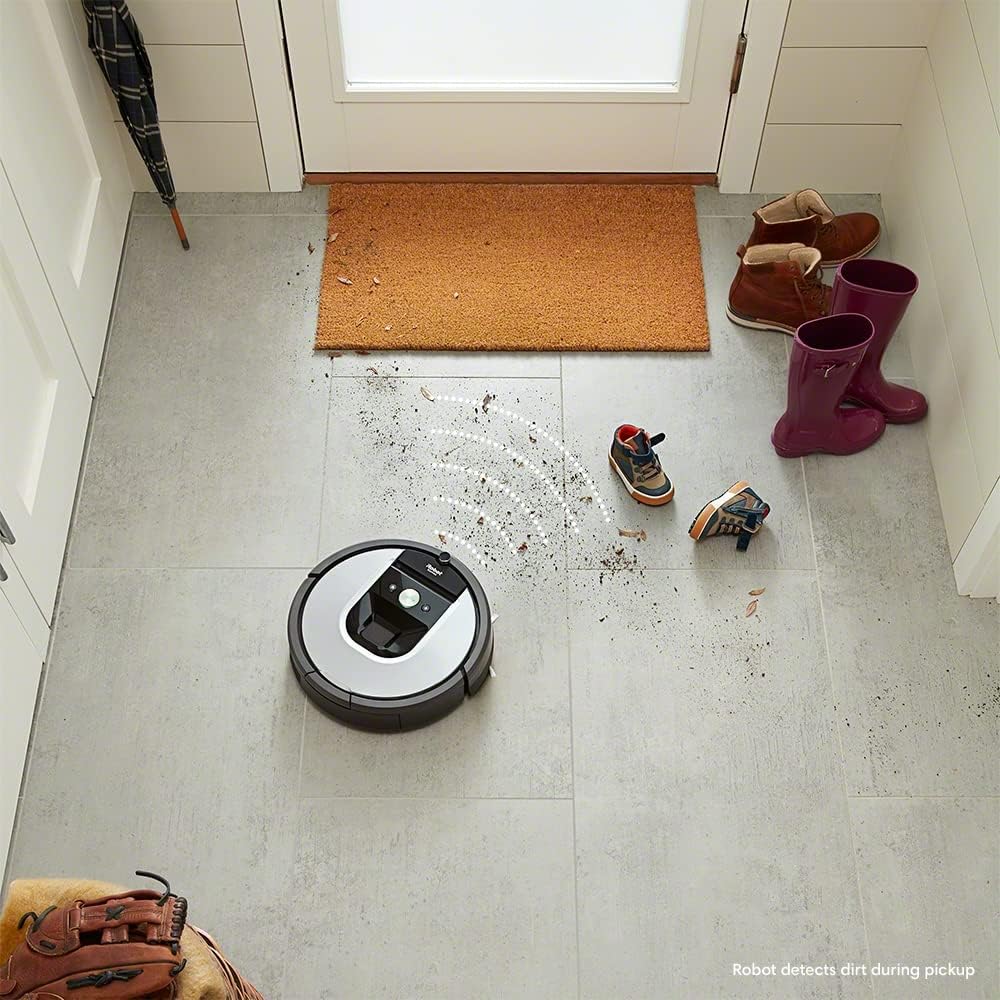
The Roomba 960 robot vacuum cleaner positioned on a tiled floor, with visual effects indicating its Dirt Detect technology identifying and focusing on a dirty area.
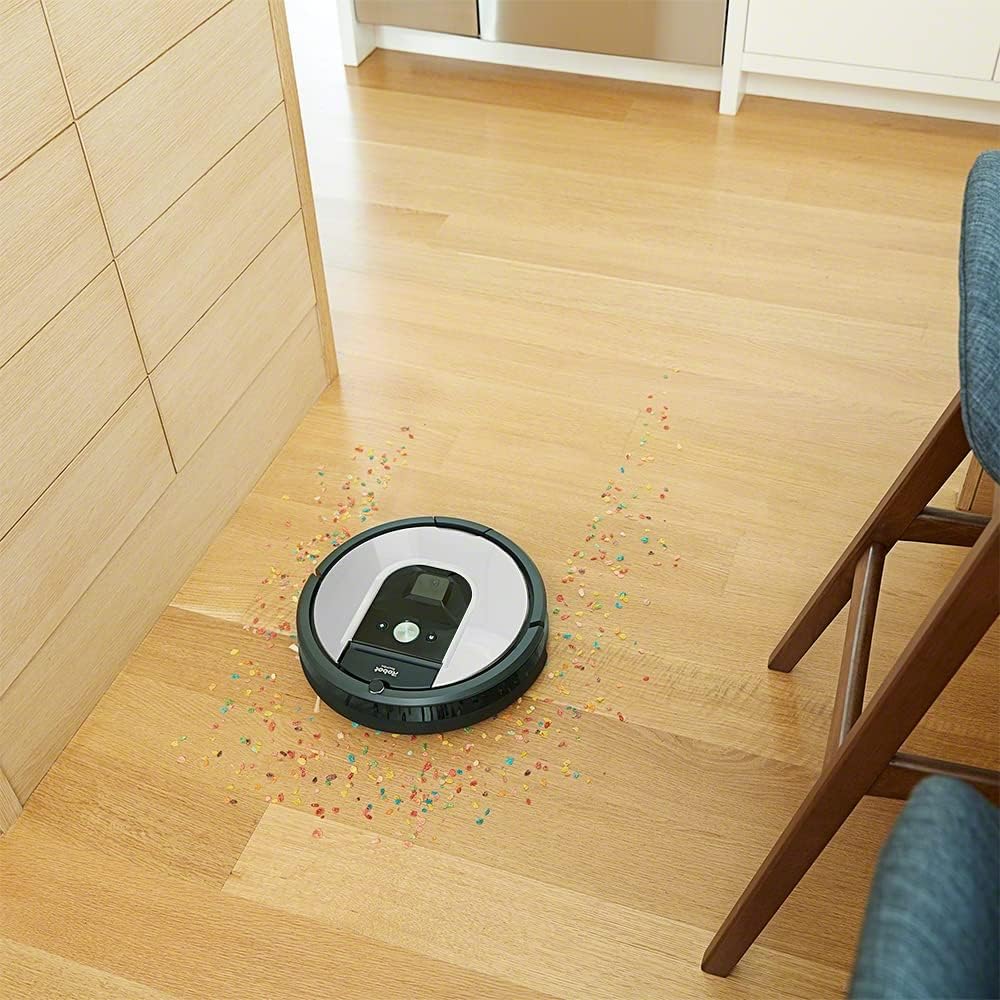
The Roomba 960 robot vacuum cleaner actively cleaning up scattered debris on a wooden floor, demonstrating its effective suction.
Te tiaki
Regular maintenance is crucial for your Roomba's performance. Follow these steps to keep your robot in top condition.
Te Tango i te Para Puehu
The dust bin should be emptied after each cleaning cycle. Press the bin release button and pull out the bin. Open the bin door and empty the contents into a trash can.
Te horoi i nga Paraihe
The multi-surface rubber brushes should be cleaned weekly, or more often if you have pets. Pinch the yellow tabs to lift the brush frame and remove the brushes. Remove any hair or debris wrapped around the brushes or trapped in the brush caps.
Te horoi i te Tātari
The AeroForce High-Efficiency Filter should be cleaned weekly. Tap the filter against a trash can to remove debris. Replace the filter every 2-3 months, or as needed.
Te Whakapai i nga Pūoko me te Whakataki Hoapā
Wipe the cliff sensors, wall-following sensor, and charging contacts on both the robot and Home Base with a clean, dry cloth monthly. This ensures proper navigation and charging.
Raparongoā
If your Roomba encounters an issue, the robot will play an audible alert and the MAA button will flash. Consult the iRobot HOME App for detailed troubleshooting steps and error codes.
Nga take noa:
- Karetao kaore e utu: Ensure the Home Base is plugged in and the charging contacts are clean.
- Ka mau te karetao: Clear obstacles from the cleaning area. Use Virtual Wall barriers to block off problem areas.
- He pai te mahi horoi: Empty the dust bin, clean the brushes and filter, and ensure sensors are clean.
- Karetao kaore i te hono ki Wi-Fi: Check your Wi-Fi network and ensure the robot is within range. Restart your router and robot if necessary.
Whakatakotoranga
| Āhuahira | Taipitopito |
|---|---|
| Waitohu | iRobot |
| Ingoa Tauira | Roomba 960 |
| Ahu | 35 x 35 x 9.1 cm |
| Taumaha | 3.9 kg |
| Mana | 33 watts |
| Taumata Haruru | 70 dB |
| Wā Whakahaere | 1 haora 15 meneti |
| Pūrere Hototahi | iRobot Home App, Alexa, Google Assistant |
| Momo Tātari | AeroForce |
Pūtāhui me te Tautoko
iRobot is committed to providing reliable products and responsive customer service. For 30 years, iRobot has focused on delivering quality and support.
For warranty information, technical assistance, or to purchase replacement parts, please visit the official iRobot website or contact iRobot Customer Care. Contact details can typically be found on the iRobot website or within the iRobot HOME App.

iRobot's 30 years of experience and innovation in robotics.