1. Kupu Whakataki
Thank you for choosing the KLIM Wind Laptop Cooling Pad. This manual provides essential information for the proper setup, operation, and maintenance of your cooling pad. The KLIM Wind is designed to enhance your laptop's performance and extend its lifespan by preventing overheating through its powerful four-fan cooling system.
2. Nga korero haumaru
- Kaua e tukuna te taputapu ki te wai, ki te makuku nui ranei.
- Avoid placing heavy objects on the cooling pad.
- Kaua e taea e nga tamariki.
- Ensure proper ventilation around the cooling pad during operation.
- Disconnect the USB cable from the power source before cleaning or if not in use for an extended period.
3. Ihirangi mokete
Tena koa tirohia te kete mo nga mea e whai ake nei:
- KLIM Wind Laptop Cooling Pad
- USB Itini taura
Mena kua ngaro, kua pakaru rānei ētahi o ngā taonga, whakapā atu ki te ratonga kiritaki.
4. Hua Neke Atuview
The KLIM Wind features a robust design with four high-speed fans to provide efficient cooling. It includes an ergonomic stand for comfortable use and an additional USB port for convenience.

Image 1: The KLIM Wind Laptop Cooling Pad, showcasing its four illuminated fans and the included USB cable for power.
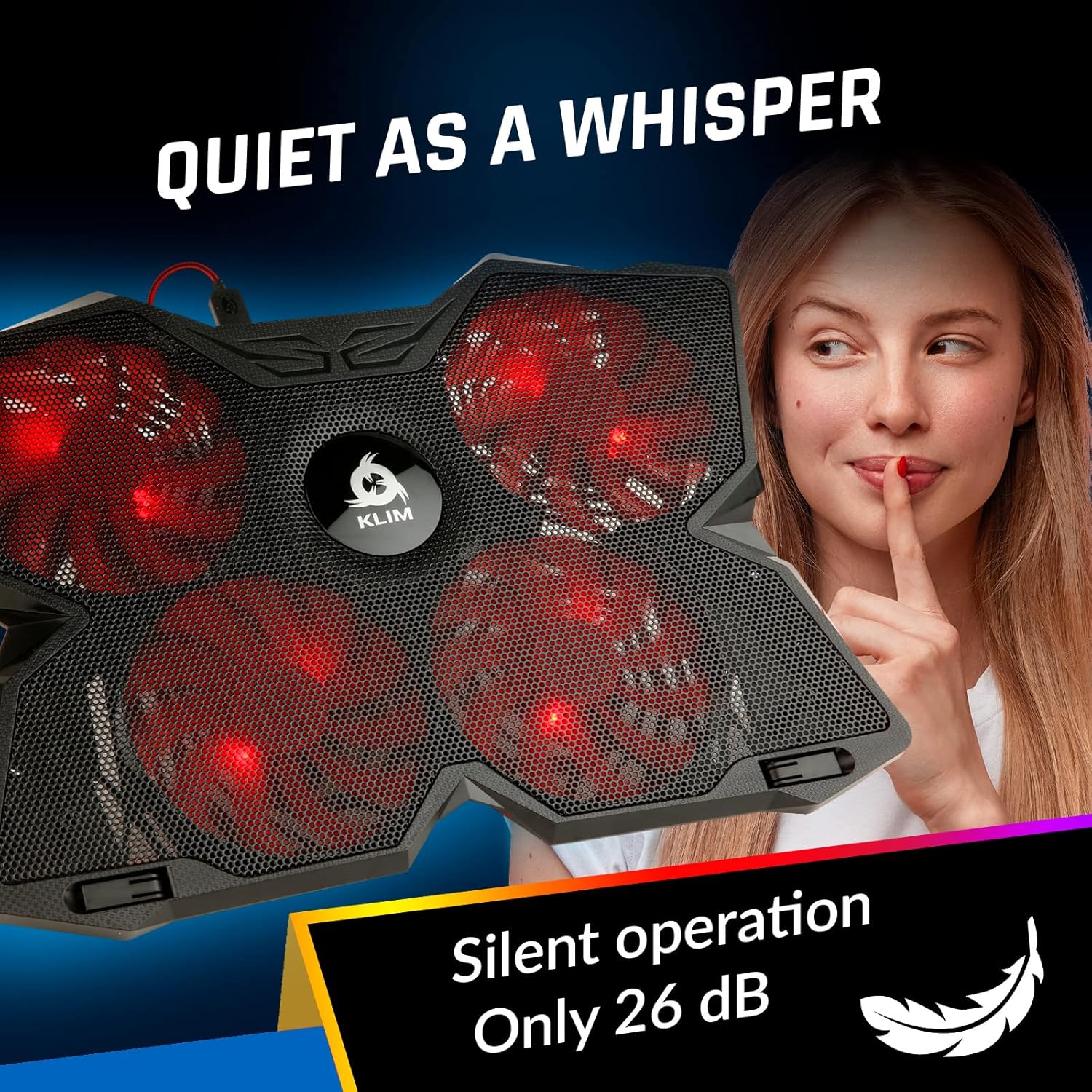
Image 2: Detail of the cooling pad's side, highlighting the two USB ports and a convenient cable holder located on the underside.

Image 3: Illustration demonstrating the ergonomic benefits of the cooling pad, featuring adjustable rear stands for inclination and frontal stoppers to secure the laptop.
5. Tatūnga
- Turanga: Place the KLIM Wind cooling pad on a flat, stable surface.
- Whakanoho Pona: Carefully place your laptop on top of the cooling pad. The frontal stoppers can be extended to prevent the laptop from sliding forward, especially when using an inclined angle.
- Whakarite Koki: Extend the rear legs of the cooling pad to achieve your desired ergonomic angle.
- Hononga Hiko: Connect the included USB cable from the cooling pad's USB port to an available USB port on your laptop or a USB power adapter. The cooling pad will draw power from this connection.
The KLIM Wind is compatible with laptops ranging from 11 to 19 inches. For larger laptops (17.3, 18, and 19 inches), the laptop may extend slightly over the edges of the cooling pad but will remain stable. It is also compatible with gaming consoles like PS4 and PS5.

Image 4: Visual representation of the cooling pad's compatibility with different laptop sizes and gaming consoles.
6. Mahi
Once connected via USB, the fans on the KLIM Wind cooling pad will begin to operate. The cooling pad features two switches, typically located on the side, which control the top and bottom rows of fans independently. These switches allow you to adjust the fan speed or turn off specific fan rows.
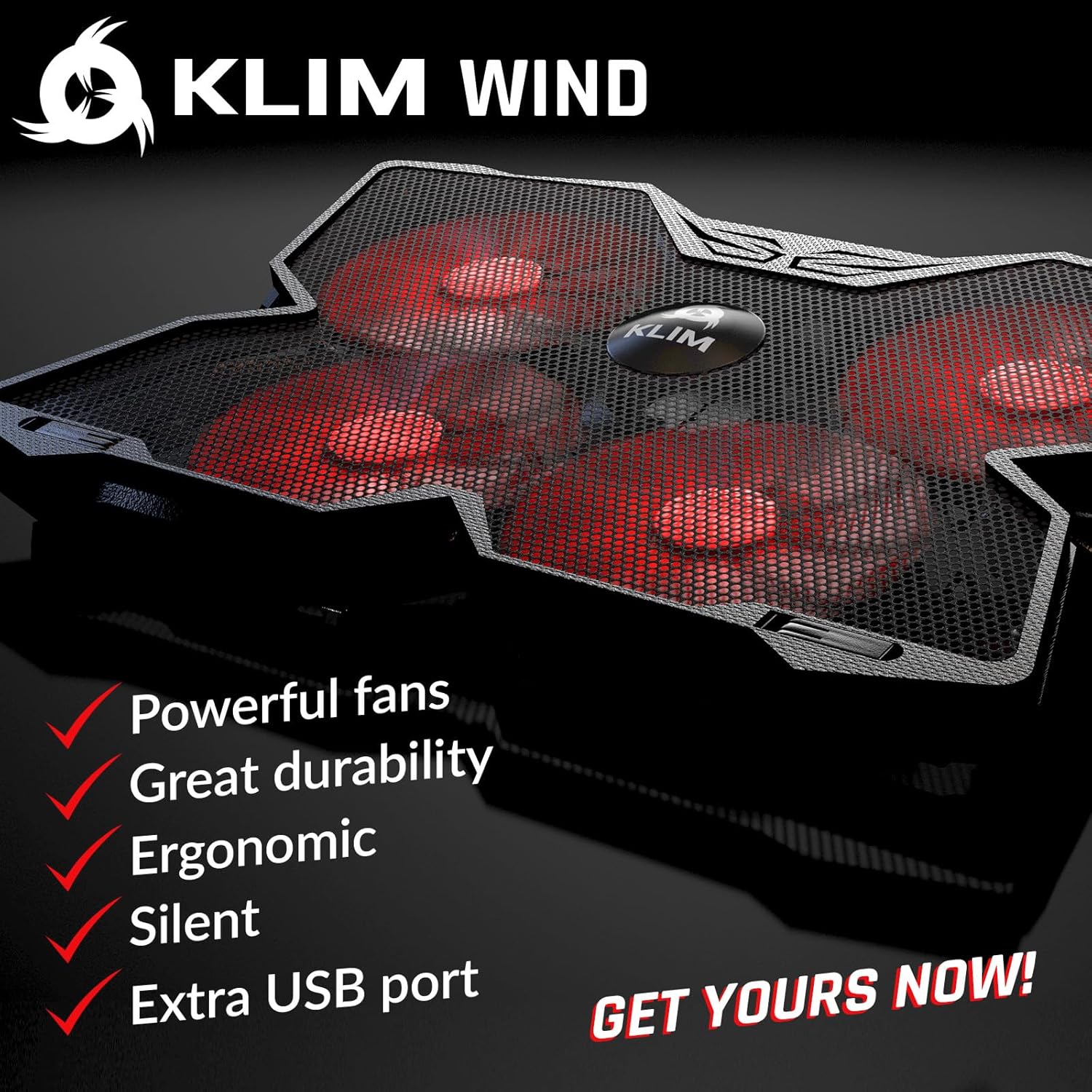
Image 5: The cooling pad's powerful fans are designed for rapid heat dissipation.
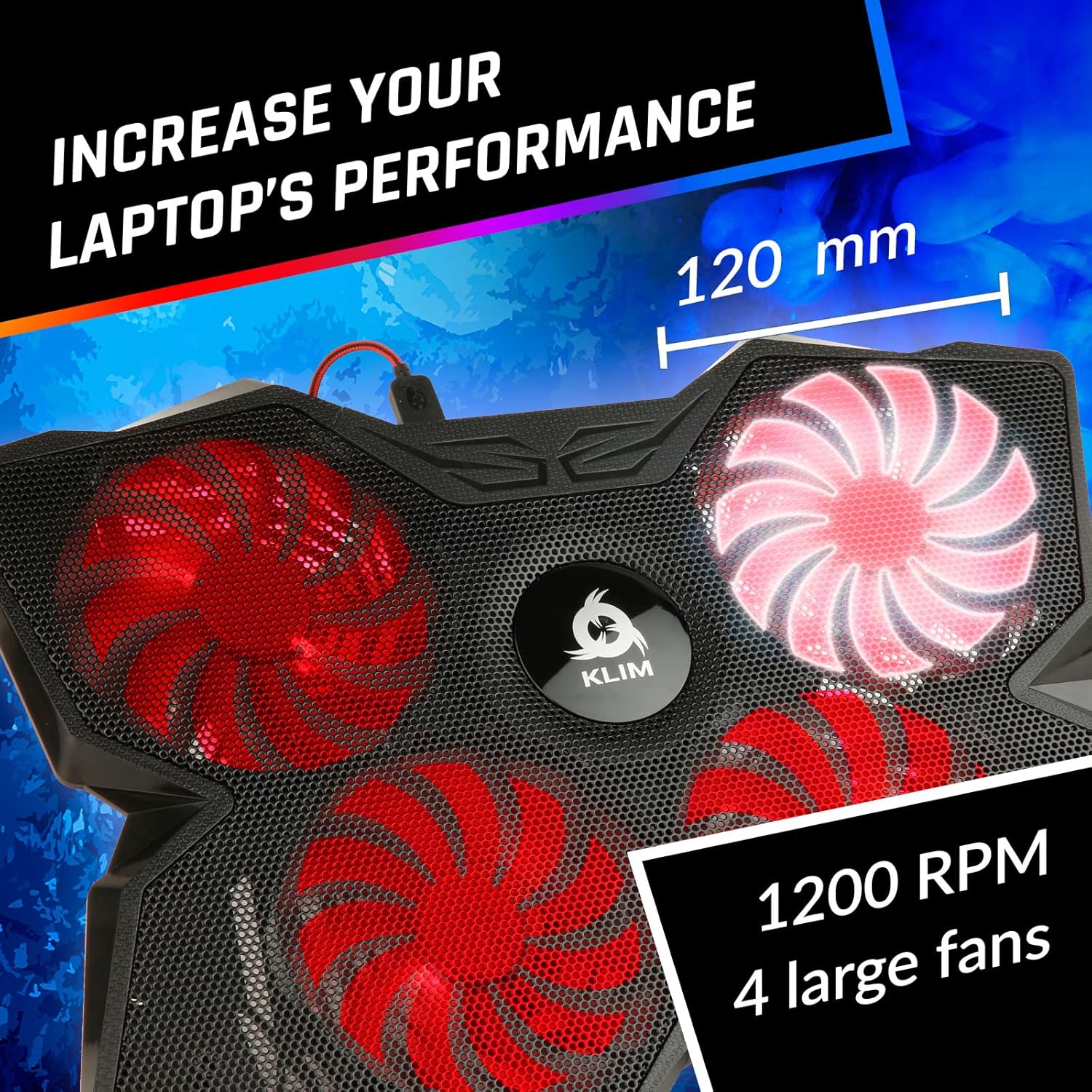
Image 6: The four large fans operate at 1200 RPM, ensuring effective cooling.
The fans are designed to operate quietly, typically producing less than 26 dB of noise, ensuring a non-disruptive user experience.

Image 7: The KLIM Wind operates quietly, with noise levels below 26 dB.
7. Tiaki
- Te horoi: Use a soft, dry cloth to wipe down the surface of the cooling pad. For dust accumulation on the fan blades or metal grid, use compressed air or a soft brush.
- A ape i te Wai: Do not use liquid cleaners or immerse the cooling pad in water.
- Rokiroki: When not in use, store the cooling pad in a cool, dry place away from direct sunlight.
8. Te Raru
- Ngā Pā Kāore e Hurihuri:
- Ensure the USB cable is securely connected to both the cooling pad and a powered USB port on your laptop or adapter.
- Try connecting to a different USB port or power source.
- Check if the fan speed switches are in the 'on' position.
- He iti rawa te whakamatao:
- Ensure all four fans are operating at their maximum speed.
- Verify that your laptop's vents are not obstructed by the cooling pad or other objects.
- Clean any dust accumulation from the cooling pad's fans and your laptop's vents.
- Haruru rereke:
- Check for any foreign objects obstructing the fan blades.
- Ensure the cooling pad is placed on a flat, stable surface to prevent vibrations.
9. Whakatakotoranga
| Āhuahira | Whakatakotoranga |
|---|---|
| Tau tauira | k147 |
| Hunga Hua | 15.78"L x 10.71"W x 1.22"H (40.08 x 27.19 x 3.1 cm) |
| Taumaha Tūemi | 1.58 pauna (0.72 kg) |
| Rauemi | Kirihou |
| Tuhinga o mua | 4 |
| Tere Tere | Tae atu ki te 1200 RPM |
| Taumata Haruru | Iti iho i te 26 dB |
| Tauranga USB | 2 (1 for power, 1 pass-through) |
| Hototahi | Laptops 11-19 inches, PS4, PS5, Xbox One |
10. Pūtāhui
The KLIM Wind Laptop Cooling Pad comes with a 5-tau pūtāhui from the date of purchase. This warranty covers manufacturing defects and ensures the quality and durability of the product. Please retain your proof of purchase for warranty claims.
11. Tautoko
For any questions, technical assistance, or warranty claims, please contact KLIM customer support. You can find contact information on the official KLIM webpae tukutuku, mā roto rānei i ngā hongere tautoko a tō kaihokohoko.


