1. Kupu Whakataki
This instruction manual provides detailed information on the installation, operation, and maintenance of your StarTech.com USB-C to DisplayPort Adapter (Model: CDP2DP). This adapter allows you to connect a DisplayPort monitor to a USB Type-C port on your laptop or other compatible device, enabling high-resolution video and audio output.
Please read this manual thoroughly before using the product to ensure proper functionality and to prevent damage.
2. Hua Neke Atuview
The StarTech.com USB-C to DisplayPort Adapter is a compact and portable solution for extending your display. It supports high resolutions, including 4K at 60Hz and 8K at 30Hz, leveraging the DisplayPort Alternate Mode (Alt Mode) functionality of USB-C.
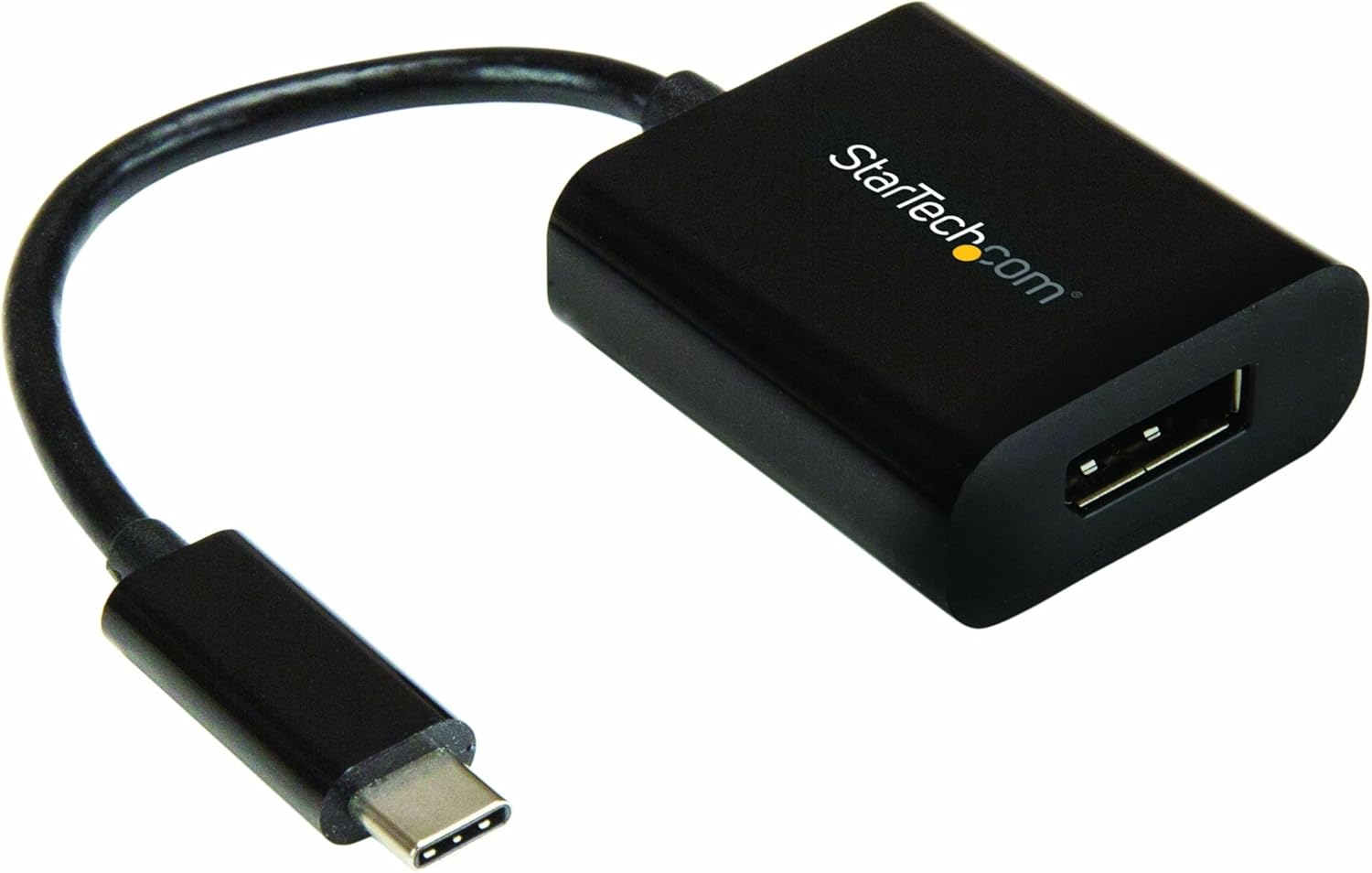
Image: The StarTech.com USB-C to DisplayPort Adapter, featuring a black compact dongle with a short cable and a USB-C connector.
2.1 Ihirangi mokete
- (1) USB-C to DisplayPort Adapter (CDP2DP)
2.2 Hunga Hua
- Rahi Hua: 7.1 x 1.5 x 0.6 inihi (18.03 x 3.81 x 1.52 cm)
- Taumaha Tūemi: 0.64 hekere (18.14 karamu)

Image: The product packaging displaying the adapter and its physical dimensions: 1.6 inches (4.1 cm) length, 1.5 inches (3.8 cm) width, 0.67 inches (1.7 cm) height for the adapter body, and a cable length of 5.5 inches (14 cm).
3. Nga ahuatanga
- Mahinga Nui: Supports DisplayPort 1.4, DisplayPort Alt Mode, HBR2, DSC, and 32.4Gbps bandwidth. Connects to a single DP display supporting 8K 30Hz UHD (7680x4320) and 2-channel audio. Compatible with HDCP 2.2/1.4 and Thunderbolt 3.
- Hototahi Whānui: Tested for peak performance at 8K 30Hz with various DP monitors from brands like Dell UltraSharp, Samsung, Asus ProArt, Acer, and LG. Backward compatible with 4K and 1080p displays.
- Kounga Atahanga Whakarei ake: Features a unique video signal booster that amplifies the signal, ensuring reliable performance even with lower quality cables. This amplifier also increases the maximum supported DisplayPort cable length compared to standard adapters.
- He ngawari ki te whakamahi: Supports driverless plug-and-play setup. Compatible with macOS, Windows 10, Ubuntu, and Chrome OS. Works with any USB Type-C (DisplayPort over USB-C) or Thunderbolt 3 device.
- Hoahoa Kawe: Compact and lightweight, making it easy to carry in a laptop bag. Ideal for mobile professionals and BYOD (Bring Your Own Device) environments.
4. Tatūnga
The StarTech.com USB-C to DisplayPort Adapter is designed for simple plug-and-play operation, requiring no additional drivers for most operating systems.
4.1 Whakaritenga Pūnaha
- A host device with an available USB Type-C port that supports DisplayPort Alternate Mode (DP Alt Mode) or Thunderbolt 3.
- A DisplayPort enabled monitor or display.
- A DisplayPort cable (not included).
- Supported Operating Systems: Windows 10, macOS, Ubuntu, Chrome OS.
4.2 Te Hononga i te Waauru
- Connect the USB-C male connector of the CDP2DP adapter to an available USB Type-C port on your laptop, computer, or other compatible device. Ensure the USB-C port supports DisplayPort Alt Mode or is a Thunderbolt 3 port.
- Connect one end of a DisplayPort cable (not included) to the DisplayPort female port on the CDP2DP adapter.
- Connect the other end of the DisplayPort cable to the DisplayPort input on your monitor or display.
- Your display should automatically detect the signal from your device. If not, you may need to manually select the DisplayPort input on your monitor.

Image: A laptop connected to an external monitor via the USB-C to DisplayPort adapter, illustrating the plug-and-play setup and compact design.

Image: A diagram showing the connection flow from a USB Type-C (Host) device to a DisplayPort monitor via the StarTech.com adapter.
5. Nga Tohutohu Whakahaere
Once connected, the adapter functions as a direct video and audio pass-through from your USB-C enabled device to your DisplayPort monitor.
5.1 Whakaaturanga Aratau
- Extended Desktop: Allows you to extend your desktop across multiple monitors, providing more screen space for multitasking.
- Mirrored Display (Duplicate): Duplicates your primary display onto the connected DisplayPort monitor, ideal for presentations or sharing content.
- Whakaaturanga Tuatahi: Sets the connected DisplayPort monitor as your main display.
These display modes can be configured through your operating system's display settings (e.g., Display Settings in Windows, System Preferences > Displays in macOS).
5.2 Whakatau Tautokohia
The adapter supports resolutions up to 8K (7680x4320) at 30Hz and 4K (3840x2160) at 60Hz. The actual resolution and refresh rate will depend on the capabilities of your source device, DisplayPort cable, and connected monitor.
6. Tiaki
To ensure the longevity and optimal performance of your StarTech.com USB-C to DisplayPort Adapter, follow these maintenance guidelines:
- Kia ma te urutau kia kore e pehu. Whakamahia he kakahu ngohengohe, maroke mo te horoi.
- A ape i te tuku i te urutau ki te tino mahana, te makuku, te ra tika ranei.
- Do not bend or crimp the cable excessively.
- Whakaorangia te urutau ki te waahi makariri, maroke ina kore e whakamahia.
6.1 Nga Whakatūpato Haumaru Nui
Please observe the following safety warnings to prevent injury or damage to the product:
- Pūmate Hiko: Do not use damaged or frayed cables. Exposed wires can lead to electric shocks. Always ensure cables are properly seated and undamaged.
- Te Whakapūtanga o te Wera: Overloaded or tightly bundled cables can overheat and pose a fire hazard. Ensure adequate ventilation and avoid bundling too many cables.
- Tukino: Momotuhia ngā hononga mā te pupuri i te mono, kaua te taura. Mā te kukume i te taura ka kitea ngā waea ora, ka hua ake pea he ru hiko, he wera rānei.

Image: A warning label from StarTech.com detailing electrical hazards, heat buildup, and damage prevention in multiple languages.
7. Te Raru
If you encounter issues with your USB-C to DisplayPort adapter, refer to the following common problems and solutions:
7.1 Kaore he Putanga Whakaatu
- Taki Hononga: Ensure both the USB-C connector and the DisplayPort cable are securely plugged into their respective ports. Try unplugging and re-plugging them.
- Verify USB-C Port Compatibility: Confirm that your laptop's USB-C port supports DisplayPort Alternate Mode (DP Alt Mode) or is a Thunderbolt 3 port. Not all USB-C ports support video output.
- Monitor Input Selection: Make sure your monitor is set to the correct DisplayPort input source.
- Test with Another Cable/Monitor: If possible, try using a different DisplayPort cable or connecting to another monitor to rule out cable or monitor issues.
- Tīmataria anō ngā Pūrere: Restart your laptop and monitor.
7.2 Low Resolution or Incorrect Refresh Rate
- Check Display Settings: Adjust the resolution and refresh rate in your operating system's display settings.
- Kounga Taura: Ensure you are using a high-quality DisplayPort cable that supports the desired resolution and refresh rate (e.g., DP 1.4 for 8K 30Hz).
- Source Device Capability: Confirm that your source device's graphics card supports the desired resolution and refresh rate.
7.3 Intermittent Connection / Signal Drops
- Hononga Haumaru: Ensure all connections are firm and not loose.
- Tikanga taura: Inspect the DisplayPort cable for any damage or kinks. A damaged cable can cause signal instability.
- Whakahaere Hiko: Check your laptop's power settings to ensure it's not entering a low-power state that affects video output.
- Adapter Position: Ensure the adapter is not being stressed or bent at the connection points.
7.4 Kāore i te Mōhiotia te Pūurutau
- Try Another USB-C Port: If your device has multiple USB-C ports, try connecting the adapter to a different one.
- Whakahōu Atekōkiri: Ensure your graphics drivers and USB-C controller drivers are up to date on your computer.
8. Whakatakotoranga
| Huanga | Uara |
|---|---|
| Tau Tauira Hua | CDP2DP |
| Rahi Hua (L x W x H) | 7.1 x 1.5 x 0.6 inihi (18.03 x 3.81 x 1.52 cm) |
| Taumaha Tūemi | 0.64 hekere (18.14 karamu) |
| Tae | Pango |
| Momo Tuhono | USB-C Male to DisplayPort Female |
| Tautoko Max Resolution | 8K (7680x4320) @ 30Hz, 4K (3840x2160) @ 60Hz |
| DisplayPort Standard | DisplayPort 1.4 (HBR2, DSC) |
| Tautoko Ororongo | 2-hongere Ororongo |
| Tautoko HDCP | HDCP 2.2 / 1.4 |
| Thunderbolt 3 Hototahi | Ae |
| Tukunga Mana USB | Not supported (for model CDP2DP) |
| Pūrere Hototahi | Audio/Video Device, Chromebook, Laptop, MacBook Pro, Monitor, iPad Pro |
| Kaihanga | StarTech.com |
| Te Ra Tuatahi Wātea | Hui-tanguru 15, 2017 |
9. Whakaputanga me te Tautoko Hangarau
9.1 Hua Whakatau
This StarTech.com USB-C to DisplayPort Adapter (CDP2DP) is backed by a 3-year StarTech.com warranty. For specific warranty terms and conditions, please refer to the official StarTech.com webpaetukutuku, whakapā atu ranei ki a raatau tautoko kaihoko.
9.2 Tautoko Hangarau
StarTech.com offers comprehensive technical support to assist you with any questions or issues regarding your product. You can find support resources, FAQs, and contact information on their official webpae.
Tirohia te StarTech.com Store on Amazon mo etahi atu korero me te tautoko.
For additional product information, including the latest drivers and manuals, please visit the product page on the StarTech.com webpae ma te whakamahi i te hono e whai ake nei: http://www.StarTech.com/Q/CDP2DP


