Kupu Whakataki
The Amazon Echo Buttons are interactive accessories designed to enhance your experience with compatible Amazon Echo devices. They provide a physical interface for playing games and activating smart home routines through Alexa.
These buttons connect wirelessly to your Echo device, offering a new way to interact with Alexa skills and customize your smart home environment.
He aha kei roto i te Pouaka
- 2 Echo Buttons
- 4 AAA Batteries (2 per button)
Whakatupato: Contains small parts. May pose a choking hazard to small children.
Tatūnga
- Whakauruhia nga Pataha: Each Echo Button requires 2 AAA batteries. To install, locate the battery compartment on the underside of the button. You may need a small screwdriver to open the compartment cover. Insert the batteries according to the polarity indicators (+/-) and securely close the cover.
- Pairing with an Echo Device:
- Ensure your compatible Echo device (Echo, Echo Dot, Echo Show, Echo Plus, or Echo Spot) is powered on and connected to the internet.
- Place the Echo Button near your Echo device.
- Say, "Alexa, set up my Echo Buttons."
- Follow the voice prompts from Alexa to complete the pairing process. The button's light ring will indicate its pairing status.
- Connect Multiple Buttons: You can connect up to 4 Echo Buttons with a compatible Echo device using Bluetooth. Repeat the pairing process for each additional button.

Image: Two Echo Buttons, ready for setup and use.
Nga Tohutohu Whakahaere
Once paired, Echo Buttons can be used for various interactive experiences:
- Taakaro Keemu: Echo Buttons are designed for interactive games with Alexa. When playing a compatible game, press your button to buzz in, answer questions, or perform other game actions as instructed by Alexa. The button's light will often change color to indicate your turn or status.
- Activating Smart Home Routines: You can configure Echo Buttons to trigger specific Alexa smart home routines. For example, a single press could turn on lights, adjust a thermostat, or announce a custom message. To set this up, use the Alexa app to create or modify a routine and select the Echo Button as the trigger.
- Alexa Skill Blueprints: Customize your own trivia game skills using Alexa Skill Blueprints, integrating the Echo Buttons for a personalized interactive experience.

Image: Users interacting with Echo Buttons during a game, with buttons displaying various colors.
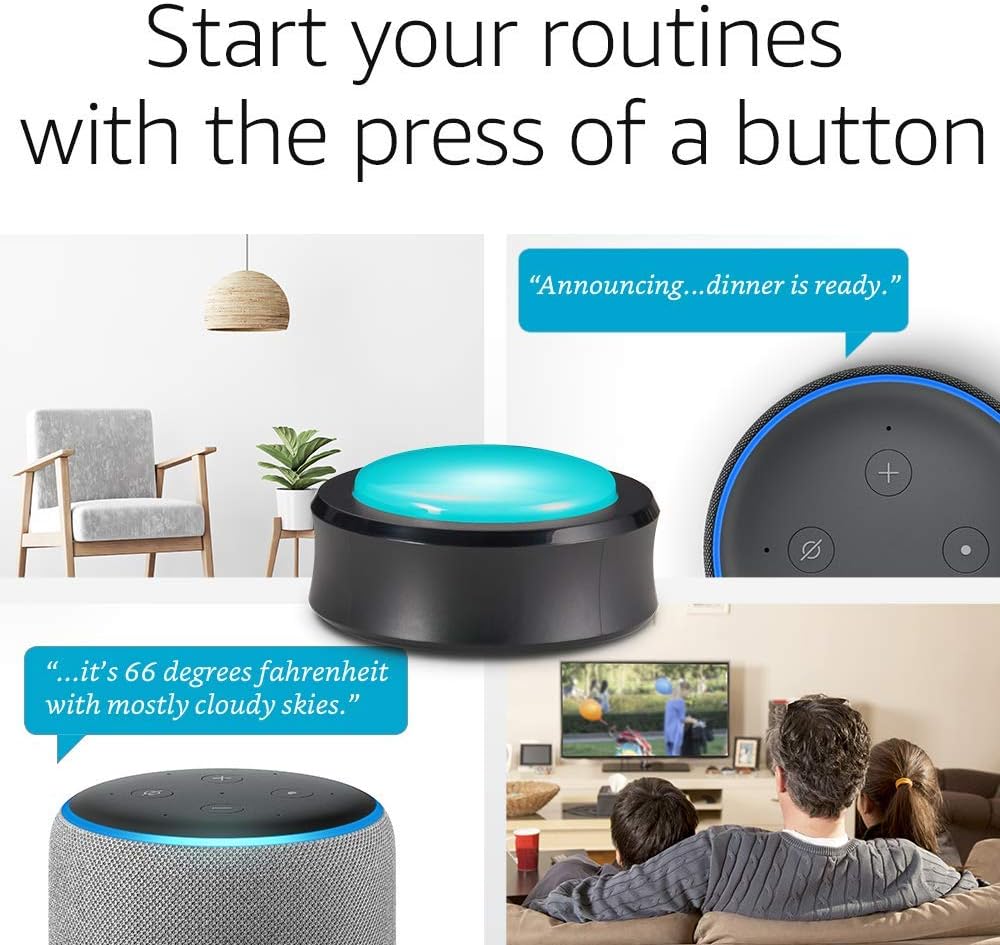
Image: An Echo Button used to activate smart home routines, such as announcing dinner or checking the weather.
Te tiaki
Whakakapinga Pūhiko: When the Echo Button's light indicates low battery or it fails to respond, it's time to replace the AAA batteries. Follow the battery installation steps outlined in the "Setup" section. Ensure proper disposal of used batteries according to local regulations.
Te horoi: To clean your Echo Buttons, gently wipe them with a soft, dry cloth. Avoid using abrasive cleaners or submerging the device in water.
Raparongoā
- Button Not Pairing:
- Me whakarite kia tika te whakauru me te utu o nga pākahiko.
- Verify your Echo device is online and within range (best within 15 feet or 4.5 meters).
- Try restarting your Echo device by unplugging it for 10 seconds and plugging it back in.
- If previously paired, try unpairing the button from the Alexa app and then re-pairing.
- Patene Kaore i te Whakautu:
- Tirohia te taumata pākahiko.
- Ensure the button is still paired with your Echo device.
- Confirm the Alexa skill or routine you are trying to use is active and correctly configured.
- Nga Take Hononga Nihokikorangi: Echo Buttons comply with Bluetooth Core Specification version 4.2. If experiencing persistent connectivity problems, ensure there are no significant obstructions between the button and the Echo device, and minimize interference from other wireless devices.
For further assistance, refer to the "Using Echo Buttons with Alexa" or "Using Echo Buttons with Routines" help sections available through Amazon support resources.
Whakatakotoranga
- Rahi me te Taumaha: 2.95” x 2.95” x 1.42” (75 mm x 75 mm x 36 mm), 1.83 oz. (52 grams). Actual size and weight may vary by manufacturing process.
- Hononga Nihokikorangi: Complies with Bluetooth Core Specification version 4.2 including Basic Rate (BR) and Bluetooth Low Energy (BLE). Works best within 15 feet (4.5 meters) of connected device.
- Mana: Each button requires 2 AAA batteries.
Pūtāhui me te Tautoko
Pūtāhui: The Amazon Echo Buttons come with a 90-day limited warranty and service included.
Tautoko: For any issues or additional help with your Echo Buttons, please visit the Amazon support website and search for "Using Echo Buttons with Alexa" or "Using Echo Buttons with Routines."


