1. Hua Neke Atuview
The Teltonika RUT240 is an industrial 4G LTE Wi-Fi router designed for reliable cellular communication in various environments. This manual provides essential information for its proper installation, configuration, and use.
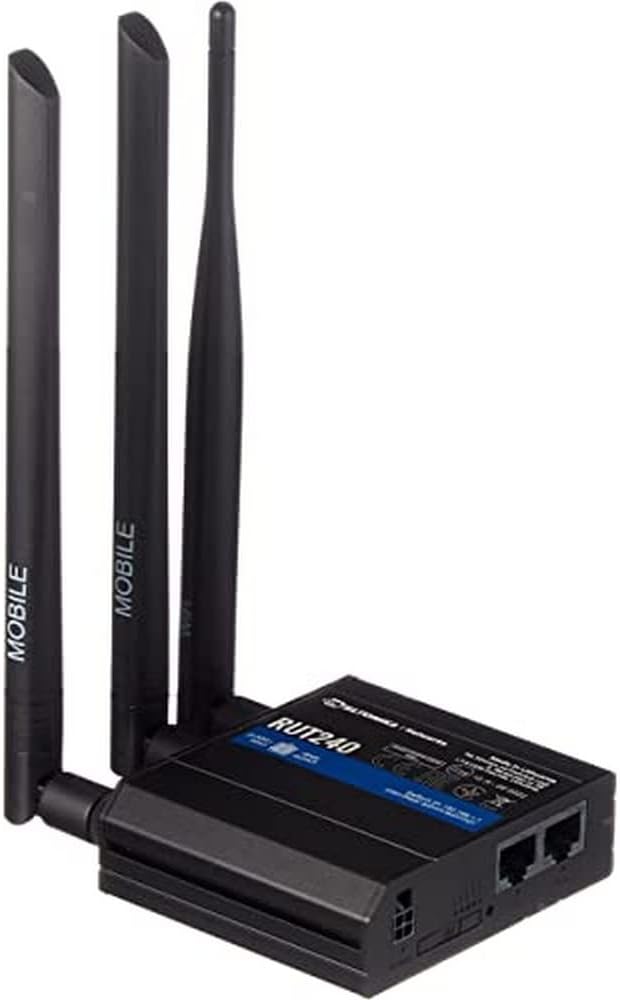
Whakaahua 1: Mua view of the Teltonika RUT240 LTE Router with its three attached antennas, illustrating its compact design.
2. Ihirangi mokete
Before proceeding with installation, verify that all items are present in the package:
- Teltonika RUT240 LTE Router
- Pūurutau Hiko
- Tauira Itarangi
- Two LTE Antennas (magnetic mount, SMA male)
- One Wi-Fi Antenna (magnetic mount, RP-SMA male)
- Aratohu Timata Tere

Whakaahua 2: The Teltonika RUT240 router displayed with its standard accessories, including the power adapter and an Ethernet cable.
3. Tatūnga
3.1 Tāuta Pūmārō
- Kōkuhu Kāri Sim: Locate the SIM card slot on the side of the router. Insert your activated Mini-SIM card into the slot until it clicks into place. Ensure the SIM card is correctly oriented as indicated on the device.
- Whakauruhia nga Antenna: Screw the two LTE antennas onto the SMA connectors labeled "MOBILE" and the Wi-Fi antenna onto the RP-SMA connector labeled "WLAN" on the router. Ensure they are securely tightened.
- Hono Hono: Connect the power adapter to the power socket on the router and then plug the adapter into a power outlet. The router will begin to power on.
- Optional: Ethernet Connection: For initial configuration or wired network access, connect one end of the Ethernet cable to the LAN port on the router and the other end to your computer's Ethernet port.

Whakaahua 3: Te taha view of the Teltonika RUT240, highlighting the SIM card slot and the antenna connection points for mobile and Wi-Fi signals.

Whakaahua 4: Whakamuri view of the Teltonika RUT240, showing the power input, SIM card slot, and the LAN/WAN Ethernet ports.
3.2 Whirihoranga Tuatahi
- Urunga Web Atanga: Tuwhera a web browser on your connected computer and navigate to http://192.168.1.1.
- Takiuru: Enter the default username "admin" and the password found on the device label or packaging. You will be prompted to change the password for security.
- Ruānuku Tatūnga Tere: Follow the on-screen Quick Setup Wizard to configure basic settings such as mobile data connection (APN settings), Wi-Fi network name (SSID), and password.
4. Nga Tohutohu Whakahaere
4.1 Tohu LED
The RUT240 features several LED indicators to provide status information:
- Arahina hiko: Ka tohu i te mana mana. He kākāriki mārō ina kā ana.
- Mobile Signal Strength LEDs: Multiple LEDs indicate the strength of the cellular signal. More illuminated LEDs mean stronger signal.
- Network Type LEDs: Indicate the active cellular network type (e.g., 2G, 3G, 4G/LTE).
- Wi-Fi LED: E tohu ana i te tūnga o te kōwae Wi-Fi.
- LAN/WAN LEDs: Indicate activity on the respective Ethernet ports.
4.2 Te hono ki Wi-Fi
- I runga i to taputapu (waea atamai, pona), rapua nga whatunga Wi-Fi e waatea ana.
- Select the network name (SSID) configured during the initial setup.
- Enter the Wi-Fi password (WPA2 key) when prompted.
- Once connected, your device should have internet access via the RUT240.
4.3 Whirihoranga Arā Atu Anō
Ko te pouara web interface (RutOS) offers extensive configuration options for advanced users, including VPN, firewall rules, SMS utilities, and more. Refer to the official Teltonika documentation for detailed guides on advanced features.
5. Tiaki
- Whakahōu Firmware: Regularly check for and install firmware updates from the official Teltonika webpae ki te whakarite mahi tino pai, haumarutanga, me te uru ki nga ahuatanga hou. Ka taea tenei ma te pouara web atanga.
- Te horoi: Keep the router clean and free from dust. Use a soft, dry cloth. Do not use liquid cleaners.
- Nga Tikanga Taiao: Ensure the router is operated within its specified temperature and humidity ranges to prevent damage. Avoid direct sunlight and excessive heat.
- Kupuhipa Haumaru: Periodically change your router's login password and Wi-Fi password to maintain network security.
6. Te Raru
| Raruraru | Take pea | Rongoā |
|---|---|---|
| Kaore he Urunga Ipurangi |
|
|
| Kaore e taea te uru Web Atanga |
|
|
| Wi-Fi Not Visible or Connectable |
|
|
6.1 Tautuhi Tautuhi
Ki te tūtaki tonu koe ki ngā raruraru, mā te tautuhi anō i te pūnaha ki te tautuhinga wheketere ka whakatau pea i aua raruraru. Hei mahi i te tautuhi anō i te pūnaha ki te tautuhinga wheketere:
- Me mohio kei te kaha te pouara.
- Locate the reset button (often recessed) on the router.
- Whakamahia he mea angiangi (hei tauira, he rawhi pepa) hei pēhi me te pupuri i te pātene tautuhi anō mō te 10 hēkona pea.
- Release the button when the LEDs indicate a reset (e.g., all LEDs flash). The router will reboot with factory default settings.
7. Whakatakotoranga
| Āhuahira | Taipitopito |
|---|---|
| Ingoa Tauira | Teltonika RUT240 |
| Tauira Tuemi | RUT24006B000 |
| Hunga Hua | 2.91 x 3.27 x 0.98 inihi |
| Taumaha Tūemi | 4 Maramarama |
| Pūnaha Mahi | RutOS |
| Hangarau Hononga | LAN, Wi-Fi |
| Paerewa Whakawhitinga Korerokore | 802.11n |
| Karaehe Band Auautanga | Rōpū-Whā |
| Āhuahira Motuhake | WPS |
| Pūrere Hototahi | Rorohiko Whaiaro |
| Nga Whakamahinga Manakohia | Te aroturuki |
| Kaihanga | JSC Teltonika |
8. Pūtāhui me te Tautoko
For detailed warranty information, please refer to the official Teltonika website or the warranty card included with your product. Technical support is available through Teltonika's official support channels, including their website and dedicated support portal.
Rauemi ipurangi:
- Teltonika RUT240 Wiki (for comprehensive documentation and guides)
- Tautoko Whatunga Teltonika


