1. Kupu Whakataki
This manual provides essential information for the safe and efficient operation of your InFocus IN112XV Presentation Projector. The IN112XV is designed for business presentations and educational use, offering a long lamp life, high brightness, and clear image quality.
- Kua toroa Lamp Te ora: Enjoy over 15,000 hours of viewing.
- Tirohanga Teitei: 3800 lumens for clear images in various lighting conditions.
- Tauwehenga Pūrata: 26000:1 for distinct whites and blacks.
- He ngawari Viewkei: Projects images from 28 inches to 300 inches diagonally.
- Hononga: Features HDMI input and SVGA (800 x 600) resolution.
2. Ihirangi mokete
Manatokohia ko nga mea katoa kei raro nei kei roto i to kete:
- InFocus IN112XV Projector
- Waea hiko
- Mana Mamao
- Te VGA Cable
- Tuhinga (tenei pukapuka me etahi atu aratohu)
3. Hua Neke Atuview
Familiarize yourself with the components and controls of your InFocus IN112XV projector.
3.1 Tuhinga o mua View
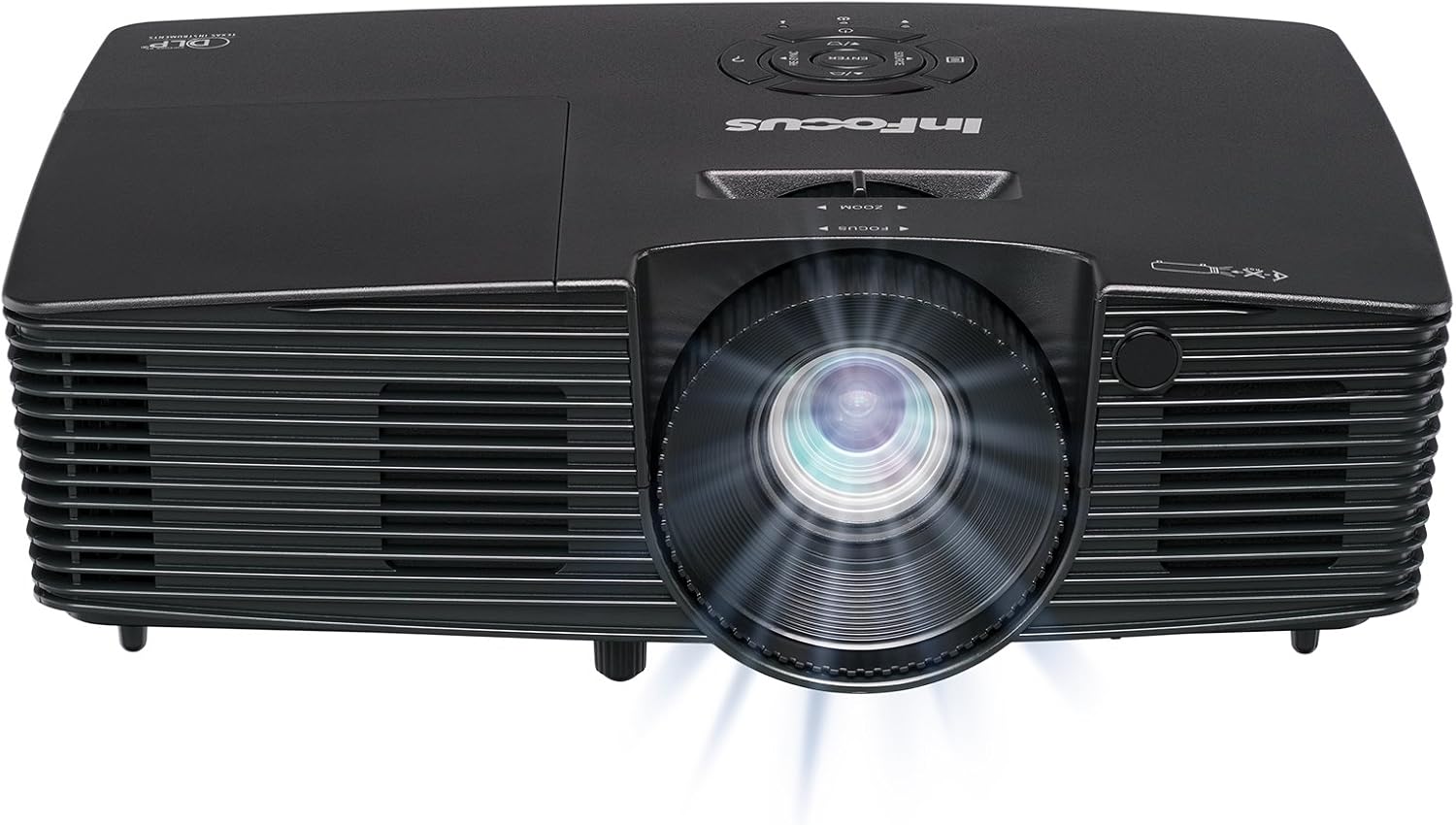
Whakaahua 3.1: Mua view of the InFocus IN112XV projector. This image highlights the main projection lens and the front ventilation grilles.
3.2 Runga View me te Paewhiri Mana

Whakaahua 3.2: Runga view of the InFocus IN112XV projector. The control panel is visible on the right, featuring buttons for power, source selection, menu navigation, keystone adjustment, and volume. The focus and zoom adjustment rings are located around the lens.
The control panel on the top of the projector allows for basic operation without the remote. Key buttons include:
- Mana: Ka whakakā, whakaweto rānei te pūwhiti.
- Puna: Ka huri haere i roto i ngā pūtake tāuru e wātea ana.
- Tahua: Ka uru atu ki te tahua whakaaturanga mata (OSD).
- Whakauruhia: Ka whakaū i nga whiringa i te tahua OSD.
- Kī Pere: Navigate menu options and adjust settings.
- Re-Sync: Synchronizes the image.
3.3 Whakamuri View me ngā Tauranga Hononga

Whakaahua 3.3: Whakamuri view of the InFocus IN112XV projector. This image displays the available connection ports, including Video In, S-Video In, Computer In (VGA), HDMI, and the power input.
The rear panel provides various ports for connecting external devices:
- Ataata ki roto: For composite video sources.
- S-Video In: For S-Video sources.
- Computer In (VGA): For connecting to computers via VGA cable.
- HDMI: For digital video and audio sources.
- Ratonga: Mo nga kaupapa ratonga me te tiaki.
- Whakauru Hiko: Connects the power cord to an electrical outlet.
3.4 Mana Mamao

Whakaahua 3.4: Remote control for the InFocus IN112XV projector. The remote provides full control over the projector's functions, including power, source selection, menu navigation, keystone correction, and volume.
The remote control offers convenient access to all projector functions. Ensure batteries are correctly installed.
4. Tatūnga
4.1 Whakanoho
Position the projector on a stable, flat surface or mount it securely. Ensure there is adequate space around the projector for ventilation.
4.2 Hononga Hiko
- Tūhonohia te taura hiko ki te tauranga whakauru hiko o te pūwhiti.
- Monohia tetahi pito o te taura hiko ki tetahi putanga hiko kua oti te tu.
4.3 Te Hono i nga Puna Whakauru
The projector supports various input sources. Choose the appropriate cable for your device:
- HDMI: Connect an HDMI cable from your source device (e.g., laptop, media player) to the projector's HDMI port.
- VGA (Computer In): Connect a VGA cable from your computer to the projector's Computer In port. This is a plug-and-play connection.
- Video In / S-Video In: Use composite video or S-Video cables for older video sources.
- Pūrere Pūkoro: To connect an iPad or smartphone, a LightCast Key (sold separately) is required.
5. Nga Tohutohu Whakahaere
5.1 Kei te Hiko / Weto
- Hei Whakahiko: Pehia te Mana button on the projector's control panel or the remote control. The power indicator light will change.
- Hei Whakaweto: Pehia te Mana button again. A confirmation message may appear. Press again to confirm shutdown. Allow the projector to cool down before unplugging.
5.2 Te Kōwhiri i tētahi Pūtake Whakauru
After connecting your source device, select the correct input:
- Pehia te Puna button on the projector's control panel or the remote control to cycle through available inputs (HDMI, VGA, Video, S-Video).
- Alternatively, use the dedicated input buttons (HDMI, VGA, Video) on the remote control.
5.3 Te Whakatikatika i te Arotahi me te Whakanui
For a clear and appropriately sized image, adjust the lens rings:

Whakaahua 5.1: Manual Focus Adjustment. This image illustrates the effect of adjusting the focus ring, transforming a blurry projection into a clear and sharp image.
- Arotahi: Hurihia te Arotahi ring on the projector lens until the image appears sharp and clear.
- Topa: Hurihia te Topa ring on the projector lens to adjust the size of the projected image.
5.4 Kohatu Whakatikatika
If the projected image appears trapezoidal (wider at the top or bottom), use keystone correction to square it:
- Pehia te Kohatu matua+ or Keystone- buttons on the remote control to adjust the image geometry.
5.5 Whakatere Tahua
Access the On-Screen Display (OSD) menu for advanced settings:
- Pehia te Tahua button on the remote or control panel.
- Use the arrow keys to navigate through menu options.
- Perehi Tomo hei tīpako i tētahi kōwhiringa, hei whakaū rānei i tētahi tautuhinga.
- Perehi Tahua anō hei puta atu i te OSD.
6. Tiaki
6.1 Lamp Te ora
Ko te pūwhiti lamp has an estimated life of over 15,000 hours. When the lamp reaches the end of its life, the projector may display a warning message or the image brightness may significantly decrease. Refer to the full service manual for lamp replacement procedures if necessary.
6.2 Te horoi
- Pūwhiti Casing: Use a soft, dry cloth to wipe the exterior of the projector. Do not use abrasive cleaners or solvents.
- Arotahi: Gently clean the lens with a lens cleaning cloth and specialized lens cleaning solution. Avoid touching the lens surface with your fingers.
- Whakatuwheratanga Hau: Periodically check and clean the ventilation openings to ensure proper airflow and prevent overheating. Use a soft brush or compressed air to remove dust.
7. Te Raru
E aro ana tēnei wāhanga ki ngā take noa ka pā mai ki a koe me tō pūwhakaata.
| Raruraru | Take pea | Rongoā |
|---|---|---|
| Karekau he whakaahua i whakaatuhia |
|
|
| He koretake te whakaahua |
|
|
| He trapezoidal te ahua |
|
|
| Projector runs hot or smells of burning plastic |
|
|
| Karekau he ororongo |
|
|
Tuhipoka Nui: This projector is not recommended for high-definition movie viewing. While it can accept a 1080p input signal, it projects at its native SVGA (800 x 600) resolution.
8. Whakatakotoranga
| Āhuahira | Taipitopito |
|---|---|
| Tau tauira | IN112XV |
| Hangarau Whakaatu | DLP |
| Whakatau Maori | SVGA (800 x 600) |
| Tirohanga | 3800 Lumens |
| Tauwehenga Purata | 26000:1 |
| Lamp Te ora | Tae atu ki te 15,000 haora |
| Hononga | HDMI, VGA (Computer In), Video In, S-Video In |
| Āhuahira Motuhake | 3D-Reri |
| Nga Whakamahinga Manakohia | Business, Education |
| Hunga Hua | 8.8 x 12.4 x 4 inihi |
| Taumaha Tūemi | 5.5 pauna |
9. Pūtāhui me te Tautoko
9.1 Nga Korero Whakaputanga
The InFocus IN112XV projector is backed by a 2-tau pūtāhui. Ka kapi tenei raihana i nga hapa o nga rawa me nga mahi i raro i te whakamahinga noa. Tena koa pupurihia to tohu mo te hoko mo nga kereme whakamana.
9.2 Tautoko Kiritaki
For technical assistance, troubleshooting beyond this manual, or warranty service, please contact InFocus customer support. Contact information can typically be found on the official InFocus webpae, i roto ranei i nga tuhinga kei roto i to hua.


