1. Kupu Whakataki
This manual provides essential instructions for the setup, operation, and maintenance of your Korg PA700 61-Key Arranger Keyboard bundle. This bundle includes the Korg PA700 keyboard, an adjustable X-style keyboard bench, and an adjustable double X keyboard stand. Please read this manual thoroughly before using the product to ensure proper and safe operation.
The Korg PA700 features KORG’s advanced EDS-X (Enhanced Definition Synthesis-eXpanded) sound engine, offering over 1,700 ready-to-play sounds. It includes a capacitive TouchView display for intuitive control and 2x25 Watt amplifiers driving two loudspeakers in a bass-reflex enclosure for a rich sound experience. The instrument also provides 148 studio-quality effect types for sound customization.
2. Ihirangi mokete
Manatokohia kei roto i to kete nga mea katoa kua whakarārangihia i raro nei:
- Korg PA700 61-Key Arranger Keyboard
- Adjustable X Style Keyboard Bench
- Adjustable Double X Keyboard Stand
- Waea Hiko
- Whakatā Waiata
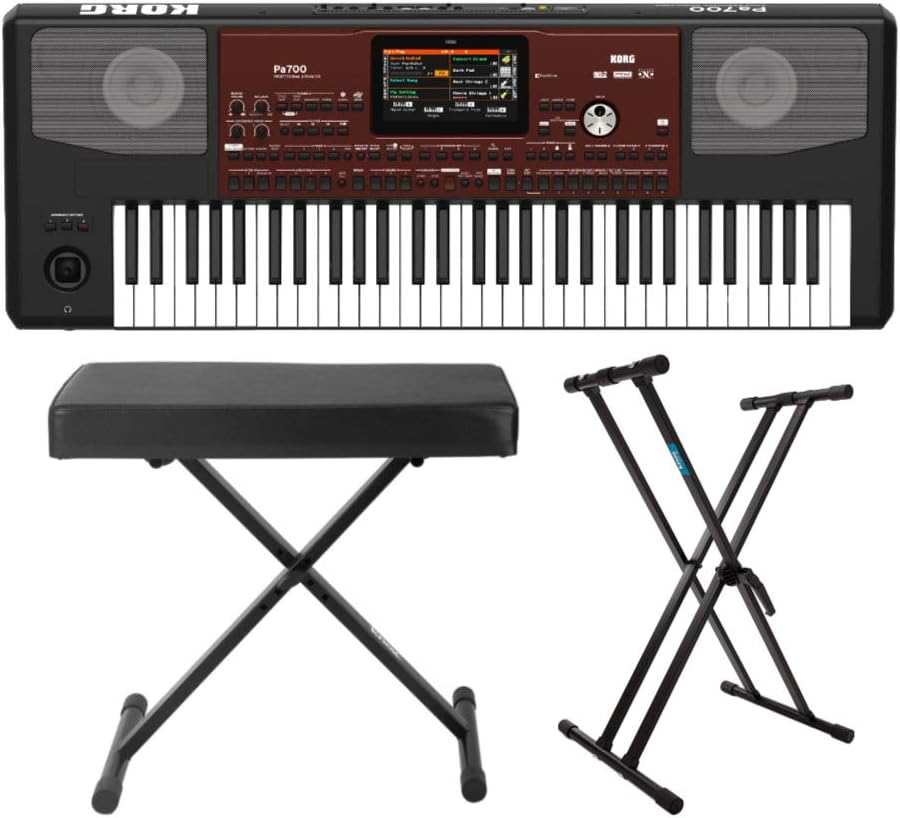
Whakaatu 2.1: Neke Atuview of the Korg PA700 Arranger Keyboard, adjustable bench, and double X stand included in the bundle.
3. Tohutohu Tatūnga
3.1 Te Huihui i te Tūnga Papapātuhi
- Unfold the adjustable double X keyboard stand.
- Adjust the height to your preferred playing position using the locking mechanism. Ensure the stand is stable before placing the keyboard.

Figure 3.1: The adjustable double X keyboard stand, ready for assembly and height adjustment.
3.2 Assembling the Keyboard Bench
- Unfold the adjustable X-style keyboard bench.
- Ensure all legs are securely locked into place for stability.

Figure 3.2: The adjustable X-style keyboard bench in its unfolded, ready-to-use state.
3.3 Connecting the Korg PA700 Keyboard
- Place the Korg PA700 keyboard securely on the assembled stand.
- Insert the power cable into the AC IN port on the rear panel of the keyboard.
- Connect the other end of the power cable to a suitable power outlet.
- If using external audio equipment, connect audio cables to the appropriate output jacks (e.g., L/MONO, R) on the rear panel.
- For headphones, connect to the headphone jack on the front left side of the keyboard.

Figure 3.3: The rear panel of the Korg PA700, showing various input and output ports including AC IN, audio outputs, and USB connections.
4. Nga Tohutohu Whakahaere
4.1 Kei te Hiko / Weto
- To power on, press the POWER button located on the left side of the keyboard.
- To power off, press and hold the POWER button until the unit shuts down.
4.2 Navigating the TouchView Whakaatu
The Korg PA700 features a capacitive TouchView display. Interact with the display by touching icons and menus directly with your finger. The redesigned graphical interface is designed for ease of use and readability.

Whakaahua 4.1: Runga view of the Korg PA700, highlighting the central TouchView display and surrounding control panel.
4.3 Sound Selection and Customization
The PA700 includes over 1,700 ready-to-play sounds, powered by the EDS-X sound engine. These include a wide range of instruments from classic keyboards to orchestral sounds. Use the TouchView display to browse and select sounds.
4.4 Using Studio-Quality Effects
The keyboard offers 148 effect types. For accompaniment tracks, two insert effects and two master effects can be applied. For real-time keyboard tracks, one insert effect and two master effects are available. Access and adjust these effects through the TouchView display's effect section.
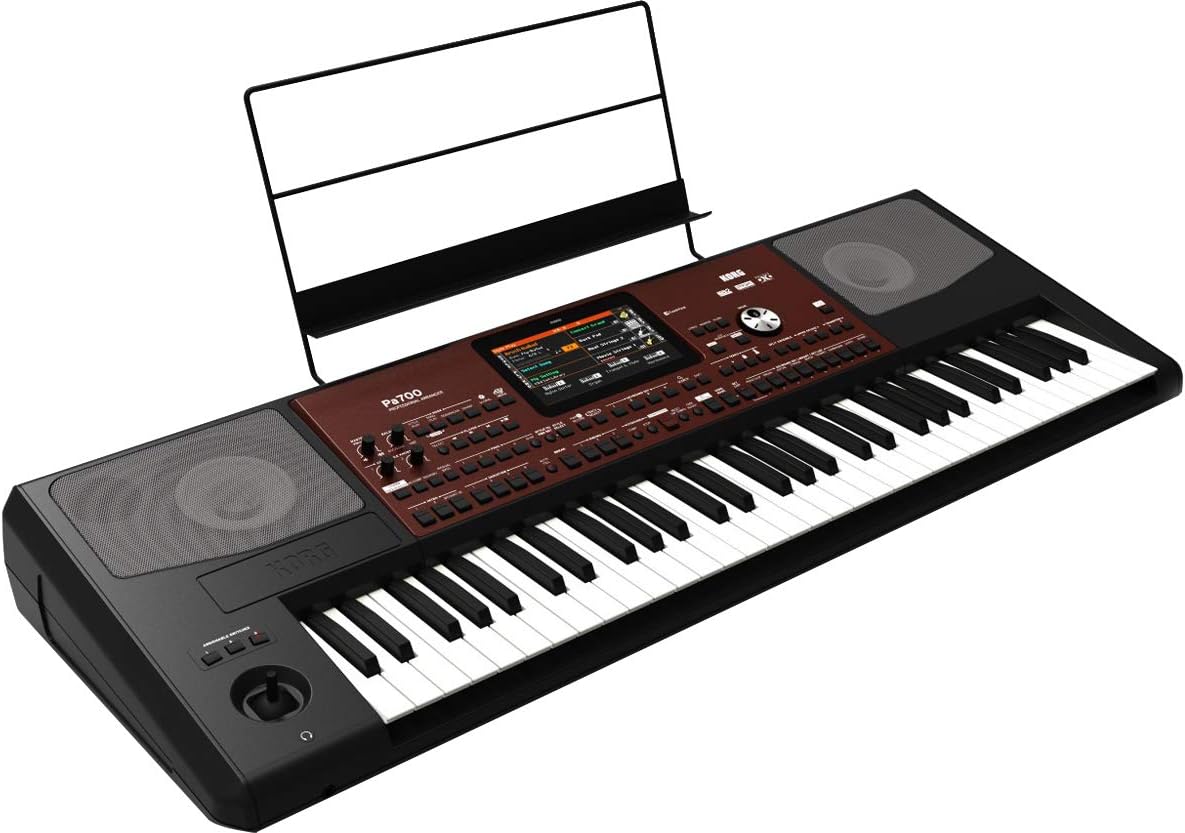
Whakaahua 4.2: Koki view of the Korg PA700, showing the keyboard, control panel, and an installed music rest.
5. Tiaki
5.1 Te horoi
- Use a soft, dry cloth to clean the surface of the keyboard, stand, and bench.
- Mo te paru maro, paku dampen the cloth with water and a mild, non-abrasive cleaner, then wipe dry immediately.
- Kaua e whakamahi i ngā kai horoi whakakoi, ngā whakarewa, ngā ware pi rānei, nā te mea ka kino pea te āhua o te peita.
5.2 Rokiroki
- Whakaorangia te papapātuhi ki te waahi hauhautanga, maroke atu i te ra tika me te wera nui.
- If storing for extended periods, cover the keyboard to protect it from dust.
6. Te Raru
6.1 Karekau he Mana
- Ensure the power cable is securely connected to both the keyboard and a working power outlet.
- Tirohia mehemea kei te mahi te putanga hiko ma te hono atu ki tetahi atu taputapu.
6.2 Karekau he Oro
- Verify that the master volume knob is turned up.
- If using headphones, ensure they are properly plugged in and test with another audio source.
- Mena kei te whakamahi koe i ngā kaikorero o waho, tirohia te mana me ngā hononga.
6.3 Kāore te Whakaaturanga e Tauhohe
- Try restarting the keyboard by powering it off and on again.
- Ensure your fingers are clean and dry when interacting with the TouchView whakaatu.
7. Whakatakotoranga
| Āhuahira | Whakatakotoranga |
|---|---|
| Ingoa Tauira | PA700 |
| Waitohu | KORG |
| Te maha o nga Kī | 61 |
| Momo taputapu | Electronic Keyboard (Arranger) |
| Mihini Oro | EDS-X (Enhanced Definition Synthesis-eXpanded) |
| Nga tangi | Over 1,700 ready-to-play sounds |
| Ngā Pānga | 148 types (2 Insert/2 Master for accompaniment, 1 Insert/2 Master for real-time) |
| Ampkaikawe | 2 x 25 Watt |
| Kaikōrero | 2 loudspeakers in bass-reflex enclosure |
| Whakaatu | Puakaha PaView whakaatu |
| Hangarau Hononga | Auxiliary, 3.5mm Jack (Headphone) |
| Puna Mana | Hiko Hiko |
| Taumaha Tūemi | 30.8 pauna (Papapātuhi anake) |
| Hunga Hua | 9.1 x 9.1 x 9.1 inches (Packaging/Shipping dimensions, actual keyboard dimensions may vary) |
| Tae | Black, Wine Red |
| UPC | 657379010538 |
8. Pūtāhui me te Tautoko
For warranty information and technical support, please refer to the official Korg website or contact Korg customer service directly. Specific warranty terms may vary by region and retailer.
You can find more information and support resources by visiting the official KORG store online: KORG Official Store.


