1. Kupu Whakataki
This manual provides essential information for the installation, operation, maintenance, and troubleshooting of your Juniper Networks EX3400-48P Ethernet Switch. The EX3400-48P is designed to deliver a high-performance, flexible, and cost-effective solution for demanding data, voice, and video enterprise access environments. It supports Juniper Networks Virtual Chassis technology for simplified network operations.
2. Nga korero haumaru
Please read and understand all safety instructions before installing or operating the device. Failure to follow these guidelines may result in injury or damage to the equipment.
- Me whakarite kia tika te turanga o nga taputapu.
- Kaua e whakahaerehia te pana i te wā makuku, i te wā ua rāneiamp tikanga.
- Use only the power supply provided or approved by Juniper Networks.
- A ape i te arai i nga whakatuwheratanga hau kia kore e wera rawa.
- Refer to qualified service personnel for any servicing not described in this manual.
3. Hua Neke Atuview
The Juniper Networks EX3400-48P is a 48-port Power over Ethernet (PoE+) capable Ethernet switch. It features a compact design suitable for rack mounting and offers various connectivity options.
3.1. Wae-a-tinana
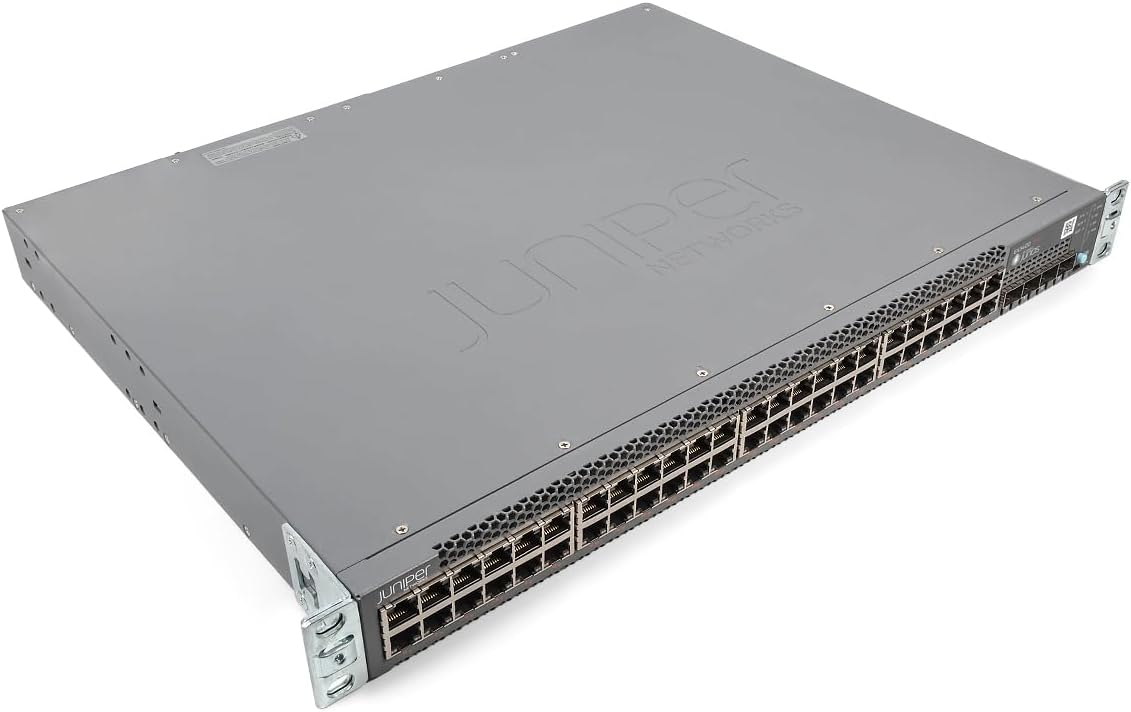
Whakaahua 1: Koki view of the Juniper EX3400-48P Ethernet Switch, showing the top and front panels with the Juniper Networks logo.

Whakaahua 2: Mua view of the EX3400-48P switch, highlighting the 48 Ethernet ports, uplink ports, and status LEDs.

Whakaahua 3: Whakamuri view of the EX3400-48P, displaying the modular power supply bay, fan modules, management (MGMT) port, and console (CON) port.

Whakaahua 4: Koki muri view of the EX3400-48P, showing the power supply unit partially extracted, illustrating its modular design.
3.2. Tuhinga o mua Paewhiri
- 48 x 10/100/1000BASE-T Ethernet Ports: For connecting network devices.
- Tauranga Uplink: SFP/SFP+ ports for high-speed connections to other switches or routers.
- Nga LED Tūnga: Indicators for system status, port activity, and PoE status.
3.3. Ngā Āhuatanga o te Paewhiri Whakamuri
- Power Supply Bay: Houses the modular power supply unit.
- Kōwae Pā: Provide cooling for the system.
- Management (MGMT) Port: An out-of-band Ethernet port for device management.
- Console (CON) Port: For local serial console access.
4. Tatūnga
4.1. Te Wetewete me te Tirotiro
Carefully remove the switch from its packaging. Inspect the device for any signs of physical damage. Report any damage to your supplier immediately.
4.2. Whakaeke Rack
The EX3400-48P is designed for standard 19-inch rack installation. Use the provided rack-mount brackets and screws to secure the switch in the rack. Ensure adequate space for airflow around the unit.
4.3. Hononga Mana
- Me whakarite kei te tūranga OFF te pana hiko i te papa o muri.
- Connect the power cord to the power supply unit on the rear of the switch.
- Monohia tetahi pito o te taura hiko ki tētahi putanga hiko AC kua whenua.
- Flip the power switch to the ON position. The system status LED should illuminate.
4.4. Whirihoranga Tuatahi
For initial configuration, connect a console cable from your computer to the console port on the rear of the switch. Use a terminal emulation program (e.g., PuTTY, Tera Term) with the following settings:
- Tauanga peeke: 9600
- Moka Raraunga: 8
- Parity: Karekau
- Kati moka: 1
- Mana rere: Kore
Follow the on-screen prompts to set up basic network parameters such as IP address, subnet mask, and default gateway.
5. Mahi
5.1. Te Whakakaha/Weto
- Whakahiko: After connecting the power cord, press the power switch to the ON position. The switch will perform a power-on self-test (POST).
- Weto Whakakore: To power off, press the power switch to the OFF position. For a controlled shutdown, it is recommended to save the configuration and issue a shutdown command via the command-line interface (CLI) before physically powering off.
5.2. Tohu LED
Mā ngā rama LED o mua e whakaatu te āhua o te mahi a te pana:
- SYS LED: Indicates overall system status (e.g., green for normal operation, amber for warning, red for critical error).
- ALM LED: Ka tohu i te mana whakaoho.
- PoE LED: Indicates Power over Ethernet status.
- Tauranga LED: Tohua te tūnga hononga me te mahi mō ia tauranga Ethernet.
5.3. Whirihoranga Whatunga
The EX3400-48P can be configured via its command-line interface (CLI) or a web-based graphical user interface (GUI) if enabled. Common configurations include:
- VLAN creation and assignment.
- Port security settings.
- Routing protocols.
- Quality of Service (QoS) settings.
- Spanning Tree Protocol (STP) configuration.
Refer to the Juniper Networks documentation for detailed configuration guides specific to Junos OS.
6. Tiaki
6.1. Whakahoutanga Firmware
Regularly check the Juniper Networks support website for the latest Junos OS firmware updates. Keeping the firmware up-to-date ensures optimal performance, security, and access to new features. Follow the instructions provided with the firmware package for the update procedure.
6.2. Te horoi
Keep the switch clean and free of dust. Use a soft, dry cloth to wipe the exterior. For ventilation openings, use compressed air to remove dust buildup. Ensure the switch is powered off before cleaning.
6.3. Modular Component Replacement
The EX3400-48P features modular power supplies and fan trays. If a component fails, it can be replaced without powering down the entire switch (hot-swappable). Refer to the Juniper Networks hardware guide for specific replacement procedures.
7. Te Raru
Ko tenei waahanga e whakarato ana i nga otinga mo nga take noa ka pa ki a koe.
7.1. Karekau he Mana
- Manatokona kei te hono mau te aho hiko ki te pana me te putanga hiko.
- Tirohia mehemea kei te mahi te putanga hiko.
- Ensure the power switch on the rear panel is in the ON position.
- Inspect the power supply unit for any fault indicators.
7.2. No Link on Port
- Tirohia te hononga taura Ethernet i ngā pito e rua.
- Me mohio kei te noho te taputapu hono me te mahi tika.
- Try a different port on the switch.
- Verify the cable is not damaged and meets specifications (e.g., Cat5e or higher).
7.3. Nga Take Hononga Whatunga
- Verify IP address, subnet mask, and gateway settings on the switch and connected devices.
- Check VLAN configurations if applicable.
- Use diagnostic tools like
pingatraceroutefrom the switch CLI. - Consult system logs for error messages.
8. Whakatakotoranga
The following table outlines the technical specifications for the Juniper Networks EX3400-48P Ethernet Switch:
| Āhuahira | Whakatakotoranga |
|---|---|
| Tau tauira | EX3400-48P |
| Te maha o nga Tauranga | 48 |
| Momo Atanga | SFP/SFP+ |
| Rere Whakawhiti Raraunga | 336 Kikabit ia Hekona |
| Voltage | 48 Volts (DC) |
| Rauemi Take | Te whakarewa |
| Te Whakatauranga Te Pawera o runga | 50 Paetukutuku Celsius |
| Hunga Hua | 17.2 x 13.78 x 1.73 inihi |
| Taumaha Tūemi | 12.65 pauna |
| Kaihanga | Hunipera |
| UPC | 832938071001 |
9. Pūtāhui me te Tautoko
9.1. Hua Rarangi
This product is typically covered by a manufacturer's warranty. Please refer to the specific warranty terms provided at the time of purchase or on the official Juniper Networks website. A 30-day return policy may apply depending on the vendor.
9.2. Tautoko Hangarau
For technical assistance, documentation, software downloads, and further support, please visit the official Juniper Networks support website. You may also contact your authorized Juniper Networks reseller for local support options.


