1. Kupu Whakataki
This user manual provides comprehensive instructions for the installation, operation, and maintenance of the Mitel IP 480G Gigabit Telephone. Designed for professional communication environments, this device offers advanced features and reliable performance for Voice over IP (VoIP) telephony. Please read this manual thoroughly before using the telephone to ensure proper functionality and to maximize your experience.

Whakaahua 1.1: Mua view of the Mitel IP 480G Gigabit Telephone, showcasing its display, keypad, and function buttons.
2. Ihirangi mokete
Verify that all items listed below are present in your product package. If any items are missing or damaged, please contact your vendor or Mitel support.
- Mitel IP 480G Gigabit Telephone Unit
- Pukoro
- Handset Cord (coiled)
- Tauira Itarangi
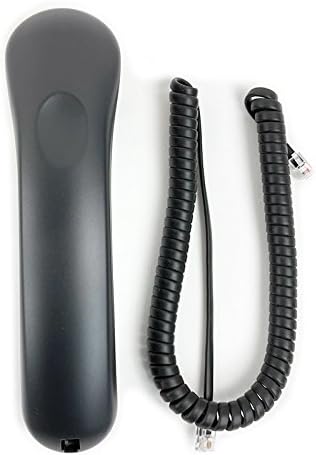
Figure 2.1: The telephone handset and its coiled cord.

Figure 2.2: Standard Ethernet cable included for network connection.

Figure 2.3: The product packaging box.
3. Tatūnga
3.1 Hononga Tinana
- Honoa te Pukoro: Plug one end of the coiled handset cord into the handset and the other end into the handset port on the side of the telephone base.
- Connect to Network/Power:
- If using Power over Ethernet (PoE): Connect one end of the Ethernet cable to the LAN port on the back of the telephone and the other end to a PoE-enabled network switch or injector.
- If not using PoE: Connect one end of the Ethernet cable to the LAN port on the back of the telephone and the other end to your network switch or router. Connect an optional 12V power adapter (not included) to the power port on the back of the telephone and then to a power outlet.
- Optional Headset Connection: If using a headset, connect it to the dedicated RJ-22 headset port on the side of the telephone.

Whakaahua 3.1: Whakamuri view of the telephone, showing the LAN port for network and power connection.
3.2 Initial Power On and Network Configuration
Once connected, the telephone will power on automatically. The backlit display will illuminate, and the phone will begin its boot sequence. During this process, it will attempt to obtain network settings.
- DHCP: By default, the phone is configured to obtain an IP address and other network settings automatically via DHCP. This is the most common setup for most networks.
- Static IP Addressing: If your network requires a static IP address, you may need to access the phone's network settings menu to manually configure the IP address, subnet mask, gateway, and DNS servers. Consult your network administrator for these details.
4. Nga Tohutohu Whakahaere
4.1 Ngā Mahi Waea Taketake
- Te Waea:
- Hikitia te ringaringa, pehia ranei te Waeaorooro pātene.
- Waeahia te tau e hiahiatia ana ma te papapātuhi.
- Pehia te Waea or Tukua soft key (if available on display) or wait for the call to connect.
- Whakautu i te Karanga:
- Ka tangi te waea, whakaarahia te ringaringa, pehia ranei te Waeaorooro pātene.
- Whakamutua te Waea:
- Replace the handset in the cradle or press the Waeaorooro paatene ano ki te whakairi ake.
4.2 Kī Āhuahira
The Mitel IP 480G includes dedicated feature keys for enhanced call management:
- Whakawhiti: Used to transfer an active call to another extension or external number.
- Huihuinga: Initiates a multi-party conference call (supports up to 6 parties).
- Puritia: Places the current active call on hold.
- History/Redial: Accesses a filterable and unlimited call history. Allows redialing previous numbers.
- Mīhiko: Direct access to your voicemail messages.
- Whaiaronga: Provides access to a searchable and filterable directory of contacts stored on the system.
4.3 Ngā Mana Ororongo
Manage your audio experience with the following controls:
- Rōrahi: Independent volume control for handset, speakerphone, headset, and alert/ring tones. Use the dedicated volume buttons.
- Wahangu: Press to mute your microphone during a call. An LED indicator will illuminate when muted.
- Waeaorooro: Toggles the speakerphone function on or off. An LED indicator will illuminate when the speakerphone is active.
- Tapeke: Activates or deactivates the headset mode. An LED indicator will illuminate when the headset is active.
4.4 Whakaatu Whakaterenga
The 297 x 160 pixels backlit display provides clear information. Use the navigation cluster (up, down, left, right arrows, and select button) to browse menus, directories, and call history. Soft keys located below the display provide context-sensitive options.
5. Tiaki
5.1 Te horoi
To maintain the appearance and functionality of your telephone, clean it regularly.
- Whakamahia he ngohengohe, damp he kakahu hei muru i nga mata o waho.
- Avoid using abrasive cleaners, solvents, or strong chemicals, as these can damage the plastic and finish.
- Kaua e rehu tika ngā wai horoi ki runga i te waea.
- Ensure the phone is unplugged from power before cleaning.
5.2 Whakahōu Pūmanawa
Periodically, Mitel may release software updates to improve performance, add features, or address security vulnerabilities. These updates are typically managed by your system administrator. Do not attempt to manually update the phone's firmware unless instructed by qualified personnel.
6. Te Raru
This section addresses common issues you might encounter with your Mitel IP 480G Gigabit Telephone.
| Raruraru | Take pea | Rongoā |
|---|---|---|
| Karekau te waea i te hiko. | Kāore he hiko mai i te pana PoE, i te urutau hiko rānei. | Verify that the Ethernet cable is securely connected to a PoE-enabled port or that the optional power adapter is correctly plugged in and receiving power. |
| Kaore he reo waea. | Network connectivity issue; phone not registered with SIP server. | Check network cable connection. Ensure your network is operational. Contact your system administrator to verify SIP registration status. |
| Kaore e taea te waea, te whiwhi waea ranei. | Network configuration error; SIP account issues. | Confirm network settings (DHCP/Static IP). Verify SIP account credentials with your system administrator. |
| Te kounga oro ngoikore (echo, static). | Network congestion; faulty cable; environmental interference. | Check network cable. Ensure sufficient bandwidth. Try a different handset or headset. If issues persist, contact support. |
If you encounter problems not listed here or if the suggested solutions do not resolve the issue, please contact your IT department or Mitel technical support for further assistance.
7. Whakatakotoranga
- Tauira: Mitel IP 480G
- Tau Wāhanga: 10577
- Ahu (L x W x H): Tata ki te 10 x 7 x 3 inihi
- Taumaha: Approximately 1.06 pounds (480 Grams)
- Tae: Pango
- Rauemi: Kirihou
- Whakaatu: 297 x 160 pixels backlit display
- Tauranga Itarangi: 10/100/1000 Gigabit Ethernet Switch
- Puna Hiko: 802.3af Power over Ethernet (PoE) or optional 12V power adapter (not included)
- He kawa: SIP Protocol, VLAN and DiffServ/ToS supported Quality of Service
- Hototahitanga pane: RJ-22 tauranga pane
- Waeaorooro: Waea tukuoro matarua katoa
- Ngā Kī Āhuatanga: Transfer, Conference (6 party), Hold, History/Redial, Voicemail, Directory
- Mana Ororongo: Independent volume control for handset, speakerphone, headset, alert/rings; Mute (LED indicator); Speakerphone (LED indicator); Headset (LED indicator)
8. Pūtāhui me te Tautoko
For information regarding the product warranty, please refer to the warranty card included with your purchase or visit the official Mitel website. Technical support and additional resources can also be found on the Mitel support portal.
Mitel Official Webpae: www.mitel.com


