Kupu Whakataki
Thank you for choosing the Perixx Periboard-322 Wired Mechanical Trackball Keyboard. This manual provides essential information for setting up, operating, maintaining, and troubleshooting your new keyboard. Please read it thoroughly to ensure optimal performance and longevity of your device.
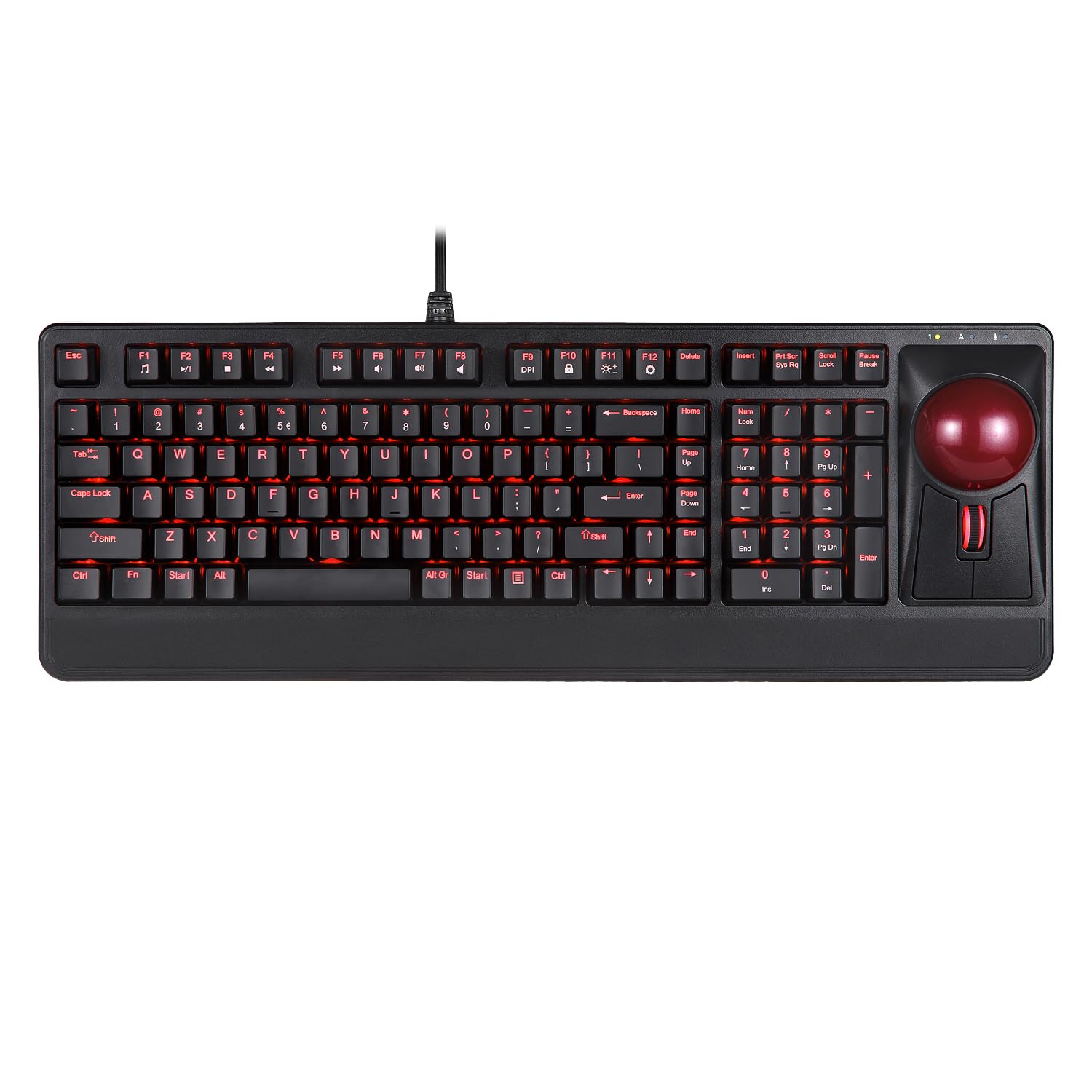
Image: The Perixx Periboard-322 wired mechanical trackball keyboard, showcasing its full layout with the integrated trackball and numeric keypad.
Tatūnga
Nga Whakaritenga Pūnaha
- Operating System: Windows 7, 8, 10
- Connectivity: Wired USB connection
- Tauranga USB e waatea ana
Te hono i to Papapihi
- Kimihia he tauranga USB e waatea ana i runga i to rorohiko.
- Plug the USB cable from the Periboard-322 into the USB port.
- Me kitea aunoa e tō pūnaha whakahaere ngā taraiwa e tika ana, ā, me tāuta aunoa.
- The keyboard is ready for use once installation is complete.

Whakaahua: He taha view of the Perixx Periboard-322 keyboard, highlighting the two integrated USB 2.0 hubs for convenient peripheral connection.
Te whakahaere i te Papapātuhi
Nga waahanga matua
- Kī Hangarau: Enjoy tactile feedback and durability with mechanical key switches.
- Integrated Trackball: A 2.17-inch (55mm) large trackball is built-in for precise cursor control.
- Tilting Scroll Wheel: Located next to the trackball for easy vertical and horizontal scrolling.
- Rama Whakamuri RGB: Dynamic backlit feature offers 6 different lighting effects.
- Puka USB: Two USB 2.0 hubs are integrated into the keyboard for connecting other devices.

Image: A user's hand is shown operating the large red trackball and adjacent mouse buttons on the Perixx Periboard-322 keyboard, demonstrating ergonomic use.
Function (FN) Key Combinations
- FN + F9: Adjust the sensitivity (DPI) of the trackball movement.
- FN + F11: Adjust the brightness of the RGB backlight.
- FN + Insert/Delete/Home/PgUp/PgDn/End: Change backlight modes (specific modes may vary).
- FN + Kī Pere: Adjust the direction of certain backlight patterns.

Image: The Perixx Periboard-322 keyboard is positioned on a desk next to a computer monitor, illustrating a typical workspace setup.

Whakaahua: He tata view of the mechanical key switches beneath the keycaps of the Perixx Periboard-322 keyboard, showing their construction.
Ataata Hua
Video: A demonstration of the Perixx 522 Trackball Keyboard, highlighting its features and offering pro tips for usage. While the model number differs slightly, the operational principles for the trackball and keyboard are similar to the Periboard-322.
Te tiaki
Te horoi i te Poitarawhiti
To ensure smooth and accurate trackball performance, regular cleaning is recommended. Dust and debris can accumulate over time.
- Turn the keyboard upside down.
- Locate the small hole at the bottom of the trackball housing.
- Using the blunt side of a pencil or a pen, gently push the trackball out from the bottom hole.
- Clean the trackball and the inside of the housing with a soft, lint-free cloth. You may use a small amount of isopropyl alcohol if necessary.
- Once clean and dry, reinsert the trackball into its housing.

Image: The underside of the Perixx Periboard-322 keyboard, illustrating the method for removing the trackball by pushing it from a designated hole for cleaning purposes.
Raparongoā
Nga take me nga otinga noa
- Karekau te papapātuhi whakautu: Ensure the USB cable is securely connected to both the keyboard and the computer. Try a different USB port.
- Trackball not moving smoothly: Refer to the Maintenance section for cleaning instructions. Accumulated dust is a common cause.
- Ko te rama tuara e kore e mahi: Check FN key combinations (FN+F11) to adjust brightness or cycle through modes. Ensure the keyboard is properly powered.
- USB hubs not functioning: Ensure the keyboard is connected to a powered USB port. Try connecting devices directly to the computer to rule out device issues.
- Kāore ngā kī e rēhita ana: Ensure no debris is lodged under the keycap. If the issue persists, contact customer support.
Whakatakotoranga
| Āhuahira | Taipitopito |
|---|---|
| Waitohu | Perixx |
| Tau tauira | PB-322BUS-11577 |
| Hangarau Hononga | USB (Waea) |
| Whakaahuatanga Papapātuhi | Hangaia |
| Rahi Aroturuki | 2.17 inihi (55mm) |
| Āhuahira Motuhake | RGB Backlit, Integrated Trackball, Tilting Scroll Wheel, 2x USB 2.0 Hubs |
| Hototahitanga Pūnaha Whakahaere | Windows 7, 8, 10 |
| Taumaha Tūemi | 3.15 pauna |
| Rahi Hua (LxWxH) | 18.49 x 6.59 x 2.65 inihi |
| Voltage | 5.25 Volts |

Image: A technical illustration of the Perixx Periboard-322 keyboard, detailing its dimensions and labeling key components such as LED indicators, USB hubs, and the built-in tilting scroll wheel.
Pūtāhui me te Tautoko
Nga korero Whakaputanga
The Perixx Periboard-322 comes with a 12-month limited warranty from the date of purchase. This warranty covers manufacturing defects and malfunctions under normal use. It does not cover damage caused by misuse, accidents, unauthorized modifications, or external factors.
Tautoko Kiritaki
For technical assistance, warranty claims, or any questions regarding your Perixx Periboard-322, please visit the official Perixx website or contact their customer support team. Please have your model number (PB-322BUS-11577) and proof of purchase ready when contacting support.


