1. Hua Neke Atuview
The Amazon Echo Sub is a powerful subwoofer designed to enhance the audio experience of your compatible Echo devices. It delivers deep, rich bass, adding a new dimension to your music and entertainment.
- Oro Pāoro Hōhonu: Features a down-firing, 100W deep bass sound through a 6-inch woofer.
- Ororongo Whakarei: Pair with one Echo or Echo Plus (sold separately) for dynamic, room-filling music.
- Oro Tirotiro: Combine with two identical Echo devices for a rich left/right stereo sound experience.
- Te Whakakotahi Maamaa: Designed for simple setup and wireless connection via the Alexa app.
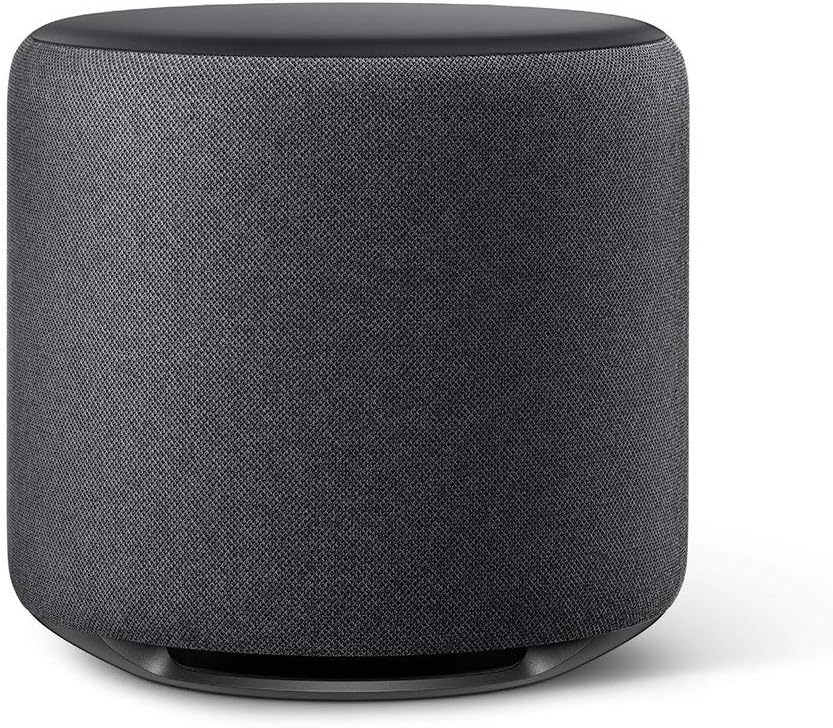
Figure 1: The Amazon Echo Sub, a cylindrical charcoal-colored subwoofer designed to provide deep bass.
2. Tohutohu Tatūnga
Setting up your Echo Sub is a straightforward process. Ensure you have a compatible Echo device and the Alexa app installed on your smartphone or tablet.
- Turanga: Place your Echo Sub on the floor in a suitable location, ideally near your primary listening area and compatible Echo device(s). Ensure it has access to a power outlet.
- Whakahiko: Plug the power cable into the Echo Sub and then into a wall outlet. The indicator light will illuminate.
- Open Alexa App: Launch the Alexa app on your mobile device.
- Tāpiri Pūrere: In the Alexa app, navigate to the "Devices" section. Tap the "+" icon in the top right corner and select "Add Device."
- Select Amazon Echo: Choose "Amazon Echo" from the list of device types, then select "Echo Sub."
- Whai i nga Tohuaki-Mata: The app will guide you through connecting the Echo Sub to your Wi-Fi network and pairing it with your existing Echo device(s).
- Hototahi Whatunga: Ensure all your Echo devices, including the Echo Sub, are connected to the exact same Wi-Fi network and frequency band (e.g., 2.4 GHz or 5 GHz) for optimal performance and pairing. Inconsistent network connections can prevent successful pairing.

Whakaahua 2: Example setup showing the Echo Sub paired with two Echo devices for an immersive stereo sound experience.
3. Operating Your Echo Sub
Once set up, the Echo Sub operates in conjunction with your paired Echo device(s). All controls are managed through the Alexa app or voice commands to your Echo device.
3.1 Adjusting Bass Levels
You can fine-tune the bass output of your Echo Sub through the Alexa app:
- Whakatuwherahia te taupānga Alexa.
- Go to "Devices."
- Select your paired Echo device or speaker group.
- Tap on "Audio Settings" or "Equalizer."
- Adjust the bass slider to your preferred level.
3.2 Mana Reo
Control music playback, volume, and other functions using voice commands directed at your paired Echo device. The Echo Sub will automatically adjust its output based on the audio played through the Echo device.
Tuhipoka: Alexa Voice Service is currently available only in English.

Figure 3: The Echo Sub enhancing audio with deep bass, represented by blue sound waves.
4. Tiaki
The Echo Sub requires minimal maintenance to ensure optimal performance and longevity.
- Te horoi: Use a soft, dry, lint-free cloth to gently wipe the exterior of the Echo Sub. Avoid using abrasive cleaners, solvents, or spray cleaners directly on the device.
- Whakahau: Ensure the subwoofer's vents are not obstructed to prevent overheating. Maintain adequate space around the device for proper airflow.
- Taiao: Keep the Echo Sub away from direct sunlight, heat sources, and moisture. Do not expose it to liquids.
5. Te Raru
If you encounter issues with your Echo Sub, try the following troubleshooting steps:
5.1 Kāore he Oro, he Ororongo Wā-poto rānei
- Taki Hiko: Ensure the Echo Sub is properly plugged into a working power outlet.
- Alexa App: Verify that the Echo Sub is correctly paired with your Echo device(s) in the Alexa app.
- Hononga Whatunga: Confirm that both the Echo Sub and its paired Echo device(s) are connected to the same Wi-Fi network and frequency band (2.4 GHz or 5 GHz). Inconsistent network settings are a common cause of pairing issues.
- Tīmataria anō ngā Pūrere: Unplug the Echo Sub and your paired Echo device(s) from power for 30 seconds, then plug them back in.
- Taumata Rōrahi: Check the volume settings in the Alexa app and on your paired Echo device.
5.2 Nga Take Takirua
- Reset Pairing: In the Alexa app, try unpairing and then re-pairing the Echo Sub with your Echo device(s).
- Factory Reset (Sub): To factory reset the Echo Sub, press and hold the Action button (the small circle button) on the back of the device for 20 seconds. The light ring will pulse orange, then turn blue. Release the button. The light ring will then turn orange, indicating it's ready for setup.
- Whakahōu Taupānga: Ensure your Alexa app is updated to the latest version.
5.3 Oro Kororirori
- Taumata Pango: Reduce the bass level in the Alexa app's audio settings.
- Turanga: Ensure the Echo Sub is not vibrating against other objects.
- Kounga Puna: Check if the audio source (music service, podcast) is of high quality.
6. Whakatakotoranga
| Āhuahira | Taipitopito |
|---|---|
| Ingoa Tauira | Echo Sub |
| Rahi Woofer | 6 inihi |
| Putanga Mana | 100W |
| Momo Ororongo | Te whakakā i te subwoofer |
| Hononga | Ahokore (Wi-Fi) |
| Hototahi | Compatible with select Echo devices (Echo, Echo Plus) |
| Tae | Te waro |
7. Nga Korero Whakaputanga
For detailed warranty information regarding your Amazon Echo Sub, please refer to the warranty documentation included with your product packaging or visit the official Amazon Device Support webpae. Ko ngā tikanga o te pūtāhui e kapi ana i ngā hapa o ngā rauemi me te mahi toi i raro i te whakamahinga noa.
8. Tautoko Kiritaki
If you require further assistance or have questions not covered in this manual, please contact Amazon Customer Service:
- Tautoko Aipurangi: Tirohia te Amazon Device Support page.
- Kōwhiringa Whakapā: The support page provides options for chat, email, or phone support.


