1. Kupu Whakataki
Thank you for choosing the Viotek NB27CB 27-Inch LED Curved Monitor. This monitor is designed to provide a vibrant and immersive visual experience for both work and entertainment. Featuring a bezel-less Samsung VA panel, 75Hz refresh rate, 1080P Full-HD resolution, and FreeSync technology, it offers exceptional clarity and smooth performance. This manual provides detailed instructions for setting up, operating, maintaining, and troubleshooting your new monitor.

2. Tatūnga
2.1. Te Wetewete i te Aroturuki
Carefully remove all components from the packaging. Ensure all items listed in the 'What's in the Box' section are present. Retain the original packaging for future transport or storage.
2.2. Huihui i te Tu
- Attach the stand neck to the monitor panel by aligning the grooves and gently pushing until it clicks into place.
- Whakamauhia te turanga ki te kaki o te tūnga mā te whakamahi i te tīwiri kua whakaratohia.
- Whakanohoia te kaitirotiro kua whakaemihia ki runga i te mata papatahi.
2.3. Te hono ki tetahi Pūrere
The NB27CB monitor supports both VGA and HDMI 1.4 connections. Choose the appropriate cable for your device and connect it to the corresponding port on the monitor. An HDMI cable is included with your purchase.
- Hononga HDMI: Connect one end of the HDMI cable to the HDMI port on your computer or gaming console, and the other end to the HDMI port on the monitor.
- Hononga VGA: Connect one end of the VGA cable to the VGA port on your computer, and the other end to the VGA port on the monitor.
- Hononga Hiko: Honoa te urutau hiko ki te tāuru hiko o te mata, kātahi ka mono ki te putanga hiko.

2.4. Whakapuru VESA (Whiringa)
The NB27CB is VESA compatible (75x75mm), allowing you to mount it to a wall or a compatible monitor arm. Ensure you use appropriate VESA screws and mounting hardware (not included) that can support the monitor's weight.
3. Whakahaere i te Aroturuki
3.1. Te Hiko / Whakaweto
Pēhia te pātene hiko kei runga i te aroturuki hei whakakā, whakaweto rānei. Ka whiti te rama tohu hiko i te wa e kaha ana te aroturuki.
3.2. Tahua Whakaatu-a-Mata (OSD).
Use the buttons on the monitor's bezel to navigate the OSD menu. This menu allows you to adjust various display settings such as brightness, contrast, color temperature, input source, and more.
3.3. Nga waahanga matua
- 75Hz Tere Tāmata & 5ms Wā Whakautu: Experience smoother visuals with a 75Hz refresh rate and a rapid 5ms response time, ideal for gaming and fast-paced content.
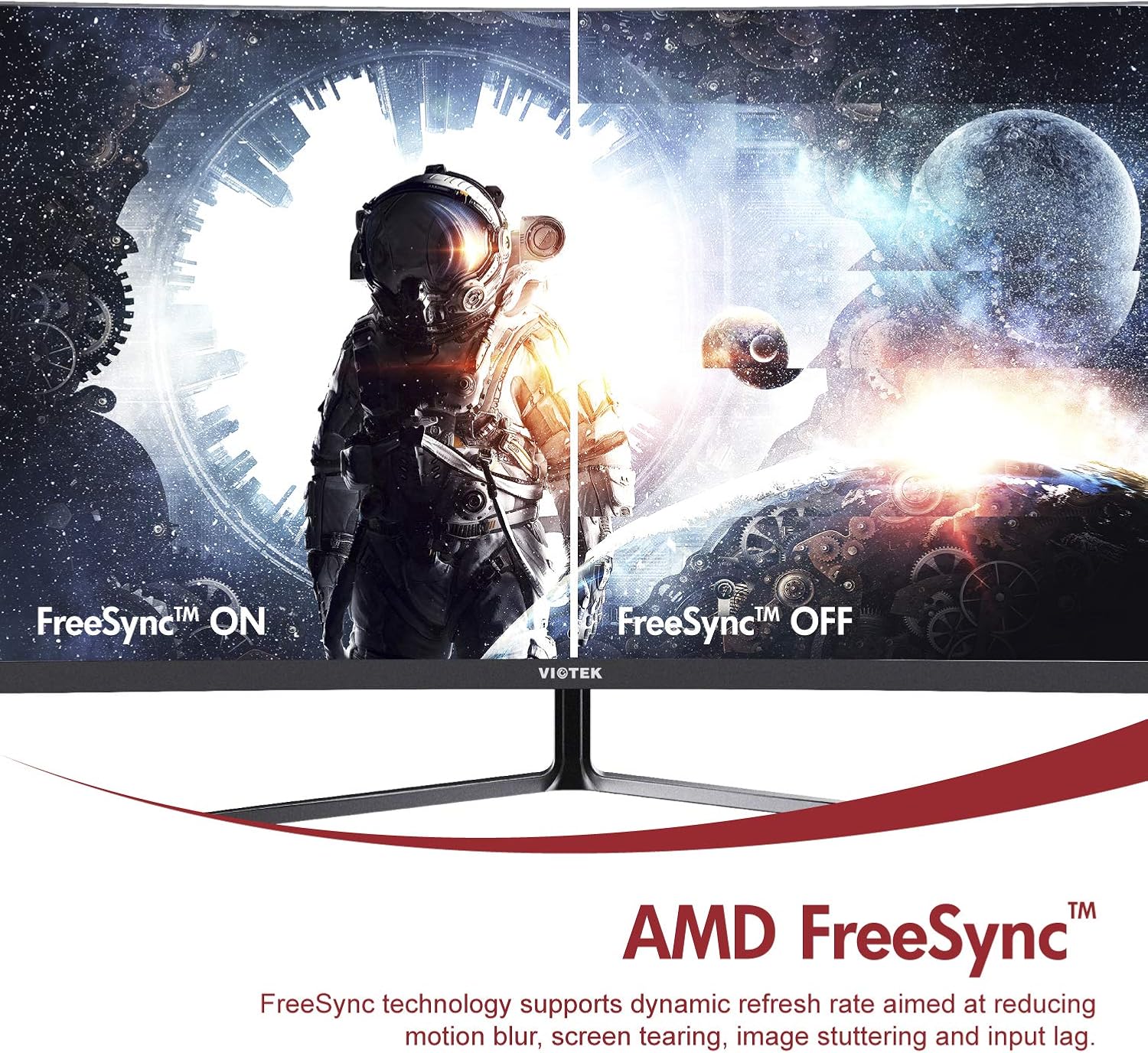
- AMD FreeSync™: Activate FreeSync to synchronize the monitor's refresh rate with your graphics card's frame rate, reducing screen tearing and stuttering for a seamless gaming experience.
- Maama Kahurangi iti: Reduce eye strain during prolonged use by enabling the Low Blue Light setting in the OSD menu. This filters out harmful blue light emissions.
- GamePlus Crosshair Functionality: For competitive gaming, activate the GamePlus crosshair overlay to improve aiming accuracy in FPS/RTS games.
- Nga Kaikōrero Roa-roto: The monitor includes integrated speakers for audio output.



4. Tiaki
Ma te tiaki tika ka mau te roa me te mahi tino pai o to kaitirotiro.
- Te horoi i te Mata: Me ata horoia te mata ki te kakahu ngohengohe, kore-puru. Mo nga tohu pakeke, whakamahia he otinga horoi mo te aro turuki ki te kakahu, kaua ki te mata.
- Te horoi i te Casing: Whakamahia he kakahu ngohengohe, maroke hei horoi i te casing. A ape i te whakamahi i nga kai horoi me nga whakarewa.
- Whakahau: Me whakarite karekau e araia nga kohao hau o te kaitirotiro kia kore e wera rawa.
- Rokiroki: Mena ka roa te rokiroki o te mata tirotiro, whakamahia te takai taketake hei tiaki i te puehu me te kino.
5. Te Raru
Mena ka raru koe ki to kaitutei, tirohia nga raru me nga otinga e whai ake nei:
| Raruraru | Take pea | Rongoā |
|---|---|---|
| Kaore he ahua o te mata | Power cable disconnected; Video cable disconnected; Incorrect input source. | Me whakarite kia hono pai ngā taura hiko me ngā taura ataata. Tīpakohia te pūtake tāuru tika mā te tahua OSD. |
| Ko te atahanga he rangirua, he korikori ranei | Taumira hē; taura ataata wewete. | Set the display resolution to 1920x1080. Check video cable connection. |
| Kaore he tangi mai i nga kaikorero | Volume too low; Audio output not set to monitor; Faulty cable. | Increase monitor volume. Ensure your computer's audio output is set to the monitor. Check HDMI cable. |
| Matapihi mata | FreeSync not enabled (if applicable); Graphics driver issues; Faulty cable. | Enable FreeSync in OSD and graphics card settings. Update graphics drivers. Try a different video cable. |
6. Whakatakotoranga
Detailed technical specifications for the Viotek NB27CB monitor:
| Āhuahira | Whakatakotoranga |
|---|---|
| Rahi Mata | 27 Inihi |
| Whakatau Mata | 1920x1080 (Katoa HD) |
| Taumira Mata Max | 1920 x 1080 |
| Rere tāmata | 75Hz Max. |
| Wā Whakautu | 5ms |
| Momo Paewhiri | Paewhiri VA |
| Kopikopiko | 1800R |
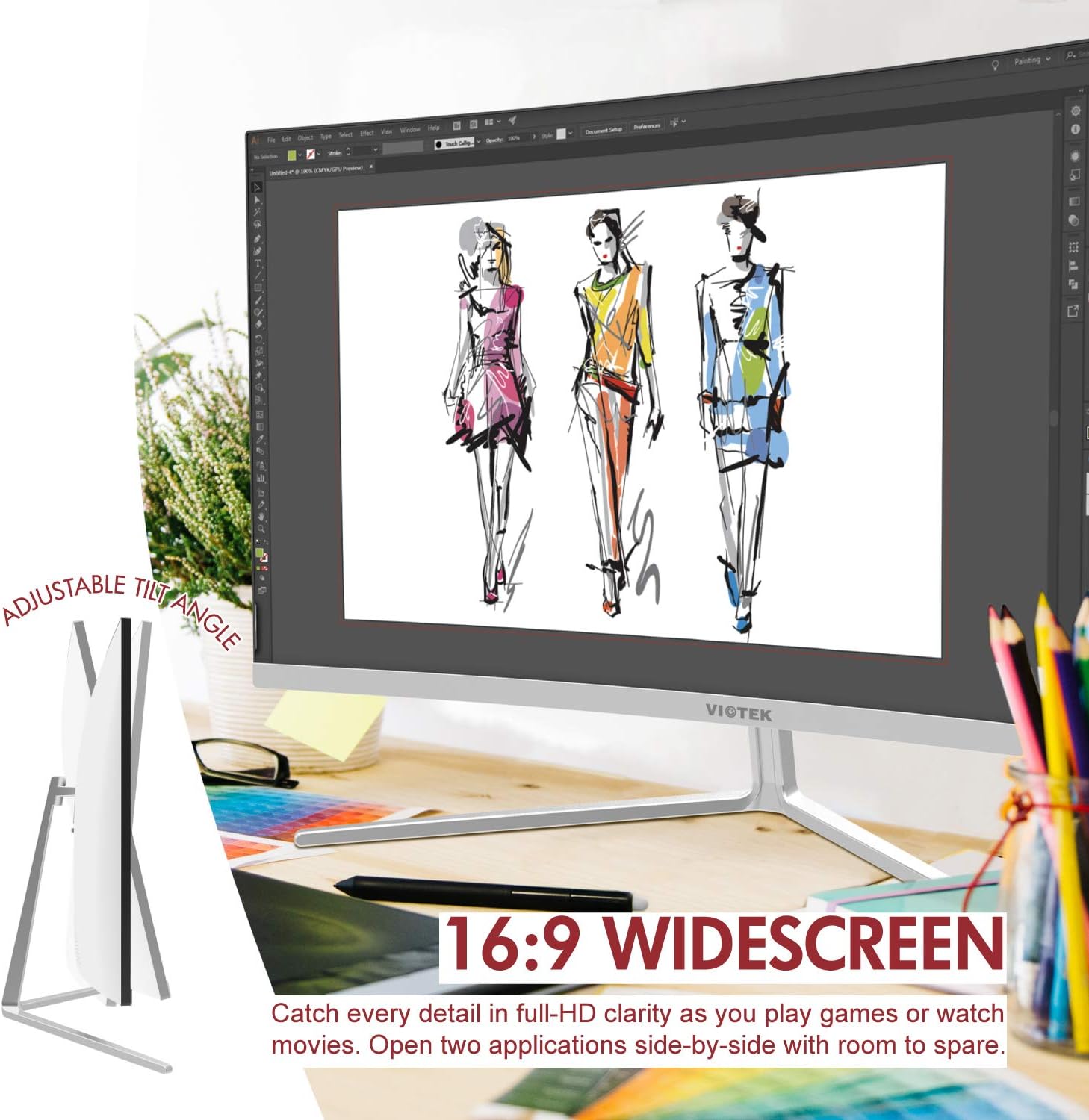
| Aspect Ratio | 16:9 |
| Nga Tae Whakaatu | 16.7M nga Tae |
| Tauwehenga Pūrata Hihiko | 1000000:1 |
| VESA Hototahi | 75x75mm |
| Tauranga | 1x VGA / 1x HDMI 1.4 |
| Kaikōrero | Yes, 2x 4Ω/3W |
| Hoa Whakaritea | Yes, -5° ~ 15° |
| Taumaha Tūemi | 10.36 pauna |
| Hunga Hua | 24.13 x 8.38 x 17.67 inihi |
7. Raihana me te Tautoko
7.1. Hua Rarangi
The Viotek NB27CB monitor comes with a 3-Tau Pūtāhui covering parts and labor. This includes Viotek's industry-leading Zero-Tolerance Dead Pixel Policy, ensuring a high-quality display experience.

7.2. Tautoko Kiritaki
Viotek provides 100% U.S.-based customer support, available 7 days a week via live-chat, email, and social media. For assistance, please visit the official Viotek webpaetukutuku, tirohia rānei ngā taipitopito whakapā kua whakaratohia me ngā tuhinga mō tō hua.