1. Kupu Whakataki
This manual provides essential information for setting up, operating, and maintaining your Amazon Echo Dot (3rd Generation) smart speaker. The Echo Dot is a voice-controlled smart speaker with Alexa, designed to integrate seamlessly into your daily life, offering assistance with tasks, entertainment, and smart home control.
Tena panuihia tenei pukapuka hei whakarite kia tika te whakamahi me te whakanui ake i nga kaha o to taputapu.
2. Hua Neke Atuview
The Echo Dot (3rd Generation) is a compact smart speaker featuring a fabric design and improved sound quality. It connects to the Alexa voice service to play music, answer questions, make calls, send messages, provide information, news, sports scores, weather, and more.
2.1 Waenga Pūrere
- Patene Hohenga: Activates Alexa without using the wake word.
- Patene Whakaweto hopuoro: Disables the microphones for privacy. The light ring will turn red when microphones are off.
- Patene Runga / Raro: Whakaritea ai te reo orooro.
- Light Ring: Provides visual feedback on device status (e.g., blue for listening, red for mic off, orange for setup).
- Tauranga Hiko: Connects the device to a power outlet using the included adapter.
- 3.5mm Putanga Ororongo: Allows connection to external speakers.

Whakaahua 1: Mua view of the Echo Dot (3rd Generation) showing its compact design and fabric finish.

Figure 2: The Echo Dot (3rd Generation) highlighting its various functionalities such as music playback, setting timers, smart home control, providing information, intercom features, and news updates.

Figure 3: The top view of the Echo Dot (3rd Generation) showing the microphone off button. Pressing this button disconnects the microphones, indicated by a red light ring, ensuring privacy.
3. Tatūnga
3.1 He aha kei roto i te Pouaka
- Amazon Echo Dot (Whakatupuranga Tuatoru)
- Pūurutau Hiko (15W)
- Aratohu Timata Tere
3.2 Tatūnga Tuatahi
- Monohia tō Echo Dot: Connect the included power adapter to your Echo Dot and then to a power outlet. The light ring will turn blue, then orange, indicating it's ready for setup.
- Tikiake i te Alexa App: On your smartphone or tablet, download the Amazon Alexa app from your device's app store (iOS App Store or Google Play Store).
- Set Up Your Echo Dot:
- Whakatuwheratia te taupānga Alexa ka takiuru ki tō pūkete Amazon.
- Tap the 'Devices' icon in the bottom right corner.
- Tap the '+' icon in the top right corner, then select 'Add Device'.
- Choose 'Amazon Echo', then 'Echo Dot', and select '3rd Generation'.
- Follow the on-screen instructions to connect your Echo Dot to your Wi-Fi network. The Echo Dot supports dual-band Wi-Fi (2.4 GHz and 5 GHz).
- Whakaritea nga Tautuhinga: Once connected, you can customize settings such as device name, location, and preferred music services within the Alexa app.
4. Nga Tohutohu Whakahaere
The Echo Dot is primarily controlled by voice commands using the wake word "Alexa."
4.1 Ngā Whakahau Reo Taketake
To activate Alexa, simply say "Alexa," followed by your command. The light ring will turn blue when Alexa is listening.
- "Alexa, he aha te rangi?"
- "Alexa, whakatakotoria he taima mō ngā meneti 10."
- "Alexa, kōrerotia mai tētahi kōrero whakakatakata."
- "Alexa, what's the news?"
4.2 Puoro me te Ororongo
You can stream music from various services or connect via Bluetooth.
- Ratonga Rere: "Alexa, play music by [artist] on Amazon Music/Spotify/Apple Music."
- Nihokikorangi: "Alexa, pair Bluetooth." Then connect from your device's Bluetooth settings. "Alexa, connect to my phone."
- Kaikōrero o waho: Connect your Echo Dot to external speakers using a 3.5mm audio cable for enhanced sound.
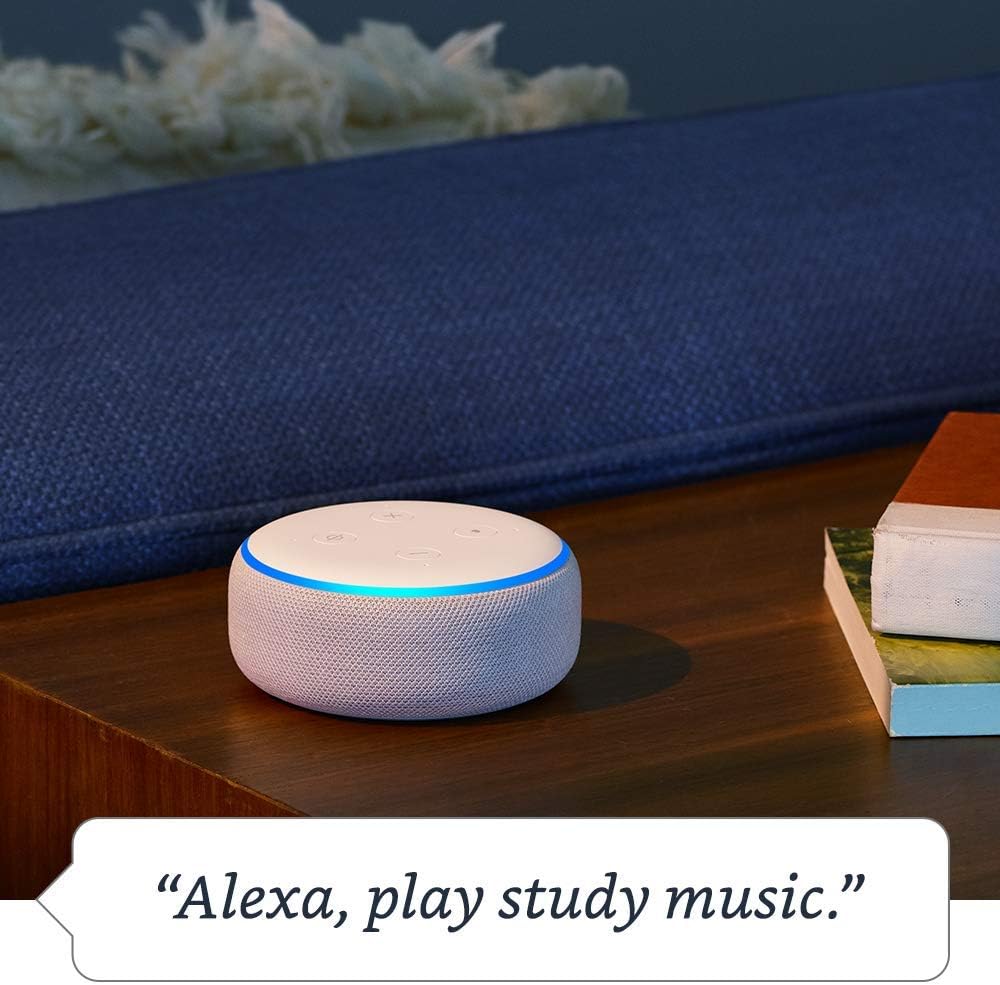
Figure 4: The Echo Dot (3rd Generation) responding to a voice command to play music, demonstrating its audio playback capabilities.
4.3 Mana Whakahaere Kāinga Atamai
Control compatible smart home devices with your voice.
- "Alexa, whakakāhia ngā rama o te rūma noho."
- "Alexa, whakatauhia te whakamaarama ki te 72 nga nekehanga."
- "Alexa, show me the front door camera." (Requires compatible Echo device with screen)

Figure 5: The Echo Dot (3rd Generation) demonstrating smart home integration by controlling a lamp with a voice command.
4.4 Whakawhitiwhiti
Use your Echo Dot to connect with others.
- Waea ana: "Alexa, call Mom." (Requires contacts synced in Alexa app)
- Drop In: "Alexa, drop in on the kitchen Echo." (Allows instant two-way communication with other Echo devices)
- Panuitanga: "Alexa, announce dinner's ready." (Broadcasts a message to all Echo devices in your home)

Figure 6: The Echo Dot (3rd Generation) being used for household announcements, simplifying communication within the home.
4.5 Privacy Controls
Amazon Echo devices are designed with multiple layers of privacy protection.
- Patene Whakaweto hopuoro: Press the microphone off button on top of the device to electronically disconnect the microphones. The light ring will turn red.
- Hītori Reo: Ka taea e koe te review and delete your voice recordings in the Alexa app or at amazon.com/alexaprivacy.
4.6 Ngā Āhuatanga Wātea
The Echo Dot includes various accessibility features configurable through the Alexa app (Settings → Accessibility).
- Whakarongo Urutau: Provides more time to speak before Alexa responds.
- Rereke Korero Manakohia: Adjust Alexa's speaking speed (e.g., "Alexa, speak slower").
- Tono Oro: Plays an audible tone when Alexa starts listening.
- Kindle Panui Nui: Ka taea e Alexa te pānui i ō pukapuka Kindle.
4.7 Amazon Sidewalk
Amazon Sidewalk is a shared network that helps compatible devices work better at home and beyond. It uses a small portion of your internet bandwidth to provide benefits to you and your neighbors via Sidewalk Bridges (participating Echo and Ring devices). Sidewalk is turned on by default but can be turned off at any time in the Alexa app settings.
5. Tiaki
5.1 Te horoi
To clean your Echo Dot, unplug the device and wipe it with a soft, lint-free cloth. Do not use abrasive cleaners or sprays. Keep the device dry and away from liquids.
5.2 Whakahōu Pūmanawa
Ka whiwhi aunoa tō Echo Dot i ngā whakahōutanga pūmanawa mā te Wi-Fi. Me whakarite kei te hono tō pūrere ki te ipurangi kia whiwhi ai koe i ngā āhuatanga hou me ngā whakapainga haumarutanga.
6. Te Raru
- Echo Dot is not responding:
- Ensure the microphone is not muted (red light ring).
- Check if the device is plugged in and has power.
- Verify Wi-Fi connectivity in the Alexa app.
- Try restarting the device by unplugging it for 30 seconds and plugging it back in.
- Kaore e taea te hono ki Wi-Fi:
- Me mohio kei te tika to kupuhipa Wi-Fi.
- Move the Echo Dot closer to your Wi-Fi router.
- Tīmataria anō tō pouara me te pouwhanga.
- Confirm your network is 802.11 a/b/g/n/ac (2.4 or 5 GHz) and not an ad-hoc network.
- Poor audio quality or no sound:
- Adjust the volume using the buttons on the device or via voice command.
- If connected to external speakers, ensure they are powered on and connected correctly.
- If using Bluetooth, ensure the Bluetooth device is connected and within range.
For more detailed troubleshooting, refer to the help section within the Amazon Alexa app or visit Amazon's support webpae.
7. Whakatakotoranga
| Āhuahira | Whakaahuatanga |
|---|---|
| Rahi | 3.9" x 3.9" x 1.7" (99 mm x 99 mm x 43 mm) |
| Taumaha | 10.6 oz. (300 karamu) |
| Hononga Wi-Fi | Dual-band Wi-Fi supports 802.11 a/b/g/n/ac (2.4 and 5 GHz) networks. Does not support ad-hoc (peer-to-peer) networks. |
| Hononga Nihokikorangi | Pro tohatoha Ororongo Arāfile (A2DP) for audio streaming. Audio/Video Remote Control Profile (AVRCP) for voice control of connected mobile devices. Bluetooth speakers requiring PIN codes are not supported. |
| Hototahitanga Pūrere Kaainga Ataata | WiFi, Bluetooth Low Energy Mesh, and Matter. |
| Whakahoutanga Haumarutanga Pūmanawa | Automatic updates provided. |
| Ngā Āhuatanga Āheitanga | Adaptive Listening, Preferred Speaking Rate, Request Sound, Kindle Read Aloud, Notify When Nearby, and other settings for vision, hearing, mobility, and speech. |
| Hikoi Amazon | Shared network for compatible devices, uses a small portion of internet bandwidth. User-configurable. |
8. Pūtāhui me te Tautoko
8.1 Hua Whakatau
Information regarding the limited warranty for your Amazon Echo Dot (3rd Generation) can be found in the original product packaging or on the Amazon webpae. Tena koa pupurihia to tohu mo te hoko mo nga kereme whakamana.
8.2 Tautoko Kiritaki
For further assistance, technical support, or warranty inquiries, please contact Amazon Customer Service through the Alexa app or by visiting the Amazon support webpae (amazon.com/devicesupport).


