1. Kupu Whakataki
This user manual provides detailed instructions for the installation, operation, and troubleshooting of the SIIG HDMI 2.0 Audio Extractor (Model: CE-H24F11-S1). This device is designed to split an incoming HDMI audio signal into stereo analog audio and Toslink optical outputs, enabling connection to various audio systems that may lack HDMI input.
The extractor supports high-resolution video up to 4K/60Hz with HDR and is compliant with HDCP 2.2. It also features ARC (Audio Return Channel) support via Toslink and CEC bypass, ensuring compatibility with modern home theater setups. Please read this manual thoroughly before use to ensure proper setup and optimal performance.
2. Nga Hua o te Hua
- HDMI 2.0a and HDCP 2.2 compliant.
- Supports HDCP 2.2, HDR, and CEC bypass.
- Video resolutions up to 4Kx2K@60Hz YUV 4:4:4 8-bit and 4K HDR YUV 4:2:0 10-bit.
- Supports 480p, 720p, 1080i, 1080p resolutions.
- Video bandwidth: 18Gbps (600MHz per channel).
- Audio extraction via 3.5mm stereo jack and Toslink optical output.
- ARC audio extraction via Toslink (S/PDIF).
- Supports audio embedded via stereo and S/PDIF (Toslink).
- Ko nga whakatakotoranga ororongo e tautokohia ana:
- HDMI: PCM 2/5.1/7.1, Dolby 5.1/7.1, DTS 5.1/7.1
- Toslink (S/PDIF): PCM 2, Dolby 5.1, DTS 5.1
- 3.5mm Stereo: PCM 2
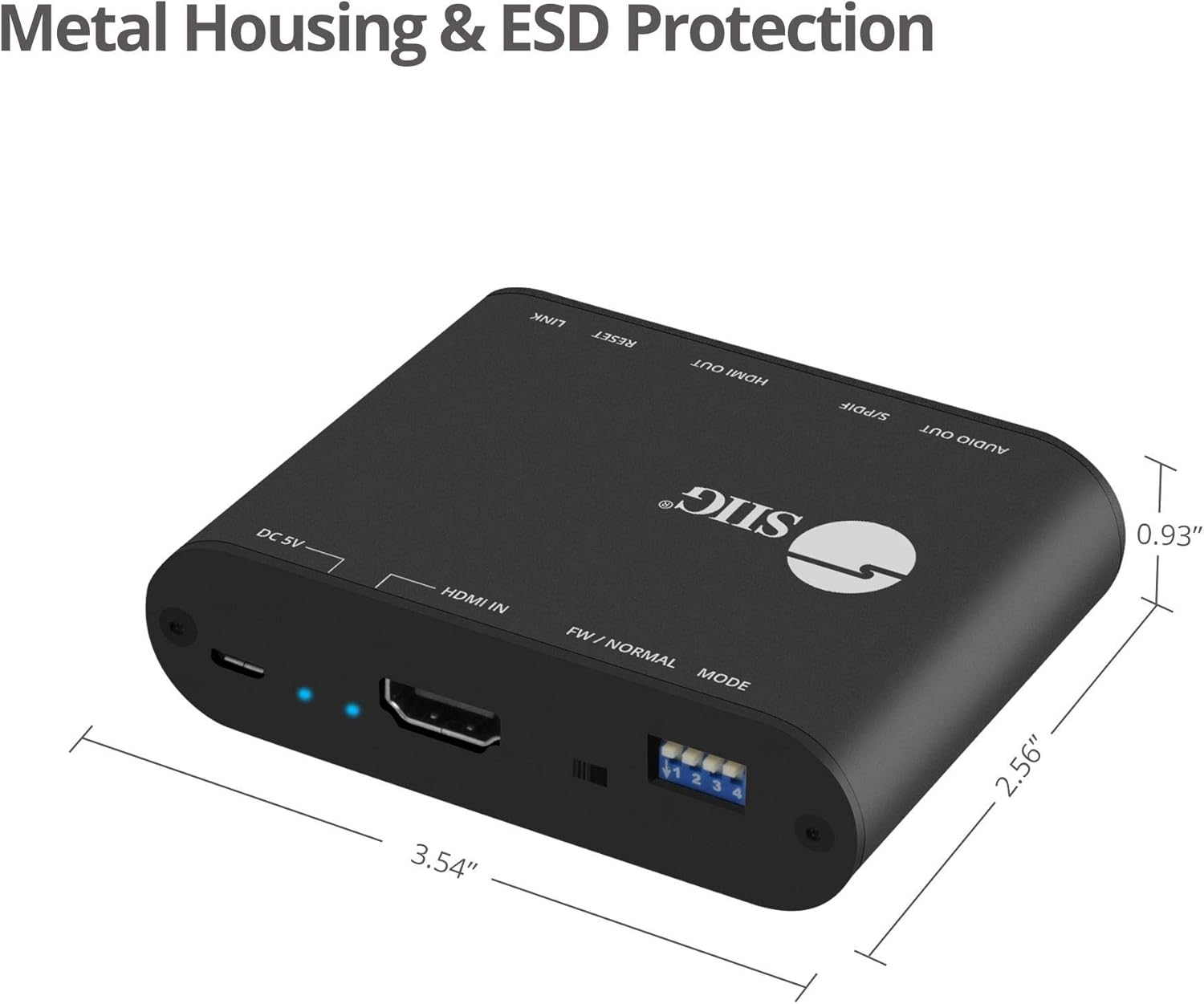
- Sturdy metal enclosure for durability and EMI/RFI noise interference minimization.
- ESD protection: ±15kV Air & ±8kV Contact.
- Country of origin: Taiwan.
- Regulatory approvals: FCC, CE, RoHS.

3. Ihirangi mokete
Please verify that all items are present and in good condition. If any items are missing or damaged, contact your vendor for assistance.
- 1x HDMI 2.0 Audio Extractor/Embedder (CE-H24F11-S1)
- 1x USB Type-A to Micro B Cable (for power)
- 1x Aratohu Tāutanga (tēnei tuhinga)
4. Hua Neke Atuview and Port Descriptions


Paewhiri Mua:
- 3.5mm Stereo Output: Connect to analog audio devices (e.g., headphones, stereo speakers).
- S/PDIF (Toslink) Output: Connect to digital optical audio receivers or soundbars.
- Huaputa HDMI: Connect to an HDMI display (e.g., TV, monitor, projector).
- Output Signal LED Indicator: Illuminates when an HDMI output signal is detected.
- Patene Tautuhi Anō: Ka whakamahia hei tautuhi i te taputapu.
- Slide Switch (FW/NORMAL Mode):
- Left (FW): Firmware update mode.
- Right (NORMAL): Normal operating mode. Ensure this is set to NORMAL for regular use.
Paataki Hoki:
- Micro-USB Port (DC 5V): Connect the provided USB power cable for device power. Also used for firmware updates.
- Tohu Arataki Hiko: Ka tiaho i te wa e ka ana te taputapu.
- Input Signal LED Indicator: Ka whakamārama ina kitea he tohu tāuru HDMI.
- HD Input: Connect to an HDMI source device (e.g., Blu-ray player, game console, streaming device).
- 4-pin DIP Switch: Used to configure EDID settings and enable/disable ARC and audio extraction functions.
5. Tohutohu Tatūnga
Follow these steps to set up your SIIG HDMI 2.0 Audio Extractor:
- Whakawetohia nga Pūrere: Ensure all source devices, displays, and audio systems are powered off before making any connections.
- Hononga Tāuru HDMI: Connect an HDMI cable from your source device (e.g., Blu-ray player, game console) to the HDMI-IN port on the audio extractor.
- Connect HDMI Output: Honoa he taura HDMI mai i te HDMI PUTA port on the audio extractor to your display device (e.g., TV, monitor, projector).
- Connect Audio Output (Digital): For digital audio, connect a Toslink (optical) cable from the S/PDIF (Toslink) Output port on the extractor to your audio receiver, soundbar, or ampkaikawe
- Connect Audio Output (Analog): Mō te oro stereo anaro, honoa he taura oro 3.5mm mai i te 3.5mm Putanga Tirohanga port on the extractor to your headphones or stereo speakers.
- Hono Hono: Connect the provided USB Type-A to Micro B cable to the Tauranga Micro-USB (DC 5V) on the extractor and the other end to a USB power source (e.g., USB wall adapter, TV USB port). The Power LED Indicator will illuminate.
- Verify Slide Switch: Ensure the slide switch on the front panel is set to the NUI position (right).
- Hiko i nga taputapu: Power on your display, audio system, and source device in that order.

6. Nga Tohutohu Whakahaere
6.1 EDID and Function Configuration (DIP Switch)
The 4-pin DIP switch on the back panel allows you to configure the EDID (Extended Display Identification Data) settings and control the ARC and audio extraction functions. Adjust these settings based on your connected devices and desired audio output.

| TUranga Whakawhiti DIP | Whakaahuatanga |
|---|---|
| PIN1: OFF, PIN2: OFF | Hipa EDID |
| PIN1: OFF, PIN2: ON | Ultra HD (4K2K@60Hz) – 8/10/12bit, 3D, HDR video & 5.1ch audio |
| PIN1: ON, PIN2: OFF | Ultra HD (4K2K@60Hz) – 8/10/12bit, 3D, HDR video & 2ch audio |
| PIN1: ON, PIN2: ON | Learning EDID from Output |
| PIN3: OFF | Disable ARC Function |
| PIN3: ON | Enable ARC Function |
| PIN4: OFF | Disable Audio Extractor Function |
| PIN4: ON | Enable Audio Extractor Function (via Toslink & 3.5mm) |
Tuhipoka: After changing DIP switch settings, it is recommended to power cycle the audio extractor and all connected devices to ensure the new settings are applied correctly.
6.2 ARC (Audio Return Channel) Function
When ARC is enabled (PIN3 ON) and your display supports ARC, audio from your TV's internal tuner or smart apps can be sent back to the audio extractor via the HDMI cable and then output through the Toslink (S/PDIF) port to your audio system.

6.3 CEC Bypass
The device supports CEC (Consumer Electronics Control) bypass, allowing CEC commands to pass through the extractor to control connected HDMI devices. This means you can use a single remote to control multiple CEC-enabled devices in your setup.
7. Te Raru
If you encounter issues with the SIIG HDMI 2.0 Audio Extractor, please refer to the following common troubleshooting steps:
- Kore he Putanga Ataata:
- Me whakarite kia mau te hononga o ngā taura HDMI katoa.
- Verify the input source is selected correctly on your display.
- Check the power connection to the extractor; the Power LED should be illuminated.
- Whakamātauria he taura HDMI rerekē.
- Adjust DIP switch settings for EDID (PIN1 & PIN2) to match your display's capabilities or try "EDID bypass".
- Power cycle all connected devices (source, extractor, display).
- No Audio Output (Toslink/3.5mm):
- Ensure audio cables (Toslink or 3.5mm) are securely connected to the correct output ports on the extractor and input ports on your audio system.
- Verify the audio input is selected correctly on your audio receiver/soundbar.
- Check DIP switch PIN4 is set to ON to enable audio extraction.
- If using ARC, ensure DIP switch PIN3 is set to ON and your TV's ARC function is enabled.
- Confirm the audio format from your source is supported by your audio system and the extractor (refer to "Product Features" for supported formats). Some audio systems may not support certain multi-channel formats.
- Try setting DIP switch PIN1: ON, PIN2: OFF for 2ch audio output if your audio system only supports stereo.
- Power cycle all connected devices.
- Intermittent Video/Audio:
- Tirohia mo nga hononga taura wetewete.
- Me mohio kei te noho pumau te hiko.
- Reduce cable lengths if possible, especially for HDMI.
- Verify that the slide switch is in the NUI tūnga.
- Whakamātauria ki ngā taura HDMI rerekē.
- HDR/4K Issues:
- Ensure all connected HDMI cables are rated for HDMI 2.0 or higher and support 18Gbps bandwidth.
- Verify your source and display devices both support 4K/60Hz and HDR.
- Adjust EDID settings (PIN1 & PIN2) to ensure the correct video mode is selected.
8. Whakatakotoranga
| Āhuahira | Taipitopito |
|---|---|
| Tau tauira | CE-H24F11-S1 |
| Tautukunga HDMI | HDMI 2.0a |
| Tautukunga HDCP | HDCP 2.2 |
| Panui Ataata | 18Gbps (600MHz per channel) |
| Nga Whakatau Tautoko | Up to 4Kx2K@60Hz (YUV 4:4:4 8-bit), 4K HDR (YUV 4:2:0 10-bit), 1080p, 1080i, 720p, 480p |
| Tautoko HDR | Yes (4K@60Hz YUV 4:2:0 10-bit) |
| Putanga Ororongo | 1x Toslink (S/PDIF), 1x 3.5mm Stereo |
| Tautoko ARC | Yes (via Toslink) |
| Tautoko CEC | Tukua |
| Parenga ESD | ±15kV Air & ±8kV Contact |
| Rauemi | Kohanga whakarewa |
| Rahi Hua (L x W) | 4.56" x 0.78" (11.58 cm x 1.98 cm) |
| Taumaha Tūemi | 6.4 hekere (181.4 karamu) |
| Tuku Hiko | DC 5V (via Micro-USB) |
| Te Waahi Mahi | Tae atu ki te 104°F (40°C) |
| Tiwhikete | FCC, CE, RoHS, TAA compliant |
| Whenua Taketake | Taiwan |
9. Tiaki
The SIIG HDMI 2.0 Audio Extractor is designed for reliable operation with minimal maintenance.
- Te horoi: Use a soft, dry cloth to clean the device. Avoid using liquid or aerosol cleaners, as they may damage the unit.
- Whakahau: Me whakarite kia whakanohoia te taputapu ki tētahi wāhi e pai ana te hau hei ārai i te wera nui. Kaua e ārai i ngā pūaha hau.
- Rokiroki: Ki te kore e whakamahia mo te wa roa, penapenahia te taputapu ki te waahi makariri, maroke kia matara atu i te ra tika me te wera nui.
- Whakahōu Firmware: Periodically check the SIIG website for any available firmware updates for your model. Follow the instructions provided with the firmware update carefully.
10. Nga korero haumaru
Please observe the following safety guidelines to prevent damage to the device and ensure user safety:
- Kaua e tukuna te taputapu ki te wai, ki te makuku nui ranei.
- Do not attempt to open or modify the device. There are no user-serviceable parts inside.
- Use only the provided power cable or a certified 5V USB power adapter.
- Puritia te taputapu kia matara atu i ngā pūtake wera, i te rā tika, me ngā rauemi mura.
- Ensure proper grounding for all connected electrical equipment.
11. Whakaputanga me te Tautoko Hangarau
11.1 Nga Korero Whakaputanga
The SIIG HDMI 2.0 Audio Extractor (CE-H24F11-S1) comes with a 3-tau pūtāhui. This warranty covers defects in materials and workmanship under normal use. For specific terms and conditions, please refer to the warranty documentation provided with your purchase or visit the official SIIG webpae.
11.2 Tautoko Hangarau
For technical assistance, product inquiries, or troubleshooting beyond the scope of this manual, please contact SIIG customer support.
- Webpae: Visit the official SIIG webpae mo nga rauemi tautoko, FAQ, me nga korero whakapā.
- Whakapā: Refer to your product packaging or the SIIG website for the most current contact details for technical support.


