1. Kupu Whakataki
The Modecom Oberon Pro Midi Tower is a computer case designed for users seeking a functional and spacious interior with a modern aesthetic. This manual provides essential information for the proper installation, operation, and maintenance of your computer case, ensuring optimal performance and longevity of your components.
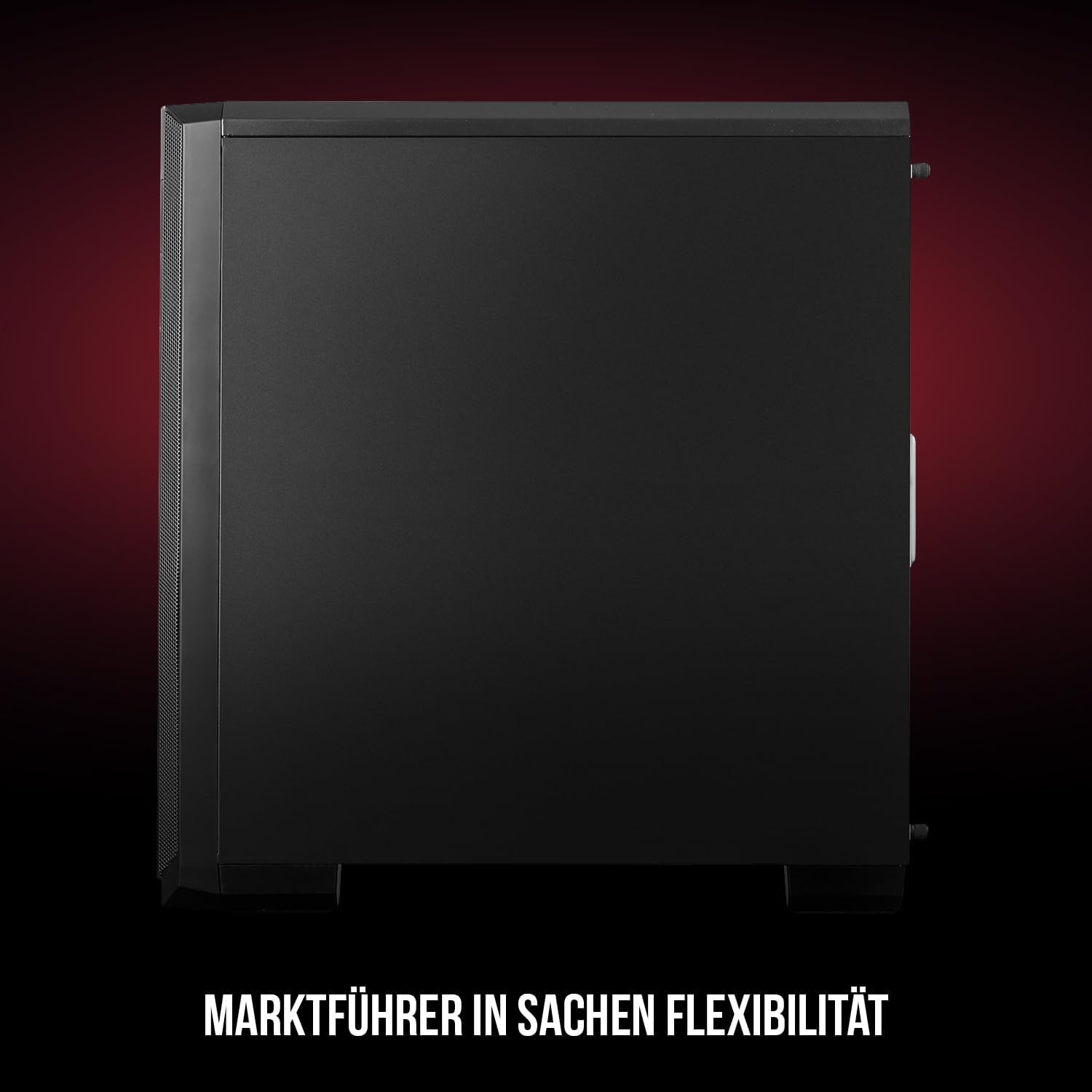
Whakaahua 1: Mua me te taha view of the Modecom Oberon Pro Midi Tower computer case.
2. Nga korero haumaru
- Momotuhia i nga wa katoa te hiko mai i te putanga o te pakitara i mua i te whakauru, te tango ranei i etahi waahanga.
- Handle components with care to avoid electrostatic discharge. Consider using an anti-static wrist strap.
- Tiakina nga waahanga iti me nga taputapu mai i nga tamariki.
- Me whakarite kia tika te hau huri noa i te pouaka hei ārai i te wera nui.
- Kaua e ngana ki te whakarerekē i te hanganga o te pouaka, nā te mea ka whakakorea pea tō pūtāhui, ā, ka tūpono hoki he mōrearea ki te haumaru.
3. Ihirangi mokete
Manatokohia kei roto i tō kete ngā tūemi katoa e whai ake nei:
- Modecom Oberon Pro Midi Tower Computer Case
- Pouaka taputapu (ngā tīwiri, ngā taura whakatā, ngā here taura)
- Pukapuka Kaiwhakamahi (tenei tuhinga)
4. Nga waahanga matua
- Wātea o roto: Designed to accommodate high-end components and facilitate good airflow.
- Te whakamahana pai: Includes two pre-mounted 120mm fans (front and rear) to prevent component overheating.
- Utauta-Kore he Tāuta: Supports tool-free mounting for SSD/HDD drives and expansion cards.
- Dust Filtration: Features easily dismountable magnetic filters on the top, front, and bottom (under the power supply unit) to keep the interior clean.
- Optimized Cable Management: Provides a system for convenient wiring organization.
- Long PSU Tunnel: Offers a 240mm space for power supplies, simplifying installation and cable arrangement.
5. Tatūnga me te Tāuta
5.1. Te whakarite i te keehi
Before installation, remove the side panels of the case. The Oberon Pro features sound-dampening mats on the side panels to reduce noise.

Whakaahua 2: Roto view showing sound-dampening mats on the side panel.
5.2. Whakauranga Papa Matua
Install the necessary standoffs for your motherboard form factor (ATX, Micro ATX, ITX). Carefully place your motherboard into the case, aligning it with the standoffs, and secure it with screws.

Figure 3: Interior layout with pre-installed rear fan and motherboard tray.
5.3. Drive Installation (SSD/HDD)
The Oberon Pro supports tool-free installation for three 2.5" SSDs and two 3.5" HDDs. The 3.5" HDD bays are located in the power supply tunnel at the bottom of the case. 2.5" SSDs can be mounted on both sides of the motherboard tray.

Figure 4: Dedicated bays for HDD and SSD storage devices.
5.4. Te Whakataunga Hiko Hiko
The case features a long PSU tunnel (240mm) at the bottom. Install your power supply unit into this tunnel and secure it. This design aids in cable management and airflow.
5.5. Expansion Card Installation (PCI/PCIe)
Install your graphics card or other expansion cards into the PCI/PCIe slots. The case supports tool-free mounting for these cards, allowing for easy installation and removal.
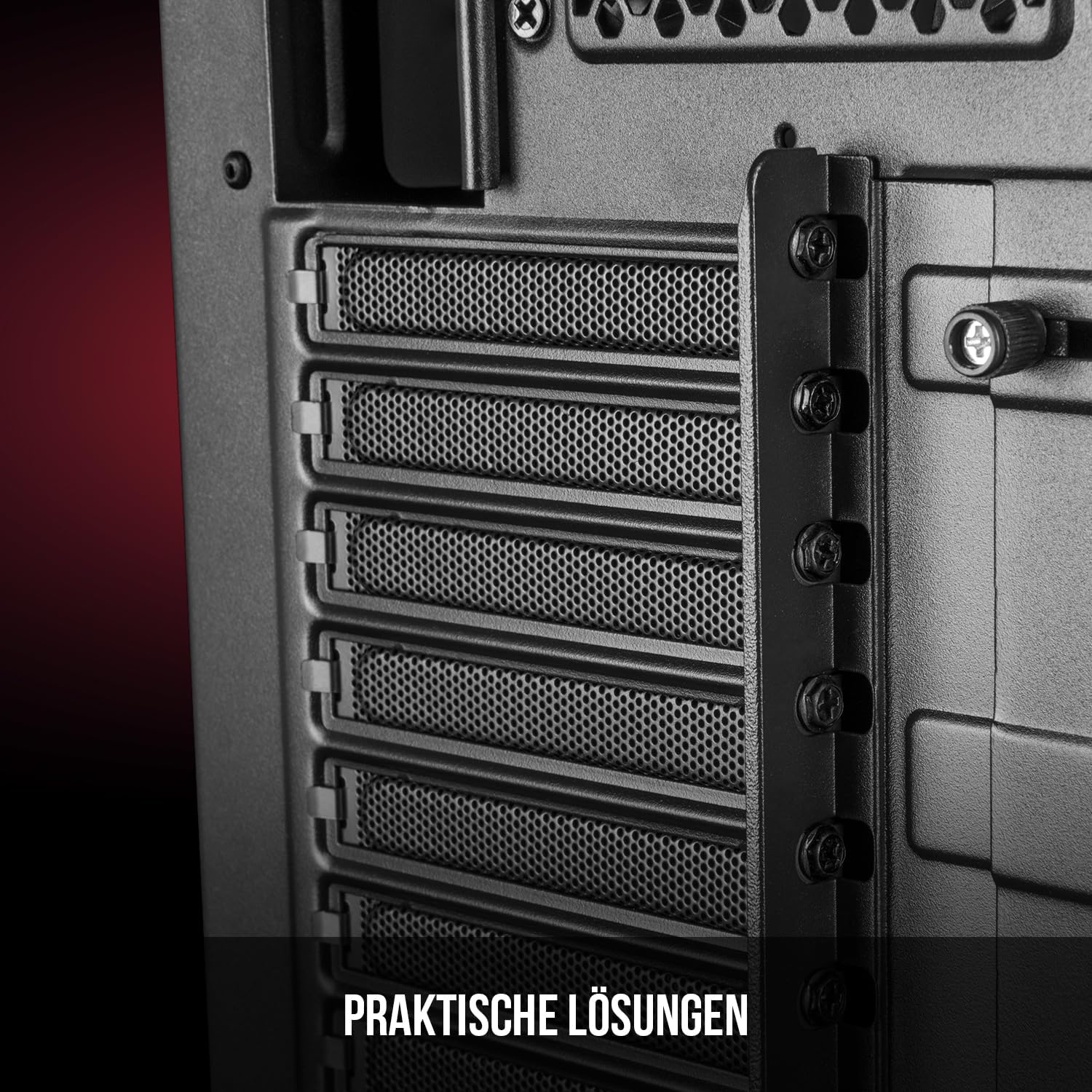
Pikitia 5: Roto o muri view highlighting the expansion card slots.
5.6. Whakahaerenga Taura
Utilize the provided cable routing options and tie-down points behind the motherboard tray to organize cables. This improves airflow and maintains a tidy interior.
6. Pūnaha whakamatao
The Oberon Pro comes with two pre-installed 120mm fans, one at the front and one at the rear, to ensure adequate airflow. The maximum height for a CPU cooler is 163mm, and the maximum length for a video card is 395mm, allowing for compatibility with a wide range of components.
7. Tiaki
To maintain optimal performance and prevent dust buildup, regularly clean the dust filters. The magnetic filters on the top, front, and bottom of the case are easily dismountable for cleaning. Use compressed air or a soft brush to remove accumulated dust.
8. Te Raru
- Kore Mana: Ensure all power cables are securely connected to the motherboard, power supply, and wall outlet. Check the power button connection to the motherboard.
- Te wera nui: Verify that all fans are spinning correctly and that dust filters are clean. Ensure proper cable management to avoid obstructing airflow.
- Kāore e Mahi ana ngā Tauranga o te Paewhiri o Mua: Check that the front panel connectors (USB, audio) are correctly plugged into the motherboard headers.
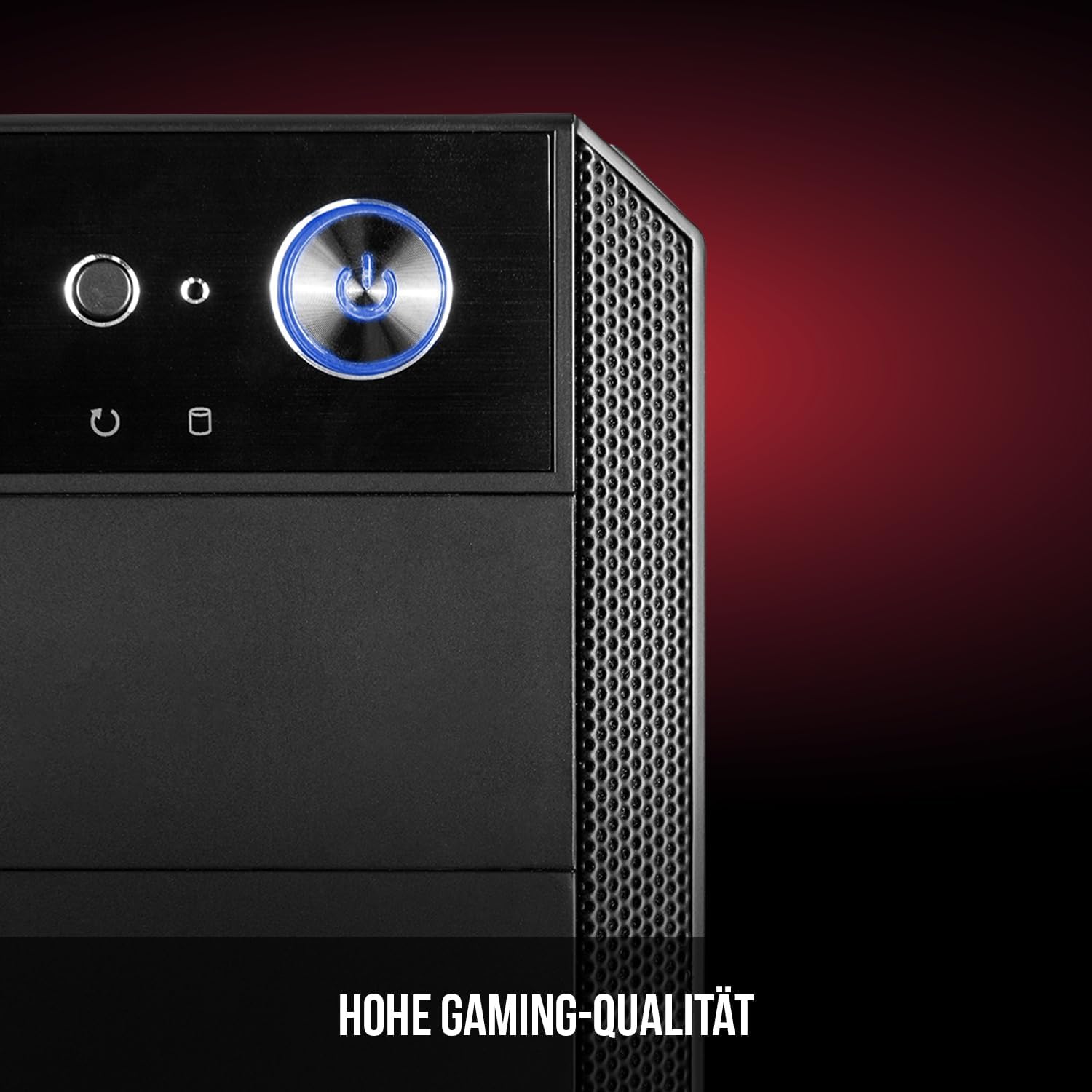
Figure 6: Front panel I/O ports for connectivity.
9. Whakatakotoranga
| Āhuahira | Whakatakotoranga |
|---|---|
| Waitohu | Modecom |
| Ingoa Tauira | Oberon Pro |
| Tau tauira | AT-OBERON-PS-10-000000-0002 |
| Tae | Pango |
| Momo Take | Pourewa Midi |
| Papamatua Hototahi | ATX, ATX Moroiti, ITX |
| Rauemi | Korotahi Steel |
| Tikanga whakamatao | Te hau |
| Paanui kua whakauruhia i mua | 2 x 120mm (Front, Rear) |
| Max CPU Cooler Teitei | 163 mm |
| Max GPU Roa | 395 mm |
| Peia Bays | 3 x 2.5" SSD, 2 x 3.5" HDD |
| Tauranga USB katoa | 4 |
| Nga waahanga motuhake | Reset Button, Dust Filter, LED Indicators, Side Window |
| Taumaha Tūemi | 5270 Karamu |

Figure 7: Rear exterior view of the computer case.
10. Pūtāhui me te Tautoko
For warranty information and technical support, please refer to the official Modecom webpae, whakapā atu ranei ki to kaihoko. Puritia to tohu hoko mo etahi kereme whakamana.


