1. Hua Neke Atuview
The Dino-Lite USB Digital Microscope AF3113T is a versatile imaging solution designed for detailed inspection and analysis. It offers true optical magnification and high-resolution imaging, making it suitable for various applications across industrial, scientific, medical, educational, and hobbyist needs.
- Whakanui: 20x - 50x, 200x True Optical Magnification
- Taumira Atahanga: 640 x 480 (0.3MP)
- Reiti Tāpare Ataata: 30 FPS
- Hononga: USB for easy setup and operation
- Hototahi: Nga punaha whakahaere Windows me Mac
- Āhuatanga: MicroTouch for image capture, measurement capabilities, adjustable LED lighting
This microscope provides a balanced field of view for typical inspection and viewing requirements, offering robust tools for capturing, annotating, and analyzing images.

Figure 1: Key features of the Dino-Lite AF3113T, including magnification, USB connectivity, software compatibility, and measurement functions.
2. Tatūnga
2.1 He aha kei roto i te Pouaka
- Dino-Lite USB Digital Microscope AF3113T
- Kawea Pukoro

Figure 2: The Dino-Lite AF3113T package includes the microscope unit and a protective carry pouch.
2.2 Tāuta Pūmanawa
The Dino-Lite AF3113T requires software for full functionality. Install the appropriate software for your operating system:
- Mo Windows: Install DinoCapture software.
- Mo Mac: Install DinoXcope software.
These applications provide tools for capturing, annotating, and analyzing images. Refer to the included Quick Start Guide for download links and detailed installation instructions.

Figure 3: The DinoCapture software interface displayed on a laptop, showing a magnified image.
2.3 Connecting the Microscope
Connect the Dino-Lite AF3113T to your computer via the provided USB cable. The microscope is designed for plug-and-play operation once the software is installed.
Mo te pumau viewing or precise movement, the microscope can be paired with a compatible stand (sold separately). The microscope can be used handheld or mounted on a stand.

Figure 4: The microscope can be used handheld for flexibility or with a stand for stability and precise positioning.
3. Nga Tohutohu Whakahaere
3.1 Te Whakakaha me te Weto
The microscope powers on automatically when connected to a powered USB port and the software is launched. To power off, simply disconnect the USB cable or close the software application.
3.2 Te Whakatikatika i te Whakarahi me te Arotahi
The AF3113T features variable magnification from 20x-50x and 200x. To adjust the magnification, rotate the barrel of the microscope. For fine-tuning the focus, use the scroll wheel located on the microscope body.

Figure 5: The magnification dial on the microscope allows for precise adjustment of optical zoom levels.
3.3 Mana rama rama
The microscope is equipped with 8 white LEDs for illumination. The brightness of these LEDs can be controlled via the software interface (DinoCapture/DinoXcope) to optimize lighting for your subject.
3.4 Image Capture and Measurement
Whakamahia te MicroTouch feature on the microscope to easily capture still images. Simply tap the MicroTouch sensor to take a picture. The included software also provides advanced measurement features, supporting units like inches, millimeters, and micrometers for accurate analysis.
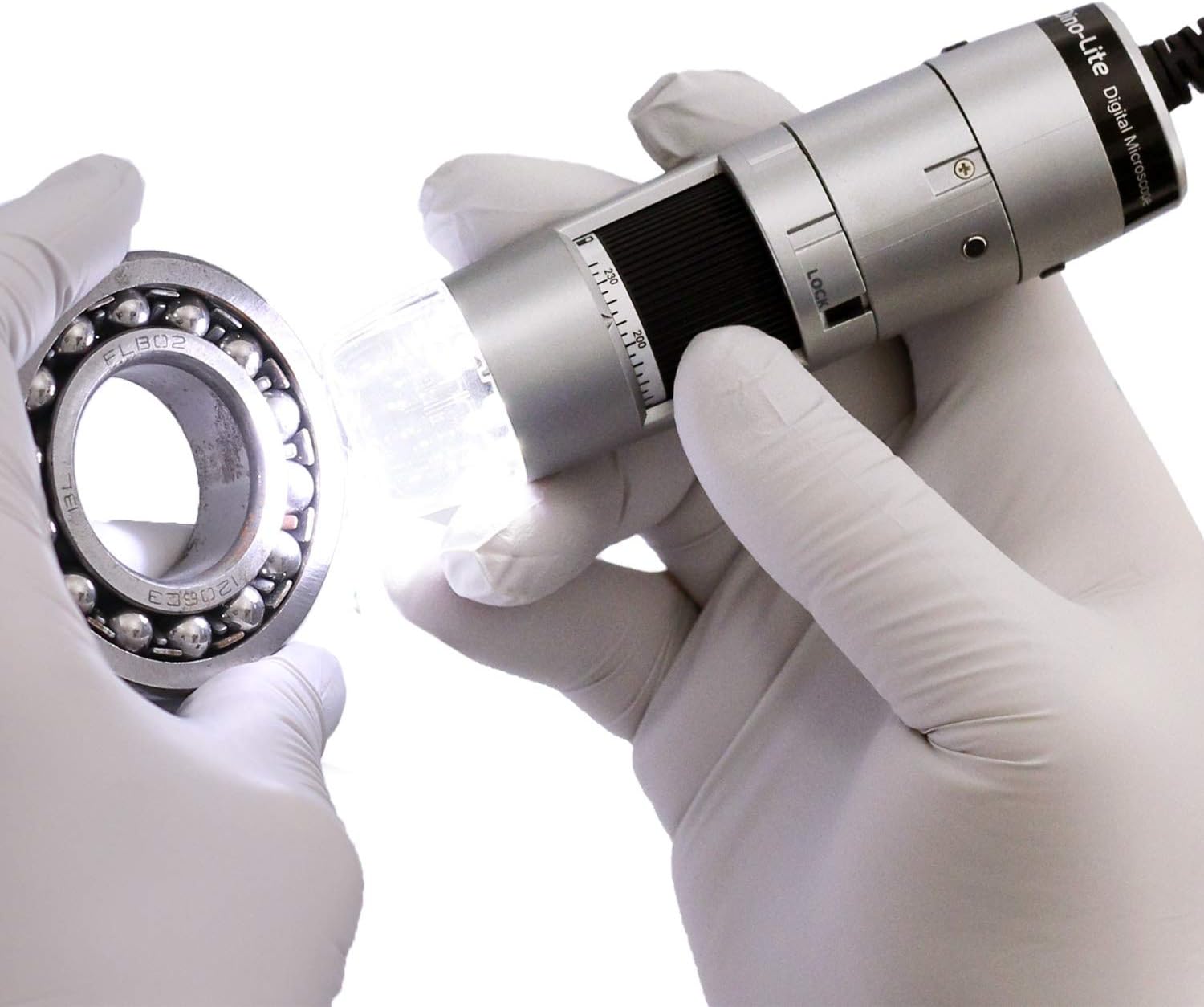
Figure 6: The Dino-Lite microscope in use, demonstrating its ability to inspect small objects with integrated lighting.
4. Tiaki
- Keep the microscope clean by gently wiping the lens and body with a soft, lint-free cloth.
- A ape i te tuku i te taputapu ki te wera nui, te makuku, te ra tika ranei.
- Store the microscope in its carry pouch when not in use to protect it from dust and damage.
5. Te Raru
- Image not appearing: Ensure the USB cable is securely connected to both the microscope and the computer. Verify that the DinoCapture/DinoXcope software is running and the correct device is selected.
- Kounga ahua kino: Adjust the magnification and focus wheel. Ensure adequate lighting using the built-in LEDs. Clean the lens if necessary.
- Software not recognizing device: Reinstall the DinoCapture/DinoXcope software. Check your computer's device manager for proper driver installation. Try a different USB port.
- LEDs not working: Ensure the software is running and check the LED control settings within the application.
6. Whakatakotoranga
| Āhuahira | Whakatakotoranga |
|---|---|
| Hunga Hua | 1.3 x 1.3 x 4.49 inihi |
| Taumaha Tūemi | 10.5 hekere (0.3 Kirokaramu) |
| Tauira Tuemi | AF3113T |
| Kaihanga | Dino-Lite |
| Momo Puna Maama | LED |
| Rauemi | Kirihou |
| Te Whakarahi Morahi | 220 x |
| Voltage | 5 Volts |
| Pūrere Hototahi | Personal Computer (Windows, Mac) |
| Whakaahuatanga o te Arotahi Whāinga | Achromatic |
7. Pūtāhui me te Tautoko
For warranty information or technical support, please refer to the documentation included with your product or visit the official Dino-Lite website. You may also contact the manufacturer directly for assistance.


