1. Kupu Whakataki
This user manual provides detailed instructions for the installation, operation, and maintenance of the HaiweiTech H.265 HDMI CVBS Decoder (Model: HHD-101). This device is designed to decode various IP video streams, including H.264/H.265, RTMP, RTSP, RTP, HTTP, HLS, and UDP, and output them via HDMI (up to 4K resolution) and CVBS/BNC interfaces. It is ideal for advertisement displays, monitoring, and other video distribution applications.

Figure 1.1: HaiweiTech H.265 HDMI CVBS Decoder
The image displays the compact, black metal casing of the HaiweiTech H.265 HDMI CVBS Decoder, featuring a ribbed top surface for heat dissipation and various ports on the front panel.
2. Hua Neke Atuview
2.1. Nga waahanga matua
- Tautoko Whakauru: Decodes up to 4 (multi-view) channels of H.264/H.265 IP streams (RTMP/RTSP/RTP/HTTP/HLS/UDP), MPEG1, MPEG2, MPEG4, SL hyperlink (P-P), VP8/VP9/AVS/AVS+. Supports 2*1080P + 2*720P simultaneous decoding.
- Atanga Huaputa: 1x HDMI output (up to 4096x2160P 30FPS) and 1x CVBS/BNC output. Includes RS485 out.
- Tautoko Tautuhinga: 4096x2160 (30/25/24 FPS), 3840x2160 (30/25/24 FPS), 1080P (60/50/30/25/24 FPS), 1080I (60/50 FPS), 720P (60/50/25/24 FPS), 576P (50 FPS).
- Rooputanga Iti: Haiwei proprietary protocol-based ultra-low latency point-to-point transmission solution available with the decoder.
- Ratonga Tāpiri: SDK/API, IP finder/Video management platform/iOS Android APP, solution analysis, and OEM services are available.
2.2. Ihirangi mokete

Whakaaturanga 2.1: Nga Ihirangi mokete
The image shows the decoder unit, a power adapter, an Ethernet cable, and an AV cable, which are typically included in the product package.
2.3. Device Interfaces

Pikitia 2.2: Ngā Atanga o te Paewhiri Whakamuri
This diagram clearly labels the various ports on the rear panel of the decoder: LAN (Ethernet port for IP input), RST (Reset button), LED (Status Indicators), AV Out (CVBS/Audio Out), HDMI Out (up to 4K), BNC Video Out (CVBS), and RS485 I/O.
- LAN: Ethernet port for IP video input. Configuration of the decoder's IP gateway may be required.
- Tohu LED: Red indicates Power ON, Green indicates Network activity.
- tuatahi: Reset button. Press and hold until the green LED turns off to reset the device.
- AV PAI: CVBS (Composite Video Broadcast Signal) and analog audio output.
- HDMI PUTA: High-Definition Multimedia Interface output, supporting resolutions up to 4K.
- BNC OUT: BNC connector for CVBS video output.
- RS485: Serial communication interface for control and data transfer (GND, IO-1, IO-2, 485A, 485B).
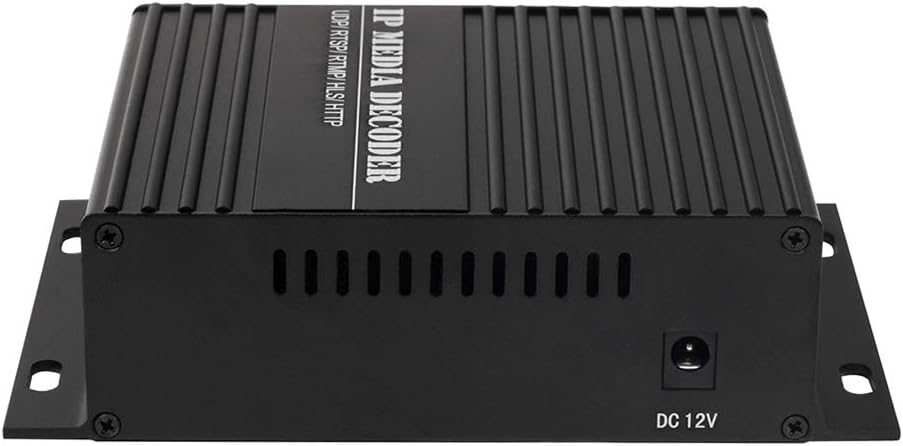
Whakaatu 2.3: Whakauru Hiko
The image shows the side of the decoder with the DC 12V power input port.
3. Tatūnga
Follow these steps to set up your HaiweiTech H.265 HDMI CVBS Decoder:
- Hono Hono: Connect the provided 12V 2A power adapter to the DC 12V input port on the decoder and plug it into a power outlet. The red LED indicator should illuminate.
- Hononga Whatunga: Connect an Ethernet cable from your network (router or switch) to the LAN port on the decoder. Ensure your network provides access to the IP video streams you intend to decode. The green LED indicator should illuminate, indicating network activity.
- Video Output Connection:
- For HDMI output, connect an HDMI cable from the HDMI OUT port on the decoder to the HDMI input of your display (monitor, TV, projector).
- For CVBS output, connect a BNC cable from the BNC OUT port to your display's BNC input, or use the AV OUT port with the provided AV cable for composite video and analog audio.
- Urunga Web Atanga: The decoder typically obtains an IP address via DHCP. To find its IP address and configure settings, you may need to use an IP scanner tool or refer to your router's connected devices list. Once the IP address is known, open a web browser and enter the decoder's IP address to access its web-atanga whirihoranga e hāngai ana.
- Configure IP Stream: I roto i te web interface, navigate to the input settings. Enter the full RTSP, RTMP, HTTP, HLS, or UDP stream URL, including any necessary username and password. Ensure the syntax is correct.

Figure 3.1: Typical System Integration
This diagram illustrates how the decoder fits into a larger video system, receiving streams from an encoder via a network and outputting to a local display or user device.
4. Nga Tohutohu Whakahaere
Once the decoder is set up and configured with the correct IP stream, it will automatically begin decoding and outputting the video and audio to the connected display(s).
- Single Channel Decoding: For single stream decoding, ensure only one IP stream URL is configured as active in the web interface. The decoder will output this stream to both HDMI and CVBS simultaneously.
- maha-View Wetewaehere: The decoder supports multi-view decoding for up to 4 channels (2*1080P + 2*720P). Configure multiple stream URLs i roto i te web interface and select the multi-view layout option if available. The decoder will combine these streams into a single output display.
- Taumira me te Reiti Tāpare: The decoder will attempt to output the stream at its native resolution and frame rate, up to the maximum supported by the device (4K@30FPS). Ensure your display supports the output resolution.
- Putanga Ororongo: Audio embedded in the IP stream will be output via HDMI and the analog AV OUT port.
- RS485 Mana: If applicable, connect RS485 devices for external control or data communication as per your system requirements.
5. Tiaki
To ensure optimal performance and longevity of your decoder, follow these maintenance guidelines:
- Te horoi: Whakamahia he kakahu ngohengohe, maroke hei horoi i waho o te taputapu. Kaua e whakamahia nga kai horoi wai, aerosol ranei.
- Whakahau: Ensure the decoder is placed in a well-ventilated area. Do not block the ventilation slots on the device.
- Te pāmahana: Operate the device within its specified temperature range. Avoid extreme heat or cold.
- Whakahōu Firmware: Tirohia i ia wa i te kaihanga website (if available) for firmware updates. Updates can improve performance, add features, or fix bugs.
- Hurihanga Hiko: If the device becomes unresponsive, disconnect the power adapter, wait 10 seconds, and then reconnect it.
6. Te Raru
If you encounter issues with your decoder, refer to the following common problems and solutions:
| Raruraru | Take pea | Rongoā |
|---|---|---|
| No video output / Black screen |
|
|
| Video freezes or disconnects frequently |
|
|
| Kaore e taea te uru web atanga |
|
|
| Karekau he ororongo |
|
|
7. Whakatakotoranga
| Āhuahira | Taipitopito |
|---|---|
| Tau tauira | HHD-101 |
| Input Protocols | H.264/H.265 IP (RTMP/RTSP/RTP/HTTP/HLS/UDP), MPEG1, MPEG2, MPEG4, SL hyperlink (P-P), VP8/VP9/AVS/AVS+ |
| Max Input Channels | Up to 4 (multi-view), e.g., 2*1080P + 2*720P |
| Atanga Huaputa | 1x HDMI, 1x CVBS/BNC, 1x RS485 |
| Whakatau Putanga HDMI | Up to 4096x2160P @ 30FPS |
| Nga Whakatau Tautoko | 4096x2160 (30/25/24), 3840x2160 (30/25/24), 1080P (60/50/30/25/24), 1080I (60/50), 720P (60/50/25/24), 576P (50) |
| Whakauru Mana | DC 12V 2A |
| Ahu mōkihi | 8.27 x 6.81 x 3.03 inihi |
| Taumaha Tūemi | 1.57 pauna |
| Kaihanga | HaiweiTech |
| Whenua Taketake | Haina |
8. Pūtāhui me te Tautoko
HaiweiTech is dedicated to providing solutions for various streaming industries. The company designs, produces, develops, and upgrades its software and hardware, offering OEM/ODM services.
For technical support, SDK/API documentation, IP finder tools, video management platforms, or inquiries regarding iOS/Android applications and solution analysis, please refer to the official HaiweiTech support channels. While specific warranty details are not provided in this manual, it is recommended to contact HaiweiTech directly or refer to your purchase documentation for warranty information and service requests.
You can visit the HaiweiTech store on Amazon for more information: HaiweiTech Amazon Store