Kupu Whakataki
Thank you for choosing the Rapoo 1680 Silent Wireless Mouse. This manual provides detailed instructions for setting up, operating, and maintaining your new mouse. Please read this manual carefully before use to ensure optimal performance and longevity of your device.
He aha kei roto i te Pouaka
- 1 x Rapoo 1680 Wireless Mouse
- 1 x Kaiwhiwhi USB
- 1 x Pūhiko AA
- 1 x Pukapuka Tohutohu
Tatūnga
1. Tāuta Pūhiko
Locate the battery compartment on the underside of the mouse. Slide open the cover and insert the provided AA battery, ensuring correct polarity. Close the battery compartment cover securely.

Image: Underside of the Rapoo 1680 mouse, illustrating the battery compartment for a single AA battery and the storage slot for the USB nano receiver.
2. Honoa te Kaiwhiwhi USB
Remove the USB nano receiver from its storage slot within the battery compartment. Plug the USB receiver into an available USB port on your computer, laptop, or tablet. The system will automatically detect and install the necessary drivers.
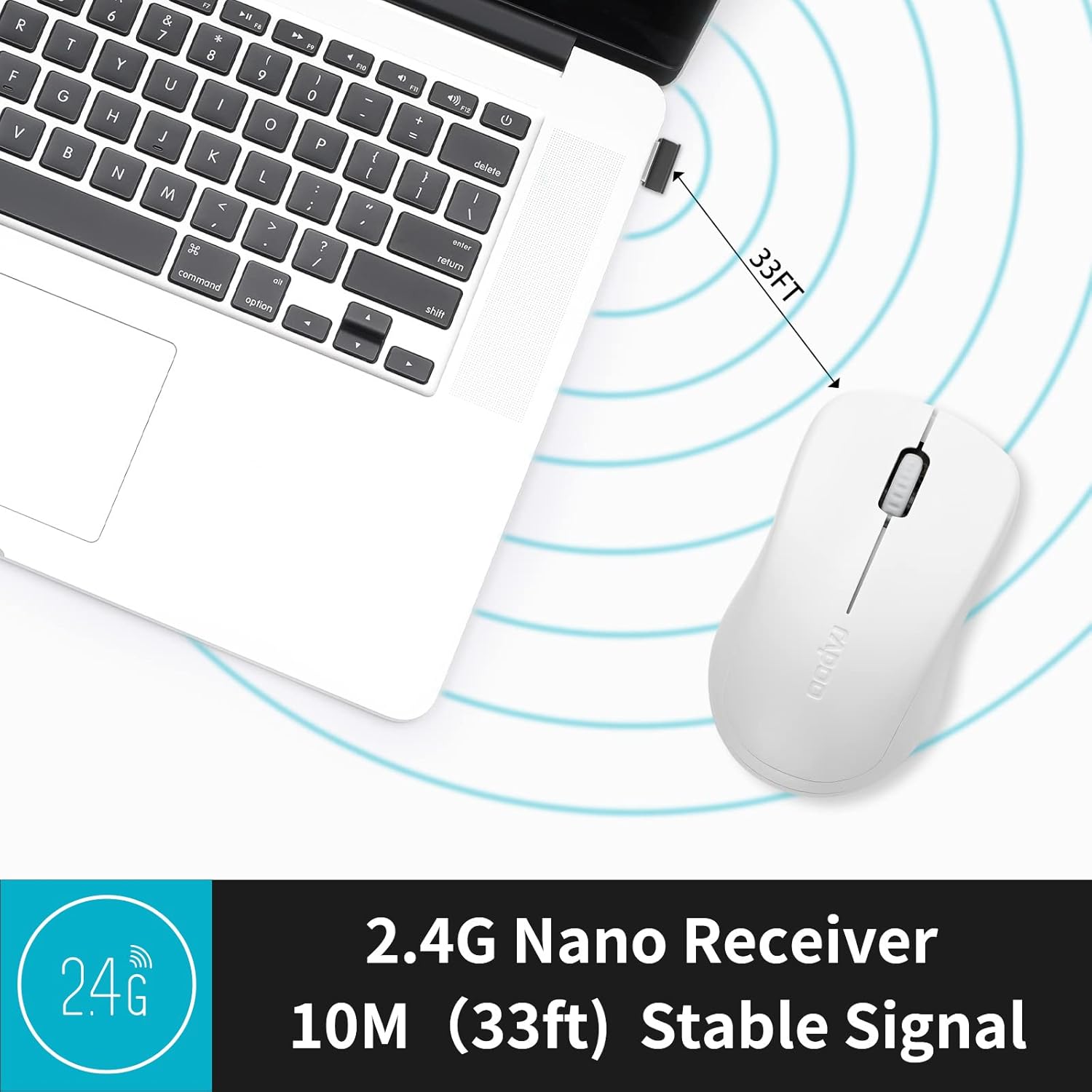
Image: The Rapoo 1680 mouse positioned beside a laptop, with its 2.4G nano receiver securely inserted into a USB port, demonstrating a stable wireless connection up to 33 feet.
3. Te Hiko / Whakaweto
Locate the ON/OFF switch on the underside of the mouse. Slide the switch to the 'ON' position to activate the mouse. To conserve battery life when not in use, slide the switch to the 'OFF' position.
Nga Tohutohu Whakahaere
Nga Mahi Taketake
The Rapoo 1680 mouse features standard left and right click buttons and a scroll wheel. The 1000 DPI optical tracking engine provides responsive and smooth cursor control.

Whakaahua: He tata view of the Rapoo 1680 mouse, emphasizing its quiet click functionality with reduced sound while maintaining the tactile click feel.
Mahi Wahangu
The Rapoo 1680 is designed for silent operation, significantly reducing click noise. This feature is beneficial in quiet environments such as libraries, offices, or homes where minimizing sound is desired.

Image: A person using the Rapoo 1680 mouse while studying in a library, highlighting the mouse's silent click feature for undisturbed work.
Hoahoa Ergonomic
The mouse features an ergonomic and symmetrical design, providing a comfortable grip for both left and right-handed users. Its lightweight and compact form factor makes it suitable for extended use and portability.
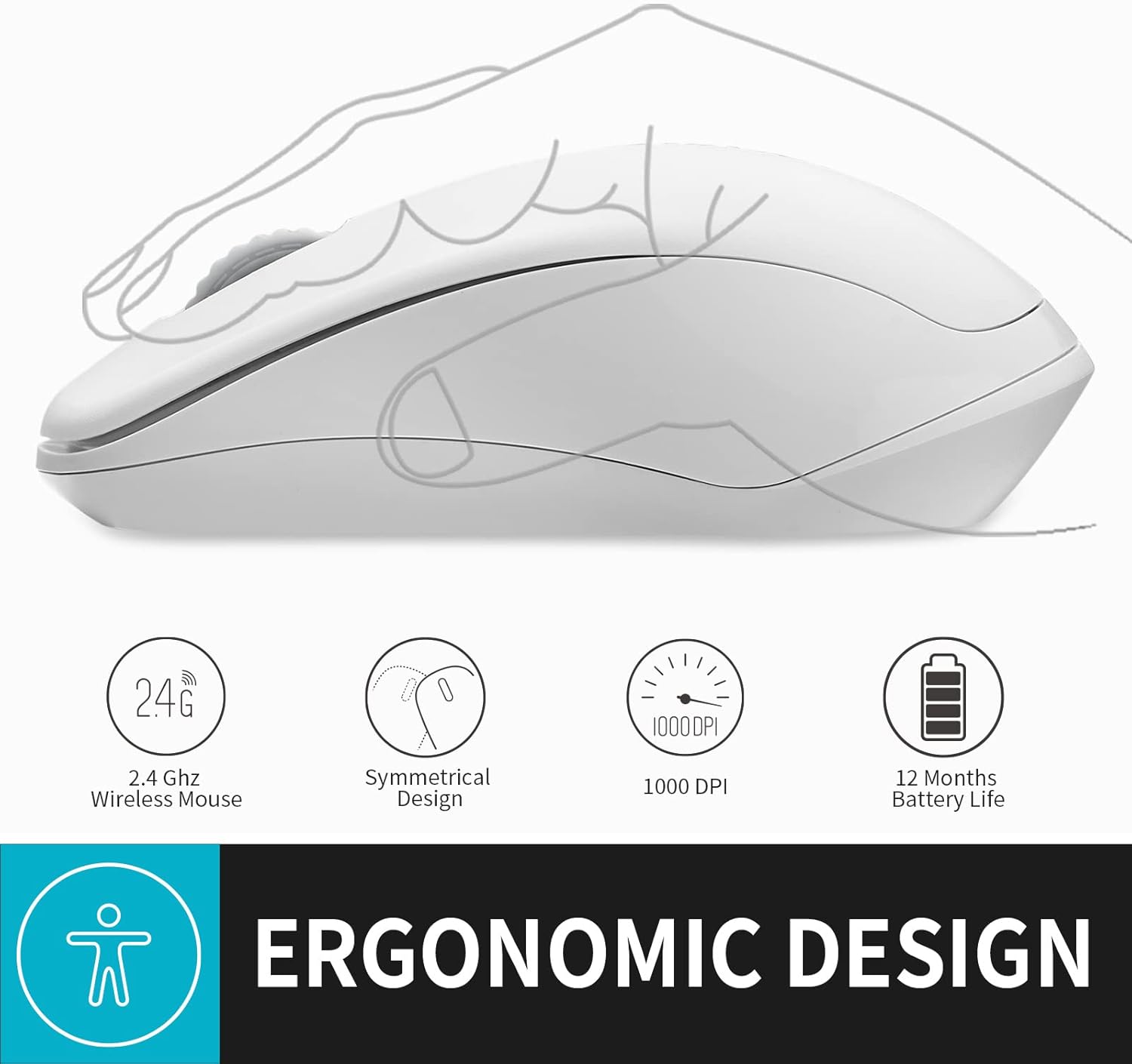
Whakaahua: He whakaaturanga whakaahuacasing the ergonomic and symmetrical design of the Rapoo 1680 mouse, indicating comfort for both left and right hands.
Whānui Hototahi
The Rapoo 1680 offers broad compatibility with various operating systems, including Windows, Mac OS, Linux, and Chrome OS, ensuring plug-and-play functionality across different devices.

Image: Icons for Windows, Mac OS, Linux, and Chrome OS, demonstrating the Rapoo 1680 mouse's universal plug-and-play compatibility with various operating systems.
Ataata Hua Whaimana
Video: An official product video from RAPOO showcasing the features and silent operation of the wireless mouse. This video demonstrates the mouse's ease of use and quiet clicks in various settings.
Te tiaki
Te ora me te Whakakapinga
The Rapoo 1680 is designed for high energy efficiency, providing up to 12 months of battery life with a single AA battery. When the mouse stops responding or performance degrades, replace the AA battery. Remember to turn off the mouse when not in use to extend battery life.

Image: An illustration of the Rapoo 1680 mouse with a battery icon, highlighting its extended battery life of up to 12 months with one AA battery.
Te horoi
Hei horoi i tō kiore, whakamahia he kakahu ngohengohe, maroke. Mō te paru uaua, whakamahia he kakahu pakupakuamp cloth can be used. Avoid using harsh chemicals or abrasive cleaners, as these can damage the mouse's surface.
Raparongoā
Kaore Te Kiore e Whakautu
- Ensure the mouse is turned 'ON' using the switch on the underside.
- Check if the USB receiver is securely plugged into a working USB port on your computer.
- Replace the AA battery if the current one is depleted.
- Whakamātauria te mono i te kaiwhiwhi USB ki tētahi atu tauranga USB, ki tētahi atu rorohiko rānei, kia kore ai he raruraru kei te tauranga, kei te rorohiko rānei.
- Ensure there are no strong wireless interference sources nearby.
He Pohehe te Nekehanga Pehu
- Horoia te pūoko whatu kei raro o te kiore me te kakahu ngohengohe, maroke.
- Me whakarite kei te whakamahia te kiore i runga i te mata e tika ana. Tērā pea ka pāngia te aroturuki e ngā mata whakaata nui, ngā mata mārama rānei.
Whakatakotoranga
| Hunga Hua | 4.33 x 2.56 x 1.57 inihi |
| Taumaha Tūemi | 2.05 hekere |
| Tauira Tuemi | RAPOO 1680 |
| Pūhiko | 1 te pākahiko AA e hiahiatia ana (kei roto) |
| Hangarau Hononga | 2.4GHz Ahokore (Kaiwhiwhi USB) |
| Hangarau Hangarau Nekehanga | Whatu (1000 DPI) |
| Nga waahanga motuhake | Ergonomic Design, Lightweight, Portable, Silent Click |

Image: A diagram illustrating the physical dimensions of the Rapoo 1680 mouse, including its length, width, and height.
Pūtāhui me te Tautoko
Rapoo Technology is committed to providing high-quality products. This product comes with a 1-year worry-free warranty and a 30-day money-back guarantee. For any questions or support needs, please contact our customer service. We offer 24-hour email contact service and free replacement for eligible issues.
For further assistance, please refer to the contact information provided with your purchase or visit the official Rapoo webpae.


