Kupu Whakataki
Thank you for choosing the MoKo LED Lighted Desktop Magnifier Dome. This device is designed to provide clear, magnified viewing with integrated LED lighting, making it ideal for reading small text, inspecting fine details, or engaging in hobbies. This manual provides essential information for the safe and effective use of your magnifier.
Nga korero haumaru
- Do not look directly at the sun through the magnifier, as this can cause permanent eye damage.
- Keep the magnifier away from direct sunlight when not in use to prevent fire hazards, as the lens can concentrate sunlight.
- Ensure batteries are inserted with correct polarity to prevent damage to the device.
- Keep out of reach of children to prevent accidental misuse or injury.
- Kaua e tukuna te taputapu ki te wera nui me te makuku.
Ihirangi mokete
- MoKo LED Lighted Desktop Magnifier Dome
- Te Kawe i te Keehi
- Kakahu horoi Microfiber
- Pukapuka Kaiwhakamahi
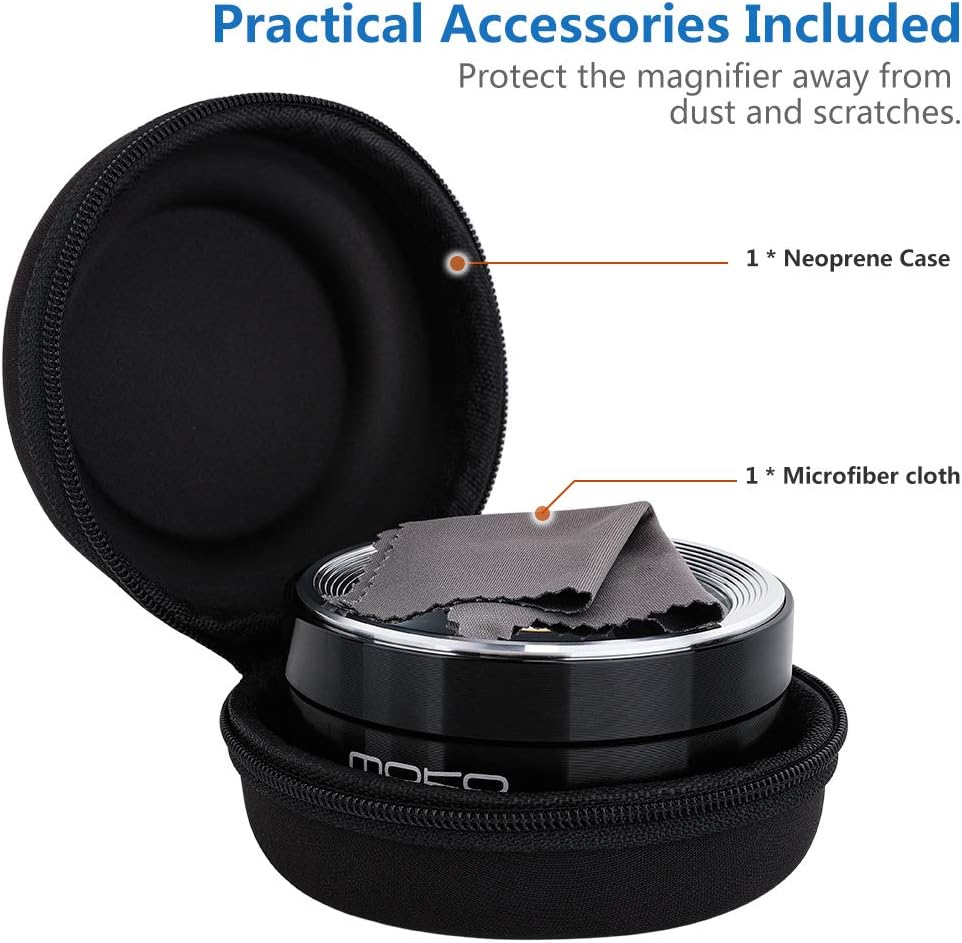
Image: The MoKo LED Lighted Desktop Magnifier Dome shown with its protective neoprene carrying case and a microfiber cleaning cloth.
Ka mutu te huaview
The MoKo LED Lighted Desktop Magnifier Dome features a durable aluminum frame and a high-quality K9 optical glass lens, providing 5X magnification. It is equipped with three LED lights for enhanced visibility in various lighting conditions. The compact design allows for easy portability and use.
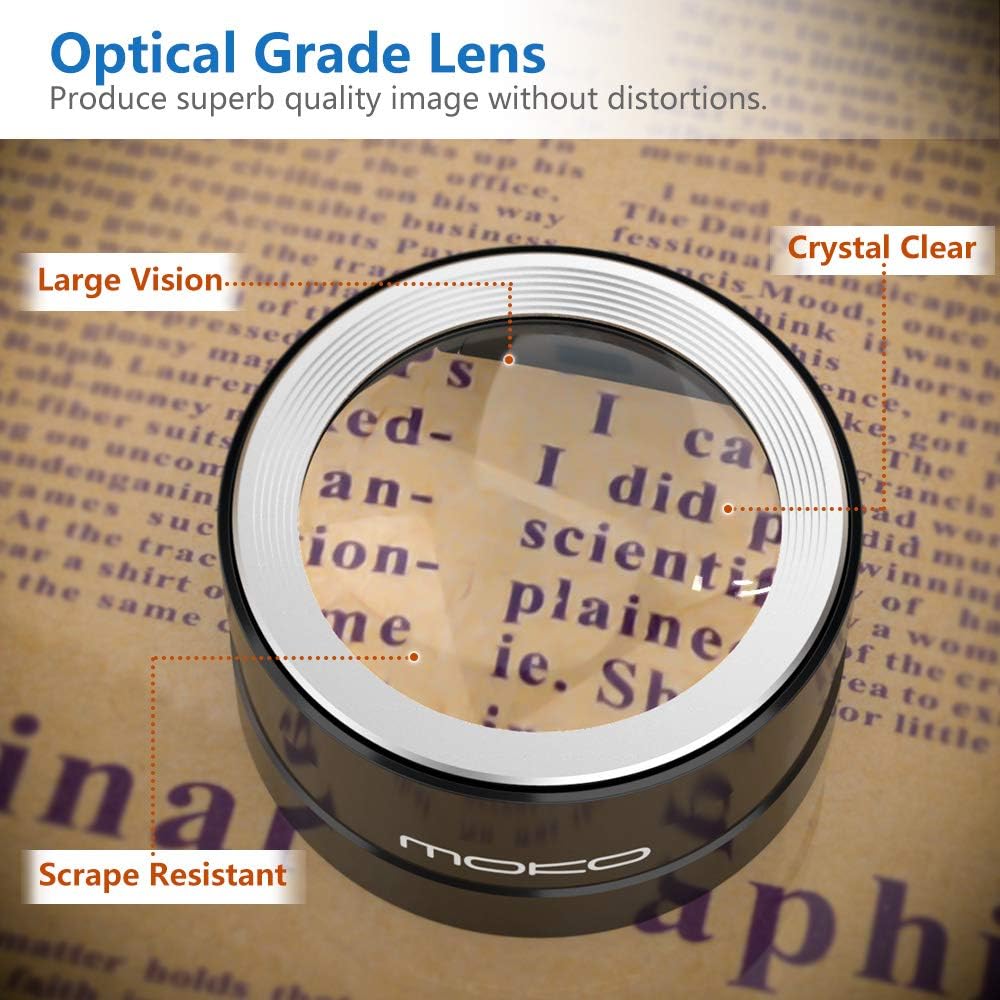
Image: A close-up of the magnifier's optical grade lens, demonstrating its clarity and magnification capabilities on text.
Tatūnga
Tāuta Pūhiko
- Locate the battery compartment on the underside of the magnifier.
- Panuku ata whakatuwheratia te uhi pākahiko.
- Insert the required batteries (type not specified in product data, typically button cells) ensuring correct polarity (+/-) as indicated inside the compartment.
- Katia kia mau te taupoki pākahiko.

Image: The underside of the magnifier, highlighting the location of the power switch and the battery compartment.
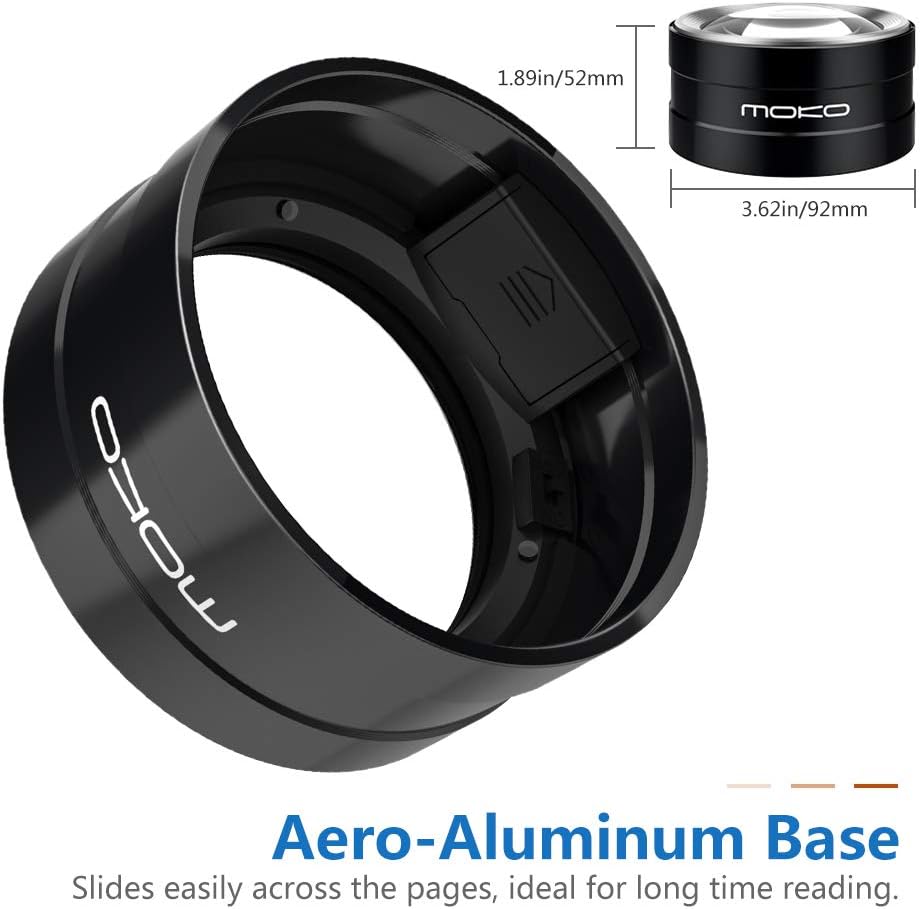
Whakaahua: He taipitopito view of the battery compartment, showing where batteries should be inserted.
Nga Tohutohu Whakahaere
Te whakamahi i te Whakanui
- Place the magnifier dome directly onto the surface of the object or text you wish to magnify.
- Move the magnifier smoothly across the surface to view nga waahanga rereke.
Turning On/Off the LED Lights
- Ensure the main power switch located on the underside of the magnifier is in the 'ON' position. This switch is designed to prevent accidental activation.
- With the main switch on, gently press down on the upper silver ring surrounding the lens. The LED lights will illuminate.
- To turn off the LED lights, press the upper silver ring again.
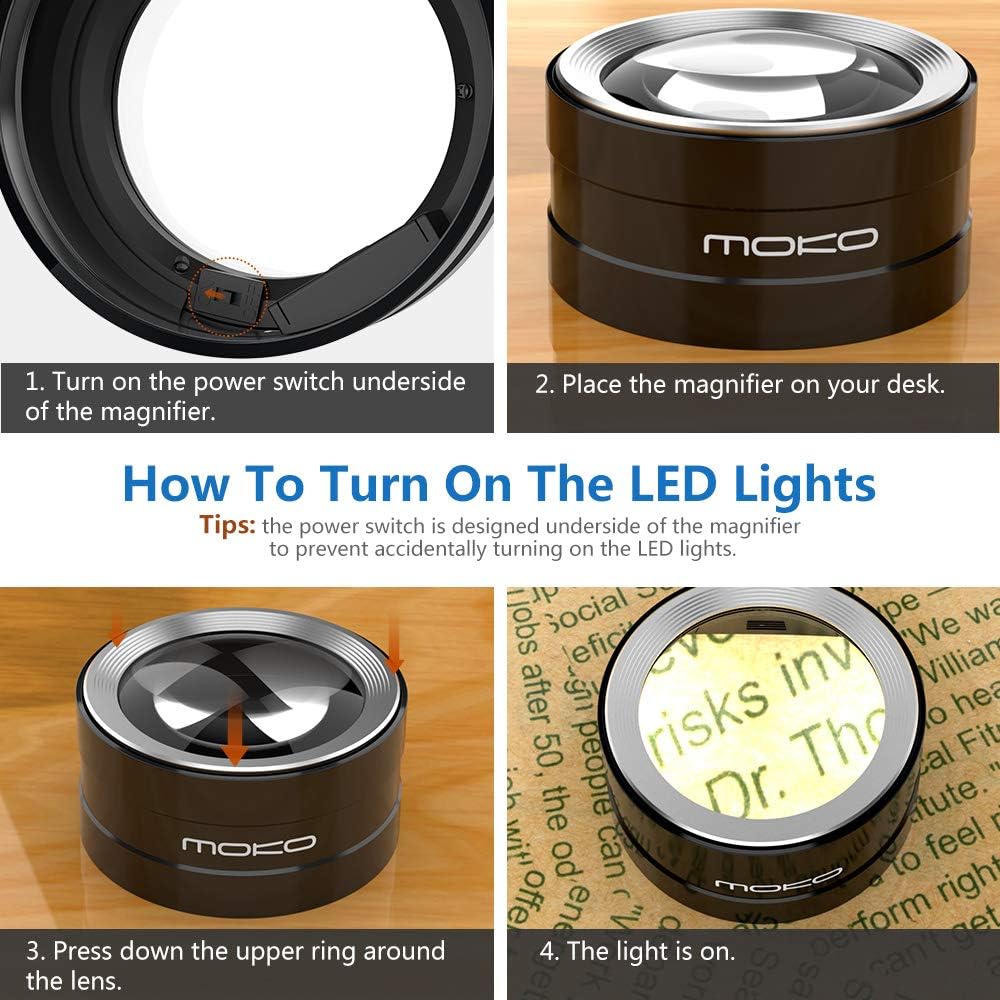
Image: Step-by-step guide on activating the LED lights, including the underside power switch and the upper ring press mechanism.
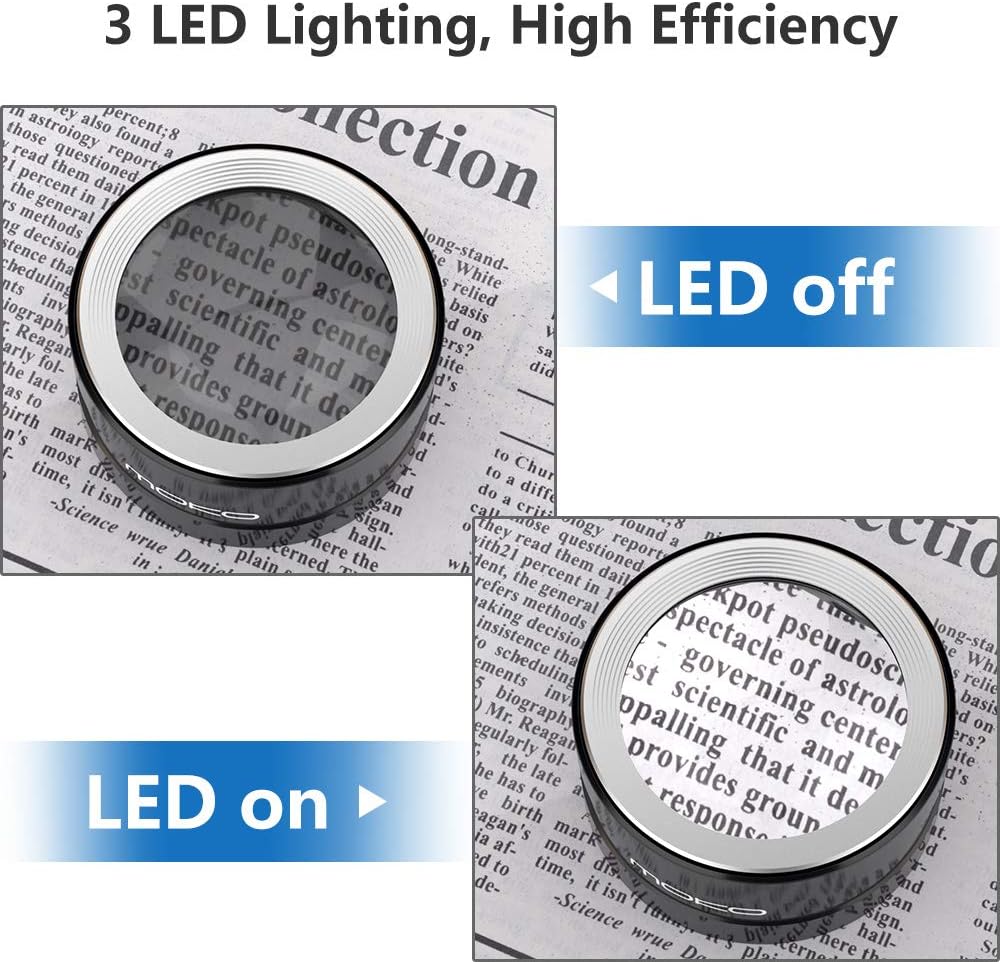
Image: A visual comparison demonstrating the enhanced clarity and illumination provided when the LED lights are activated.
Te tiaki
- Te horoi i te Arotahi: Use the provided microfiber cleaning cloth to gently wipe the lens. For stubborn smudges, slightly dampen the cloth with a lens cleaning solution. Avoid abrasive materials or harsh chemicals.
- Te horoi i te tinana: Horoia te tinana konumohe ki te kakahu ngohengohe, maroke.
- Rokiroki: When not in use, store the magnifier in its protective carrying case to prevent dust accumulation and scratches.
- Whakakapinga Pūhiko: Replace batteries when the LED lights dim or fail to illuminate. Follow the battery installation steps.
Raparongoā
| Raruraru | Take pea | Rongoā |
|---|---|---|
| Ko nga rama LED e kore e ka. |
|
|
| He pōuri te ahua kua whakanuia. |
|
|
Whakatakotoranga
- Waitohu: MoKo
- Tauira: B07RL7234Y
- Kaha Whakanui: 5X
- Rauemi Arotahi: Karāhe Whatu K9
- Rauemi Kakau: Konumohe
- Rama: 3 rama rama
- Rahi Hua: 1.89"L x 3.62"W (4.8cm L x 9.2cm W)
- Taumaha Tūemi: 9.4 hekere (266.5 karamu)

Image: A diagram illustrating the length and width dimensions of the magnifier dome.
Pūtāhui me te Tautoko
For warranty information and customer support, please refer to the product packaging or contact MoKo customer service directly through their official website or the retailer where the product was purchased. Keep your purchase receipt for warranty claims.


