Kupu Whakataki
Thank you for choosing the NEDIS Wi-Fi Smart Fan Heater. This manual provides essential information for the safe and efficient operation of your new device. Please read these instructions carefully before use and retain them for future reference. Proper use and maintenance will ensure optimal performance and longevity of the product.
Nga Tohutohu Haumaru
Hei whakaiti i te tupono o te ahi, te wiri hiko, te whara ranei, me whai tonu i enei tikanga tiaki haumaru:
- Panuihia nga tohutohu katoa i mua i te whakamahi i tenei whakamahana.
- Kaua e whakamahia tenei whakamahana ki nga waahi tata o te kaukau, te kaukau, te puna kaukau ranei.
- Kaua e taupokina te whakamahana. Mā te taupokina ka wera rawa, ka mura hoki.
- Keep combustible materials such as furniture, pillows, bedding, papers, clothes, and curtains at least 1 meter (3 feet) from the front of the heater and keep them away from the sides and rear.
- Wewetehia te whakamahana i nga wa katoa ka kore e whakamahia.
- Kaua e whakamahia tetahi whakamahana he taura pakaru kua honoa ranei i muri i te ngoikoretanga o te whakamahana ranei, kua whakatakahia, kua pakaru ranei i tetahi tikanga.
- Kaua e rere te taura i raro i te whariki. Kaua e hipokina te taura ki nga whariki maka, nga omaoma, nga uhi pera ranei. Whakaritea te taura mai i te waahi waka me te waahi e kore e taka.
- Me tino tupato ki te whakamahia tetahi whakamahana e nga tamariki, e tata ana ranei ki nga tamariki, ki nga turoro ranei, me nga wa katoa e noho ana te whakamahana me te kore e tiakina.
- This heater is equipped with a tip-over protection switch that automatically shuts off the heater if it is accidentally knocked over.
- Me whakarite kia whakanohoia te whakamahana ki runga i te mata e mau ana.
- Mo roto anake.
Ka mutu te huaview
Familiarize yourself with the main components of your NEDIS Wi-Fi Smart Fan Heater.
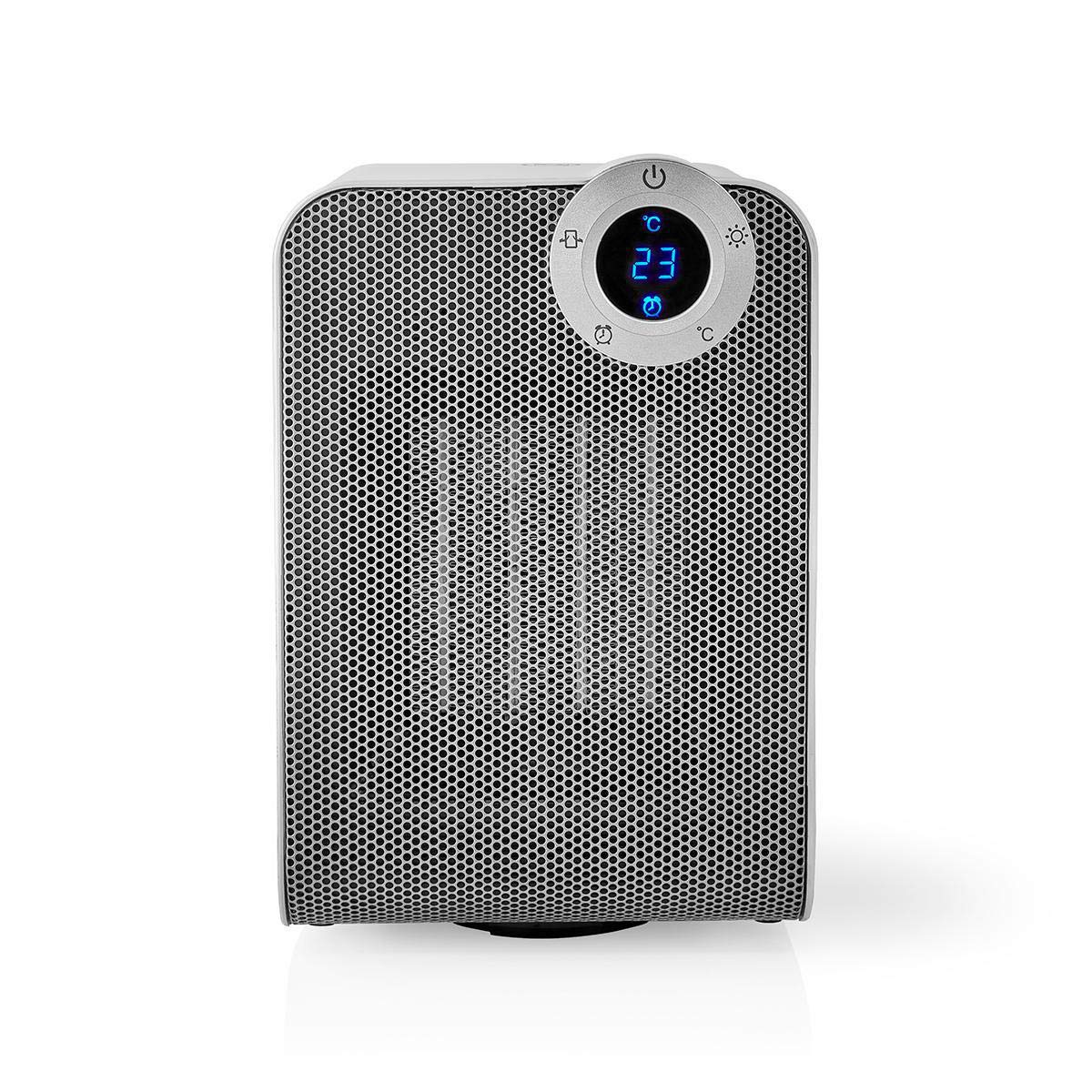
The front panel features a digital display that shows the current temperature and settings. Surrounding the display are touch-sensitive buttons for power, mode selection, oscillation, and timer functions.

The rear of the heater includes the main power switch (often a rocker switch) and the air intake grille. Ensure this area is not obstructed for proper airflow.

The compact design of the heater allows for easy placement in various indoor settings.
Tatūnga
Te wetewete
- Ata tango i te whakamahana mai i tana putunga.
- Tirohia mo nga pakaru i te wa e whakawhiti ana. Mena kua pakaru, kaua e mahi me te whakapiri atu ki te tautoko a nga kaihoko.
- Puritia te kete mo te rokiroki a muri ake nei, hei kawe ranei.
Whakanoho
- Whakanohoia te whakamahana ki runga i te mata pakari, taumata.
- Ensure there is at least 1 meter (3 feet) of clear space around the heater to allow for proper air circulation and to prevent fire hazards.
- Do not place the heater near curtains, drapes, or other loose fabrics that could block the air intake or outlet.
- Kia tino mohio kei te kōpiko te taura hiko, kei raro rānei i ngā mea taumaha.
Hia Tuatahi
- Plug the heater into a suitable electrical outlet (220-240V AC, 50/60Hz).
- Flip the main power switch on the back of the unit to the 'ON' position.
- The digital display on the front will illuminate, indicating the heater is in standby mode.
Wi-Fi Connection & App Setup
The NEDIS Wi-Fi Smart Fan Heater can be controlled via the Nedis SmartLife app, offering advanced features and remote control.
- Tikiake te Nedis SmartLife taupānga mai i te Toa Taupānga (iOS) i te Toa Play Google rānei (Android).
- Rēhita mō tētahi pūkete hōu, takiuru mai rānei mēnā kei a koe tētahi.
- Me mohio kei te hono to waea atamai ki te whatunga Wi-Fi 2.4 GHz.
- I roto i te taupānga, pāwhiritia te ata '+' hei tāpiri i tētahi pūrere hou.
- Follow the on-screen instructions in the app to connect your heater to your Wi-Fi network. This usually involves putting the heater into pairing mode (refer to the app for specific instructions, often by pressing and holding a button on the heater).
- Once connected, you can control the heater from anywhere using the app.
Nga Tohutohu Whakahaere
Mana a-ringa
The heater can be operated directly using the touch buttons on the front panel:
- Pātene Hiko: Pēhia kia whakakā, whakawete rānei te whakamahana.
- Patene Aratau: Cycle through heating modes (e.g., High Heat 1800W, Low Heat 900W, Fan Only).
- Te Whakarerekenga Pawera: Use the '+' and '-' buttons (or similar) to set the desired temperature. The heater will operate at 1800W for rapid heating and automatically switch to 900W once the set temperature is approached.
- Pene Whakatika: Press to activate or deactivate the horizontal oscillation feature, distributing heat across a wider area.
- Pātene Matawā: Set a timer for the heater to automatically turn off after a specified duration.
SmartLife App Control
Once connected to the Nedis SmartLife app, you can access advanced control features:
- Remote Power On/Off: Control the heater from anywhere.
- Te Whakarerekenga Pawera: Precisely set and monitor the room temperature.
- Kōwhiringa Aratau: Choose between different heating levels or fan-only mode.
- Mana Oscillation: Whakakāhia, whakawetohia rānei te āhuatanga oscillation.
- Whakahōtaka: Create custom heating schedules for different times of the day or week.
- Taumahi Matawā: Set a countdown timer for automatic shutdown.
Mana Reo
The heater supports voice control through popular smart assistants. To enable this, link your Nedis SmartLife account with your preferred voice assistant (Google Home or Amazon Alexa) via their respective apps. Once linked, you can use voice commands such as:
- "Hey Google, turn on the heater."
- "Alexa, set the heater to 22 degrees."
- "Hey Google, turn off the heater."
Te tiaki
Te horoi
Regular cleaning helps maintain the heater's efficiency and extends its lifespan.
- Momotuhia te momotu o te whakamahana, ā, waiho kia whakamatao rawa i mua i te horoinga.
- Horoia nga mata o waho ki te ngohengohe, damp kakahu. Kaua e whakamahi i nga kai horoi me nga whakarewa.
- Use a vacuum cleaner with a brush attachment to remove dust from the air intake and outlet grilles.
- Me whakarite kia kore te wai e tomo ki roto i te whakamahana.
Rokiroki
Ki te kore e whakamahia mo te wa roa:
- Unplug the heater and clean it as described above.
- Store the heater in its original packaging or a suitable box to protect it from dust and damage.
- Keep it in a cool, dry place, away from direct sunlight and moisture.
Raparongoā
Mena ka raru koe ki to whakamahana, tirohia nga raru me nga otinga e whai ake nei:
| Raruraru | Take pea | Rongoā |
|---|---|---|
| Kare te whakamahana e ka ana. | No power, main switch off, tip-over switch activated. | Check power outlet, ensure main switch is ON, place heater upright on a stable surface. |
| Kaore he putanga wera. | Aratau hē, he iti rawa te tautuhinga o te whakamahana. | Select a heating mode (High/Low), increase the thermostat setting above the current room temperature. |
| Ka rahua te hononga Wi-Fi. | Incorrect Wi-Fi password, 5GHz network, distance from router. | Verify Wi-Fi password, ensure you are on a 2.4GHz network, move heater closer to the router, try re-pairing. |
| Ka weto ohorere te whakamahana. | Overheating protection, tip-over protection, timer activated. | Ensure heater is not covered, clear obstructions, place upright, check timer settings. Allow to cool before restarting. |
Whakatakotoranga
| Āhuahira | Whakatakotoranga |
|---|---|
| Tau tauira | WIFIFNH20CWT |
| Puna Mana | Hiko Hiko |
| Putanga Mana | 1800W (Teitei), 900W (Hakaroa) |
| Tikanga Whakawera | Whakaputa |
| Ahu (L x W x H) | 16.5 x 14.5 x 25 cm |
| Taumaha Tūemi | 1.8 kg |
| Tae | White / hiriwa |
| Nga waahanga motuhake | On/Off Timer, Oscillation, Tip-over Protection, Thermostat, Wi-Fi, App Control, Voice Control (Alexa, Google Home) |
| Momo Tāuta | Maunga Papa |
| Whakamahi Manakohia | Indoor, Home, Study Room |
| Nga Pikohiko e hiahiatia ana | Kao |
Pūtāhui me te Tautoko
Your NEDIS Wi-Fi Smart Fan Heater is covered by a manufacturer's warranty. Please refer to the warranty card included with your purchase for specific terms and conditions, including the warranty period and coverage details.
For technical support, troubleshooting assistance, or warranty claims, please contact NEDIS customer service. Contact information can typically be found on the product packaging, the NEDIS webpae, to rihīti hoko ranei.