1. Kupu Whakataki
This manual provides comprehensive instructions for the installation, operation, and maintenance of your DIGITUS Wireless Dual Band Mesh Kit (Model DN-7071). Please read this manual carefully before using the device to ensure proper functionality and to prevent damage.
The DIGITUS Wireless Dual Band Mesh Kit is designed to extend and enhance your Wi-Fi coverage, providing a seamless and stable network experience throughout your home or office. It supports dual-band operation (2.4 GHz and 5.8 GHz) with a combined speed of up to 1200 Mbps, and features WPS for easy setup, along with LAN and Wi-Fi connectivity.
2. Ihirangi mokete
Manatokona kei roto katoa nga mea kei roto i to kete:
- 1 x DIGITUS 1200 Mbps Dual Band Mesh System (3 pieces)
- 1 x Pukapuka Kaiwhakamahi
3. Hua Neke Atuview
Familiarize yourself with the components and indicators of your DIGITUS Mesh Kit.
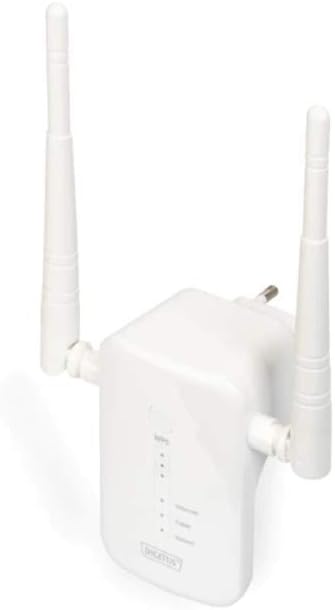
Figure 1: DIGITUS Wireless Dual Band Mesh Kit (DN-7071). This image displays the DIGITUS Wireless Dual Band Mesh Kit, a white rectangular device with two adjustable external antennas. The front panel features LED indicators for status, and a power plug is visible on the back, indicating direct wall-socket integration.
Tohu LED:
- Arahina hiko: Ka tohu i te mana mana.
- Wi-Fi LED: Indicates Wi-Fi activity and connection status.
- Arahina LAN: E tohu ana i te mahi a te tauranga LAN.
- Te Kaha Waitohu LED: Indicates the strength of the mesh connection.
Tauranga me nga Patene:
- Tauranga LAN: Mō ngā hononga waea.
- Pātene WPS: For quick and secure connection setup.
- Patene Tautuhi Anō: To restore factory default settings (usually a small pinhole button).
4. Tatūnga
4.1 Te Whakanoho Tuatahi
Place the main mesh unit (router mode) near your internet modem/router. Subsequent mesh units should be placed strategically to cover dead zones, ensuring they are within range of another mesh unit or the main unit for optimal signal strength.
4.2 Te Whakakaha
- Plug the main mesh unit into a power outlet.
- Wait for the Power LED to become stable.
- Repeat for the other mesh units.
4.3 Connecting to Your Existing Network
There are two primary methods for connecting the mesh system:
Tikanga 1: WPS (Tatūnga Parea Wi-Fi)
- Press the WPS button on your existing router.
- Within two minutes, press the WPS button on the main DIGITUS mesh unit.
- The Wi-Fi LED on the mesh unit will blink during connection and become solid when successfully connected.
- Repeat for additional mesh units, pressing WPS on an already connected mesh unit or the main unit, then on the new unit.
Method 2: Manual Setup (via Web Atanga)
- Connect your computer to the LAN port of one of the mesh units using an Ethernet cable, or connect wirelessly to its default Wi-Fi network (SSID and password usually found on a sticker on the device).
- Tuwhera a web pūtirotiro ka tāuru i te wāhitau IP taunoa (hei tauira,
192.168.1.1or192.168.0.1) or domain name (e.g.,http://digitusmesh.net) provided in the quick start guide. - Log in with the default username and password (e.g.,
admin/admin). - Follow the on-screen wizard to configure the mesh system, including network name (SSID), password, and operating mode (e.g., Router, Access Point, Repeater).
- Save your settings and restart the device if prompted.
5. Nga Tohutohu Whakahaere
5.1 Hononga Pūrere
- Pūrere Ahokore: Rapua te ingoa o te whatunga Wi-Fi (SSID) i whirihorahia e koe, ka tāuru i te kupuhipa.
- Pūrere Waea: Connect devices like computers, gaming consoles, or smart TVs to the LAN port of any mesh unit using an Ethernet cable.
5.2 Te Arotau Mahi
- Turanga: Ensure mesh units are not obstructed by large objects or placed near sources of interference (e.g., microwaves, cordless phones).
- Whakahōu Firmware: Tirohia me te tāuta i ngā whakahōu pūmanawa mā te web atanga hei whakarite i te mahi tino pai me te haumarutanga.
- Rōpū Takirua: Utilize the 5 GHz band for devices requiring higher speeds (e.g., streaming, gaming) and the 2.4 GHz band for wider coverage and older devices.
6. Tiaki
- Te horoi: Whakamahia he kakahu maeneene, maroke hei horoi i te taputapu. Kaua e whakamahia nga kai horoi wai, aerosol ranei.
- Whakahau: Ensure the mesh units have adequate ventilation and are not covered.
- Pūmanawa: Keep the device firmware updated to the latest version for security and performance improvements.
- Tautuhi: If the device is not functioning correctly, a factory reset may resolve issues. Press and hold the reset button for 5-10 seconds until the LEDs flash. Note that this will erase all custom settings.
7. Te Raru
- Kore Mana: Ensure the power adapter is securely plugged into the unit and a working power outlet.
- Kaore he Hononga Ipurangi:
- Check the connection between the main mesh unit and your modem/router.
- Verify your modem/router has an active internet connection.
- Restart your modem, router, and mesh units.
- Waitohu Wi-Fi ngoikore:
- Relocate mesh units closer to each other or to the main unit.
- Ensure there are no major obstructions.
- Tirohia ngā pūtake o te pokanoa.
- Kaore e taea te uru Web Atanga:
- Ensure your device is connected to the mesh unit's network.
- Verify the correct IP address or domain name is entered.
- Whakamātauria te whakawātea i te keteroki o tō pūtirotiro me te whakamahi i tētahi atu pūtirotiro.
- Perform a factory reset if necessary (note: this will erase all custom settings).
8. Whakatakotoranga
| Āhuahira | Taipitopito |
|---|---|
| Waitohu | DIGITU |
| Ingoa Tauira | DN-7071 |
| Tae | Mā |
| Hangarau Hononga | WLAN |
| Paerewa Whakawhitinga Korerokore | 802.11a, 802.11ac, 802.11b, 802.11g, 802.11n |
| Karaehe Band Auautanga | Dual Band (2.4 GHz / 5.8 GHz) |
| Nga waahanga motuhake | QoS, WPS |
| Pūrere Hototahi | Smartphone (and other Wi-Fi enabled devices) |
| Tauranga | RJ-45 (LAN) |
| Taumaha Tūemi | 117 Karamu |
| Nga Waahanga kei roto | 1 x 1200 Mbps Dual Band Mesh System (3 pieces), 1 x User Manual |
9. Pūtāhui me te Tautoko
For warranty information and technical support, please refer to the official DIGITUS website or contact their customer service. Details are typically available on the product packaging or the manufacturer's official support pages.
You can find more solutions and information on the official DIGITUS webpae: DIGITUS Solutions


