1. Kupu Whakataki
This manual provides detailed instructions for the installation, operation, and maintenance of your Aerocool Streak Mid-Tower ATX PC Gaming Case. Designed for both new and experienced PC builders, the Streak case offers a compact design with a polished aluminum front panel, vibrant RGB lighting, and a full tempered glass side panel to showcase your components. It supports various cooling configurations to ensure optimal performance for your system.
2. Nga korero haumaru
Please read and understand all safety instructions before installing or operating the PC case. Failure to do so may result in personal injury or damage to the product.
- Me momotu te pūnaha hiko mai i te putanga pakitara i mua i te tāutanga, i te tiaki rānei.
- Be aware of sharp edges inside the case. Handle components with care to avoid cuts.
- Puritia ngā wāhanga iti me ngā tīwiri kia matara atu i ngā tamariki.
- Me whakarite te turanga tika kia kore ai e ru te hiko.
- Do not expose the case to water or excessive humidity.
3. Ihirangi mokete
Manatokona kei roto katoa nga mea kei roto i te kete:
- Aerocool Streak Mid-Tower ATX PC Gaming Case
- Accessory box (screws, standoffs, cable ties, etc.)
- Pukapuka Kaiwhakamahi (tenei tuhinga)
4. Ngā Wāhanga Take Neke Atu i teview
Familiarize yourself with the various parts of your Aerocool Streak case.

Whakaahua 4.1: Koki view of the Aerocool Streak PC case, showcasing the RGB front panel and tempered glass side panel.

Whakaahua 4.2: Koki runga-raro view of the Aerocool Streak PC case, highlighting the top panel and front I/O ports.
4.1 Ngā Tauranga I/O o Mua
The front I/O panel provides convenient access to essential connections.
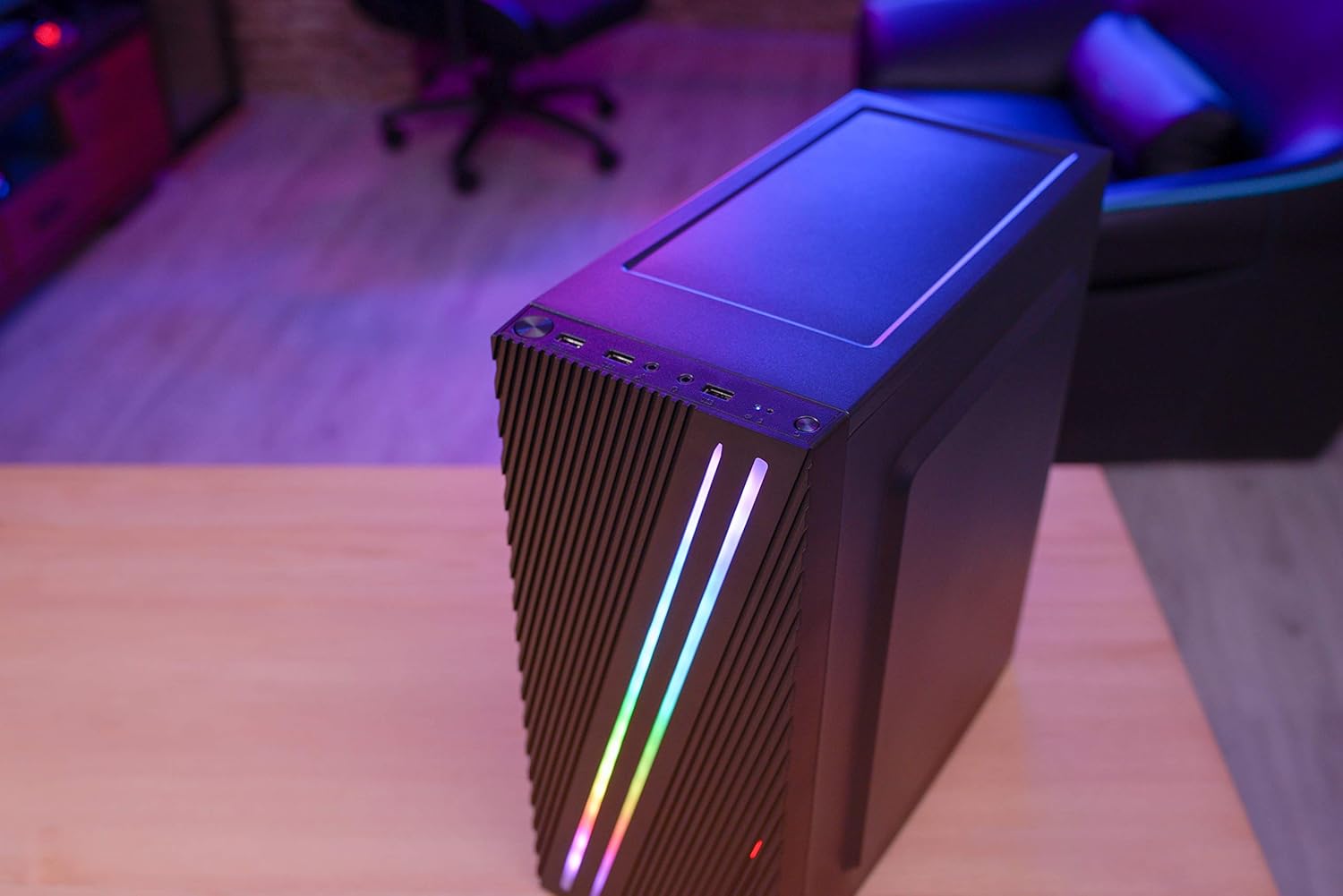
Whakaahua 4.3: Close-up of the front I/O panel, showing the power button, LED control button, USB 3.0 port, two USB 2.0 ports, and HD audio/microphone jacks.
- Pātene Hiko: Hei whakakā/whakaweto i te pūnaha.
- Pātene Mana LED: To cycle through RGB lighting modes.
- Tauranga USB 3.0 (x1): Mo te whakawhiti raraunga tere tere.
- Tauranga USB 2.0 (x2): Mō ngā taputapu USB paerewa.
- HD Audio & Mic Jacks: Hei hono i ngā paneoro me ngā hopuoro.
4.2 Tahora o roto
The interior is designed for efficient component installation and cable management.

Whakaahua 4.4: Roto view of the Aerocool Streak PC case, showing the motherboard tray, drive bays, and cable routing cutouts.
5. Tatūnga me te Tāuta
Follow these steps to assemble your PC components within the Aerocool Streak case.
5.1 Whakaritenga
- Unpack the case and remove all packaging materials.
- Whakatakotoria te pouaka ki runga i tētahi mata pūmau, papatahi.
- Gather necessary tools: Phillips head screwdriver, cable ties (included in accessory box).
- Remove the tempered glass side panel by unscrewing the four thumb screws.
5.2 Whakaaturanga Papa Pouaka
The Aerocool Streak supports ATX, Micro-ATX, and Mini-ITX motherboards.

Whakaahua 5.1: Diagram illustrating the compatible motherboard sizes (Mini-ITX, Micro-ATX, ATX) within the case.
- Install the necessary motherboard standoffs into the motherboard tray according to your motherboard's form factor.
- Place your motherboard carefully onto the standoffs, aligning the screw holes.
- Whakaorangia te papahoahoa me nga wiri kua whakaratohia.
5.3 Whakaaturanga Whakaaturanga Hiko (PSU) Whakauru
The case features a bottom-mount PSU design.
- Slide the PSU into its designated compartment at the bottom rear of the case.
- Secure the PSU to the case rear with screws.
5.4 Te Whakanoho Puku Rokiroki
Install your 2.5" SSDs and 3.5" HDDs.
- Ngā SSD 2.5": Mount SSDs to the designated 2.5" drive trays or mounting points on the motherboard tray.
- Ngā HDD 3.5": Install HDDs into the drive cage located beneath the PSU shroud.
5.5 Expansion Card Installation (Graphics Card, etc.)
The case supports high-end graphics cards up to 335mm in length.
- Tangohia nga uhi mokamoka PCIe e tika ana mai i muri o te keehi.
- Insert your expansion card into the corresponding PCIe slot on the motherboard.
- Whakamaua te kāri ki te tīwiri.
5.6 Te Tāutanga o te Pūnaha Whakamatao
The Aerocool Streak supports both air and liquid cooling solutions.

Whakaahua 5.2: Diagram showing air cooling options, including front 120mm fans (optional) and a rear 80mm fan (included).

Whakaahua 5.3: Diagram illustrating liquid cooling support, specifically a 240mm radiator at the front (optional).
- Whakamatao Hau: The case supports up to two 120mm fans at the front (optional) and includes one 80mm fan at the rear.
- Matao Wai: A 240mm radiator can be installed at the front of the case (optional).
- Install fans or radiators into their respective mounting points and secure them with screws.
5.7 Whakahaere taura
Utilize the cable routing cutouts and tie-down points behind the motherboard tray to organize cables for improved airflow and aesthetics.
- Route all power and data cables through the designated cutouts.
- Use cable ties to bundle and secure cables neatly.
6. Nga Tohutohu Whakahaere
6.1 Te Whakakā i tō Pūnaha
- Ensure all components are correctly installed and all cables are securely connected.
- Connect the power cable to your PSU and then to a wall outlet.
- Hurihia te whakakā hiko i runga i te PSU ki te tūnga 'ON'.
- Press the power button on the front I/O panel of the case to start your system.
6.2 Mana Rarama RGB
The Aerocool Streak features 18 distinct RGB lighting modes on its front panel.

Whakaahua 6.1: The Aerocool Streak PC case with its vibrant RGB lighting illuminated on the front panel.
- Pehia te Pātene Mana LED on the front I/O panel to cycle through the 18 available lighting modes.
- These modes include 11 RGB flow modes and 7 static color modes.
7. Tiaki
Mā te tiaki auau ka roa te ora me te mahi tino pai o tō anga PC me ngā wāhanga.
7.1 Te horoi i te keehi
- Waho: Whakamahia he ngohengohe, damp he kakahu hei muru i ngā mata o waho. Āta karohia ngā kaihoroi whakakoi.
- roto: Periodically use compressed air to remove dust buildup from inside the case, especially around fans and heatsinks.
7.2 Whakaoranga Tātari Puehu
The case may include removable dust filters to prevent dust ingress. Clean these filters regularly.
- Locate and carefully remove any dust filters (e.g., top, bottom, front).
- Clean the filters with water and mild soap, or use compressed air.
- Me whakarite kia maroke rawa ngā tātari i mua i te tāutanga anō.
8. Te Raru
If you encounter issues with your Aerocool Streak case, refer to the following common problems and solutions.
- System does not power on:
- Check all power connections, including the PSU to the wall, PSU switch, and motherboard power cables.
- Ensure the front panel power switch cable is correctly connected to the motherboard.
- RGB lighting is not working:
- Verify that the RGB lighting cables are properly connected to the power supply or motherboard RGB header.
- Press the LED control button to cycle through modes, as it might be on a static black mode.
- Poor airflow/overheating:
- Me whakarite kei te tika te hurihuri o ngā pā katoa o te pouaka.
- Horoia ngā tātari puehu me ngā wāhanga o roto.
- Verify proper fan orientation for optimal airflow (intake/exhaust).
9. Whakatakotoranga
| Āhuahira | Whakatakotoranga |
|---|---|
| Ingoa Tauira | Tutuki |
| Tau tauira | ACCM-PV19012.11 |
| Momo Take | Pouwaenganui |
| Papamatua Hototahi | ATX, Micro ATX, Mini ITX |
| Rauemi | Karāhe Whakamarumaru (paepae taha) |
| Tae | Pango |
| Tuhinga o mua | 1x USB 3.0, 2x USB 2.0, HD Audio, Mic, LED Control Button, Power Button |
| Rarama RGB | 18 Lighting Modes (11 flow, 7 static) |
| Whakakorea Maanao CPU | Tae atu ki te 151mm |
| Te Roa o te Kaari Whakairoiro | Tae atu ki te 335mm |
| PSU Maunga | Maunga Raro |
| Tikanga whakamatao | Hau, Wai |
| Kei roto nga Kaiwhaiwhai | 1x Pā Whakamuri 80mm |
| Optional Fan Support | I mua: 2x 120mm |
| Tautoko Radiator | Front: 1x 240mm (optional) |
10. Pūtāhui me te Tautoko
The Aerocool Streak PC Gaming Case comes with a 2-year warranty on parts. For technical support, warranty claims, or further assistance, please contact your retailer or the official Aerocool support channels. Keep your proof of purchase for warranty validation.


