1. Kupu Whakataki
This manual provides detailed instructions for the ipega PG-9162 Mini Wireless Game Controller. This controller is designed for use with the Nintendo Switch console, offering both wireless and wired connectivity options. It features a compact design, six-axis gyroscope, dual motor vibration, and a TURBO function to enhance your gaming experience.

Whakaahua 1.1: Mua view of the ipega PG-9162 Mini Wireless Game Controller.
2. Nga Hua o te Hua
- Hototahi: Designed for the Nintendo Switch host, supporting both wireless and wired connections to the Switch dock.
- Hoahoa Ergonomic: Small and exquisite handle for comfortable grip during extended gaming sessions.
- Six-axis Gyroscope: Built-in six-axis gyro chip for precise motion control and fine-tuning assistance in games.
- Wiri Motuka Takirua: Integrated dual motors provide immersive feedback based on in-game actions.
- Mahinga TURBO: Supports continuous TURBO function for rapid button presses.
- Roa te Ora o te Pūhiko: Built-in 380mAh battery capacity provides over 8 hours of continuous play.

Whakaahua 2.1: Ka mutuview of key features including vibration, gyroscope, and TURBO function.
3. Ihirangi mokete
- ipega PG-9162 Mini Wireless Game Controller
- Taura Whakatau USB (Momo-C)
- Pukapuka Kaiwhakamahi

Image 3.1: Retail packaging of the ipega PG-9162 controller.
4. Hua Neke Atuview
The ipega PG-9162 controller features standard gamepad buttons and joysticks, designed for intuitive control. Familiarize yourself with the layout:

Whakaahua 4.1: Runga view of the controller highlighting its button layout.
- Rakau Analog Mauī: Mo te nekehanga me te whakahaere kamera.
- Papa-D: Tāuru aronga.
- Pātene Kāinga: Returns to the Switch home menu.
- Patene Whakaahuamata: Ka hopu whakaahua.
- Rakau Analog Matau: Mō te whakahaere kāmera, mō ngā mahi motuhake rānei i roto i te kēmu.
- Patene Hohenga (A, B, X, Y): Mō ngā mahi i roto i te kēmu.
- Shoulder Buttons (L, R) & Triggers (ZL, ZR): For various in-game functions.
- Ngā Pātene Tāpiri (+) me te Tango (-): For menu navigation and options.
- Tohu LED: Whakaatuhia te tūnga hononga me te taumata pākahiko.
5. Tatūnga me te Hononga
5.1 Wireless Connection to Nintendo Switch
- Me whakarite kei te whakakāhia tō papatohu Nintendo Switch, ā, kei te whakahoutia hoki ki te pūmanawa pūnaha hou.
- Mai i te Tahua KĀINGA, tīpakohia "Ngā Kaiwhakahaere" > "Hurihia te Pupuri/Te Raupapa".
- On the ipega PG-9162 controller, press and hold the Pātene Kāinga a Pātene Y simultaneously for a few seconds until the LED indicators start flashing rapidly. This indicates pairing mode.
- The Switch console will detect the controller. Once detected, the LED indicators on the controller will become solid, indicating a successful connection.
- You can now use the controller wirelessly with your Nintendo Switch.
5.2 Wired Connection to Nintendo Switch Dock
- Place your Nintendo Switch console into its dock.
- Connect one end of the USB charging cable to the ipega PG-9162 controller and the other end to an available USB port on the Nintendo Switch dock.
- The controller will automatically connect to the Switch console via the wired connection.
- Ensure that "Pro Controller Wired Communication" is enabled in the Switch System Settings (System Settings > Controllers and Sensors > Pro Controller Wired Communication).
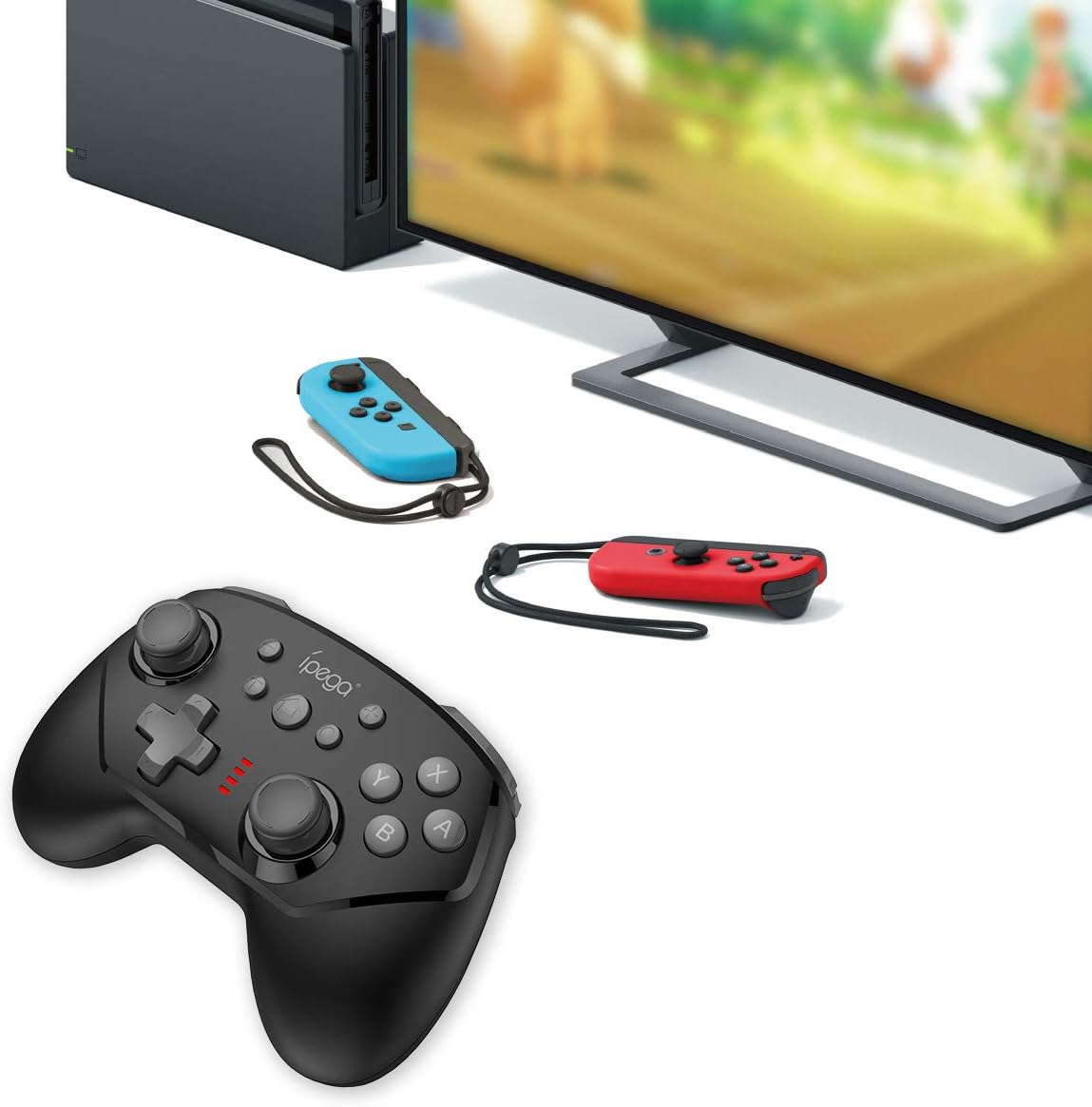
Image 5.1: The controller connected to a Nintendo Switch dock, demonstrating wired play.
6. Nga Tohutohu Whakahaere
6.1 Mahi TURBO
The TURBO function allows for rapid, continuous pressing of a button without repeatedly pressing it manually.
- To Set TURBO: Press and hold the desired action button (e.g., A, B, X, Y, L, R, ZL, ZR), then press the pātene TURBO once. The button will now continuously register presses as long as you hold it down.
- To Clear TURBO: Repeat the process: press and hold the button with TURBO enabled, then press the pātene TURBO again. The TURBO function for that specific button will be deactivated.
6.2 Six-axis Gyroscope
The built-in six-axis gyroscope provides motion control capabilities, allowing for precise aiming and in-game interactions by tilting and moving the controller.
- Ensure the game you are playing supports gyroscope controls.
- Calibrate the gyroscope if you experience drift or inaccurate motion sensing. Refer to your Nintendo Switch system settings for calibration options.

Image 6.1: Illustration of the six-axis gyroscope in action, enhancing aiming precision.
6.3 Mahi Wiri
The dual motor vibration provides tactile feedback, immersing you further into the game by reacting to in-game events like collisions, explosions, or character actions.
- Vibration intensity is typically controlled by the game itself.
- If vibration is not working, check the in-game settings or Nintendo Switch system settings to ensure it is enabled.

Image 6.2: Visual representation of the built-in dual motor vibration feature.
7. Te Whakataki i te Kaiwhakahaere
The ipega PG-9162 controller has a built-in rechargeable battery. When the battery is low, the LED indicators will flash slowly.
- Connect the provided USB charging cable to the Type-C port on the controller.
- Connect the other end of the USB cable to a USB power source (e.g., Nintendo Switch dock, computer USB port, or a USB wall adapter).
- The LED indicators will show charging status. Once fully charged, the indicators will typically turn off or show a solid light.
- A full charge provides over 8 hours of gameplay.
8. Tiaki
- Keep the controller dry and away from moisture.
- Āta tirohia te kaiwhakahaere kia kaua e tino pāngia e ngā pāmahana tino kino.
- Horoia te pūmana ki te kakahu ngohengohe, maroke. Kaua e whakamahi i ngā matū kaha, i ngā kaihoroi whakakoi rānei.
- Rokirokihia te pūmana ki tētahi wāhi haumaru ina kore e whakamahia hei ārai i te pakaru.
9. Te Raru
9.1 Kāore te Kaiwhakahaere e Hono Ana
- Me whakarite kia tika te utu o te kaiwhakahaere.
- Verify the Nintendo Switch console is updated to the latest system software.
- Whakahokia te tukanga takirua (Wahanga 5.1).
- If using wired connection, ensure "Pro Controller Wired Communication" is enabled in Switch settings.
- Try restarting both the controller and the Nintendo Switch console.
9.2 Te Whakaroa Whakauru, te Momotu rānei
- Me whakarite karekau he pokanoa hiko e tata ana.
- Move closer to the Nintendo Switch console.
- Disconnect other wireless devices that might be causing interference.
9.3 Ngā Pātene Kāore e Urupare Ana
- Tirohia mehemea kei te hono tika te kaiwhakahaere.
- Test the buttons in the Switch's controller test menu (System Settings > Controllers and Sensors > Test Input Devices).
- Horoi a tawhio noa nga patene kia kore ai he otaota e arai ana.
10. Whakatakotoranga
| Waitohu | ipega |
| Tau tauira | PG-9162 |
| Hononga | Ahokore (Nihokikorangi), Waea (USB) |
| Pūhiko Raukaha | 380mAh |
| Ora Pūhiko | >8 hours (approx.) |
| Nga waahanga motuhake | Six-axis Gyroscope, Dual Motor Vibration, TURBO Function |
| Hototahi | Nintendo Whakawhiti |
| Ahu | 17.53 x 13.72 x 6.6 cm (tata) |
| Taumaha | 295 g (āwhi.) |
11. Pūtāhui me te Tautoko
This product comes with a standard manufacturer's warranty. For specific warranty terms, please refer to the documentation included with your purchase or contact the retailer. For technical support or further assistance, please visit the official ipega webpaetukutuku, whakapā atu ranei ki ta raatau tari ratonga kaihoko.
Kaihanga: ipega
Te Ra Tuatahi Wātea: 2 Akuhata 2019


