Kupu Whakataki
The Logitech Signature M650 is a wireless mouse designed for comfort and productivity. It features Smartwheel scrolling for precise and fast navigation, silent clicks with SilentTouch technology, and customizable side buttons. This manual provides essential information for setting up, operating, maintaining, and troubleshooting your M650 mouse.

Image: The Logitech Signature M650 Wireless Mouse in gray, showcasing its ergonomic design and scroll wheel.
1. Tatūnga
1.1 Ihirangi mokete
- Logitech Waitohu M650 Kiore Ahokore
- AA Battery (pre-installed)
- Logi Bolt USB Receiver (may be stored inside the mouse)
1.2 Tāuta Pūhiko
The mouse comes with a pre-installed AA battery. If you need to replace it:
- Rapua te uhi o te wahanga pākahiko kei raro o te kiore.
- Slide or lift the cover to open it.
- Whakauruhia he pākahiko AA hou, kia tika te polarity (+/-).
- Katia kia mau te uhi o te wahanga pākahiko.
1.3 Te hono i to Kiore
The Signature M650 offers two connection methods: Bluetooth Low Energy or the Logi Bolt USB Receiver.

Image: Diagram illustrating the two connection options: Bluetooth and Logi Bolt USB receiver.
1.3.1 Te whakamahi i te Logi Bolt USB Receiver
- Remove the Logi Bolt USB receiver from its storage slot inside the mouse (if applicable).
- Monohia te kaikawe USB Logi Bolt ki tetahi tauranga USB e waatea ana ki to rorohiko.
- Whakakāhia te kiore ma te whakamahi i te pana hiko ki raro. Me hono aunoa te kiore.
1.3.2 Te whakamahi i te Nihokikorangi Pungao iti
- Whakakāhia te kiore ma te whakamahi i te pana hiko ki raro.
- Press and hold the connection button on the underside of the mouse until the LED indicator starts blinking rapidly, indicating pairing mode.
- I runga i to rorohiko, i to taputapu ranei, whakatuwhera i nga tautuhinga Nihokikorangi.
- Tīpakohia "Logitech M650" mai i te rarangi o nga taputapu e waatea ana hei takirua.
- A pee i nga tohu o runga-mata hei whakaoti i te tukanga takirua.
1.4 Tāuta Pūmanawa (Kōwhiringa)
For enhanced customization and functionality, download and install the Logitech Options+ software from the official Logitech website. This software allows you to personalize button assignments and adjust settings.
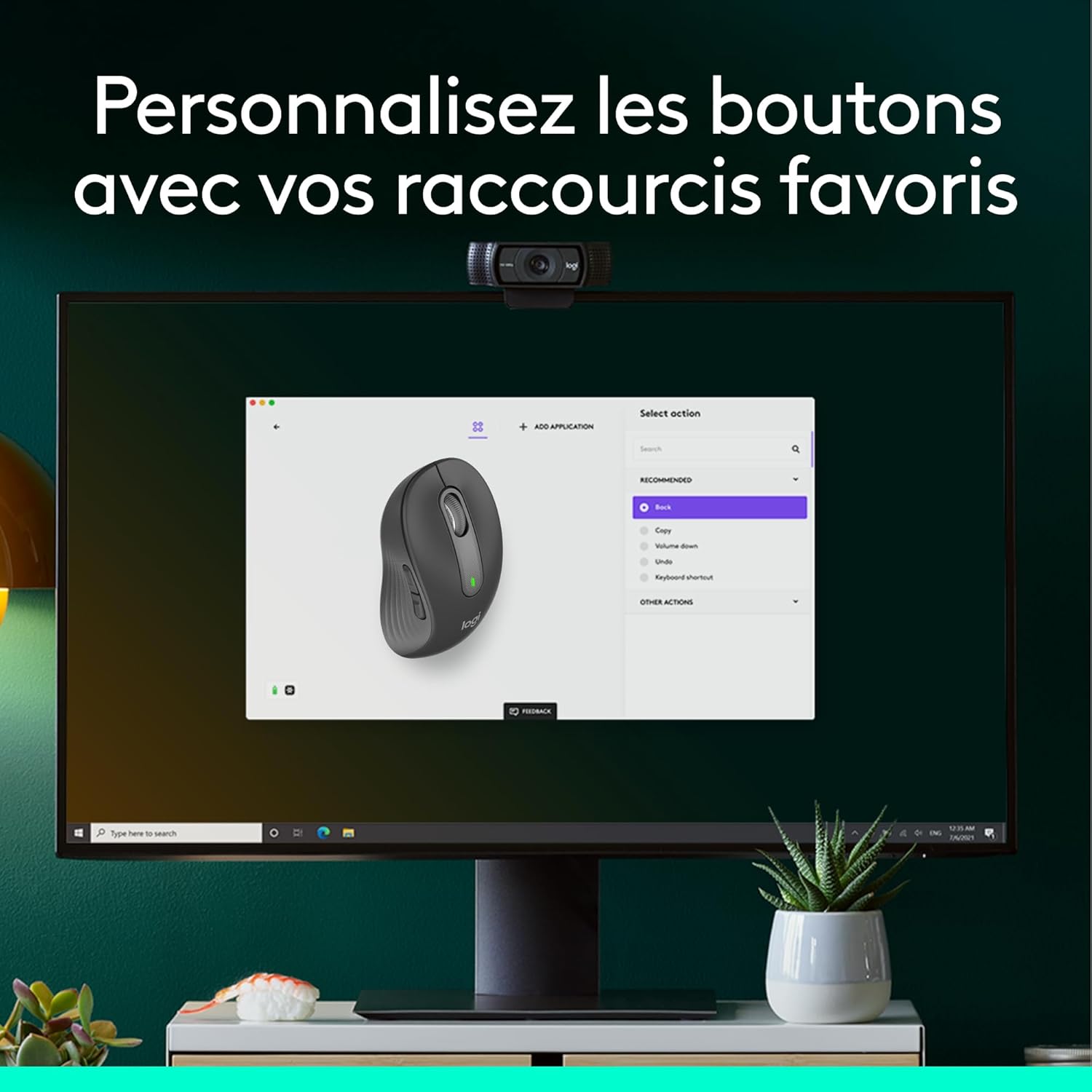
Image: A computer screen displaying the Logitech Options+ software interface, showing options to customize mouse buttons.
2. Whakahaere i to Kiore
2.1 Smartwheel Scrolling
The Signature M650 features a Smartwheel that adapts to your needs:
- Raina-i-raina tika: Scroll slowly for detailed navigation in documents or spreadsheets.
- Super-fast scrolling: Flick the wheel for rapid, free-spinning scrolling through long web wharangi, tuhinga ranei.

Whakaahua: He tata view of the mouse's Smartwheel, highlighting its textured surface and the "SmartWheel" label.
2.2 Silent Clicks (SilentTouch Technology)
The mouse is equipped with Logitech's SilentTouch technology, reducing click noise by over 90% compared to traditional mice. This feature promotes a quieter work environment.

Image: A person working at a desk, using the Logitech M650 mouse, with a "SilentTouch" logo indicating quiet operation.
2.3 Patene Taha Whakaritea
The two side buttons can be customized using Logitech Options+ software to perform your preferred shortcuts, such as "Back/Forward" or "Copy/Paste".

Whakaahua: He taipitopito view of the mouse's side, showing the two programmable buttons and the textured rubber grip for enhanced comfort.
2.4 Hoahoa Ergonomic
The Signature M650 is designed for comfort during extended use, featuring a contoured shape, a soft thumb area, and rubber side grips. It is available in different sizes to suit various hand dimensions.

Image: The Logitech M650 mouse resting on a light blue mousepad, emphasizing its comfortable shape for small to medium hands.

Image: A visual comparison showing the dimensions of the standard M650 and the larger M650 L models.
3. Tiaki
3.1 Te Ora o te Pūhiko me te Whakakapinga
The Signature M650 mouse operates on a single AA battery, providing up to 24 months of battery life. When the battery is low, the LED indicator on the mouse will signal. Replace the battery as described in Section 1.2.
3.2 Te horoi
Hei horoi i to kiore, whakamahia he ngohengohe, damp cloth. Avoid harsh chemicals or abrasive materials. Ensure no liquid enters the internal components.
3.3 Rokiroki
When not in use for extended periods, turn off the mouse using the power switch to conserve battery life. Store the Logi Bolt USB receiver inside the mouse's dedicated slot to prevent loss.
4. Te Raru
4.1 Kaore te Kiore e Whakautu
- Taki Hiko: Me whakarite kua whakakā te kiore.
- Takina Pūhiko: Replace the AA battery if the indicator light is off or blinking slowly.
- Taki Hononga:
- For Logi Bolt: Ensure the receiver is securely plugged into a working USB port. Try a different USB port.
- For Bluetooth: Ensure Bluetooth is enabled on your device and the mouse is paired. Try re-pairing the mouse (Section 1.3.2).
- Tawhiti: Ensure the mouse is within range of your computer (typically up to 10 meters for wireless connections).
4.2 Cursor Movement Issues
- Mata: Whakamahia te kiore ki runga i te mata ma, kaore e whakaata. Ka tūtohuhia he papa kiore.
- Pūoko: Me whakarite kia ma te pūoko whatu kei raro i te kiore, ā, kia kore he mea e arai ana.
4.3 Software Issues (Logitech Options+)
- Tāuta Anō Pūmanawa: If customization features are not working, try uninstalling and reinstalling Logitech Options+.
- Whakahōu Pūmanawa: Ensure you have the latest version of Logitech Options+ installed.
5. Whakatakotoranga
| Waitohu | Logitech |
| Ingoa Tauira | Waitohu M650 |
| Tau tauira | 910-006253 |
| Hononga | Nihokikorangi Kaha Iti, Logi Bolt USB Kaiwhiwhi |
| Hangarau Hoko | Optical (Laser) |
| Te maha o nga Patene | 5 (Left/Right click, Scroll wheel click, 2 Side buttons) |
| Takotoranga-ringa | Right-handed (variants for Left-handed and Ambidextrous may exist) |
| Momo Pūhiko | 1 x AA pākahiko |
| Ora Pūhiko | Tae atu ki te 24 marama |
| Ahu (L x W x H) | 10.7 x 6.1 x 3.8 cm (for standard M650) |
| Taumaha | 101.2g (me te pākahiko) |
| Nga Whakaritenga Pūnaha | Windows 10, 11 or later; macOS 10.10 or later; Linux; Chrome OS; iPadOS 13.4 or later; Android 8.0 or later |
| Nga waahanga motuhake | Wireless, Silent Clicks (SilentTouch), Smartwheel, Customizable Buttons |
6. Nga Korero Whakaputanga
The Logitech Signature M650 Wireless Mouse comes with a 2 tau te whakamana a te kaiwhakanao. Ka kapi tenei raihana i nga hapa o nga rawa me nga mahi i raro i te whakamahinga noa. Tena koa pupurihia to tohu mo te hoko mo nga kereme whakamana.
Mō ngā taipitopito o ngā tikanga me ngā herenga pūtāhui, tirohia te paetukutuku mana o Logitech. webpaetukutuku, whakapā atu rānei ki te ratonga kiritaki a Logitech.
7. Tautoko
For further assistance, product updates, or to download the Logitech Options+ software, please visit the official Logitech support webpae:
You can also find FAQs and community forums on the support website for common issues and tips.


