Kupu Whakataki
This manual provides essential information for the setup, operation, and maintenance of your OREI Sony UBP-X800M2 Region Free 4K UHD Blu-ray Player. This player is designed for worldwide use, supporting all Blu-ray disc zones (A/B/C) and DVD regions (0-8), with a built-in NTSC↔PAL 4K HD converter. Enjoy stunning 4K UHD visuals, high-resolution audio including Dolby Atmos and DTS:X, and seamless access to streaming services via Wi-Fi or Ethernet.

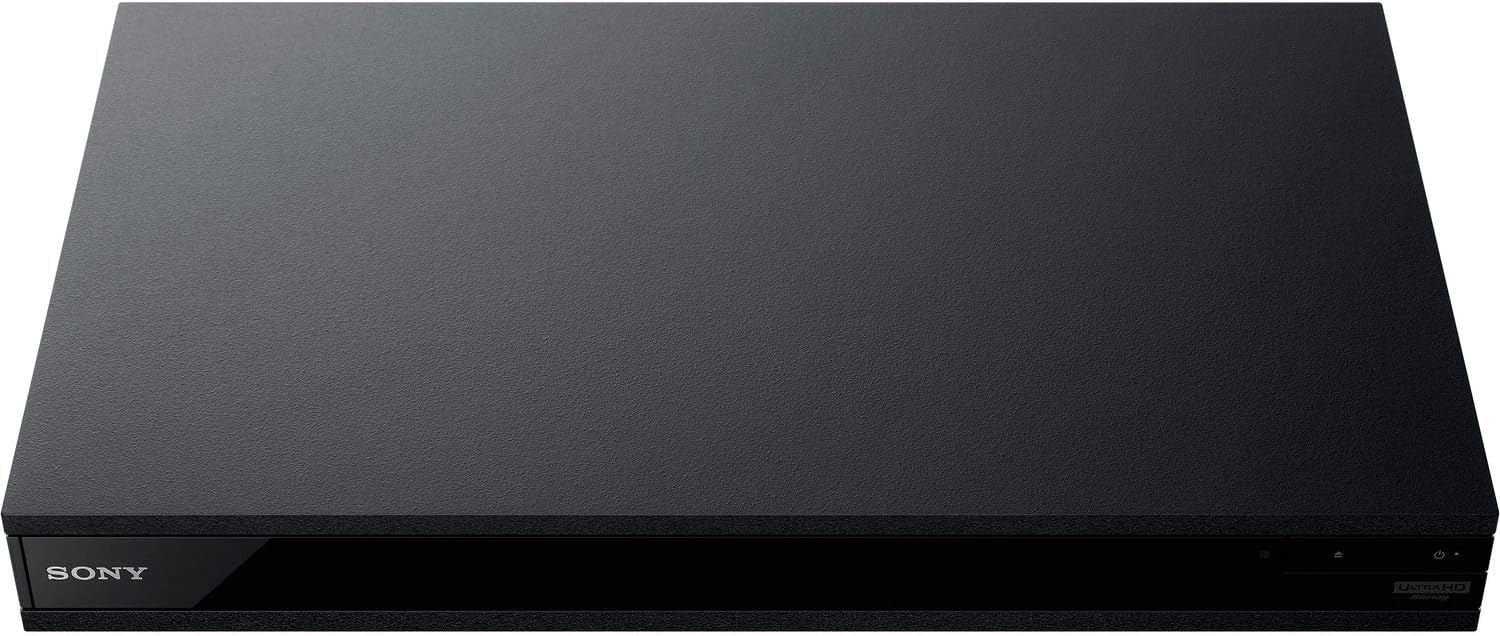
Whakaahua 1: Mua view of the OREI Sony UBP-X800M2 4K UHD Blu-ray Player.
Tatūnga
1. Te Wetewete me te Whakanoho
- Kia ata tangohia nga waahanga katoa mai i te kete.
- Place the player on a stable, level surface with adequate ventilation.
- Ensure no objects block the ventilation openings.
2. Te hono ki to pouaka whakaata
Connect the player to your TV using an HDMI cable for optimal 4K UHD video and audio.
- Honoa tetahi pito o te taura HDMI ki te HDMI PUTA tauranga kei muri o te kaitākaro Blu-ray.
- Honoa tetahi pito o te taura HDMI ki te whakauru HDMI i runga i to pouaka whakaata.
- If using an audio receiver, connect the player's HDMI OUT to the receiver's HDMI IN, then the receiver's HDMI OUT to the TV's HDMI IN.

Figure 2: Rear panel connections, showing HDMI, LAN, and audio outputs.
3. Hononga Mana
- Connect the AC power cord to the player's power input and then to a suitable electrical outlet.
4. Hononga Whatunga (Kōwhiringa)
For streaming services and firmware updates, connect the player to your home network.
- Hononga Waea: Connect an Ethernet cable from the player's LAN (100) port to your router or modem.
- Hononga Ahokore: Navigate to the network settings in the player's menu to connect to your Wi-Fi network.
5. Region Changing Instructions
This player supports all DVD regions (0-8) automatically. Blu-ray regions (A, B, C) are changed manually using the remote control.
- Turn the player ON a OPEN THE DISC TRAY.
- Once the tray is completely open, press the corresponding colored button on the remote to select the desired Blu-ray region:
- Rohe A: Pehia te PATA KOwhai i runga i te mana mamao.
- Rohe B: Pehia te PATA KAHURANGI i runga i te mana mamao.
- Rohe C: Pehia te Tuhinga o mua i runga i te mana mamao.
- You can now put your disc in the tray and then close the tray.

Figure 3: Remote control with colored buttons for region selection.
Nga Tohutohu Whakahaere
1. Te Purei Kōpae
The player supports a wide range of disc formats, including 4K UHD Blu-ray, standard Blu-ray, Blu-ray 3D, DVD, CD, and Super Audio CD (SACD).
- Pehia te TUwhera/KATI patene i runga i te kaitoro, i te mamao ranei hei whakatuwhera i te paepae kōpae.
- Āta whakatakotoria te kōpae ki runga i te paepae me te taha tapanga e anga ana ki runga.
- Pehia te TUwhera/KATI patene ano hei kati i te paepae.
- The player will automatically begin playback or display a disc menu.

Whakaahua 4: Mua view of the player with the disc tray open, ready for disc insertion.
2. Ratonga Rererangi
Access popular streaming services like Netflix and YouTube directly from the player's home menu.
- Ensure the player is connected to the internet (Wi-Fi or Ethernet).
- From the home screen, select the desired streaming application.
- Log in with your account credentials to begin streaming.
3. Purei Pāpāho USB
Purei pāpāho files (audio, video, photos) from a USB storage device.
- Insert your USB device into the front USB port.
- Select the USB option from the player's home menu to browse and play your media.
Whakaahua 5: Mua view of the player with a USB drive inserted into the front port.
Te tiaki
1. Te horoi i te kaitākaro
- Horoia te waho o te kaitakaro ki te kakahu ngohengohe, maroke.
- Kaua e whakamahia nga kai horoi, te wax, te whakarewa ranei.
- Ensure ventilation openings remain clear of dust and debris.
2. Tiaki Kōpae
- Ka mau i nga kopae ki o ratou taha kia kore ai e puta nga tapumati me nga rakuraku.
- Horoia nga kopae ki te kakahu ngohengohe, karekau, ka murua mai i te pokapū ki waho.
- Penapenahia ngā kōpae i roto i ō rātou pouaka, kia matara atu i te rā tika me te pāmahana tino kino.
3. Whakahoutanga Firmware
Firmware updates can be done via the internet to ensure optimal performance and access to the latest features.
- Go to the home menu, then setup menu, and then to Software Update.
- Click on "Update Via Internet". If a new firmware is available, the player will automatically update.
- KAUA turn off the player while it is updating.
- KAUA perform firmware updates by USB unless instructed by OREI support.
Raparongoā
Nga take noa
- Kore Pikitia/Oro:
- Check all HDMI and audio cable connections.
- Whakaritea te whakaurunga TV ki te tauranga HDMI tika.
- Manatokohia kei te kaha te kaitoro.
- Kāore te Kōpae e Purei:
- Me whakarite kia ma te kōpae, kia kore he rakuraku.
- Verify the disc is inserted correctly (label side up).
- For Blu-ray discs, confirm the player's region setting matches the disc's region (refer to "Region Changing Instructions" in the Setup section).
- Open the tray again and leave the disc in the tray. Once fully open, press the color button to select the region. Then close the tray.
- Region Code Error Message:
If you put in a disc before changing regions, you may get an error message indicating the wrong region. The player remembers this message. To remove that error, you need to reset the player.
- Pehia te KĀINGA button on the remote with no disc inside to go to the home screen.
- Use arrow buttons on the remote to go to the upper right corner where it says Tatūnga me te pehi KAUPAPA.
- Panuku ki raro Te tautuhi on the bottom of the menu.
- Tīpakohia Tautuhi ki nga tautuhinga taunoa wheketere.
- Panuku ki raro ka kowhiri KATOA TAUTURU me te pehi KAUPAPA -> Perehi Tīmata Whakauru -> Close KAUPAPA.
- Turn the player off and then on again after 30 seconds.
- Select Language English and then select quick start mode OFF. You may need to activate network settings again.
- If you prefer not to connect the player to the internet, you may press the KĀINGA button and go to the home screen. Now start from step 1 under "Region Changing Instructions" to change regions.
Whakatakotoranga
| Waitohu | OREI |
| Ingoa Tauira | Sony X800M2 (UBP-X800M2) |
| Hunga Hua | 19 x 14.1 x 3.8 inihi |
| Taumaha Tūemi | 8.82 pauna (4000 Karamu) |
| Momo Media | Blu-Ray Disc, DVD, 4K UHD Blu-ray, Blu-ray 3D, CD, Super Audio CD |
| Whakatau | 3840x2160 (4K UHD) |
| Hangarau Hononga | Itarangi, HDMI, USB, Ipurangi Ahokore |
| Momo Tuhono | HDMI |
| Aratau Putanga Ororongo | Surround (Dolby Atmos, DTS:X, High-Resolution Audio) |
| Tae | Pango |
| Pūhiko | 2 nga pākahiko AAA e hiahiatia ana (mo te mamao) |
| Āhuahira Motuhake | Region Free (Blu-ray Zones A/B/C, DVD Regions 0-8), Built-in NTSC↔PAL 4K HD Converter |
Pūtāhui me te Tautoko
Nga korero Whakaputanga
For specific warranty details, please refer to the warranty card included with your product or visit the official OREI webpae. Puritia to riiki hoko hei tohu mo te hoko.
Tautoko Kiritaki
If you encounter any issues or have questions regarding your OREI Sony UBP-X800M2 Blu-ray Player, please contact OREI customer support.
- Tautoko Aipurangi: Tirohia te OREI Store on Amazon mo nga FAQ me nga rauemi tautoko.
- Āwhina Hangarau: Contact OREI directly for technical support. (Specific contact details not provided in source data, please refer to product packaging or official webpae).


