Kupu Whakataki
Welcome to your new TERIOS Mobile Game Controller. This manual provides detailed instructions for setup, operation, and maintenance to ensure optimal performance and an enhanced gaming experience across various platforms including Android smartphones, Windows PCs, and PlayStation 3 consoles. Please read this manual thoroughly before using the device.
Nga waahanga matua
- Innovative Gaming: Designed to enrich your mobile gaming experience with precision and responsiveness.
- Hototahi Whānui: Connects via Bluetooth 4.0 to Android smartphones, and is compatible with Windows PC and PlayStation 3. Supports popular games like PUBG, Call of Duty, and Mobile Legends.
- Gaming Joysticks: Features dual analog sticks for comprehensive and precise control.
- Hoahoa Ergonomic: Comfortable grip with an integrated smartphone holder for extended gaming sessions.
- Mahinga Turbo: Allows for rapid, continuous input with a single button press.
- Responsive Active Buttons: Includes 2 quick access buttons on the back and numerous action buttons for enhanced accuracy.
- Roa te Ora o te Pūhiko: Tae atu ki te 12 haora te purei tonu i runga i te utu kotahi.
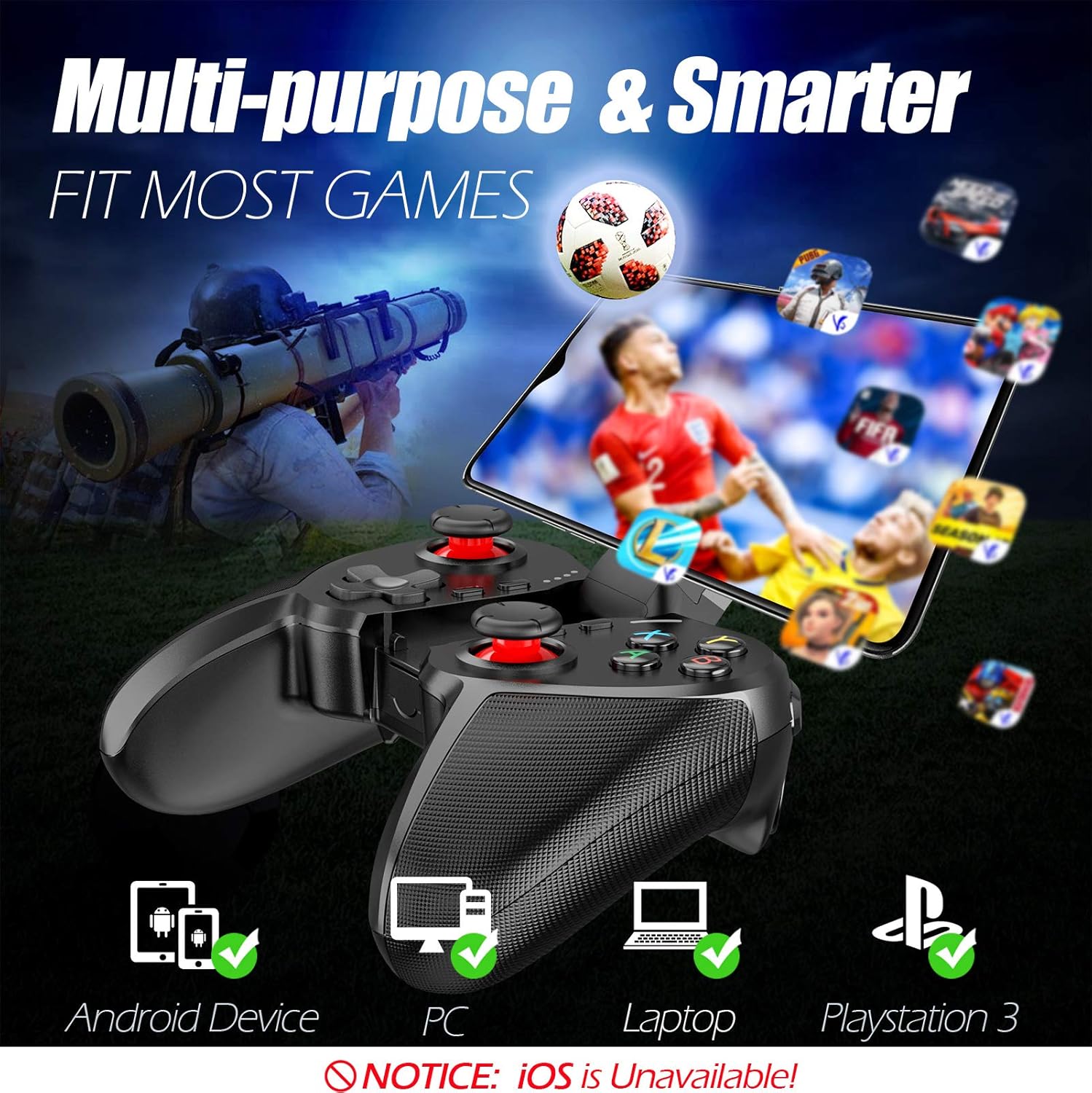
Figure 1: The TERIOS controller is compatible with Android devices, PCs, Laptops, and PlayStation 3.

Figure 2: Detail of the controller's built-in smartphone bracket, accurate buttons, and comfortable soft rubber grips.
Tatūnga me te Hononga
1. Te Whakataki i te Kaiwhakahaere
Before first use, fully charge the controller. Connect the provided Micro USB cable to the controller's charging port and the other end to a USB power source (e.g., computer USB port, USB wall adapter). The indicator lights will show charging status and turn off when fully charged.

Figure 3: The controller features a 400mAh battery, providing 12-14 hours of playtime with a 2-3 hour charging time.
2. Te Whakakaha/Weto
- Hei Whakahiko: Patohia me te pupuri i te KĀINGA button for 2 seconds. The indicator lights will flash.
- Hei Whakaweto: Patohia me te pupuri i te KĀINGA button for 5 seconds until the indicator lights turn off. The controller will automatically power off after 5 minutes of inactivity.
3. Bluetooth Pairing (Android Smartphones / PS3)
- Me mohio kua weto te kaiwhakahaere.
- On your Android smartphone or PS3, enable Bluetooth.
- Patohia me te pupuri i te KĀINGA button on the controller until the indicator lights flash rapidly, indicating pairing mode.
- On your device, search for new Bluetooth devices. Select "TERIOS Gamepad" or similar from the list.
- Kia honoa, ka totoka te rama tohu.
4. Hononga PC
For PC connection, the controller typically uses a USB dongle (often included). Insert the USB dongle into an available USB port on your PC. The controller should automatically connect. If not, press the KĀINGA button to initiate connection.
5. Initial Setup and App (V3 App)
For optimal customization and compatibility with certain mobile games, it is recommended to download the V3 app from the Google Play Store. This app allows you to map virtual keys on your screen to the physical buttons of the controller.
- Download the "V3" app from the Google Play Store.
- Connect the TERIOS gamepad to your smartphone via Bluetooth.
- Open the V3 app and follow the on-screen instructions to customize key mappings for your desired games.

Figure 4: The V3 app allows for easy customization of virtual keys to match controller buttons, creating more combinations.
Nga Tohutohu Whakahaere
1. Te Tahora Pātene me ngā Mahi

Figure 5: The TERIOS Mobile Game Controller with a smartphone securely mounted in its integrated holder.
- Rakau Analog Mauī: Te whakahaere nekehanga matua.
- Rakau Analog Matau: Camera control or secondary movement.
- Papa-D (Papa Aronga): Precise directional input.
- Patene ABXY: Standard action buttons (A, B, X, Y).
- L1/L2, R1/R2 Buttons: Shoulder and trigger buttons for various in-game actions.
- PONO PAIA: I te nuinga o te wa ka whakamahia mo te whakatere tahua, mo nga mahi keemu motuhake ranei.
- Pātene Tīmata: He tikanga tēnei hei whakamutu i ngā kēmu, hei uru atu rānei ki ngā tahua.
- Pātene KĀINGA: Powers on/off, enters pairing mode, and returns to home screen on some devices.
- Pātene TURBO: Activates the turbo function for other buttons.
- PATU MAA: Deactivates the turbo function.

Figure 6: The dual analog sticks are designed for precise control and execution in games.
2. Mahi Turbo
The Turbo function allows a button to be pressed repeatedly as long as you hold it down, which is useful for rapid-fire actions in games.
- Hei Whakahohe: Patohia me te pupuri i te TURBO button, then press the desired action button (e.g., A, B, X, Y, L1, R1). Release both buttons. Now, holding down the action button will activate turbo fire.
- Hei Whakahohe: Patohia me te pupuri i te MAMAMA button, then press the action button for which turbo was activated. Release both buttons.

Figure 7: The dedicated Turbo button enables rapid-fire functionality with one click.
3. Smartphone Holder Usage
The integrated smartphone holder can accommodate most smartphone sizes. Gently extend the holder and place your smartphone securely within the clamps. Ensure the phone is centered for balance.
Te tiaki
- Te horoi: Whakamahia he kakahu ngohengohe, maroke hei horoi i te pūmana. Kaua e whakamahi i ngā kaihoroi whakakoi, i ngā whakarewa rānei.
- Rokiroki: Whakaorangia te pūmana ki te wahi matao, maroke atu i te ra tika me te wera nui.
- Tiaki Pūhiko: Hei whakaroa i te ora o te pākahiko, kaua e tukua kia pau katoa te pūmana. Utuhia i ia wā, ahakoa kāore e whakamahia ana mō te wā roa.
Raparongoā
| Putanga | Take pea | Rongoā |
|---|---|---|
| Karekau te Kaiwhakahaere e hono ana ma te Nihokikorangi. | Controller not in pairing mode; device Bluetooth off; interference. | Ensure controller is in pairing mode (rapid flashing lights). Check device Bluetooth settings. Move closer to the device. Try restarting both controller and device. |
| Kāore ngā pātene e aro mai, e whakaroa ana rānei. | Low battery; software glitch; interference. | Charge the controller fully. Restart the controller. Ensure no other strong wireless signals are nearby. For mobile games, check V3 app settings. |
| Ka momotuhia te hono a te kaiwhakahaere. | He iti te pākahiko; he tawhiti rawa atu i te pūrere; he pokanoa. | Charge the controller. Stay within the recommended Bluetooth range. Minimize wireless interference. |
| Kāore te mahi Turbo e mahi. | Incorrect activation sequence; button not supported. | Ensure you press and hold TURBO, then press the desired action button, then release both. Some games or buttons may not fully support turbo. |
Whakatakotoranga Hua
| Āhuahira | Taipitopito |
|---|---|
| Waitohu | TERIOS |
| Tauira | T-12 |
| Hangarau Hononga | Nihokikorangi 4.0 |
| Pūrere Hototahi | Android Smartphones, Windows PC, PlayStation 3 |
| Puna Mana | Ma te Puhiko (Lithium Polymer) |
| Pūhiko Raukaha | 400mAh (approx. 1.48 Watt Hours) |
| Wā Whakatangitangi | Tae atu ki te 12-14 haora |
| Waa Whakatau | 2-3 haora |
| Te maha o nga Patene | 16 (including ABXY, D-pad, analog sticks, L/R triggers/bumpers, Select, Start, Home, Turbo, Clear) |
| Nga waahanga motuhake | Turbo Function, Dual Analog Sticks, In-built Smartphone Holder, Responsive Action Buttons |
| Ahu (Pake) | 17 x 12.4 x 7.7 cm |
| Taumaha (Pake) | 310 g |
Whakaputanga me nga korero tautoko
The TERIOS Mobile Game Controller is designed for durability and performance. For any product-related inquiries, technical support, or warranty claims, please refer to the contact information provided with your purchase or visit the official TERIOS support webpae. Tena koa pupurihia to tohu hoko mo nga kaupapa whakamana.


