1. Kupu Whakataki
This user manual provides detailed instructions for the Waveshare Raspberry Pi 4 Model B Display Kit. It covers the assembly, setup, operation, and maintenance of your 7-inch capacitive touch LCD display kit designed for the Raspberry Pi 4. Please read this manual thoroughly before use to ensure proper functionality and to maximize your experience with the product.
2. Ihirangi mokete
Me manatoko kei roto i tō kete ngā taonga katoa kua whakarārangihia i raro nei. Mena kua ngaro, kua pakaru rānei ētahi wāhanga, tēnā whakapā atu ki te tautoko kiritaki.

Image: All components included in the Waveshare Raspberry Pi 4 Display Kit.
- 7-inch Capacitive Touch LCD
- Acrylic Case (Black/White)
- Tauera HDMI
- USB-A to Micro-USB Cable (for touch and power)
- Pūurutau Hiko
- Micro SD Card (16GB)
- Kaipānui Kāri SD Micro
- Screws and Standoffs for assembly
3. Hua Neke Atuview
The Waveshare Raspberry Pi 4 Model B Display Kit combines a high-resolution 7-inch capacitive touch screen with essential accessories, allowing you to build a compact, all-in-one computer solution with your Raspberry Pi 4.
3.1 Raspberry Pi 4 Model B Features (Raspberry Pi board sold separately)
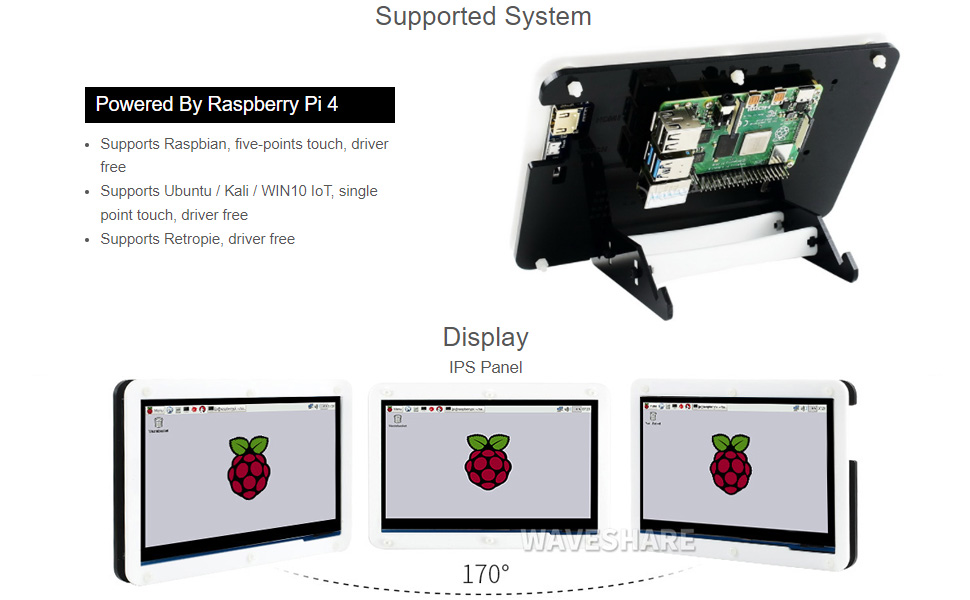
Image: Raspberry Pi 4 Model B board layout with key components labeled.
- Tukatuka: Broadcom BCM2711, Matawhā matua Cortex-A72 (ARM v8) 64-bit SoC @ 1.5GHz
- Pūmahara: LPDDR4-2400 SDRAM (available in 1GB, 2GB, 4GB, or 8GB options)
- Hononga: 2.4 GHz and 5.0 GHz IEEE 802.11ac wireless, Bluetooth 5.0, Gigabit Ethernet
- Tauranga USB: 2 × tauranga USB 3.0, 2 × tauranga USB 2.0
- Ataata me te Oro: 2 × ngā tauranga micro-HDMI (tae atu ki te 4Kp60 e tautokona ana), tauranga whakaaturanga MIPI DSI 2-ara, tauranga kāmera MIPI CSI 2-ara, tauranga oro stereo 4-pou me te tauranga ataata hiato
- GPIO: Pane GPIO 40-pine
- Mana: 5V DC via USB-C connector (minimum 3A recommended)
4. Aratohu Tatūnga
Follow these steps to assemble and set up your Waveshare Raspberry Pi 4 Display Kit.
4.1 Hardware Assembly

Image: Fully assembled Waveshare Raspberry Pi 4 Display Kit.
- Prepare the Raspberry Pi: Ensure your Raspberry Pi 4 Model B board is ready.
- Mount the Raspberry Pi: Attach the Raspberry Pi 4 board to the designated mounting points on the back panel of the acrylic case using the provided screws and standoffs.
- Connect the Display: Connect the 7-inch LCD to the Raspberry Pi 4. Typically, this involves connecting the HDMI cable from the display to one of the micro-HDMI ports on the Raspberry Pi, and the USB-A to Micro-USB cable for touch functionality and power.
- Huihuia te Kete: Secure the front panel of the acrylic case around the display and then attach it to the back panel, enclosing the Raspberry Pi and display. Ensure all cables are properly routed and not pinched.
- Whakapiri Tu: Assemble and attach the included stand to the bottom of the case for stable positioning. The stand often allows for adjustable viewing angles (e.g., 45° or 60°).
4.2 Whirihoranga Rorohiko
The Waveshare 7-inch capacitive touch LCD is designed for driver-free operation with several popular operating systems.
- Tāuta Pūnaha Whakahaere: Install your preferred operating system (e.g., Raspbian, Ubuntu, Kali, WIN10 IoT, Retropie) onto the provided 16GB Micro SD card using a suitable imaging tool (e.g., Raspberry Pi Imager).
- Kōkuhu Kāri SD: Insert the prepared Micro SD card into the Raspberry Pi's Micro SD card slot.
- Whakahiko: Connect the power adapter to the display kit. The Raspberry Pi and display should power on automatically.
- Driver-Free Operation: For most supported systems, the display and touch functionality will work automatically without additional driver installation.
5. Nga Tohutohu Whakahaere
5.1 Mahi Pā

Image: User interacting with the capacitive touch screen.
- The 7-inch display features a capacitive touch panel, supporting up to five-point touch input.
- Ensure the USB touch cable is securely connected between the display and the Raspberry Pi for touch input to function.
- Touch gestures and multi-touch capabilities will depend on the operating system and applications running on your Raspberry Pi.
5.2 Pūnaha Whakahaere Tautoko
The display kit offers broad compatibility with various Raspberry Pi operating systems:
- Rahipiana: Supports five-point touch, driver-free.
- Ubuntu / Kali / WIN10 IoT: Supports single-point touch, driver-free.
- Retropie: Supports driver-free operation.
6. Whakatakotoranga
| Āhuahira | Whakatakotoranga |
|---|---|
| Rahi Whakaatu | 7 inihi |
| Momo Pa | Capacitive, up to 5-points |
| Atanga | HDMI for display, USB for touch |
| Hototahi | Rahipere Pi 4 Tauira B |
| Tautoko Pūnaha Whakahaere | Raspbian, Ubuntu, Kali, WIN10 IoT, Retropie |
| Memory Storage Capacity (SD Card) | 16 GB |
| Taumaha Tūemi | 1.28 pauna |
| Tau tauira | PI4B Display Acce |
| Kaihanga | Tiri ngaru |
7. Tiaki
- Te horoi: Whakamahia he kakahu ngohengohe, kore karekau hei muru marie i te mata. Mo nga kohukohu pakeke, paku dampen te kakahu ki te wai, ki te horoi mata-haumaru ranei. A ape i nga matū kino, i nga taonga abrasive ranei.
- Rokiroki: Ki te kore e whakamahia, rongoatia te kete ki te wāhi hauhautanga, maroke, kia matara atu i te rā tika me te pāmahana tino kino.
- Te whakahaere: Handle the display and Raspberry Pi board with care to avoid physical damage. Avoid applying excessive pressure to the screen.
8. Te Raru
8.1 Kaore he Putanga Whakaatu
- Taki Hiko: Ensure the power adapter is securely connected to the display kit and plugged into a working power outlet.
- Hononga HDMI: Verify that the HDMI cable is firmly connected between the display and the Raspberry Pi's micro-HDMI port. Try a different micro-HDMI port if available.
- Kāri SD: Confirm that the Micro SD card with a properly installed operating system is inserted correctly into the Raspberry Pi.
- Tuku Hiko: Ensure your Raspberry Pi is receiving adequate power (a 5V/3A USB-C power supply is recommended for Raspberry Pi 4).
8.2 Touch Functionality Not Working
- Hononga USB: Check that the USB-A to Micro-USB cable is securely connected from the display to a USB port on the Raspberry Pi.
- Tautoko Pūnaha Whakahaere: Confirm that your operating system supports the touch functionality of this display. While most are driver-free, some configurations might require specific settings.
- Whakaara Anō: Try rebooting the Raspberry Pi.
8.3 Screen Flickering or Instability
- Tuku Hiko: Ensure a stable and sufficient power supply is used for both the display and the Raspberry Pi.
- Tikanga taura: Check the HDMI and USB cables for any damage or loose connections.
9. Pūtāhui me te Tautoko
For warranty information, technical support, or further assistance, please refer to the official Waveshare webpaetukutuku, whakapā atu rānei ki tō kaihokohoko. Puritia tō rīhiti hoko hei taunakitanga hoko mō ngā kereme pūtāhui.