1. Kupu Whakataki
This manual provides essential information for the proper setup, operation, and maintenance of your VIOTEK GNV34DB 34-inch Ultrawide Gaming Monitor. Please read this manual thoroughly before using the product to ensure optimal performance and longevity. Keep this manual for future reference.

Image: The VIOTEK GNV34DB monitor from a front-right angle, showcasintōna whakaaturanga piko.
2. Ihirangi mokete
Verify that all items listed below are present and in good condition upon opening the package. If any items are missing or damaged, please contact customer support.
- VIOTEK GNV34DB 34-Inch Ultrawide Gaming Monitor
- Pūurutau AC
- Tauera HDMI
- Papanga Whakaatu
- Pukapuka Kaiwhakamahi (tenei tuhinga)
3. Tatūnga
3.1 Huihuinga Tu
- Kia ata tangohia te kaitirotiro me te tu i nga waahanga mai i te kete.
- Whakapirihia te turanga tu ki te kaki tu ma te whakamahi i nga hiu kua whakaratohia.
- Secure the assembled stand to the back of the monitor. Ensure all connections are firm.
3.2 VESA Maunga
The monitor supports VESA mounting (75x75mm) for alternative mounting solutions. Remove the stand before attaching a VESA-compatible mount.
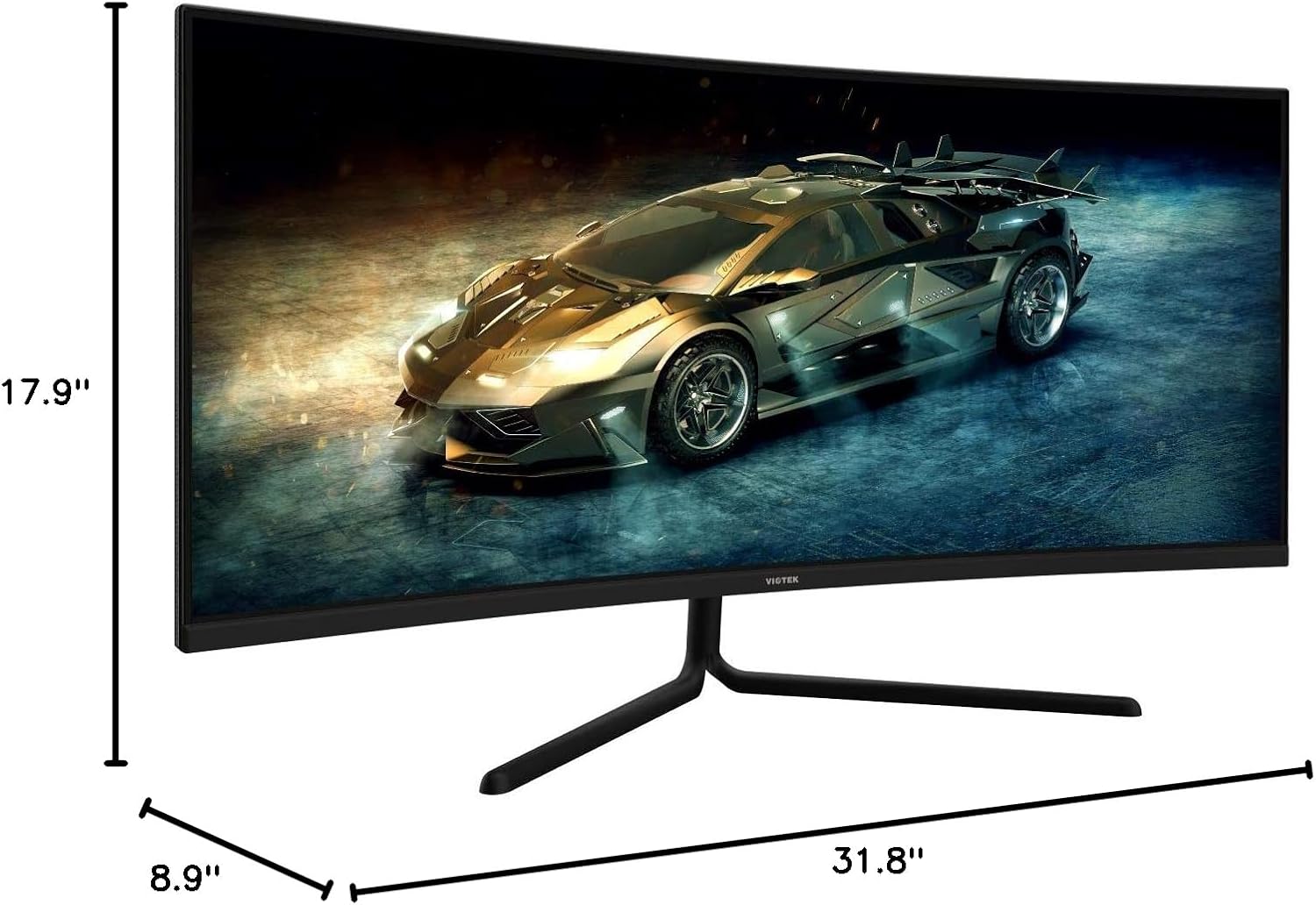
Image: Monitor dimensions are shown as 31.8 inches wide, 17.9 inches high, and 8.9 inches deep, indicating the physical size for placement and VESA compatibility.
3.3 Te hono ki tetahi Pūrere
Connect your computer or other devices to the monitor using the appropriate ports. Ensure the monitor is powered off before making connections.
- Tauranga Whakaatu (DP 1.2): For optimal performance, use the included DisplayPort cable to connect to your graphics card.
- HDMI (HDMI 1.4 / HDMI 2.0): Use an HDMI cable to connect to devices supporting HDMI output.
- 3.5mm Ororongo Atu: Honoa nga kaikorero o waho, nga taringa ranei ki tenei tauranga mo te whakaputa oro.

Whakaahua: Te muri view of the monitor highlighting the available input ports: DisplayPort 1.2, 3.5mm Audio Out, two HDMI 1.4 ports, and one HDMI 2.0 port.
4. Nga Tohutohu Whakahaere
4.1 Hiko / Whakaweto
Pēhia te pātene hiko kei runga i te aroturuki hei whakakā, whakaweto rānei. Ka whiti te rama tohu hiko i te wa e kaha ana te aroturuki.
4.2 Tahua Whakaatu Ma-Mata (OSD).
The OSD menu allows you to adjust various monitor settings. Use the control buttons (typically located on the back or bottom of the monitor) to navigate the menu.
- Tirohanga/Prata: Whakatikatikahia ngā taumata kanapa me te rerekētanga o te whakaaturanga.
- Tautuhinga Tae: Whakarerekehia te pāmahana tae, te gamma, me nga uara RGB takitahi.
- Pūtake Tāuru: Manually select the active input (DP, HDMI 1, HDMI 2, HDMI 3).
- Aratau Pikitia: Select from preset display modes optimized for different content types (e.g., Standard, Movie, Game).
- Puku nui: Adjust response time for reduced motion blur.
4.3 Nga waahanga matua
- AMD FreeSync: This technology synchronizes the monitor's refresh rate with your graphics card's frame rate to eliminate screen tearing and stuttering during gaming. Enable FreeSync in the OSD menu and in your graphics card's control panel.

Image: A visual comparison demonstrating the effect of AMD FreeSync, showing a distorted image when FreeSync is off and a smooth image when FreeSync is on.
- GAMEPLUS: Activate on-screen crosshairs for enhanced aiming accuracy in games.

Image: A gaming scene on the monitor with three different GAMEPLUS crosshair options displayed at the bottom, indicating enhanced aiming features.
- FPS/RTS Optimization: Specific display modes designed to enhance visibility in First-Person Shooter (FPS) and Real-Time Strategy (RTS) games, often by adjusting gamma and contrast in dark areas.
- 1500R Piko: The monitor's 1500R curve provides a more immersive viewing experience by matching the natural curvature of the human eye, reducing eye strain and expanding the perceived field of view.

Whakaahua: He runga view of the curved monitor on a desk, illustrating the 1500R curvature and its benefit of providing full field of view kapinga.
- UWQHD (3440x1440) Resolution & 21:9 Aspect Ratio: Offers a wide workspace and immersive cinematic experience.

Image: The monitor displaying a vibrant game scene, with an overlay highlighting its 34-inch size, 21:9 aspect ratio, and 3440x1440p UWQHD resolution.
5. Whakatakotoranga
| Āhuahira | Whakatakotoranga |
|---|---|
| Rahi Whakaatu | 34 Inihi |
| Momo Paewhiri | Paewhiri VA |
| Kopikopiko | 1500R |
| Whakatau | 3440x1440p (UWQHD) |
| Aspect Ratio | 21:9 |
| Rere tāmata | 100Hz |
| Wā Whakautu | 6ms GTG (5ms Overdrive) |
| Viewing Koki | H178° / V178° |
| Nga Tae Whakaatu | 16.7 miriona |
| Tae Gamut | sRGB: 99%, NTSC: 85% |
| Tauwehenga Purata | 3000:1 (Static), 1M:1 (Dynamic) |
| Tirohanga | 300 cd/m² |
| VESA Hototahi | 75x75mm |
| Tauranga | 1x DP 1.2, 2x HDMI 1.4, 1x HDMI 2.0, 1x 3.5mm Audio Out |
| Whakaritea Tilt | -5° ~ 15° |
| Ahu (me te tu) | 31.8 x 17.9 x 8.9 inihi (808.65 x 454.19 x 225.58 mm) |
| Taumaha | 15.5 lbs (7.02 kg) |
6. Te Raru
Mena ka raru koe ki to kaitutei, tirohia nga raru me nga otinga e whai ake nei:
- Kore Mana:
- Me mohio kei te hono pai te taura hiko ki te aroturuki me te putanga hiko mahi.
- Manatokohia kei te mahi tika te urutau hiko.
- Kore he Tohu:
- Check that the video cable (DP or HDMI) is firmly connected to both the monitor and your computer.
- Tīpakohia te puna tāuru tika mā te tahua OSD.
- Me whakarite kua tāuta tika te kāri whakairoiro o tō rorohiko, ā, kua whakahoutia hoki ngā taraiwa.
- Mata Matapihi:
- Ensure the video cable is not damaged and is properly connected.
- Whakaritea te reeti tāmata i ngā tautuhinga whakaatu o tō rorohiko.
- Disable or enable FreeSync in the OSD menu and graphics card settings to see if it resolves the issue.
- Pika Mate:
- Refer to the warranty section for information on Viotek's Zero-Tolerance Dead Pixel Policy.
7. Tiaki
Follow these guidelines to maintain your monitor's performance and appearance:
- Te horoi i te Mata: Me ata horoia te mata ki te kakahu ngohengohe, kore-puru. Mo nga tohu pakeke, whakamahia he otinga horoi mo te aro turuki ki te kakahu, kaua ki te mata.
- Te horoi i te Casing: Whakamahia he kakahu ngohengohe, maroke hei horoi i te casing. A ape i te kai horoi, te whakarewa ranei.
- Whakahau: Me whakarite karekau e araia nga kohao hau o te kaitirotiro kia kore e wera rawa.
- Rokiroki: Mena kāore e whakamahia ana mō te wā roa, rongoatia te matao ki te wāhi hauhautanga, maroke, ko te mea pai ko roto tonu i tōna takai taketake.
8. Pūtāhui me te Tautoko
Your VIOTEK GNV34DB monitor is covered by a 3-Tau Rarangi Rarangi. This warranty includes Viotek's Zero-Tolerance Dead Pixel Policy, ensuring that your display is free from dead pixels upon purchase.

Image: A graphic highlighting the 3-year warranty and Zero Dead Pixel policy for parts and labor.
For warranty claims, technical support, or any inquiries, please contact Viotek customer service. Details can typically be found on the official Viotek webpae, na roto ranei i to tuhinga hoko.


