Kupu Whakataki
The FRITZ! Repeater 600 is a compact device designed to extend the range of your existing wireless network. It operates on the 2.4 GHz band, providing WLAN N connectivity at speeds up to 600 Mbps. This repeater supports Mesh WiFi, ensuring stable and seamless connections throughout your home or office network. Its compact design allows for discreet placement in any standard power socket.
Ihirangi mokete
- 1 x FRITZ! Repeater 600
- Aratohu Tāuta Tere

Image: The FRITZ! Repeater 600 packaging, showing the device and branding.
Nga Tohutohu Haumaru
- Ensure the device is plugged into a properly grounded power outlet.
- Kaua e tukuna te taputapu ki te makuku, ki te wera nui ranei.
- Kaua e whakatuwheratia te taputapu casing; tukuna te ratonga ki ngā kaimahi whai tohu.
- Tiakina te taputapu mai i te ra tika me nga puna wera.
Tatūnga
1. Turanga Tuatahi
Plug the FRITZ! Repeater 600 into a power outlet located between your existing wireless router and the area where you want to improve WiFi coverage. The repeater's LED indicator will help you find an optimal position.
2. WPS Configuration (Recommended for FRITZ!Box and WPS-enabled routers)
- Plug the FRITZ! Repeater 600 into a power outlet. Wait for the LED to indicate readiness (typically a slow blink or solid light).
- Pēhia te pātene WPS ki tō pouara ahokore.
- Within two minutes, press the 'Connect' button on the FRITZ! Repeater 600.
- The LED on the repeater will flash rapidly during the connection process and then become solid when successfully connected.
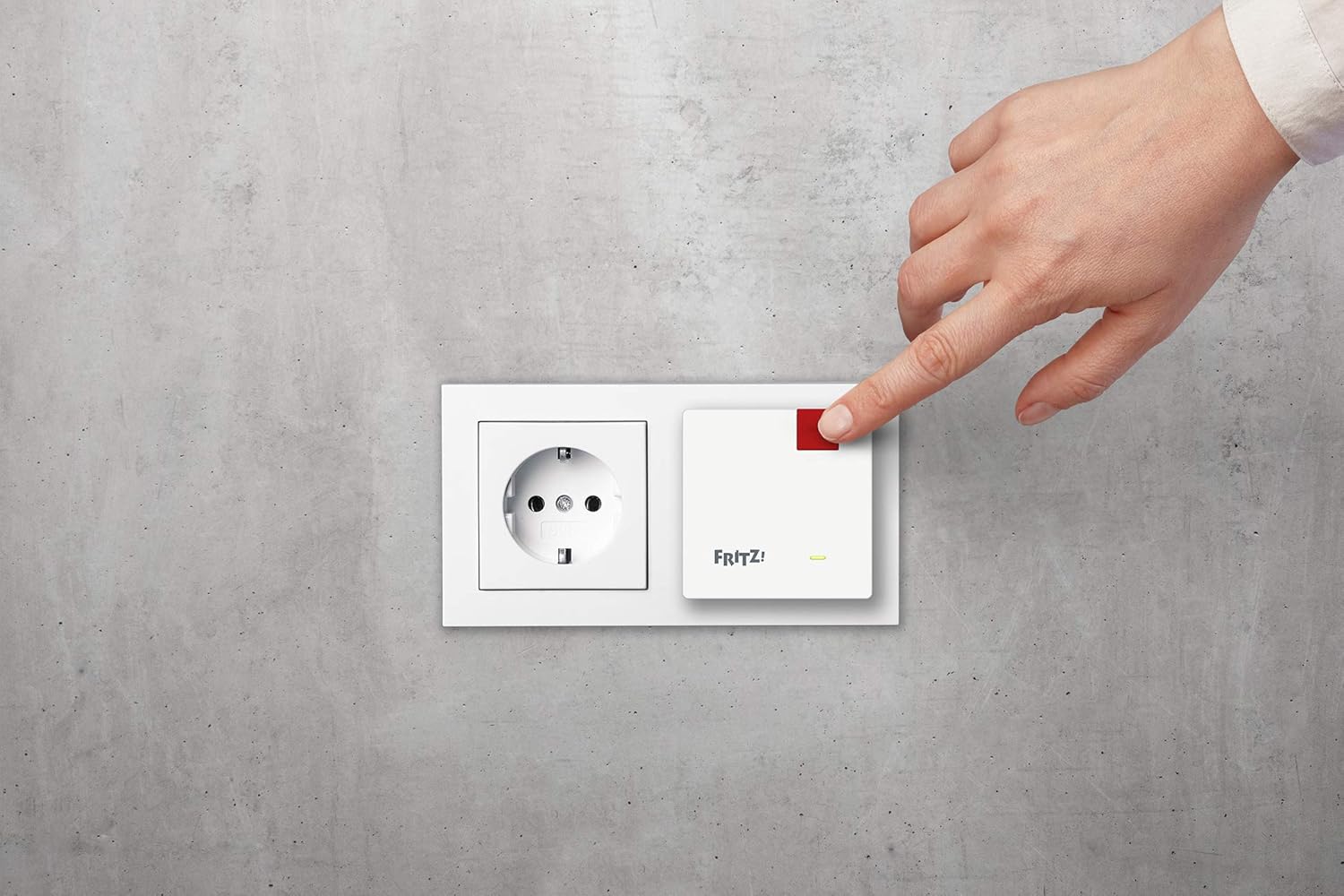
Image: A hand pressing the 'Connect' button on the FRITZ! Repeater 600, which is plugged into a wall socket.
3. Manual Configuration (if WPS is not available or fails)
- Plug the FRITZ! Repeater 600 into a power outlet.
- Connect a computer, tablet, or smartphone to the FRITZ! Repeater's default wireless network. The default network key is printed on the bottom of the device.
- Tuwhera a web browser and navigate to the repeater's configuration interface (usually http://fritz.repeater or http://192.168.178.2).
- Follow the on-screen instructions to select your existing wireless network and enter its password.
4. Te Whakaritenga Pai
The LED indicator on the repeater provides feedback on the signal quality. A solid green light typically indicates a good connection. If the light is orange or red, consider moving the repeater closer to your main router until a stable green light is achieved. This ensures the best possible extension of your WiFi signal.

Image: An illustration depicting a multi-story house with FRITZ! Repeaters strategically placed to extend WiFi coverage to different rooms and floors.
Mahi
Tohu LED
The LED on the front of the FRITZ! Repeater 600 provides visual status information:
- Kākāriki mārō: The repeater is successfully connected and providing good signal quality.
- Kakariki kanapa: The repeater is attempting to connect or is in WPS mode.
- Karaka/Whero Mārō: The repeater is connected but the signal quality is poor, or there is an issue. Consider repositioning the device.
- Weto: The device is not powered on or is in a power-saving state.

Whakaahua: He tata-ake ki mua view of the FRITZ! Repeater 600, highlighting its compact design and the LED indicator light.
Mesh WiFi Functionality
When used with a FRITZ!Box or another Mesh-enabled router, the FRITZ! Repeater 600 integrates into a Mesh WiFi system. This allows your devices to seamlessly switch between the router and the repeater without losing connection, ensuring optimal performance as you move around your network.
Te tiaki
- Te horoi: Disconnect the repeater from the power outlet before cleaning. Use a soft, dry cloth to wipe the exterior. Do not use liquid cleaners or solvents.
- Whakahōu Firmware: Periodically check the AVM website for firmware updates for your FRITZ! Repeater 600. Updates can provide performance improvements, new features, and security enhancements.
- Whakahau: Ensure the repeater is not covered and has adequate airflow around it to prevent overheating.
Raparongoā
No Connection / Poor Signal
- Reposition the Repeater: If the LED indicator is orange or red, move the repeater closer to your main wireless router.
- Taki Hiko: Ensure the repeater is securely plugged into a working power outlet.
- Verify Router Settings: Confirm that your main wireless router is powered on and broadcasting a WiFi signal.
- Whakau Hononga: Try the WPS configuration process again. If unsuccessful, attempt manual configuration via a web pūtirotiro.
- Default Network Key: If connecting directly to the repeater for manual setup, ensure you are using the correct default network key printed on the device.
Te tautuhi i te Pūrere
If the repeater is unresponsive or you wish to revert to factory settings, a factory reset may be necessary. Consult the full manual or AVM support website for specific reset instructions, as this typically involves pressing and holding a small reset button for several seconds.
Whakatakotoranga
| Āhuahira | Taipitopito |
|---|---|
| Waitohu | FRITZ! |
| Ingoa Tauira | FRITZ!Repeater 600 |
| Tau tauira | 20002885 |
| Momo Ahokore | 802.11n |
| Rere Whakawhiti Raraunga | Tae atu ki te 600 Megabits ia Hekona |
| Karaehe Band Auautanga | 2.4 GHz |
| Nga waahanga motuhake | LED Indicator, Mesh WiFi, WPS |
| Pūrere Hototahi | Repeaters, Routers |
| Hunga Hua | 3 x 6.4 x 6.4 cm |
| Taumaha Tūemi | 88 g |

Image: The FRITZ! Repeater 600 shown with its physical dimensions: 3cm height, 6.4cm width, and 6.4cm depth.
Nga korero Whakaputanga
Specific warranty details for the FRITZ! Repeater 600 are not provided in the available product data. Please refer to the official AVM webpae, to tuhinga hoko ranei mo nga tikanga me nga tikanga whakamana.
Tautoko
Detailed support contact information is not provided in the available product data. For technical assistance, further documentation, or customer service, please visit the official AVM webpae, whakapā atu ranei ki to kaihoko.


