Kupu Whakataki
This manual provides comprehensive instructions for the Amazon Smart Plug, a device designed to add smart control to your home appliances. The Amazon Smart Plug allows you to control any connected appliance using voice commands via Alexa or through the Alexa App, enabling smart home functionality without the need for a separate hub.

Image: The Amazon Smart Plug, a compact white device with a standard electrical plug on one side and an outlet on the other, featuring a small LED indicator and a button.
Tohutohu Tatūnga
Setting up your Amazon Smart Plug is a straightforward process. No additional smart home hub is required.
- Mono Mai: Insert the Amazon Smart Plug into a standard electrical wall outlet. Ensure the outlet is functioning correctly.
- Open Alexa App: Open the Amazon Alexa application on your smartphone or tablet. If you do not have the app, download it from your device's app store.
- Discovery Pūrere: The Alexa App should automatically detect the new Smart Plug. If not, navigate to the 'Devices' section in the app, tap the '+' icon, and select 'Add Device'. Choose 'Plug' and follow the on-screen instructions.
- Tūhono ki Wi-Fi: The app will guide you through connecting the Smart Plug to your home Wi-Fi network. Ensure your Wi-Fi network is 2.4 GHz, as the Smart Plug may not support 5 GHz networks.
- Whakaingoatia tō mono: Assign a descriptive name to your Smart Plug (e.g., "Living Room Lamp," "Coffee Maker"). This name will be used for voice commands.
- Activate with Voice: Once configured, you can activate the plug using a voice command to your Alexa-enabled device (e.g., "Alexa, turn on Living Room Lamp").
Operating Your Amazon Smart Plug
The Amazon Smart Plug offers various methods for controlling your connected devices.
Mana Reo me Alexa
Once set up, you can use simple voice commands with any Alexa-enabled device (e.g., Echo, Echo Dot) to control the Smart Plug.
- "Alexa, whakakāhia a [Ingoa Mono]."
- "Alexa, turn off [Plug Name]."
- "Alexa, is [Plug Name] on?"
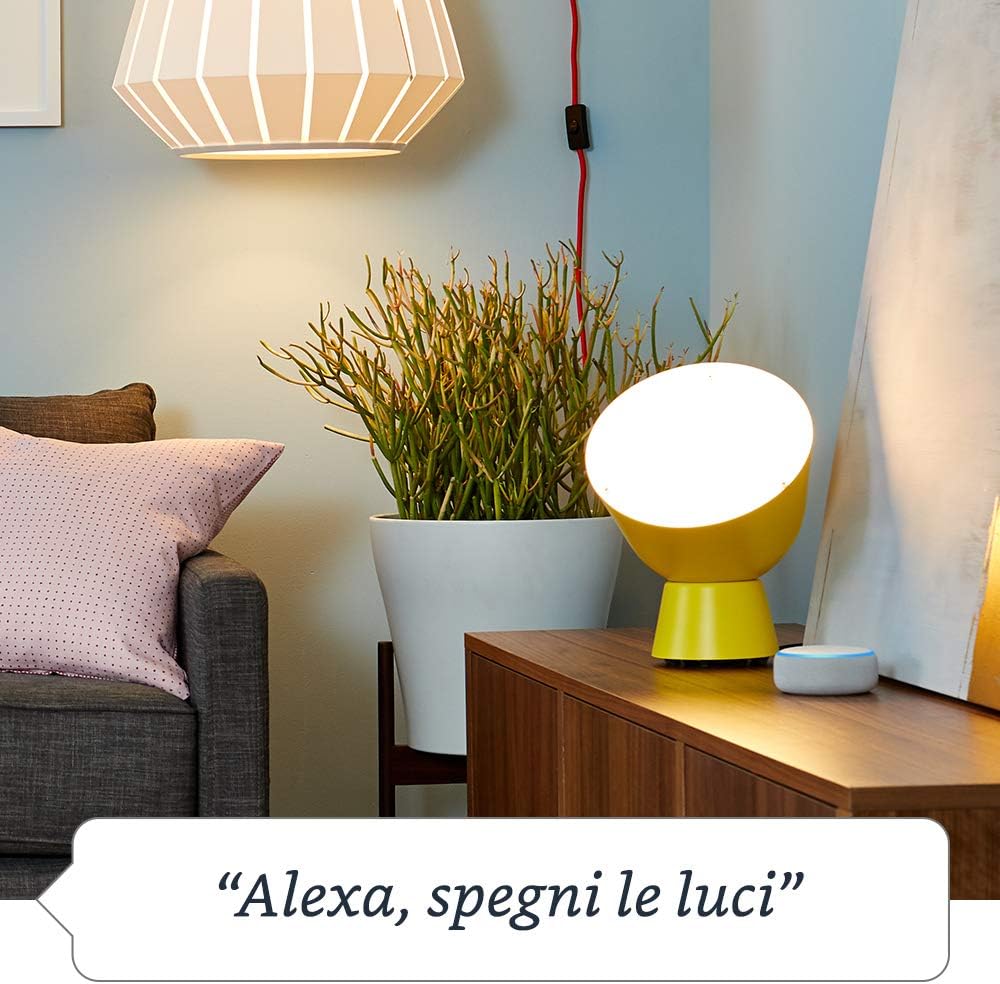
Image: A living room scene with an Amazon Smart Plug connected to a lamp, and an Echo Dot nearby. Text overlay indicates the voice command "Alexa, turn off the lights."
Control via Alexa App
You can also control the Smart Plug remotely using the Alexa App on your smartphone or tablet.
- Whakatuwherahia te Alexa App.
- Navigate to the 'Devices' tab.
- Select 'Plugs' or find your specific Smart Plug by its assigned name.
- Tap the toggle switch to turn the plug on or off.
Te Whakaritenga me ngā Mahi Auau
Automate your devices by setting schedules or creating routines within the Alexa App.
- Ngā Hōtaka: Set specific times for the plug to turn on or off daily.
- Ngā mahinga: Combine the Smart Plug with other Alexa devices or actions. For example, create a "Good Morning" routine that turns on your coffee maker when your alarm goes off.

Image: A kitchen counter with an Amazon Smart Plug connected to a coffee machine, and an Echo Dot nearby. Text overlay indicates the voice command "Alexa, turn on the coffee machine."
Mana a-ringa
The Amazon Smart Plug features a physical on/off button on its side. Press this button to manually toggle the power to the connected appliance without using voice commands or the app.
Te tiaki
The Amazon Smart Plug requires minimal maintenance to ensure optimal performance.
- Te horoi: Disconnect the Smart Plug from the wall outlet before cleaning. Wipe the exterior with a soft, dry cloth. Do not use liquid cleaners or abrasive materials.
- Whakahōu Firmware: Ensure your Alexa App is up to date. The Smart Plug's firmware updates are typically managed automatically through the Alexa App to provide the latest features and security enhancements.
- Nga Tikanga Taiao: Use the Smart Plug indoors in dry conditions. Avoid exposure to moisture, extreme temperatures, or direct sunlight.
Raparongoā
If you encounter issues with your Amazon Smart Plug, try the following troubleshooting steps:
- Mono Kaore i te whakautu:
- Ensure the Smart Plug is securely plugged into a working wall outlet.
- Check if the connected appliance is powered on and functioning correctly when plugged directly into the wall.
- Manatokona kei te hohe, kei te pumau to whatunga Wi-Fi.
- Restart the Smart Plug by unplugging it for 10 seconds and then plugging it back in.
- Ko nga Whakahau reo Alexa kaore e mahi:
- Confirm your Alexa-enabled device is online and responsive.
- Ensure you are using the correct name for your Smart Plug in your voice commands.
- Check the Alexa App to confirm the Smart Plug is listed and online.
- Nga take hono:
- Move the Smart Plug closer to your Wi-Fi router to improve signal strength.
- Tīmataria anō tō pouara Wi-Fi.
- If issues persist, try resetting the Smart Plug to factory defaults (refer to the reset procedure in the Alexa App or Amazon support documentation) and re-configure it.
Whakatakotoranga
| Āhuahira | Taipitopito |
|---|---|
| Tauira | Amazon Smart Mono |
| Hononga | Wi-Fi (2.4 GHz anake) |
| Hototahi | Alexa-enabled devices and Alexa App |
| Whakauru Voltage | 230V AC, 50Hz (Standard European) |
| Uta Max | 10A (2300W) |
| Te Waahi Mahi | 0°C ki te 35°C (32°F ki te 95°F) |
| Ahu | Refer to product packaging for exact dimensions. |
Nga korero Whakaputanga
The Amazon Smart Plug is covered by a limited warranty. For detailed information regarding warranty terms, conditions, and duration, please refer to the warranty documentation included with your product packaging or visit the official Amazon support webpae.
Tautoko Kiritaki
For further assistance, technical support, or to report issues, please contact Amazon Customer Service. You can find contact information and additional resources on the official Amazon support webpae:


