1. Kupu Whakataki
This manual provides comprehensive instructions for the setup, operation, and maintenance of your X-Rite i1Basic Pro 3 device. Designed for imaging professionals, the i1Basic Pro 3 ensures accurate color for displays and projectors, and allows for verification of monitor and print quality, as well as spot color measurement.
Please read this manual thoroughly before using the device to ensure optimal performance and longevity.
2. Hua Neke Atuview
The X-Rite i1Basic Pro 3 is a professional color calibration solution. It is engineered to meet the demands of color-critical workflows, providing precise color measurement and profiling capabilities.
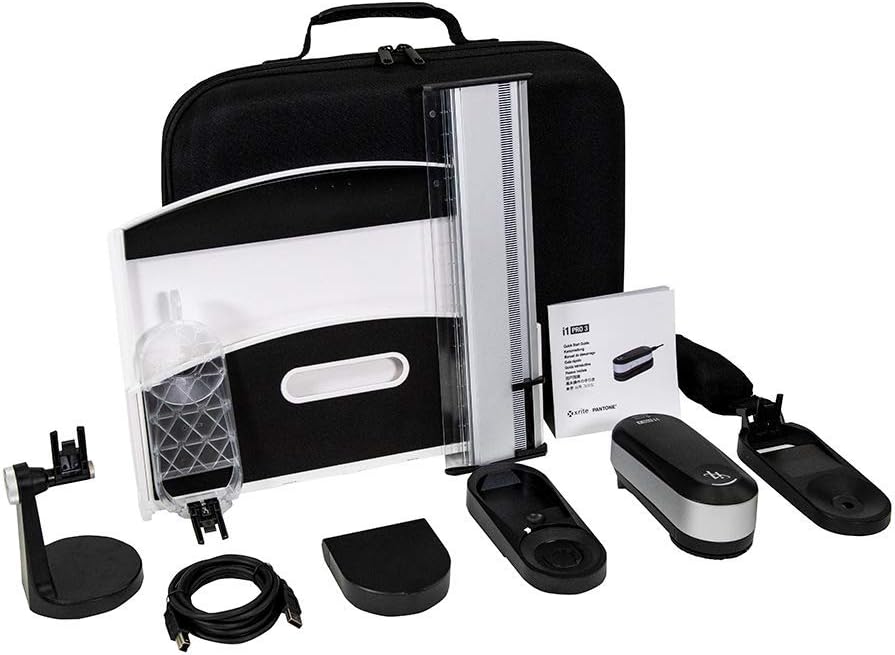
Figure 2.1: Complete X-Rite i1Basic Pro 3 kit, showing the spectrophotometer, various accessories, and the protective carrying case.
Āhuatanga matua:
- Ritenga Profile Waihanga: Waihanga ritenga profiles for professionally calibrated Monitors and Projectors, including presets for video production workflows.
- Enhanced Spectrophotometer Design: The i1Pro 3 spectrophotometer features a new illuminant design with a custom, full-spectrum LED light source, improving device reliability and accuracy.
- High Brightness Support: Supports 5001 nit measurement for high monitor brightness levels and broadcast video standards (NTSC, PAL SECAM, Rec. 709, Rec. 2020, DCI-P3).
- i1Profiler Software: Includes i1Profiler software with basic and advanced modes for monitors and projectors, plus display and printer quality assurance functions.
- PANTONE Color Manager: Easily capture and manage spot colors, and keep your PANTONE libraries up to date with this color palette creation and swatch bridging software.
3. Tatūnga
Follow these steps to set up your X-Rite i1Basic Pro 3 for first use:
- Wewetehia te Pūrere: Carefully remove all components from the packaging. Verify that all items listed in the product overview kei reira.
- Tāuta Pūmanawa: Insert the i1Profiler software disc into your computer's optical drive, or download the latest version from the official X-Rite website. Follow the on-screen instructions to complete the installation. Ensure your operating system meets the minimum requirements.
- Honoa te Pūrere: Connect the i1Basic Pro 3 spectrophotometer to your computer using the provided USB cable. Ensure a secure connection.
- Whakaritenga Tuatahi: Before first use, the device may require an initial calibration. Follow the prompts within the i1Profiler software to perform this step. This typically involves placing the device on its calibration plate.

Figure 3.1: The X-Rite i1Basic Pro 3 device and its packaging, illustrating the components as they appear when unboxed.
4. Nga Tohutohu Whakahaere
The i1Basic Pro 3 is primarily operated through the i1Profiler software. Below are general steps for common tasks:
4.1. Display Profiling
- Whakaritea tō Whakaaturanga: Ensure your display has been on for at least 30 minutes to stabilize. Clean the screen surface.
- Launch i1Profiler: Open the i1Profiler software. Select the "Display Profiling" workflow.
- Āpitihia te Pūrere: Use the counterweight to hang the i1Basic Pro 3 spectrophotometer over the center of your display. Ensure the measurement window is flush against the screen.
- Whai i nga Tohuaki-Mata: The software will guide you through the measurement process, including adjusting brightness and contrast, and measuring color patches.
- Tiaki Profile: Once measurements are complete, save the generated ICC profile. Tenei profile will automatically be applied to your operating system.

Figure 4.1: The i1Basic Pro 3 spectrophotometer positioned on a monitor screen, ready for display calibration.

Figure 4.2: A user engaged in the process of calibrating a monitor using the X-Rite i1Basic Pro 3, demonstrating typical usage.
4.2. Projector Profiling
For projector profiling, the i1Basic Pro 3 uses ambient light measurement and projected color patches. Refer to the i1Profiler software's dedicated section for detailed steps, as this process requires specific setup of the projector and screen.
4.3. Spot Color Measurement
The i1Basic Pro 3 can also measure spot colors from physical samples. Use the included ruler and software interface to capture precise color data for integration into your digital workflows.
5. Tiaki
Proper maintenance ensures the longevity and accuracy of your i1Basic Pro 3:
- Te horoi: Use a soft, lint-free cloth to gently wipe the device's exterior. Do not use abrasive cleaners or solvents. Keep the measurement aperture clean and free of dust.
- Rokiroki: When not in use, store the device in its protective carrying case in a cool, dry place, away from direct sunlight and extreme temperatures.
- Whakatikatika: Perform regular recalibration of the device as prompted by the i1Profiler software, or at least once a week for critical work. This maintains measurement accuracy.
- Whakahōu Pūmanawa: Regularly check the X-Rite website for software updates to ensure compatibility and access to the latest features and improvements.
6. Te Raru
If you encounter issues with your i1Basic Pro 3, refer to the following common problems and solutions:
| Raruraru | Take pea | Rongoā |
|---|---|---|
| Device not recognized by software. | USB connection issue, driver not installed, or software not updated. |
|
| Inaccurate color measurements. | Device needs calibration, dirty measurement aperture, or incorrect display settings. |
|
| Ka pakaru te rorohiko, ka whakatio ranei. | Outdated software, system incompatibility, or conflicting applications. |
|
For further assistance, please refer to the X-Rite support webpae, whakapā atu ranei ki te ratonga kiritaki.
7. Whakatakotoranga
Detailed technical specifications for the X-Rite i1Basic Pro 3 (Model: EO3BAS):
| Āhuahira | Taipitopito |
|---|---|
| Rahi Hua (L x W x H) | 6.38 x 2.72 x 2.52 inihi |
| Taumaha Tūemi | 9.92 pauna |
| Tau tauira | EO3BAS |
| ASIN | B084GWQFSK |
| Kaihanga | X-Rite |
| Waitohu | X-Rite |
| Rauemi | Te whakarewa |
| Rahi Mata (Whakarara Kitea) | 13.3 Henemita (6 inihi) |
| Te Ra Wātea Tuatahi | Hui-tanguru 4, 2020 |
8. Pūtāhui me te Tautoko
X-Rite products are designed for reliability and performance. For specific warranty information regarding your i1Basic Pro 3, please refer to the warranty card included with your product or visit the official X-Rite webpae.
For technical support, software downloads, and frequently asked questions, please visit the X-Rite support portal:
Contact information for customer service can also be found on their webpae.


