Kupu Whakataki
The Sinopé TH1124WF Smart Wi-Fi Thermostat is designed for precise control of electric baseboard heaters, convectors, fan-forced convectors, and radiant ceiling heating systems. This thermostat integrates seamlessly with popular smart home platforms such as Apple HomeKit, Amazon Alexa, Google Home, and Neviweb, offering enhanced comfort and energy management through its advanced features like scheduling, geofencing, and energy reporting. This manual provides detailed instructions for installation, operation, and maintenance to ensure optimal performance and longevity of your device.

Image: The Sinopé TH1124WF thermostat mounted on a wall, demonstrating its sleek design and integration into a modern living space with a baseboard heater.
Nga korero haumaru
Please read all instructions carefully before installing and operating the thermostat. Failure to follow these instructions could result in fire, electric shock, serious injury, or property damage.
- WHAKATŪPATO: He kaha Voltage. Disconnect power at the circuit breaker before servicing.
- Ko te whakaurunga me mahi e tetahi tohunga hiko i runga i nga tikanga hiko o te rohe me te motu.
- Do not install if the thermostat is damaged.
- Ensure the thermostat is compatible with your heating system (electric baseboard, convectors, fan-forced convectors, radiant ceiling heating). Not compatible with HVAC systems or heating floors.
- Keep the thermostat away from water and moisture.
Ka mutu te huaview
The TH1124WF thermostat features a clear LED display, intuitive controls, and robust connectivity options. It is designed for universal installation, compatible with both 2-wire and 4-wire connections.

Whakaahua: Mua view of the TH1124WF thermostat, highlighting its digital display with time, outdoor temperature, and indoor temperature, along with two control buttons.
Āhuatanga matua:
- Hononga Wi-Fi: Connects directly to your home Wi-Fi network (2.4 GHz) without a separate hub.
- Whakauru Whare Ataata: Works with Apple HomeKit, Amazon Alexa, Google Home, and Neviweb.
- Mana Pamahana Tika: Utilizes triac switching for unequaled temperature accuracy.
- Ngā Hōtaka Whakahōtaka: Create up to 8 periods per day for customized heating.
- Geofencing: Automatically adjusts heating based on your presence.
- Pūrongo Pūngao: Monitor your energy consumption and savings in real-time via the Neviweb taupānga.
- Whakaatu: Clear LED display showing time, indoor temperature, and outdoor temperature.
Tatūnga me te Tāuta
Follow these steps carefully to install your Sinopé TH1124WF thermostat.
1. Tuhinga o mua
- Whakawetohia te Mana: Locate your electrical panel and turn off the circuit breaker for the heating system you are working on. Verify the power is off using a voltage Kaiwhakamatautau.
- Tango Thermostat Tawhito: Tangohia marietia te whakamahana wera o nāianei i te pakitara.
- Tautuhi Waea: Note the number of wires (2 or 4) and their connections. The TH1124WF is compatible with both.
2. Tohutohu Waea
The TH1124WF thermostat has two non-polarized wires for connection. Use the included wire nuts to secure connections.

Whakaahua: Rear view of the TH1124WF thermostat, illustrating the wiring terminals and caution labels for high voltage. Ensure power is disconnected before handling.
- Hononga 2-Waea: Connect one thermostat wire to each of the two wires from your electrical box.
- Hononga 4-Waea: Connect one thermostat wire to the two wires coming from the power source (line) and the other thermostat wire to the two wires going to the heater (load).
Ensure all wire nuts are screwed on as tightly as possible to prevent loose connections and overheating.
3. Whakapiki
- Carefully push the connected wires back into the electrical box.
- Secure the thermostat to the electrical box using the provided mounting screws.
- Ensure the thermostat is flush with the wall.
4. Initial Power-Up and Wi-Fi Connection
- Restore power at the circuit breaker. The thermostat display should light up.
- Tikiake te Neviweb taupānga mai i te toa taupānga o tō pūrere (iOS, Android rānei).
- Follow the in-app instructions to create an account and add your new thermostat. You will need your Wi-Fi network name (SSID) and password. The thermostat requires a 2.4 GHz Wi-Fi network.
- Once connected, the thermostat will display the current time and temperature.
5. Smart Home Platform Integration
The TH1124WF is compatible with multiple smart home ecosystems. Features may vary between platforms.

Image: Compatible platforms and voice assistants, including Neviweb, SmartThings, Apple HomeKit, Amazon Alexa, and Google Assistant.
- Apple HomeKit: Open the Home app on your iOS device and scan the HomeKit code on the thermostat or its packaging.
- Amazon Alexa / Google Home: Enable the Sinopé skill/action in the Alexa or Google Home app and link your Neviweb pūkete.
- Mea Maarama: Add the Sinopé device through the SmartThings app and follow the pairing instructions.
Nga Tohutohu Whakahaere
Learn how to use your TH1124WF thermostat for optimal comfort and energy efficiency.
1. Basic Temperature Control
Use the up and down buttons on the thermostat to adjust the set temperature. The display will show the current setpoint.

Whakaahua: Taipitopito view of the thermostat's LED display, indicating current time, outdoor temperature, and the set indoor temperature.
2. Neviweb Āhuatanga Taupānga
Te Neviweb app unlocks the full potential of your thermostat.
- Ngā Hōtaka: Create personalized heating schedules with up to 8 periods per day to match your routine.
- Geofencing: Set up geofencing to automatically adjust the temperature when you leave or return home, saving energy when you're away.
- Pūrongo Pūngao: View detailed energy consumption reports (24 hours, 30 days, 24 months) to track your usage and identify savings opportunities. You can input your electricity cost to see spending per radiator.
- Mana Mamao: Adjust settings and monitor your thermostat from anywhere using the app.
- Whakaaturanga Whirihoranga: Customize what information is shown on the thermostat display and enable/disable the backlight.

Image: A map displaying a geofencing zone, demonstrating how the thermostat can adjust settings based on your proximity to home.

Image: Screenshot from the Neviweb app displaying an energy consumption graph, allowing users to track their heating costs over time.
3. Mana Reo
Once integrated with Amazon Alexa or Google Home, you can control your thermostat using voice commands. Examples include: "Alexa, set living room thermostat to 72 degrees" or "Hey Google, what's the temperature in the bedroom?"
Te tiaki
The Sinopé TH1124WF thermostat requires minimal maintenance.
- Te horoi: Gently wipe the thermostat's surface with a soft, damp kakahu. Kaua e whakamahi i nga kai horoi me nga whakarewa.
- Whakahōu Firmware: Ensure your thermostat's firmware is up-to-date through the Neviweb app to benefit from the latest features and improvements.
Raparongoā
Mena ka pāngia koe e ngā raruraru me tō whakamahana wera, tirohia ngā raruraru me ngā otinga e whai ake nei.
| Raruraru | Take pea | Rongoā |
|---|---|---|
| Ko te whakaaturanga Thermostat he watea. | Kaore he mana ki te whakamaarama. | Check the circuit breaker and ensure it is ON. Verify wiring connections. |
| Kaore e taea te hono ki Wi-Fi. | Incorrect Wi-Fi password, 5 GHz network, or weak signal. | Ensure you are connecting to a 2.4 GHz network. Double-check your Wi-Fi password. Move the thermostat closer to the router or use a Wi-Fi extender. |
| Thermostat not heating. | Set temperature is below ambient, or wiring issue. | Increase the set temperature. Verify wiring connections are secure. Ensure the thermostat is compatible with your heating system. |
| Te panui pāmahana hē. | Thermostat location or external factors. | Ensure the thermostat is not exposed to direct sunlight, drafts, or heat sources. Allow time for the sensor to stabilize. |
| Humming sound from baseboard. | Normal operation with triac switching. | This is often a normal characteristic of triac switching thermostats with certain baseboard heaters and is not indicative of a fault. |
For further assistance, please contact Sinopé customer support.
Whakatakotoranga
Detailed technical specifications for the Sinopé TH1124WF Smart Wi-Fi Thermostat.
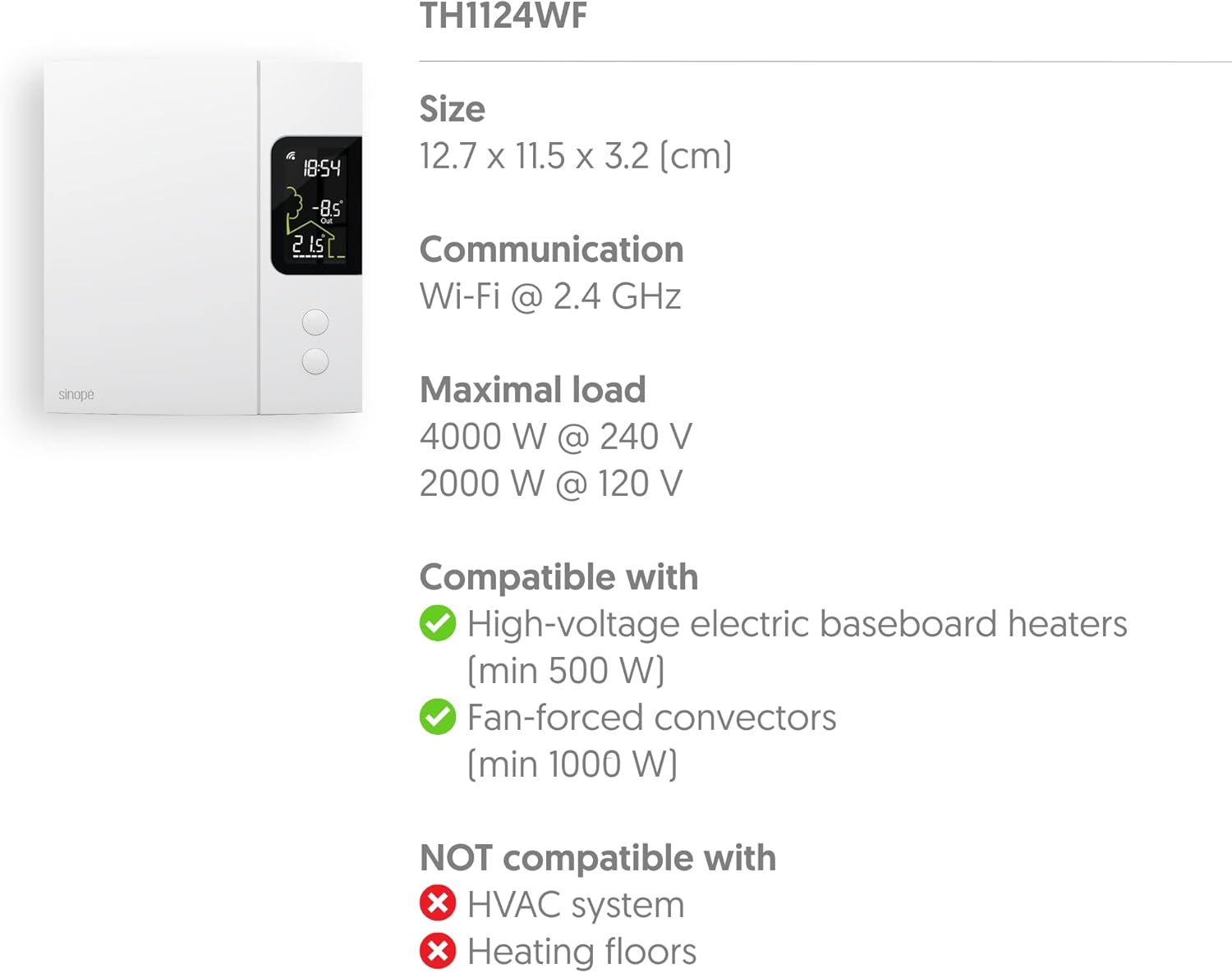
Image: Technical specifications diagram for the TH1124WF, detailing its physical dimensions, Wi-Fi communication, maximum load capacity, and heating system compatibility.
| Āhuahira | Taipitopito |
|---|---|
| Tau tauira | TH1124WF |
| Hunga Hua | 1.26" D x 4.53" W x 5" H (3.2 cm D x 11.5 cm W x 12.7 cm H) |
| Voltage | 120/208/240 VAC, 60 Hz |
| Uta Morahi | 4000 W @ 240 V (16.7 A) / 2000 W @ 120 V |
| Compatible Heating Types | Electric Baseboard Heaters (min 500 W), Convectors, Fan-forced Convectors (min 1000 W), Radiant Ceiling Heating |
| Incompatible Heating Types | HVAC systems, Heating floors |
| Hangarau Hononga | Wi-Fi (2.4 GHz) |
| Momo Kaiwhakahaere | Neviweb, Apple HomeKit, Google Assistant, Amazon Alexa, SmartThings |
| Momo Whakaatu | LED with Backlight |
| Puna Mana | Hiko Hiko |
| Rauemi | Kirihou |
| Tae | Mā |
| Taumaha Tūemi | 14.1 hekere |
| UPC | 667563001655 |
Ataata Hua Whaimana
Watch this official video from Sinopé Technologies for an overview of the Smart Wi-Fi baseboard thermostat.
Video: An official product video titled "New Wi-Fi baseboard thermostat by Sinope" showcasing the features and design of the Sinopé Smart Wi-Fi Thermostat TH1124WF.
Pūtāhui me te Tautoko
Sinopé Technologies stands behind the quality of its products. For warranty information, technical support, or service inquiries, please refer to the official Sinopé webpaetukutuku, whakapā atu ranei ki ta raatau ratonga kaihoko. Puritia to tohu hoko mo nga kereme whakamana.
Webpae: www.sinopetech.com


