1. Kupu Whakataki
This manual provides detailed instructions for the setup, operation, maintenance, and troubleshooting of your Phomemo M110 Portable Bluetooth Label Printer. Please read this manual thoroughly before using the device to ensure proper functionality and to extend the product's lifespan. The Phomemo M110 is designed for efficient and convenient label printing for various applications, including home organization, small businesses, and office use.
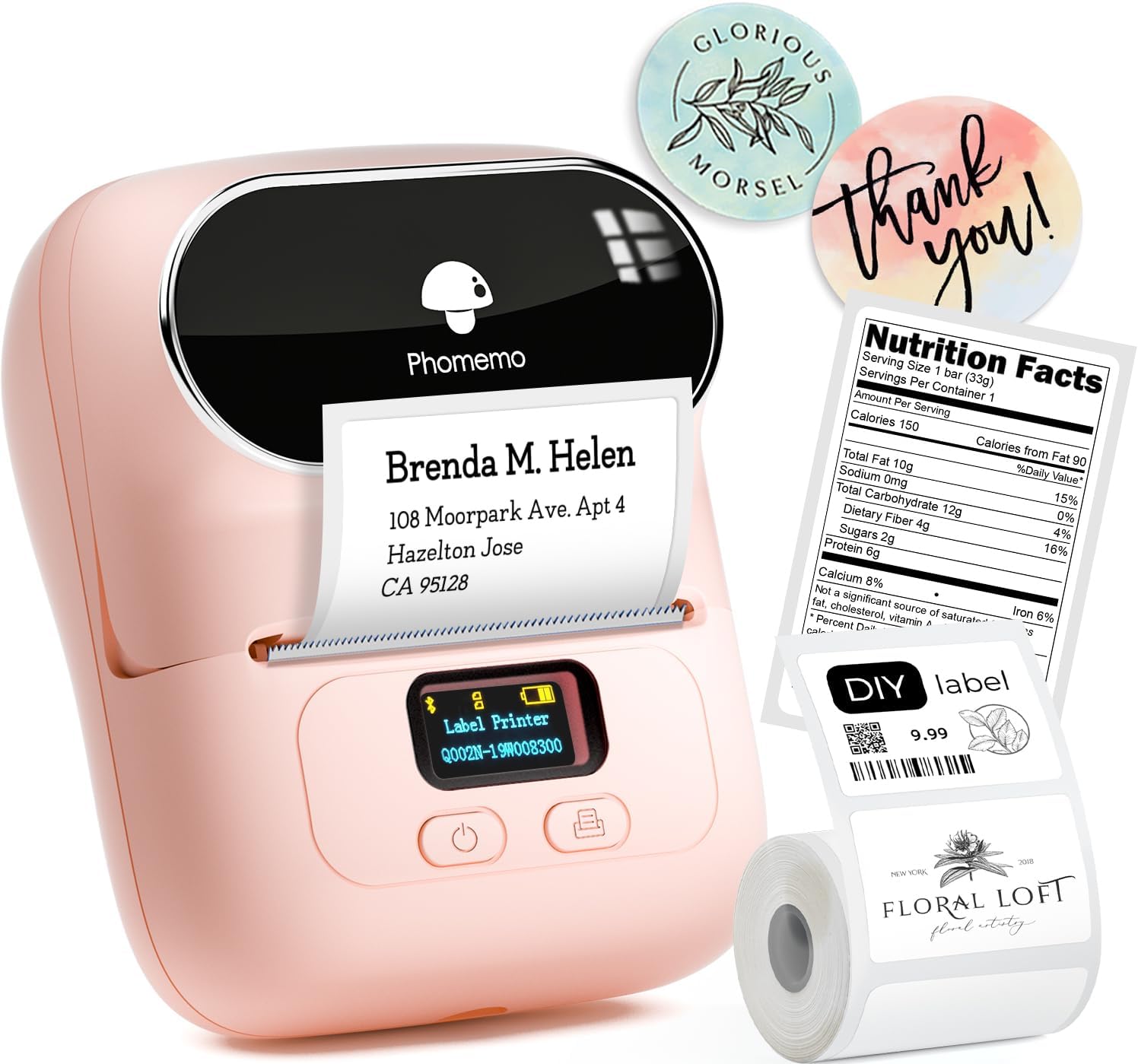
Figure 1.1: Phomemo M110 Label Printer in use, demonstrating its versatility for different label types.
2. Hua Neke Atuview
The Phomemo M110 is a compact and portable thermal label printer that operates without ink, offering a cost-effective and clean printing solution. It connects wirelessly via Bluetooth to your mobile devices and can also connect via USB to PC/Mac for broader compatibility.
2.1. Ihirangi mokete
I te wetewete pouaka, tirohia koa kei reira nga waahanga katoa:
- Pūreretā Tapanga Phomemo M110
- 1 Roll of Labels (40 x 30 mm, 100 pieces)
- USB Micro Cable
- Pukapuka Kaiwhakamahi

Figure 2.1: Phomemo M110 package contents, including the printer, a label roll, USB cable, and manual.
2.2. Nga waahanga matua
- Te Ta Ngaaariki Waituhi: Utilizes direct thermal technology, eliminating the need for ink cartridges or toner.
- Hoahoa Kawe: Kiato me te mama, pai mo te whakamahi i runga i te haere.
- Hononga Nihokikorangi: Seamless connection to iOS and Android smartphones and tablets via the 'Print Master' app.
- Hononga USB: Connects to Windows PC and Mac computers via USB (beta support).
- Roa te Ora o te Pūhiko: Equipped with a 1500mAh built-in lithium battery for extended use.
- Hototahi Tapanga Whanui: Supports label widths from 20mm to 50mm.
- Taumira teitei: Features a 203 dpi print resolution for clear and crisp labels.
- Upgraded Printhead: Incorporates a printhead imported from Japan ROHM Company for enhanced clarity and stability.

Figure 2.2: The upgraded printhead of the Phomemo M110, highlighting improved print clarity and stability.
3. Whakatakotoranga
| Āhuahira | Whakatakotoranga |
|---|---|
| Ingoa Tauira | M110 |
| Waitohu | Phomemo |
| Hangarau Tā | Ngawha |
| Hangarau Hononga | Wireless (Bluetooth), USB |
| Te Rahi Media Max | 50 x 80 mm |
| Max B&W Whakatau Tā | 203 dpi |
| Tere Tā Monochrome Mōrahi | 40 Pages per minute (approx. 20-45 mm/s) |
| Taumaha Tūemi | 255 Karamu |
| Hunga Hua | 6.6D x 11.5W x 12.6H henimita |
| Pūhiko Raukaha | 1500 mAh (Rithium-polymer) |
| Pūrere Hototahi | Laptop, Computers, iOS/Android Phones/Tablets |
| Pūnaha Mahi | iOS, Android, Windows 7/8/10, Mac |
| Nga Waahanga kei roto | 1 label roll (4x3 cm, 100 pcs), Micro USB Cable, User Manual, Phomemo M110 Printer |
| Nga waahanga motuhake | Thermal printing, ink/toner free, portable, Bluetooth/USB connectivity |
4. Aratohu Tatūnga
4.1. Te Whakataki i te Pūreretā
Before first use, fully charge the Phomemo M110 printer. Connect the provided Micro USB cable to the printer's charging port and the other end to a 5V-2A power adapter (not included) or a computer's USB port. The indicator light will show charging status.
4.2. Installing the App/Software
For mobile devices (iOS/Android), download the 'Print Master' app from your device's app store. For PC/Mac, download the 'Labelife' software from the official Phomemo webpae.

Figure 4.1: The Phomemo M110 supports connectivity with various devices and dedicated software.
4.3. Loading Label Rolls
- Open the printer's top cover by gently pressing the release button or lifting the cover.
- Insert the label roll into the compartment, ensuring the labels feed out from the top and are aligned correctly. The printable side of the label should face upwards.
- Close the top cover firmly until it clicks into place. Ensure the label protrudes slightly from the output slot.
4.4. Te Hononga i te Pūreretā
4.4.1. Bluetooth Connection (Mobile Devices)
- Turn on the Phomemo M110 printer.
- Whakahohehia te Nihokikorangi i runga i to taputapu pūkoro.
- Open the 'Print Master' app. The app will automatically search for and connect to the printer. Do not pair via your phone's Bluetooth settings directly.
- Once connected, the printer icon in the app will indicate a successful connection.
4.4.2. USB Connection (PC/Mac)
- Install the 'Labelife' software on your computer.
- Connect the printer to your computer using the provided Micro USB cable.
- Open the 'Labelife' software. The software should detect the connected printer.
5. Nga Tohutohu Whakahaere
5.1. Using the 'Print Master' App (Mobile)
The 'Print Master' app offers extensive features for creating and customizing labels.
- Template Library: Access over 300 pre-designed templates for various purposes (e.g., address labels, price tags, organization labels).
- Hoahoa Ritenga: Create labels from scratch using text, images, barcodes (1D and QR), shapes, and icons.
- Tānga Tānga: Efficiently print multiple labels from a single design, ideal for small businesses or large organizational tasks.

Figure 5.1: The 'Print Master' app allows for free editing and template-based label creation.
5.2. Te Tā i tētahi Tapanga
- Me mohio kei te hiko te pūreretā me te hono ki tō pūrere.
- Open the 'Print Master' app or 'Labelife' software.
- Select or create your desired label design.
- Confirm the label size matches the roll loaded in the printer.
- Adjust print density or other settings if necessary.
- Tap the 'Print' button in the app/software.

Figure 5.2: The Phomemo M110 supports stable batch printing of multiple labels.
5.3. Nga Tono Mahi
The Phomemo M110 is versatile for various labeling needs:
- Pakihi Iti: Utu tags, product labels, ingredient lists, barcodes.
- Te Whakahaere Kāinga: Pantry labels, storage box labels, date labels for food.
- Whakamahinga Tari: File labels, address labels, asset tagging
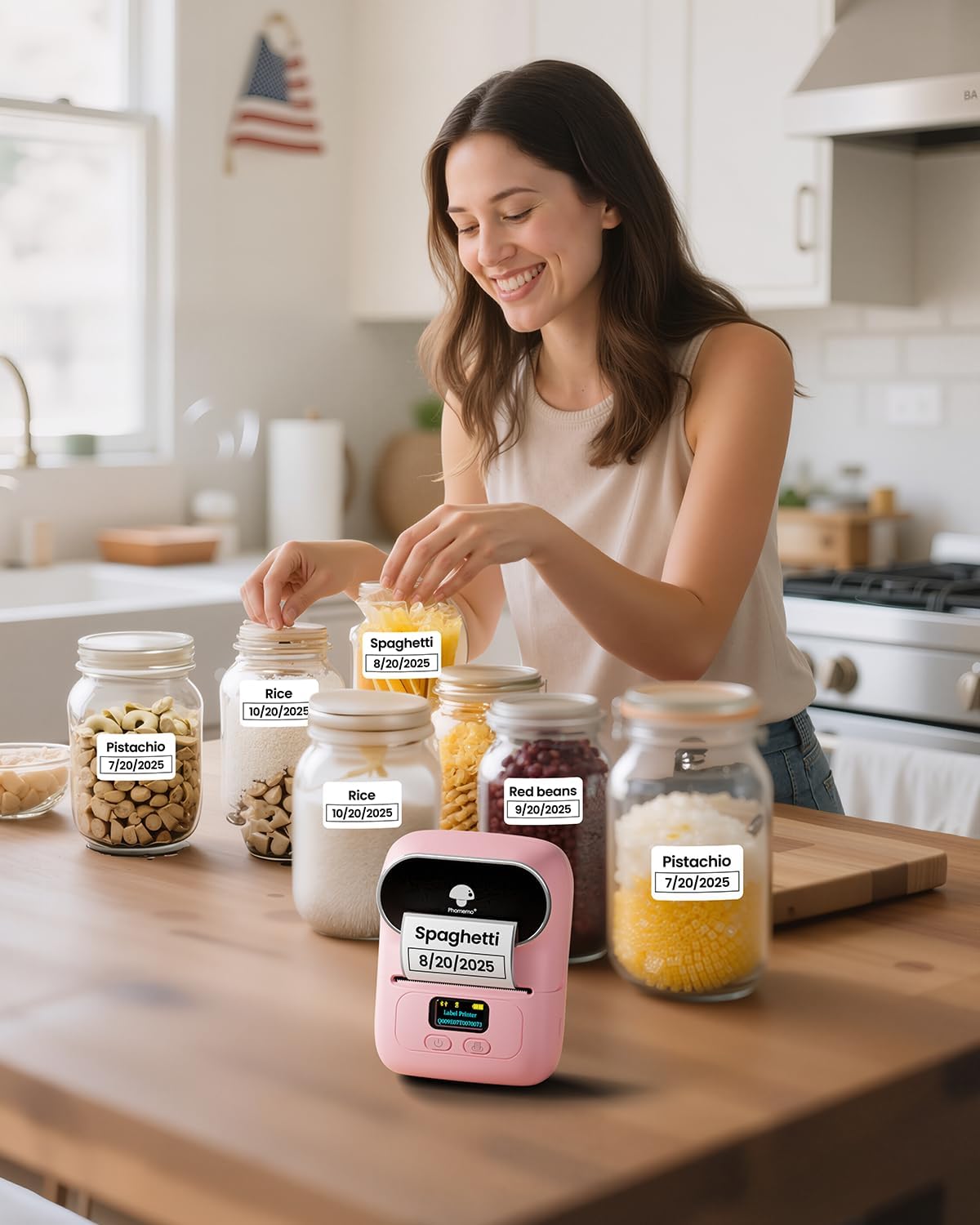
Figure 5.3: Using the Phomemo M110 for home organization, specifically labeling food containers.
6. Tiaki
6.1. Te Horoi i te Pane Tā
To maintain optimal print quality, regularly clean the printhead. Use a cotton swab lightly dampened with rubbing alcohol to gently wipe the printhead surface. Ensure the printer is turned off and cool before cleaning. Allow the printhead to dry completely before closing the cover and resuming use.
6.2. Storing Label Rolls
Store unused thermal label rolls in a cool, dry place away from direct sunlight and excessive heat to prevent premature fading or damage to the thermal coating.
6.3. Tiaki Pūhiko
To prolong battery life, avoid fully discharging the printer frequently. If the printer will not be used for an extended period, charge it to about 50% and store it in a cool, dry place. Recharge every few months to prevent deep discharge.
7. Te Raru
7.1. Nga take me nga otinga noa
- Printer not connecting via Bluetooth:
Ensure Bluetooth is enabled on your device and the printer is turned on. Connect through the 'Print Master' app, not directly via your phone's Bluetooth settings. Restart both the printer and your device. - Poor print quality (faint or unclear):
Check if the label roll is inserted correctly with the printable side facing up. Clean the printhead as described in the Maintenance section. Adjust the print density setting in the app/software. Ensure you are using genuine Phomemo thermal labels. - Labels not feeding correctly or jamming:
Ensure the label roll is properly seated and aligned in the compartment. Check for any obstructions in the label path. Make sure the labels are not stuck together. - Kāore te pūreretā e kā ana:
The battery might be depleted. Connect the printer to a power source using the USB cable and allow it to charge for at least 30 minutes before attempting to turn it on again. - App/Software crashes or freezes:
Ensure your app/software is updated to the latest version. Close and restart the app/software. If the issue persists, try reinstalling the app/software.
8. Pūtāhui me te Tautoko
Phomemo products are designed for reliability and performance. While specific warranty details are not provided in this manual, please refer to the warranty information included with your purchase or visit the official Phomemo webpae mo te kaupapa here whakamana tino hou.
For technical support, troubleshooting assistance, or inquiries regarding spare parts and software updates, please contact Phomemo customer service through their official website or the contact information provided in your product packaging. Please note that information regarding spare parts availability and guaranteed software updates is not available at this time.
Mo etahi atu rauemi me nga korero hua, ka toro atu koe ki te Phomemo Brand Store on Amazon.


