1. Kupu Whakataki
This manual provides detailed instructions for the Nulaxy M500 Dual Mode Wireless Mouse. This device offers versatile connectivity options, allowing you to switch between 2.4G USB receiver mode and Bluetooth 5.0 mode, making it compatible with a wide range of devices including laptops, PCs, MacBooks, iPads, and Android devices. Its ergonomic design ensures comfortable use, and the plug-and-play functionality simplifies setup.
2. Ihirangi mokete
- Nulaxy M500 Dual Mode Wireless Mouse
- 2.4G USB Receiver (stored inside the mouse battery compartment)
- Pukapuka Kaiwhakamahi
3. Hua Neke Atuview
Familiarize yourself with the components of your Nulaxy M500 mouse:

Whakaahua 1: Raro view of the Nulaxy M500 mouse, highlighting the Wireless Bluetooth Switch Key, Power Switch Key, Flashing Lights, Battery Bay (for one AA battery, not included), and the Wireless Receiver storage slot.
- Pātene Pātene Mauī/Matau: Standard mouse buttons for interaction.
- Panuku Wira: Mo te panuku poutū me te mahi pawhiri-waenganui.
- Kī Whakawhiti Hiko: Located on the bottom of the mouse, used to turn the mouse ON or OFF.
- Wireless/Bluetooth Switch Key: Located on the bottom, this button allows you to toggle between 2.4G USB receiver mode and Bluetooth mode. The flashing lights indicate the current mode (green for 2.4G, blue for Bluetooth).
- Pūhiko Bay: Compartment for one AA battery (not included). The 2.4G USB receiver is stored here.
4. Tohutohu Tatūnga
4.1. Tāuta Pūhiko
- Gently slide open the battery compartment cover located on the bottom of the mouse.
- Insert one AA battery (not included) into the battery bay, ensuring correct polarity (+/-).
- Katia kia mau te uhi o te wahanga pākahiko.
4.2. 2.4G USB Receiver Mode Setup
Ka whakamahia e tēnei aratau te kaiwhiwhi USB kua whakaurua mō te hononga ahokore pumau.
- Open the battery compartment and remove the 2.4G USB receiver.
- Monohia te kaiwhiwhi USB ki tetahi tauranga USB e waatea ana i runga i to rorohiko, i to taputapu ranei.
- Turn on the mouse using the Power Switch Key on the bottom.
- Press the Wireless/Bluetooth Switch Key to select 2.4G mode. The indicator light will flash green.
- Your device should automatically detect and connect to the mouse. No additional drivers are typically required.

Whakaahua 2: The Nulaxy M500 mouse operating in 2.4G wireless mode, with its USB receiver plugged into a laptop. This mode offers a reliable connection up to 10 meters (33 feet).
4.3. Bluetooth 5.0 Mode Setup
This mode allows for a cable-free connection to Bluetooth-enabled devices.
- Turn on the mouse using the Power Switch Key on the bottom.
- Press the Wireless/Bluetooth Switch Key to select Bluetooth mode. The indicator light will flash blue.
- On your device (laptop, iPad, etc.), go to Bluetooth settings and ensure Bluetooth is enabled.
- Rapua available devices. The mouse should appear as "BT5.0 Mouse" or similar.
- Select the mouse to pair. Once paired, the indicator light will stop flashing and remain solid blue.
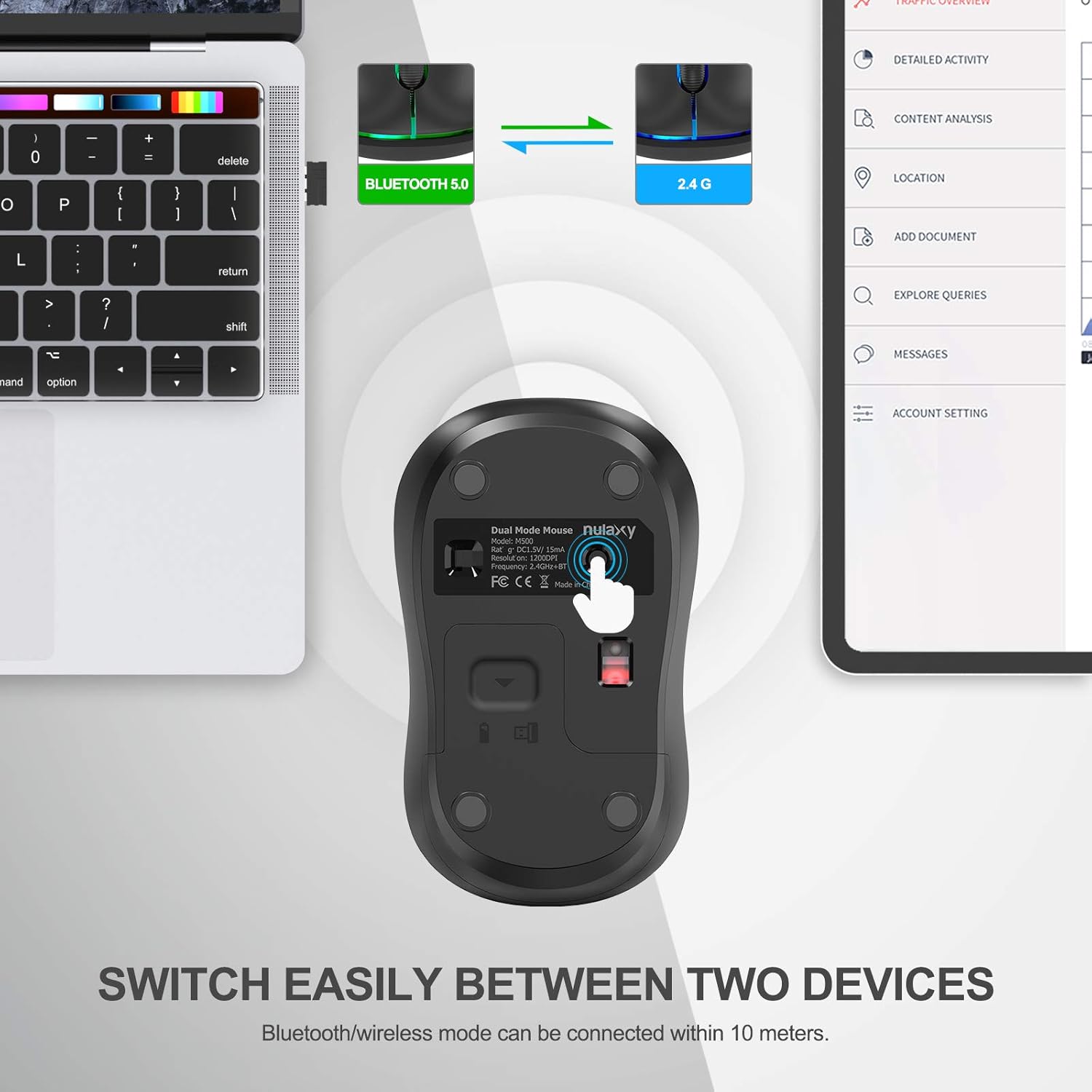
Whakaahua 3: The Nulaxy M500 mouse demonstrating its dual-mode capability, connected to both a MacBook (via 2.4G) and an iPad (via Bluetooth). The mouse allows for easy switching between two connected devices.
Ataata 1: This video demonstrates the setup process for both 2.4G USB and Bluetooth wireless modes for the Nulaxy M500 mouse, including how to switch between modes and connect to different devices.
5. Nga Tohutohu Whakahaere
5.1. Whakawhiti i waenganui i nga Pūrere
The Nulaxy M500 mouse allows you to seamlessly switch between two connected devices (one via 2.4G USB and one via Bluetooth). Simply press the Wireless/Bluetooth Switch Key on the bottom of the mouse to toggle between the two modes. The indicator light will change (green for 2.4G, blue for Bluetooth) to confirm the active mode.
5.2. DPI (Dots Per Inch)
The Nulaxy M500 mouse operates at a high precision of 1200 DPI, providing smooth and accurate cursor control for various tasks.

Whakaahua 4: The Nulaxy M500 mouse features an ergonomic design for comfortable use and offers 1200 DPI for precise tracking.
5.3. Aratau Tiaki Mana
To conserve battery life, the mouse will automatically enter a sleep mode after a period of inactivity. To wake the mouse, simply move it or click any button.
6. Tiaki
- Te horoi: Whakamahia he kakahu ngohengohe, maroke hei horoi i te kiore. A ape i te whakamahi i nga matū kino, i nga taonga abrasive ranei.
- Whakakapinga Pūhiko: Ka heke te mahinga kiore, ka tohuhia ranei e te rama tohu te iti o te pākahiko, whakakapihia te pākahiko AA pera i te waahanga 4.1.
- Rokiroki: When not in use for extended periods, turn off the mouse to conserve battery. Store the USB receiver in its designated slot within the battery compartment to prevent loss.
7. Te Raru
- Kaore te kiore e whakautu:
- Me mohio kei te KIA te kiore.
- Tirohia te taumata o te pākahiko me te whakakapi mehemea e tika ana.
- For 2.4G mode, ensure the USB receiver is securely plugged into the device.
- For Bluetooth mode, ensure Bluetooth is enabled on your device and the mouse is correctly paired.
- Ngana ki te whakaara ano i to taputapu.
- Connection issues/intermittent connection:
- Ensure the mouse is within the effective operating range (up to 10 meters/33 feet).
- Kaua e whakamahia te kiore ki ngā mata whakaataata, ki ngā mata mārama rānei.
- Whakaitihia te pokanoa mai i etahi atu taputapu ahokore.
- Cursor erratic or inaccurate:
- Horoia te pūoko whatu kei raro o te kiore.
- Ensure you are using the mouse on a suitable surface (a mouse pad is recommended).
8. Whakatakotoranga
| Āhuahira | Taipitopito |
|---|---|
| Tauira | M500 |
| Hunga Hua | 3.92 x 2.35 x 1.49 inihi |
| Taumaha Tūemi | 2.47 hekere |
| Hangarau Hononga | Nihokikorangi 5.0, Ahokore 2.4G |
| Hangarau Hangarau Nekehanga | Optical |
| DPI Resolution | 1200 DPI |
| Momo Pūhiko | 1 x Pūhiko AA (kaore i whakauruhia) |
| Mokowoko Korekore | Tae atu ki te 10 mita (33 putu) |
| Hototahi | Windows 7/8/10/XP, Vista 7/8, Linux, MacOS, PC, Laptop, iPad, Android |
9. Pūtāhui me te Tautoko
The Nulaxy M500 Dual Mode Wireless Mouse comes with a 24-marama (2-tau) whakamana from the date of purchase. To register your product and activate the warranty, please visit the Nulaxy website or scan the QR code provided on the warranty card included in your package.
For technical support, troubleshooting assistance, or any inquiries regarding your product, please contact Nulaxy Customer Service:
- Īmēra: tautoko@nulaxy.com
- Webpae: www.nulaxy.com/warranty

Whakaahua 5: Nulaxy warranty card, indicating a 24-month warranty and providing a QR code for product registration.


