1. Kupu Whakataki
This manual provides detailed instructions for the safe and effective use of your Phomemo D30 Bluetooth Mini Label Maker. Please read this manual thoroughly before operating the device to ensure proper function and longevity.

Image 1.1: The Phomemo D30 Label Maker, a compact thermal printer designed for various labeling needs.
2. Ihirangi mokete
Manatokona kei roto katoa nga mea kei roto i to kete:
- 1 x Phomemo D30 Label Maker
- 1 x Pukapuka Kaiwhakamahi
- 1 x Tauira USB
- 80-PCS Label Tape 12x40mm (1 roll)

Image 2.1: Visual representation of the items included in the Phomemo D30 package.
3. Hua Neke Atuview
3.1 Nga waahanga matua
- Kiato me te Kawe: Half the weight and size of traditional label makers.
- Hangarau Tā Weariki: Inkless printing, eliminating the need for ink, toner, or ribbons.
- High Print Clarity: Equipped with a German thermal print head, offering 25% increased DPI for clear and smooth printing.
- Hononga Ahokore: Bluetooth connection for printing from mobile devices.
- Versatile Label Support: Compatible with continuous and fixed-length label tapes, supporting sizes from 0.24 to 0.47 inches (6mm to 12mm).
- Taupānga-Mana: Utilizes a dedicated mobile application for label design with various templates, symbols, frames, and fonts.
3.2 Waehanga
The Phomemo D30 Label Maker consists of the following main components:
- Pātene Hiko: Used to turn the device on/off and initiate certain functions.
- Maama Tohu: Displays device status (e.g., charging, connected, printing).
- Label Output Slot: Te wāhi e puta mai ai ngā tapanga kua tāia.
- Label Compartment: Houses the label roll.
- Tauranga Kaihoko USB: For connecting the USB cable to charge the device.
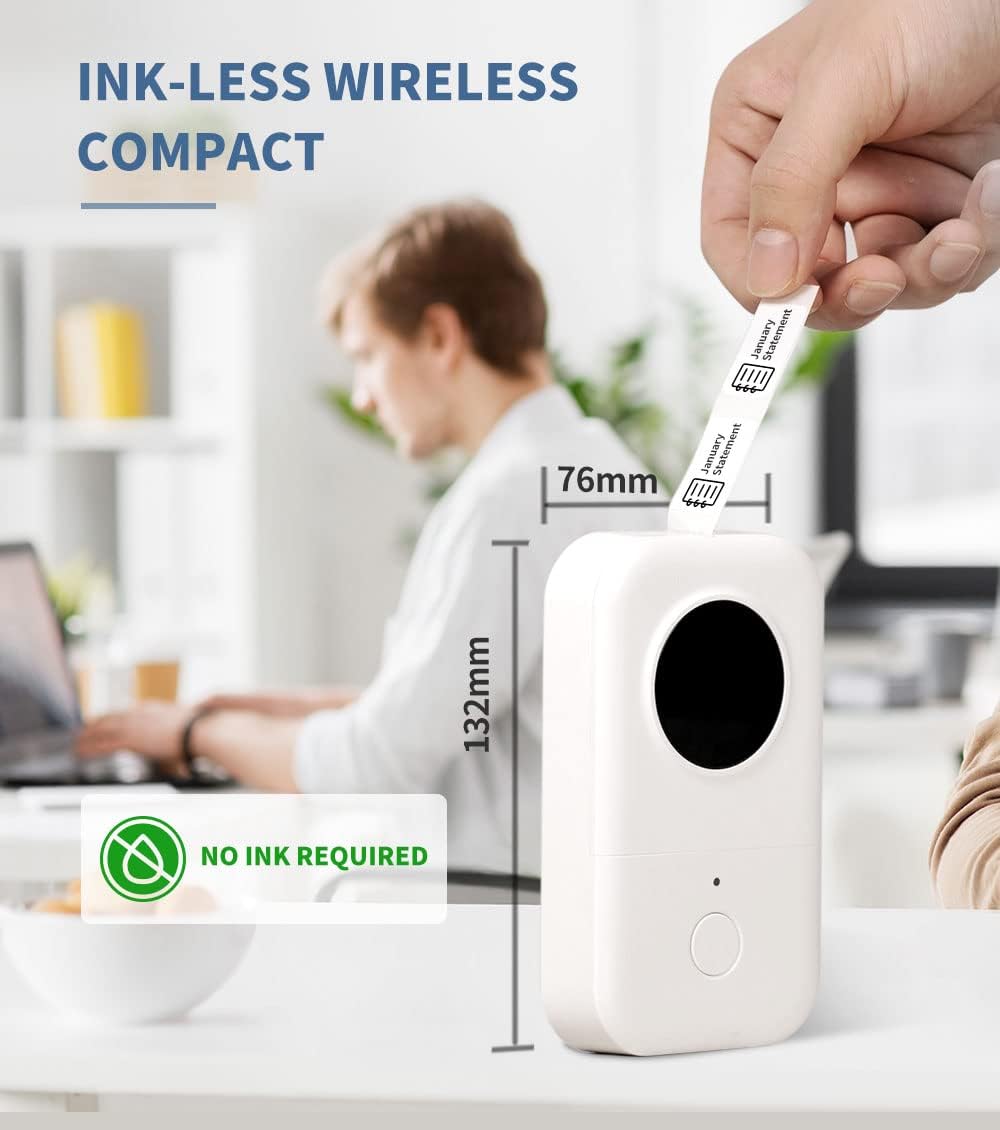
Image 3.1: The compact design of the Phomemo D30, highlighting its ink-less thermal printing technology.

Image 3.2: The Phomemo D30 supports multiple label widths, including 6mm, 12mm, 14mm, and 15mm.
4. Tatūnga
4.1 Te Whakataki i te Pūrere
- Connect the provided USB cable to the charging port on the label maker.
- Monohia te tahi pito o te taura USB ki te urutau hiko USB hototahi (kaore i whakaurua) ki te tauranga USB rorohiko ranei.
- The indicator light will show charging status. A full charge typically takes 2-3 hours.
4.2 Te uta i te pepa tapanga
- Whakatuwheratia te taupoki o te wāhanga tapanga.
- Insert the label roll with the printing surface facing upwards, ensuring it aligns correctly within the compartment.
- Pull a small portion of the label tape out through the output slot.
- Katia te taupoki o te wāhanga tapanga kia mau.
4.3 Tāutanga Taupānga me te Hononga Nihokikorangi
- Download the "Print Master" app from your device's app store (iOS or Android).
- Turn on the Phomemo D30 Label Maker by pressing and holding the power button. The indicator light will illuminate.
- Whakahohehia te Nihokikorangi i runga i to taputapu pūkoro.
- Open the "Print Master" app and follow the on-screen instructions to connect to your D30 device. The app will typically detect nearby Phomemo devices automatically.

Image 4.1: The Phomemo D30 connects wirelessly via Bluetooth to a smartphone running the "Print Master" app.
5. Nga Tohutohu Whakahaere
5.1 Creating Labels with the App
- Open the "Print Master" app on your connected mobile device.
- Select a template or start a new label design.
- Utilize the app's features to add text, icons, borders, and adjust fonts. The app offers a wide variety of customization options.
- Preview your label design to ensure accuracy before printing.

Image 5.1: The "Print Master" app provides extensive customization options for label creation, including fonts, icons, and borders.

Image 5.2: The app supports a variety of label styles and patterns for diverse applications.
5.2 Tapanga Tapanga
- Once your label design is complete, tap the print button within the app.
- The label maker will feed and print the label.
- Carefully tear off the printed label from the output slot.

Image 5.3: The D30 supports high-quality batch printing for pre-cut paper, ensuring clear and consistent results.
5.3 Label Types and Applications
The D30 supports both pre-cut and continuous label tapes, suitable for various uses:
- Pre-cut Labels: Ideal for individual items, such as food date marking, price tags, or personal item identification.
- Continuous Labels: Suitable for longer labels like cable identification, file classification, or gift labels.

Image 5.4: The Phomemo D30 supports both pre-cut labels for individual items and continuous labels for longer applications.

Image 5.5: The Phomemo D30 is a versatile tool for organizing files, labeling food, marking items, and creating gift labels.

Image 5.6: The D30 label maker is suitable for a wide range of applications, from personal organization to small business use.
6. Tiaki
6.1 Te horoi i te Upoko Ta
To maintain print quality, regularly clean the print head:
- Whakawetohia te kaihanga tapanga ka momotu mai i tētahi pūtake hiko.
- Whakatuwheratia te wahanga tapanga.
- Mā te ata horoia te pane tā ki te miro miroampka whakakiia ki te waipiro isopropyl.
- Allow the print head to dry completely before closing the compartment and using the device.
6.2 Tiaki Pūhiko
- Charge the device regularly, even if not in frequent use, to prolong battery life.
- A ape i te tuku i te taputapu ki nga wera nui.
- Mena kāore te pūrere e whakamahia mō te wā roa, utua kia tata ki te 50% i mua i te rokiroki.
6.3 Rokiroki
Store the label maker in a cool, dry place away from direct sunlight and excessive dust. Ensure the label compartment is closed to protect the print head and internal mechanisms.

Image 6.1: Phomemo label tapes are designed for durability, offering resistance to water, abrasion, and oil, and can be removed without leaving residue.
7. Te Raru
7.1 Nga take me nga otinga noa
| Putanga | Take pea | Rongoā |
|---|---|---|
| Kaore te taputapu e ka ana | He raruraru pākahiko iti, he raruraru hiko iti rānei. | Charge the device using the provided USB cable. Ensure the power button is pressed and held correctly. |
| Kaore e taea te hono ma te Nihokikorangi | Bluetooth is off, device is out of range, or app issue. | Ensure Bluetooth is enabled on your phone and the label maker is on. Move the devices closer. Restart the app and the label maker. |
| He iti te kounga o te tuhi | Dirty print head, incorrect label roll insertion, or low battery. | Clean the print head (refer to Section 6.1). Re-insert the label roll correctly. Charge the device. |
| Labels not feeding | Label roll jammed or incorrectly loaded. | Open the compartment and check for any jams. Re-load the label roll, ensuring it is properly aligned. |
| Ka pakaru, ka whakatio ranei te taupānga | Software glitch or outdated app version. | Restart the app. Check for app updates in your device's app store. Restart your mobile device. |
8. Whakatakotoranga
- Waitohu: Phomemo
- Tauira: D30
- Hangarau Tā: Ngawha
- Hangarau Hononga: Nihokikorangi
- Rahi Pāpāho Mōrahi: 15mm
- Whakataunga Ta Pango me te Ma: 203 dpi
- Moochrome Tere Tere: 40 ppm
- Ngā Pūrere Hototahi: Waea atamai (iOS, Android)
- Mana: 1 pākahiko Lithium Polymer (kei roto)
- Taumaha Tūemi: 6.3 hekere (180 Karamu)
- Rahi Hua: 4.72 x 3.15 x 1.97 inihi (12 x 8 x 5 cm)
- UPC: 789371387780
9. Pūtāhui me te Tautoko
The Phomemo D30 Label Maker comes with a limited warranty. For specific details regarding warranty coverage and duration, please refer to the warranty card included in your product packaging or contact Phomemo customer support.
For technical support, troubleshooting assistance, or inquiries about replacement parts and accessories, please visit the official Phomemo website or contact their customer service department. Contact information can typically be found on the product packaging or the Phomemo brand store online.


