1. Kupu Whakataki
The Poly Trio C60 is a smart conference phone designed to facilitate clear and effective communication in any meeting space. This manual provides comprehensive instructions for setting up, operating, maintaining, and troubleshooting your Trio C60 to ensure optimal performance and a seamless conferencing experience.
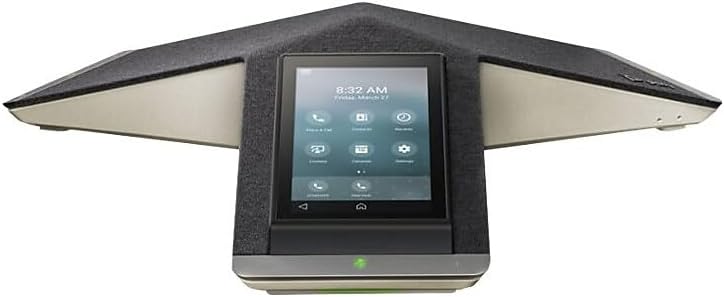
Whakaahua 1: Mua view of the Poly Trio C60 IP Conference Phone, showcasing its 5-inch color touch display.
Key features include premium audio with full-duplex capabilities, automatic gain control, echo and reverb cancellation, and Poly NoiseBlockAI for eliminating background noise. It offers flexible connectivity options including USB, Bluetooth, and IP, and is certified for Microsoft Teams, Zoom, and other collaboration platforms.
2. He aha kei roto i te Pouaka
Manatokohia kei te noho nga waahanga katoa i roto i te kete:
- Poly Trio C60 conference phone
- 25 ft network cable CAT 5e
- Puka whakatu
3. Tohutohu Tatūnga
Follow these steps to set up your Poly Trio C60 conference phone:
- Hononga Hiko: Connect the power source to the phone. The Poly Trio C60 is powered by a corded electric connection.
- Hononga Whatunga: Connect the provided 25 ft CAT 5e network cable to the phone's network port and to your network switch or router. The device supports WiFi 2.4-5GHz for audio conference calling, offering flexible deployment.
- Whakaara Tuatahi: The phone will power on automatically. Allow it to boot up and connect to the network. The 5-inch color touch display will show the boot progress.
- Whirihoranga: Follow the on-screen prompts on the touch display to complete the initial configuration, including network settings, time zone, and platform integration (e.g., Microsoft Teams, Zoom).

Whakaahua 2: Koki view of the Poly Trio C60, highlighting its sleek design and integrated display.

Whakaahua 3: Runga-raro view of the Poly Trio C60, showing its Y-shaped design and port locations.
For advanced setup or specific platform integrations, refer to the detailed guides available on the Poly support webpae.
4. Nga Tohutohu Whakahaere
The Poly Trio C60 is designed for intuitive operation. Here are common functions:
- Joining Meetings: Utilize the one-touch join feature directly from the 5-inch color touch display. The phone supports Outlook calendar integration for simplified scheduling and meeting access.
- Waeatanga: Use the single keypad dialer on the touch display to initiate calls.
- Kounga Ororongo: The phone features premium audio with full-duplex capabilities, ensuring natural conversations. Automatic gain control adjusts microphone sensitivity, and echo and reverb cancellation enhance clarity.
- Whakaiti Haruru: Poly NoiseBlockAI actively eliminates non-speech background noise, providing distraction-free meetings.
- Hononga: Connect to multiple SIP and UC-cloud services simultaneously. The phone supports USB, Bluetooth, or IP connectivity for mobile devices and other peripherals.
- Te Whakaurunga o ngā Rōpū Microsoft: The Trio C60 offers built-in native Microsoft Teams integration and is Microsoft Teams certified for a seamless experience.
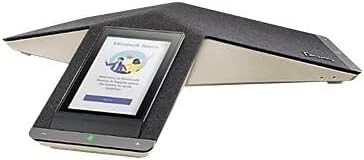
Figure 4: The Poly Trio C60 display showing the Microsoft Teams interface, ready for a meeting.
For larger conference rooms, optional expansion microphones (sold separately) can be connected, or multiple Trio C60 systems can be daisy-chained together to extend audio coverage.

Figure 5: The Poly Trio C60 in a typical meeting room environment, demonstrating its compact footprint.
5. Tiaki
Proper maintenance ensures the longevity and optimal performance of your Poly Trio C60.
- Te horoi: Use a soft, dry, lint-free cloth to clean the exterior surfaces of the phone and the touch display. Do not use abrasive cleaners, waxes, or solvents.
- Whakahau: Me whakarite kia kore e tutakina nga tuwhera o te hau.
- Nga Tikanga Taiao: Operate the device within recommended temperature and humidity ranges. Avoid exposing the device to extreme temperatures, direct sunlight, or excessive moisture.
6. Te Raru
This section addresses common issues you might encounter with your Poly Trio C60.
| Raruraru | Take pea | Rongoā |
|---|---|---|
| Karekau te waea i te hiko. | No power connection or faulty power adapter. | Ensure the power cable is securely connected to the phone and a working power outlet. Verify the power adapter is functioning correctly. |
| Kaore he hononga whatunga. | Network cable disconnected, incorrect network settings, or network issue. | Check the Ethernet cable connection. Verify network settings on the phone's display. Restart your network equipment (router/switch). If using Wi-Fi, ensure correct credentials are entered. |
| Te kounga oro ngoikore (echo, static). | Improper microphone placement, environmental noise, or network latency. | Ensure the phone is centrally located in the meeting space. Verify Poly NoiseBlockAI is enabled. Check network connection stability. |
| Cannot join meetings. | Incorrect platform configuration or network access issues. | Verify that the phone is correctly configured for your collaboration platform (e.g., Microsoft Teams, Zoom). Check network connectivity to the platform's servers. |
| Device unresponsive / requires reset. | Software glitch or configuration issue. | Perform a soft reboot by disconnecting and reconnecting power. If issues persist, a factory reset may be necessary (consult Poly support documentation for specific steps, as this will erase all configurations). |
7. Whakatakotoranga
Detailed technical specifications for the Poly Trio C60 IP Conference Phone:
| Tau tauira | 2200-86240-019 |
| Waitohu | Poly (formerly Plantronics) |
| Rahi Hua (L x W x H) | 19 x 13.15 x 5 inihi |
| Taumaha Tūemi | 5.14 pauna |
| Tae | Pango |
| Whakaatu | 5-inch Color Touch Display (Visible screen diagonal: 13 cm) |
| Puna Mana | Hiko Hiko |
| Momo Waea | Single Keypad (on touch display) |
| Te Waea Waea Huihuinga | 5-ara |
| Waea Taatari Waea | 72 haora |
| Hononga | Ethernet (CAT 5e), Wi-Fi (2.4-5GHz), USB, Bluetooth, IP |
| Tiwhikete | Kua Whai Tiwhikete Microsoft Teams |
8. Pūtāhui me te Tautoko
For warranty information, technical support, and additional resources, please visit the official Poly support website. You can find detailed documentation, FAQs, and contact information for customer service.
Kaihanga: Poly
Mo nga korero tautoko hou rawa atu, tirohia koa www.poly.com/support.