1. Kupu Whakataki
This manual provides detailed instructions for the setup, operation, and maintenance of your NexiGo N680 1080P Business Webcam. Please read this manual thoroughly before using the product to ensure proper functionality and longevity. Keep this manual for future reference.
2. Ihirangi mokete
Manatokona kei roto katoa nga mea kei roto i to kete:
- NexiGo N680 1080P Pakihi Webkamera
- Uwhi Matatapu-i roto
- Pukapuka Kaiwhakamahi
3. Hua Neke Atuview
Familiarize yourself with the components of your NexiGo N680 webkāmera
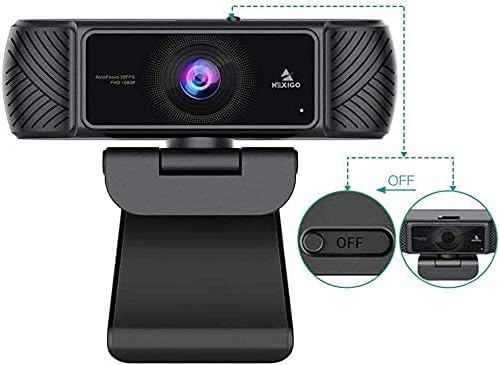
Whakaahua 3.1: Mua view of the NexiGo N680 Webcam, showing the lens, microphone, and privacy cover mechanism.

Figure 3.2: The multi-functional adjusting base of the NexiGo N680 Webcam, illustrating 360-degree rotation and 180-degree tilt capabilities.
4. Aratohu Tatūnga
4.1. Te hono i te Webcam (Plug & Play)
- Kia mahara kei te kaha to rorohiko.
- Plug the USB cable from the NexiGo N680 webcam directly into an available USB port on your desktop or laptop.
- Ko te webcam is designed for plug-and-play functionality and typically does not require additional drivers or software installation for basic use. Your operating system should automatically detect and install the necessary components.

Figure 4.1: Connecting the webcam via USB for plug-and-play setup.
4.2. Te Whakamau i te Webkamera
The NexiGo N680 features an adjustable mounting clip for versatile placement.
- I runga i te Mata Aroturuki/Pona: Whakatuwheratia te topenga ka tuu i te webcam on top of your monitor or laptop screen. Adjust the clip to securely grip the top edge of the screen.
- I runga i te Mata Papatahi: Purihia te topenga kia hangai he turanga pumau ka tuu i te webcam on a desk or shelf.
- Whakarite Koki: Ko te webcam can rotate 360 degrees horizontally and tilt up to 80 degrees vertically on its base, allowing you to achieve the desired camera angle.
5. Nga Tohutohu Whakahaere
5.1. Using the Privacy Cover
The NexiGo N680 includes a built-in privacy cover to protect your privacy and the camera lens.
- Hei Tuwhera: Slide the cover to the side to expose the camera lens.
- Hei Kati: Slide the cover back over the camera lens when not in use. This physically blocks the camera view.

Figure 5.1: Demonstrating the built-in privacy cover in both open (ON) and closed (OFF) states.
5.2. Te Whakatikatika Tautuhinga Kamera
For advanced adjustments, NexiGo provides optional software. This software allows you to fine-tune settings such as white balance, brightness, contrast, hue, saturation, sharpness, gamma, and backlight compensation.
- Tikiake i te NexiGo Webcam Settings software from the official NexiGo webpae (nexigo.com/software).
- Tāutahia te pūmanawa ki tō rorohiko.
- Launch the software to access and modify camera parameters. You can save and load custom presets.

Figure 5.2: The NexiGo Webcam Settings software interface for customizing video output.
5.3. Whakamahinga Waorooro
The N680 features built-in dual stereo microphones with noise-canceling technology.
- The microphones automatically activate when the webcam is connected and selected as the audio input device in your communication software (e.g., Zoom, Skype, Teams).
- Noise-canceling technology helps reduce ambient background noise, providing clearer audio for your calls and recordings.

Figure 5.3: The built-in microphone with noise-canceling technology for clear audio capture.
5.4. Arotahi Aunoa Taumahi
Ko te webcam is equipped with advanced autofocus to maintain sharp image clarity.
- The autofocus system automatically adjusts the lens to keep you and your subject in sharp focus, even with movement.
- This feature ensures consistent video quality without manual focus adjustments.

Figure 5.4: The autofocus feature ensures subjects remain sharp and clear.
5.5. Hototahi
The NexiGo N680 webcam is compatible with a wide range of operating systems and communication platforms:
- Pūnaha Whakahaere: Windows XP/7/8/10/11, Mac OS 10.6 and higher, Linux 2.6.24 and higher, Chrome OS 29.0.1547 and above, Ubuntu Version 10.04 and higher.
- Nga tono: Skype, Zoom, Microsoft Teams, Facetime, OBS, Facebook, and most other popular conferencing or recording applications.
Whakaahua 5.5: Te webcam's broad compatibility with operating systems and communication platforms.
6. Tiaki
6.1. Te horoi
- Hei horoi i te webcam lens, use a soft, lint-free cloth. Avoid abrasive materials or harsh chemicals.
- Mo te tinana o te webcam, wipe with a dry or slightly damp kakahu.
6.2. Rokiroki
- When not in use, close the built-in privacy cover to protect the lens from dust and scratches.
- Rokiroki te webka mau ki te waahi hauhautanga, maroke atu i te ra tika me te wera nui.
7. Te Raru
If you encounter issues with your NexiGo N680 webkāmera, tirohia ngā otinga noa e whai ake nei:
| Raruraru | Rongoa pea |
|---|---|
| Webkaore i kitea te kamera |
|
| Kaore he putanga ataata |
|
| No audio from microphone |
|
| Te kounga ataata kino |
|
8. Whakatakotoranga
| Āhuahira | Taipitopito |
|---|---|
| Tauira | N680 |
| Whakataunga Hopu Ataata | 1080P Full HD (30 fps) |
| Hangarau Pūoko Whakaahua | CMOS |
| Arotahi aunoa | Ae |
| Marae o View (FOV) | 90° |
| hopuoro | Dual Stereo with Noise-Canceling |
| Taupoki Tūmataitinga | Hanga-i roto |
| Hononga | USB |
| Hunga Hua | 3.81 x 1.81 x 3.54 inihi |
| Taumaha Tūemi | 8.4 hekere |
| Tae | Pango |
| Hototahitanga Pūnaha Whakahaere | Windows XP/7/8/10/11, Mac OS 10.6+, Linux 2.6.24+, Chrome OS 29.0.1547+, Ubuntu 10.04+ |
9. Pūtāhui me te Tautoko
9.1. Nga Korero Whakaputanga
NexiGo products typically come with a manufacturer's warranty. Please refer to the warranty card included with your product or visit the official NexiGo webpae mo nga tikanga me nga tikanga whakamana.
9.2. Tautoko Kiritaki
For technical assistance, troubleshooting, or product inquiries, please contact NexiGo customer support:
- Webpae: Visit the official NexiGo support page for FAQs and contact options.
- Īmēra: Refer to your product packaging or the NexiGo webpae mo te wahitau imeera tautoko.
10. Nga korero haumaru
- Do not attempt to disassemble or modify the webcam. This may void the warranty and cause damage.
- A ape i te whakaatu i te webki te tino mahana, te makuku, te ra tika ranei.
- Puritia te webcam away from water or other liquids.
- Use only the provided USB cable or a certified replacement.
- Kaua e taea e nga tamariki.


