1. Kupu Whakataki
The AOLION PS4 Back Button Attachment (Model PG-PS1010) is designed to enhance your PlayStation 4 gaming experience by adding customizable back buttons and a TURBO function to your controller. This attachment allows for real-time remapping of up to 10 button functions, providing improved control and responsiveness during gameplay.
This manual provides detailed instructions on how to set up, operate, and maintain your back button attachment.
2. Important Compatibility and Attention
- Hototahi: This attachment is ANAKE compatible with the PlayStation 4 Slim/Pro Controller when connected via a wired connection. It does KORE support wireless connections, old PS4 controllers (without light bar), or third-party controllers. It cannot be used for PC games or on PS4 PHAT models.
- Taumahinga Ororongo: The microphone function cannot be used when a wired headset is connected directly to the controller. It is recommended to use a Bluetooth headset for microphone functionality. Alternatively, the attachment's own 3.5mm headphone jack can be used to enable both microphone and earpiece functions.

Image: The AOLION PS4 Back Button Attachment, highlighting its compatibility with PS4 Slim/Pro controllers via wired connection only. It also warns against use with older PS4 models, third-party controllers, or for PC gaming.
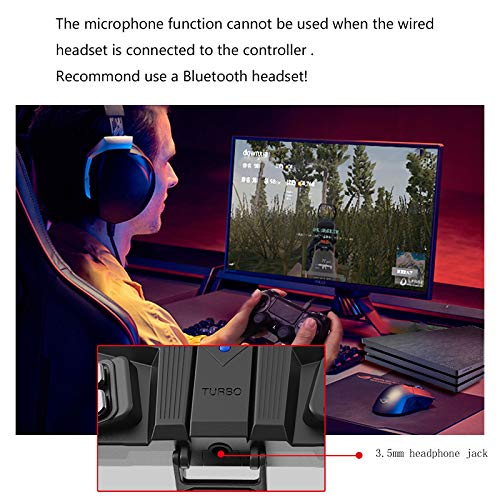
Whakaahua: He tata view of the AOLION PS4 Back Button Attachment's 3.5mm headphone jack, illustrating the note about microphone functionality when using wired headsets.
3. Ihirangi mokete
Manatokona kei roto katoa nga mea kei roto i to kete:
- 1 x AOLION PG-PS1010 Back Button Attachment
- 1 x Pukapuka Tohutohu (tenei tuhinga)
- 1 x 10ft USB Cable
4. Tohutohu Tatūnga
To use the AOLION PS4 Back Button Attachment, follow these steps to connect it to your PS4 console:
- Connect your PS4 controller to the PS4 console using the provided USB cable.
- On your PS4 console, navigate to: Tautuhinga > Pūrere > Kaiwhakahaere > Tikanga Whakawhitiwhiti.
- Tīpakohia Use USB Cable as the communication method.
- Attach the AOLION Back Button Attachment to your PS4 Slim/Pro controller.
5. Nga Tohutohu Whakahaere
5.1. Extended Button Settings (Mapping)
The attachment features 4 programmable metal paddles that can map up to 10 button functions from your controller: A (Cross), B (Circle), X (Square), Y (Triangle), L1, L2, R1, R2, L3, R3.

Image: The AOLION PS4 Back Button Attachment mounted on a PS4 controller, showing the four metal paddles and their position for ergonomic access.
- To enter setting mode, simultaneously hold down all 4 expansion buttons (paddles) for 3 seconds. LED1 and LED2 indicators on the attachment will flash slowly.
- While in setting mode, press the desired button on your controller (e.g., X, O, L1) that you wish to map, AND simultaneously press the corresponding expansion button (paddle) on the attachment you want to assign it to. The indicator will flash quickly to confirm the setting is complete.
- When setting the left expansion button, LED1 on the left will flash quickly. When setting the right expansion button, LED2 on the right will flash quickly.
- Repeat step 2 for each of the 4 expansion buttons to customize them as desired.
- To exit setting mode, simultaneously hold down all 4 expansion buttons for 3 seconds. LED1 and LED2 will turn off, indicating that the settings are saved and the mode is closed.
5.2. TURBO Burst Function
The attachment includes a dedicated TURBO button, allowing you to activate a burst fire function for certain in-game actions.
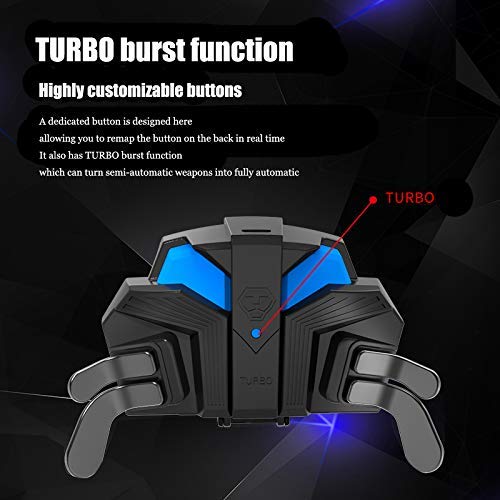
Image: A close-up of the AOLION PS4 Back Button Attachment, highlighting the TURBO button and its function for converting semi-automatic actions to fully automatic.
- The small blue TURBO button allows you to convert semi-automatic weapon actions in games into fully automatic actions.
- Refer to specific game instructions or experiment to understand how the TURBO function interacts with different in-game actions.
6. Whakatakotoranga
Detailed product information for the AOLION PS4 Back Button Attachment (Model PG-PS1010):
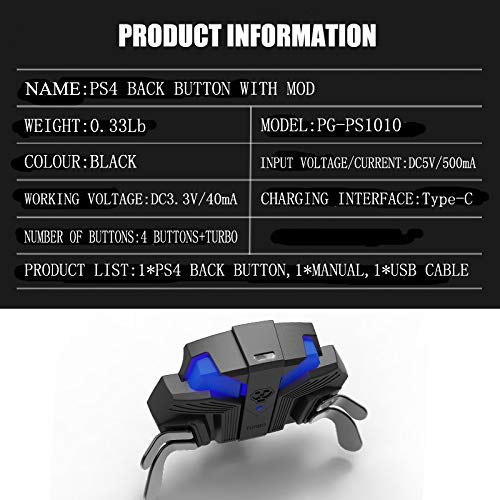
Image: A table displaying key product specifications for the AOLION PS4 Back Button Attachment, including model number, weight, color, input voltage, mahi voltage, charging interface, and number of buttons.
| Āhuahira | Taipitopito |
|---|---|
| Tauira | PG-PS1010 |
| Waitohu | AOLION |
| Taumaha | Tata ki te 99 g (0.33 lb) |
| Tae | Pango |
| Whakauru Voltage / Onaianei | DC5V/500mA |
| Mahi Voltage | DC3.3V/40mA |
| Atanga Whakatau | Momo-C |
| Te maha o nga Patene | 4 Expansion Buttons + TURBO Button |
7. Te Raru
- Attachment not recognized: Ensure your PS4 controller is a Slim/Pro model and is connected via USB cable to the console. Verify the "Communication Method" setting on your PS4 is set to "Use USB Cable".
- Buttons not mapping correctly: Ensure you are in setting mode (LEDs flashing slowly) before attempting to map buttons. Follow the mapping steps precisely. If issues persist, try resetting the mapping by exiting and re-entering setting mode.
- Microphone not working with wired headset: This is a known limitation. Use a Bluetooth headset or connect your wired headset directly to the attachment's 3.5mm jack for microphone functionality.
- TURBO function not working: Ensure the TURBO button is pressed correctly. The effect of the TURBO function may vary depending on the game and specific in-game actions.
8. Pūtāhui me te Tautoko
For any issues or inquiries regarding your AOLION PS4 Back Button Attachment, please refer to the seller's return policy or contact customer support through your purchase platform.
The product comes with a 30-day return policy from the date of purchase for a full refund if you are not satisfied or encounter any performance problems.


