1. Kupu Whakataki
The Eve Thermo New is a smart radiator valve designed to regulate the temperature in your rooms, enhancing comfort and energy efficiency. It integrates seamlessly with Apple HomeKit, allowing you to control your heating via the Eve app, Apple Home app, or Siri. This manual provides essential information for the installation, operation, and maintenance of your Eve Thermo devices.

Image 1.1: Two Eve Thermo New smart radiator valves shown with their retail packaging.
2. Tatūnga
2.1 Ihirangi mokete
- 2 x Eve Thermo New Smart Radiator Valve
- 2 x Set of Batteries (AA)
- Various Adapters (e.g., Danfoss RA, RAV, RAVL)
- Aratohu Timata Tere
2.2 Tāuta Pūhiko
- Remove the battery cover from the Eve Thermo unit.
- Whakauruhia nga pākahiko AA e rua, kia tika te polarity (+/-).
- Whakakapia te uhi pākahiko.
2.3 Installation on Radiator
- Remove your existing thermostatic radiator valve head. If you have a manual valve, it may require a professional to replace the valve body.
- Identify the correct adapter for your radiator valve. Most standard valves use an M30x1.5 thread. Adapters for Danfoss RA, RAV, and RAVL are commonly included.
- Mount the Eve Thermo onto the radiator valve. Ensure it is securely fastened but do not overtighten.
- The display on Eve Thermo will show a setup animation.

Image 2.1: Eve Thermo unit positioned for installation on a radiator, with tools nearby.

Image 2.2: An Eve Thermo New device correctly installed on a radiator.
2.4 Te hono atu ki te Apple HomeKit
- Download the Eve app from the Apple App Store.
- Open the Eve app and tap 'Add Accessory'.
- Scan the HomeKit setup code located on the back of your Eve Thermo or in the quick start guide.
- Follow the on-screen instructions to assign Eve Thermo to a room and configure its settings.
- A HomePod mini, HomePod, Apple TV, or iPad (running as a home hub) is required for remote access and automation.
3. Nga Tohutohu Whakahaere
3.1 Whakaritea Maamaa a-ringa
You can manually adjust the temperature directly on the Eve Thermo unit. Use the arrow buttons on the device to increase or decrease the desired temperature. The current temperature setting will be displayed on the unit's screen.
3.2 Mana Taupānga
For comprehensive control and scheduling, use the Eve app or Apple Home app:
- Tautuhi i te Wehenga Whainga: Adjust the desired temperature for each room.
- Waihanga Hōtaka: Program heating schedules based on your daily routine to automatically adjust temperatures throughout the day and week.
- Aratau hararei: Set a specific temperature for extended periods when you are away.
- Maukati Tamariki: Prevent unauthorized manual adjustments on the device.
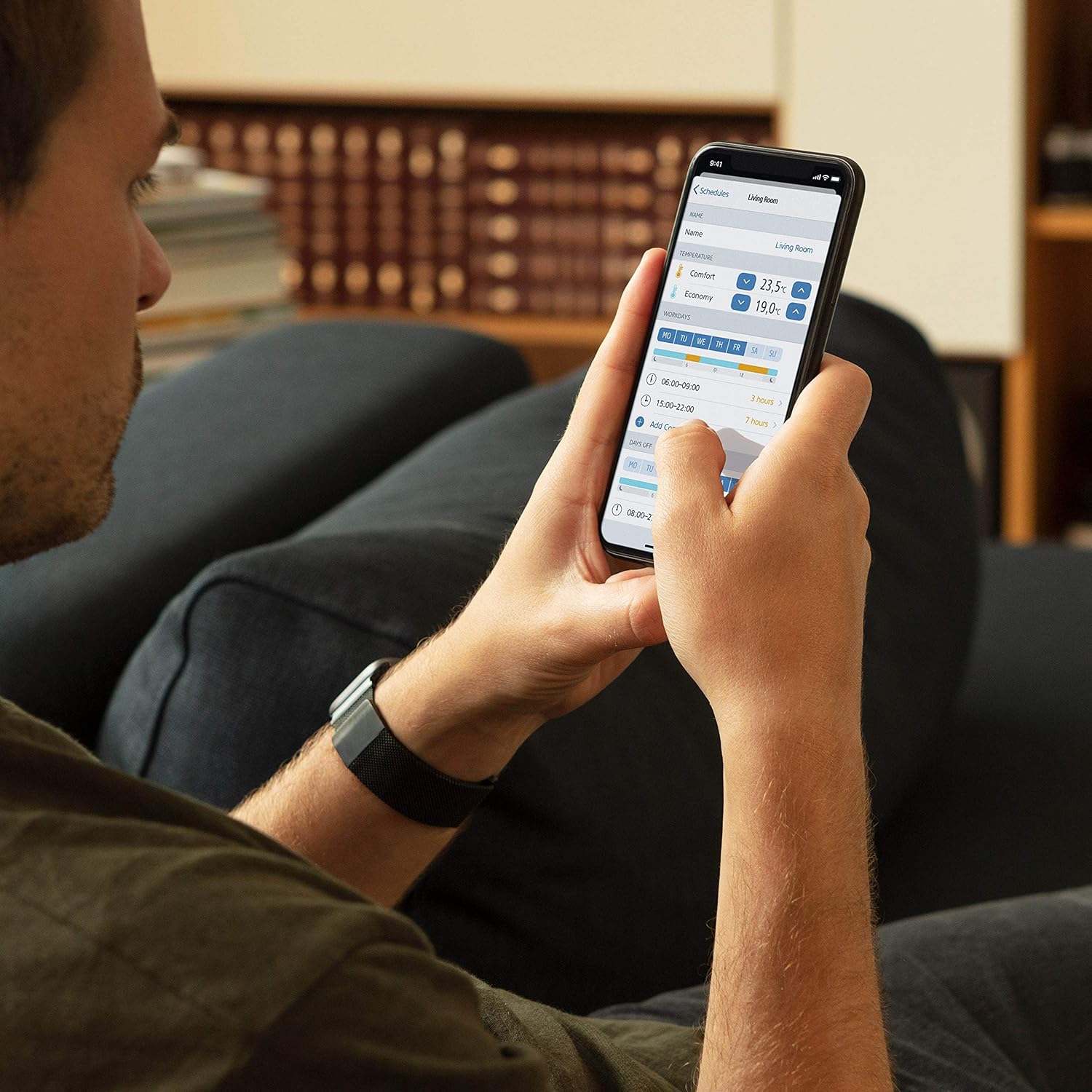
Image 3.1: A user interacting with the Eve app on a smartphone to manage heating settings.
3.3 HomeKit Integration and Automation
Eve Thermo works with other HomeKit accessories to create intelligent automations. For example, pair it with an Eve Door & Window sensor:
- Whakatuwhera Matapihi Rapu: If an Eve Door & Window sensor detects an open window, Eve Thermo can automatically pause heating to save energy.
- Scene Activation: Include Eve Thermo in HomeKit scenes to adjust multiple devices with a single command (e.g., a "Good Morning" scene that sets your desired temperature).
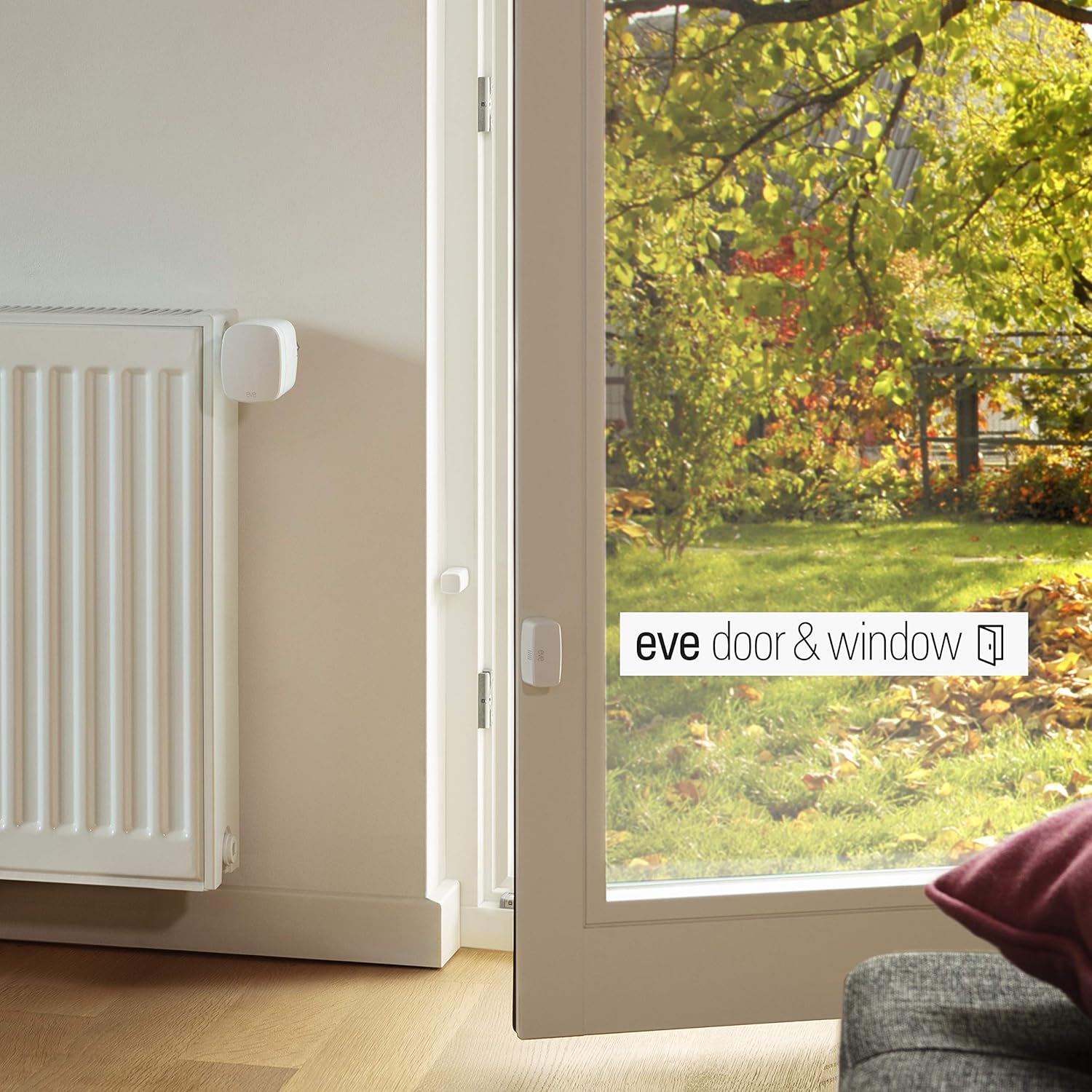
Image 3.2: Eve Thermo and an Eve Door & Window sensor working together in a HomeKit environment.
4. Tiaki
4.1 Whakakapinga Pūhiko
When the battery level is low, a battery icon will appear on the Eve Thermo display and in the Eve app. Replace the AA batteries as described in section 2.2. It is recommended to replace both batteries simultaneously.
4.2 Te horoi
Clean the Eve Thermo unit with a soft, dry cloth. Do not use abrasive cleaners or solvents, as these can damage the surface.
4.3 Whakahoutanga Firmware
Eve Thermo receives firmware updates periodically to improve performance and add new features. These updates are delivered via the Eve app. Ensure your device is connected to power and within Bluetooth range of your iPhone or home hub during an update.
5. Te Raru
- Kaore te Pūrere i te whakautu:
Check the battery level. Replace batteries if necessary. Ensure the device is within Bluetooth range of your iPhone or HomeKit hub. - He Te Panui Pawera:
Ensure Eve Thermo is not obstructed by curtains or furniture, which can affect temperature sensing. Consider using an external Eve Room sensor for more accurate room temperature readings. - Cannot Pair with HomeKit:
Verify that Bluetooth is enabled on your iPhone. Ensure you are scanning the correct HomeKit setup code. If issues persist, try resetting the Eve Thermo (see below). - Radiator Not Heating/Cooling:
Check if the valve is fully open or closed. Ensure the target temperature is set correctly. Verify that the radiator valve itself is functioning properly.
5.1 Resetting Eve Thermo
To perform a factory reset, remove the batteries, then press and hold the arrow down button while reinserting the batteries. Continue holding the button until the display shows a reset confirmation or flashes. This will remove the device from HomeKit and erase all settings.
6. Whakatakotoranga
| Āhuahira | Taipitopito |
|---|---|
| Waitohu | Eve |
| Tau tauira | OB02924 |
| Momo Kaiwhakahaere | Apple HomeKit |
| Puna Mana | Pūhiko (AA) |
| Hunga Hua | 3.94 x 1.97 x 0.5 inihi (10 x 5 x 1.27 cm) |
| Taumaha Tūemi | 1.51 pauna (0.69 Kirokaramu) |
| Hononga | Nihokikorangi Pūngao Iti |
| Whakaatu | Yes, with Backlight |
7. Pūtāhui me te Tautoko
For warranty information and technical support, please refer to the official Eve Systems website or contact their customer service directly. Details regarding warranty periods and terms are typically provided with your purchase documentation or available online.
Tautoko Aipurangi: www.evehome.com/en/support


