1. Kupu Whakataki
This manual provides comprehensive instructions for the setup, operation, and maintenance of your eufy Eufycam 2 Pro Wireless Smart Security Camera System. Please read this manual thoroughly before using the product to ensure proper functionality and safety.
The eufy Eufycam 2 Pro system offers 2K resolution, two-way communication, and IP67 weather protection, designed for reliable home security monitoring.
2. Ihirangi mokete
Manatokohia kei roto i to kete nga mea katoa kua whakarārangihia i raro nei:
- eufy HomeBase (Main Unit)
- eufyCam 2 Pro Cameras (2 units)
- Mounting Kits (for 2 cameras)
- AC Power Adapter for HomeBase
- Tauira Itarangi
- Micro-USB Charging Cable for Cameras
- Aratohu Timata Tere

Figure 2.1: The eufy Eufycam 2 Pro system, including the HomeBase and two wireless cameras.
3. Hua Neke Atuview
3.1. Nga waahanga matua
- 2K Taumira: Hopukia te ataata marama me te taipitopito footage.
- Wireless & Wire-Free: Easy installation without complex wiring.
- 365-ra te ora o te pākahiko: Extended operation on a single charge.
- IP67 parerangi: Designed to withstand various outdoor conditions.
- Matakitenga Ake Po: Enhanced visibility in low-light environments.
- Ororongo Ara-rua: Communicate directly through the camera.
- Rokiroki Paetata: 16GB eMMC storage on HomeBase, no monthly fees.
- Whakauru Ataata: Compatible with Apple HomeKit.

Figure 3.1: Visual comparison demonstrating the clarity of 2K resolution provided by the eufyCam 2 Pro.

Figure 3.2: An illustration of the enhanced visibility offered by the eufyCam 2 Pro's advanced night vision capabilities.

Figure 3.3: The eufyCam 2 Pro camera operating in rainy conditions, highlighting its IP67 weather resistance.
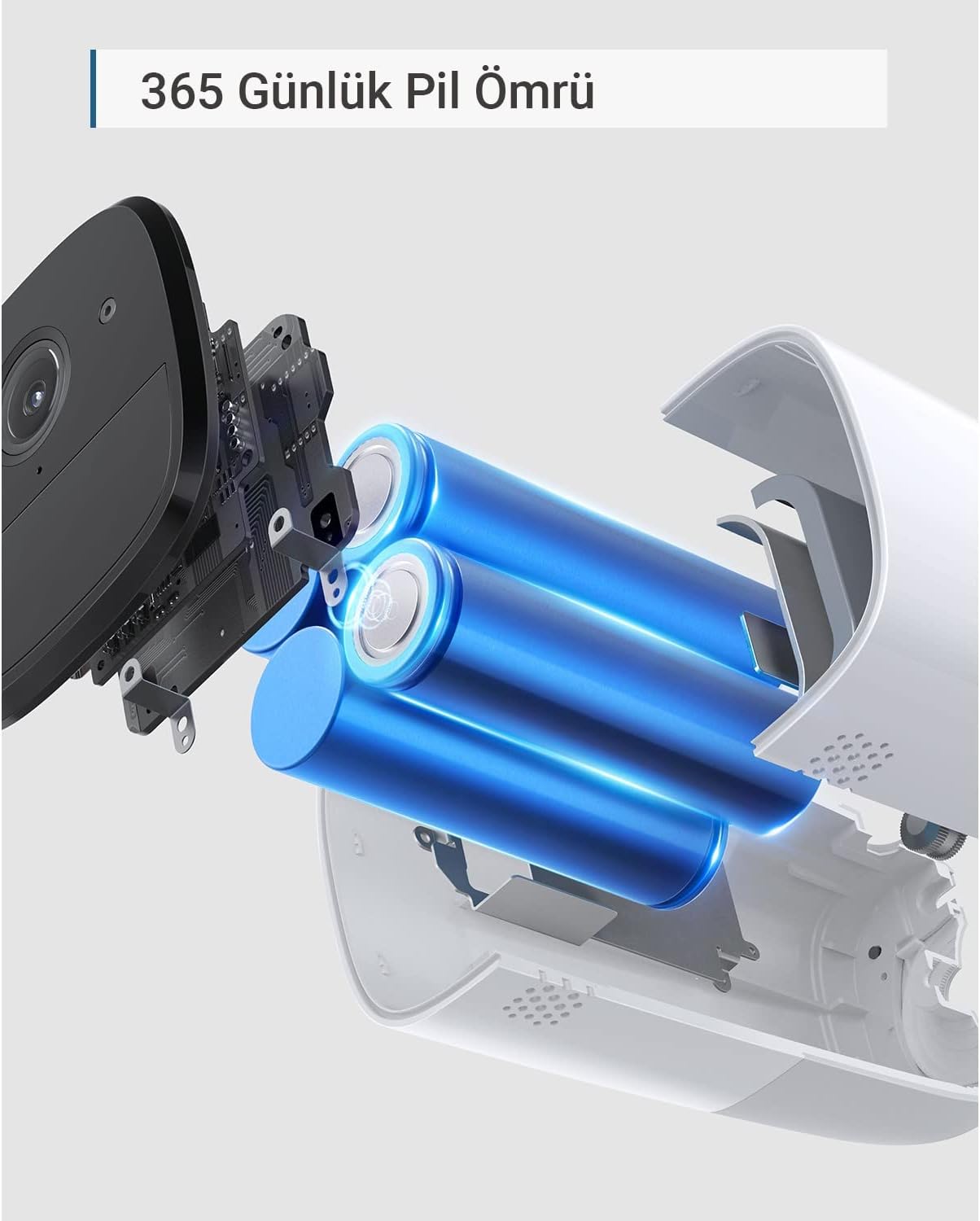
Figure 3.4: An internal diagram of the eufyCam 2 Pro, illustrating its long-lasting battery components.
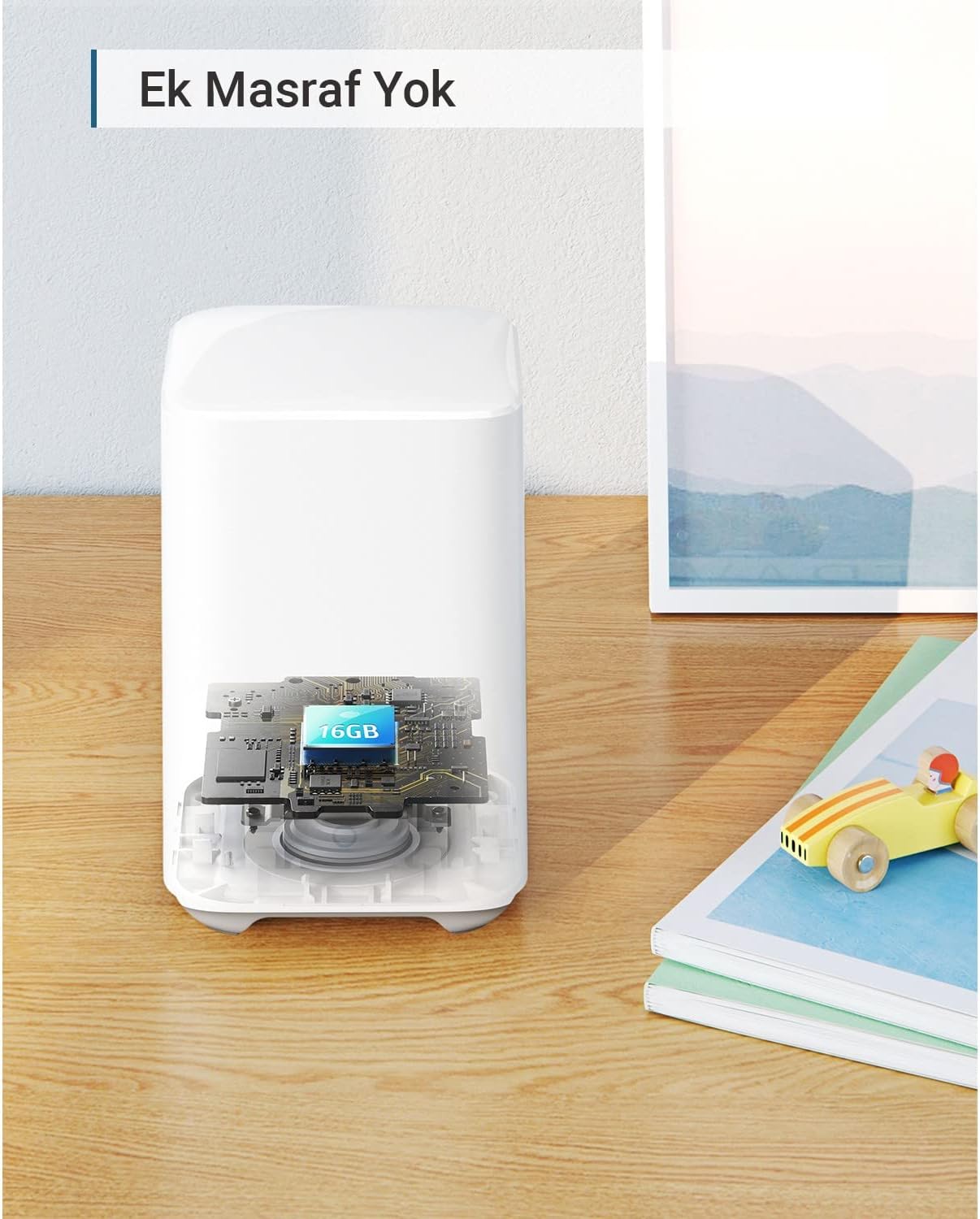
Figure 3.5: A cutaway view of the eufy HomeBase, indicating the integrated 16GB eMMC local storage.
4. Aratohu Tatūnga
4.1. Charging the Cameras
Before initial use, fully charge both eufyCam 2 Pro cameras using the provided Micro-USB charging cable and a standard USB power adapter (not included). The LED indicator on the camera will show charging status.
4.2. HomeBase Setup
- Connect the HomeBase to your router using the supplied Ethernet cable.
- Plug the AC power adapter into the HomeBase and a power outlet.
- Wait for the HomeBase LED indicator to turn solid blue, indicating it is ready for pairing.
4.3. eufy Security App Installation
Download the eufy Security app from the App Store (iOS) or Google Play (Android). Create an account or log in if you already have one.
4.4. Pairing Cameras with HomeBase
- Open the eufy Security app and tap "Add Device".
- Select "eufyCam 2 Pro" from the list of devices.
- Follow the on-screen instructions to pair each camera. This typically involves pressing the SYNC button on the camera until it beeps.
4.5. Te Whakamaunga Kāmera
Choose a suitable location for your cameras, ensuring good Wi-Fi signal and an unobstructed view. Use the provided mounting kits to securely attach the cameras to a wall or ceiling. The cameras are designed for outdoor use with IP67 protection.
5. Nga Tohutohu Whakahaere
5.1. Using the eufy Security App
The eufy Security app is the primary interface for managing your camera system. From the app, you can:
- View ora footage mai i o kamera.
- Access recorded events.
- Adjust motion detection sensitivity and zones.
- Enable/disable two-way audio.
- Configure notification settings.
- Tirohia nga taumata pākahiko.

Figure 5.1: A user interacting with the eufy Security system, demonstrating live feed access and smart home integration.
5.2. Ora View me te tuhi
Tap on a camera in the app to view its live feed. The system automatically records events triggered by motion detection. These recordings are stored locally on the HomeBase and can be reviewed na roto i te taupānga.
5.3. Rua-Way Ororongo
Use the microphone icon in the live view to speak through the camera's speaker. This feature allows for direct communication with individuals near the camera.
5.4. Te Motini
Configure motion detection settings within the app to receive alerts and record footage when activity is detected. You can customize detection zones and sensitivity to minimize false alarms.
5.5. Matakitenga po
The eufyCam 2 Pro automatically switches to night vision mode in low-light conditions, providing clear black-and-white footage.
6. Tiaki
6.1. Whakahaere Pūhiko
The eufyCam 2 Pro cameras feature a long-lasting battery. Monitor battery levels through the eufy Security app. Recharge cameras when the battery level is low using the provided Micro-USB cable. Full charge typically takes several hours.
6.1. Te horoi
Me horoi i ia wa te arotahi kamera me te whare ki te ngohengohe, damp cloth to ensure optimal image quality and prevent debris buildup. Do not use harsh chemicals or abrasive cleaners.
6.3. Whakahoutanga Firmware
eufy regularly releases firmware updates to improve performance and add new features. Ensure your HomeBase and cameras are connected to the internet to receive automatic updates. You can check for updates manually in the eufy Security app settings.
7. Te Raru
- Camera not connecting to HomeBase: Ensure HomeBase is powered on and connected to the internet. Move camera closer to HomeBase during pairing. Reset camera by pressing the SYNC button for 10 seconds.
- Te kounga ataata kino: Check Wi-Fi signal strength in the camera's location. Clean the camera lens. Ensure there are no obstructions.
- Motion detection not working: Verify motion detection is enabled in the app. Adjust sensitivity settings. Ensure detection zones are correctly configured.
- Ora pūhiko poto: Reduce the number of motion events or live view sessions. Ensure the camera is fully charged. Extreme temperatures can affect battery performance.
- Kāore he whakamōhiotanga: Check app notification settings and phone's system notification settings for the eufy Security app.
8. Whakatakotoranga
| Āhuahira | Taipitopito |
|---|---|
| Tau tauira | T88513D1 |
| Whakatau Ataata | 2K (1440p) |
| Hononga | Wi-Fi, Ethernet (HomeBase) |
| Puna Mana | Corded Electric (HomeBase), Battery (Cameras) |
| Ora Pūhiko | Up to 365 days (eufyCam 2 Pro) |
| Ātete Huarere | IP67 |
| Matakitenga Po | Ae |
| Ororongo Waa-rua | Ae |
| Rokiroki rohe | 16GB eMMC (HomeBase) |
| Te Waahi Mahi | -20°C ki te 50°C (-4°F ki te 122°F) |
| Ahu (Kamera) | Approx. 10.7 x 5.7 x 5.7 cm (4.2 x 2.2 x 2.2 inihi) |
| Dimensions (HomeBase) | Approx. 13 x 8.5 x 8.5 cm (5.1 x 3.3 x 3.3 inihi) |
| Weight (Camera) | Approx. 360g (0.79 lbs) |
| Weight (HomeBase) | Approx. 340g (0.75 lbs) |
9. Pūtāhui me te Tautoko
9.1. Nga Korero Whakaputanga
eufy products typically come with a limited warranty. Please refer to the warranty card included in your package or visit the official eufy website for the most current and detailed warranty information specific to your region and product model. Keep your purchase receipt as proof of purchase for warranty claims.
9.2. Tautoko Kiritaki
For technical assistance, troubleshooting, or general inquiries, please contact eufy customer support:
- Webpae: Haerenga www.euwhia.com for FAQs, support articles, and contact options.
- Īmēra: Tirohia to putunga hua, te eufy ranei webpae mō ngā wāhitau tautoko īmēra ā-rohe.
- Waea: Tirohia to putunga hua, te eufy ranei webpae tukutuku mō ngā nama tautoko waea ā-rohe.
When contacting support, please have your product model number (T88513D1) and purchase information ready.


