1. Kupu Whakataki
Welcome to the Xtrfy M42 RGB Ultra-Light Gaming Mouse user manual. The Xtrfy M42 is engineered for high performance and comfort, featuring an ultra-light design, state-of-the-art components, and an adjustable symmetrical shape. This manual will guide you through the setup, operation, customization, and maintenance of your new gaming mouse.

Figure 1.1: Xtrfy M42 RGB Ultra-Light Gaming Mouse (Miami Blue edition)
2. Ihirangi mokete
Manatokona kei roto katoa nga mea kei roto i to kete hua:
- Xtrfy M42 RGB Ultra-Light Gaming Mouse
- Two sizes of interchangeable mouse shells
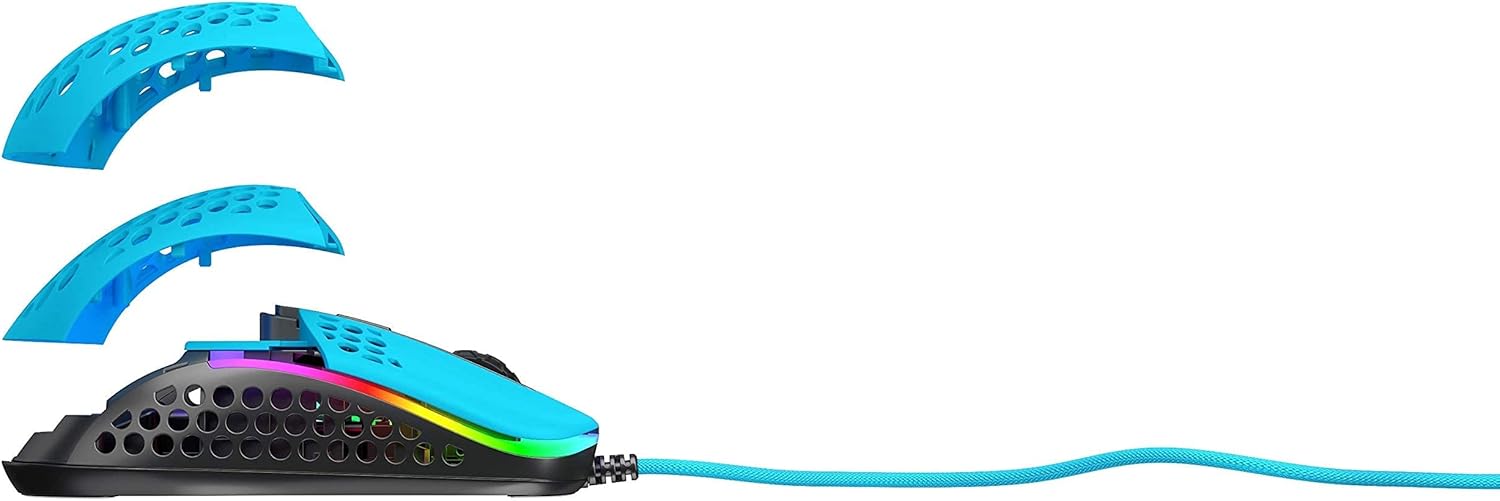
Figure 2.1: Xtrfy M42 with interchangeable top shells
3. Tatūnga
Follow these steps to set up your Xtrfy M42 gaming mouse:
- Honoa te Kiore: Plug the USB connector of the Xtrfy M42 mouse into an available USB port on your computer.
- Tāuta Atekōkiri: The mouse is plug-and-play and typically does not require additional driver software. Your operating system will automatically detect and install the necessary drivers.
- Whakamātautau Tuatahi: Move the mouse and click the buttons to ensure it is functioning correctly.

Figure 3.1: Xtrfy M42 connected via USB cable
4. Nga Tohutohu Whakahaere
The Xtrfy M42 offers various functions for an optimized gaming experience.
4.1 Nga Mahi Taketake
- Pāwhiri Mauī: Pātene mahi matua.
- Pāwhiri Matau: Pātene mahi tuarua.
- Panuku Wira: Scrolls content up or down. Can also be clicked for a middle-click function.
- Patene taha: Typically used for forward/backward navigation or custom in-game commands.
4.2 Whakatikatika DPI
The Xtrfy M42 features a Pixart 3389 sensor, allowing for precise DPI (Dots Per Inch) adjustments. The DPI button, usually located behind the scroll wheel, cycles through preset DPI levels. Refer to the Xtrfy website for specific DPI steps and corresponding LED indicators.
4.3 Whakamārama RGB
The mouse features customizable RGB lighting. All settings for LED effects, brightness, and color selection are controlled directly on the mouse, without the need for software. Consult the Xtrfy website or product packaging for specific button combinations to adjust RGB settings.
4.4 Te Auau Pōti
The polling rate, which determines how often the mouse reports its position to the computer, can typically be adjusted on gaming mice. Information on adjusting the polling rate for the M42 can be found on the official Xtrfy support page.
5. Whakaritenga
The Xtrfy M42 is designed with an adjustable symmetrical shape to accommodate various grip styles (palm, claw, fingertip) and hand sizes. This is achieved through interchangeable parts.
5.1 Changing Mouse Shells
The mouse comes with two different sized top shells. To change the shell:
- Gently detach the currently installed top shell from the mouse body.
- Align the desired new top shell with the mouse body and press it firmly until it clicks into place.
This allows you to modify the mouse's hump height and overall feel for optimal comfort and control.
Figure 5.1: Illustration of interchangeable mouse shells
6. Tiaki
Proper maintenance ensures the longevity and performance of your Xtrfy M42 gaming mouse.
6.1 Te horoi i te Kiore
- Momotuhia te kiore mai i to rorohiko i mua i te horoi.
- Whakamahia he kakahu ngohengohe, maroke, kore-miro hei muru i te mata o te kiore.
- Mo te paru maro, paku dampen te kakahu ki te wai, ki te otinga horoi ngawari ranei. A ape i nga matū kino.
- Use compressed air to clear dust from the holes in the shell and around buttons.
6.2 Caring for PTFE Skates
The M42 features 100% PTFE skates for smooth glide. Keep the mouse pad and the underside of the mouse clean to prevent debris from accumulating on the skates, which can affect glide performance. Avoid scratching or damaging the skates.

Figure 6.1: Underside of the Xtrfy M42 mouse, highlighting the PTFE skates
7. Te Raru
If you encounter issues with your Xtrfy M42 mouse, try the following solutions:
- Kaore te Kiore i te whakautu:
- Me mohio kei te hono pai te taura USB ki to rorohiko.
- Whakamātauria te mono i te kiore ki tetahi tauranga USB rereke.
- Tīmataria anō tō rorohiko.
- Tracking Issues (Jittery or No Movement):
- Horoia te pūoko whatu kei raro o te kiore me te kakahu ngohengohe, maroke.
- Me whakarite kei te whakamahia te kiore i runga i tētahi mata e tika ana (hei tauira, he papa kiore). Āta karohia ngā mata whakaataata, ngā mata mārama rānei.
- RGB Illumination Not Working:
- Check if the RGB lighting has been turned off via the on-mouse controls.
- Ensure the mouse is properly connected and receiving power.
For further assistance, refer to the Xtrfy official support resources.
8. Whakatakotoranga
| Āhuahira | Taipitopito |
|---|---|
| Tau tauira | M42 |
| Pūoko | Pixart 3389 Optical |
| Whakawhiti | Pro player-optimized, rated for 20 million clicks |
| Taumaha | Tata ki te 2.08 hekere (59 karamu) |
| Ahu (L x W x H) | 4.65 x 2.48 x 1.5 inihi (11.8 x 6.3 x 3.8 cm) |
| Hononga | USB |
| Nga reti reti | 100% PTFE with rounded edges |
| Whakamaramatanga | Customizable RGB |
| Hanga | Adjustable Symmetrical (with interchangeable parts) |
9. Pūtāhui me te Tautoko
The Xtrfy M42 RGB Ultra-Light Gaming Mouse is covered by a manufacturer's warranty. For detailed warranty information, including terms and conditions, please refer to the warranty card included with your product or visit the official Xtrfy webpae.
For technical support, frequently asked questions, or to download the latest firmware (if applicable), please visit the Xtrfy support page:


