Kupu Whakataki
The Sharkoon Skiller SGK30 is a mechanical gaming keyboard designed for performance and durability. It features customizable RGB lighting, N-Key rollover, and a 1000Hz polling rate for responsive gameplay and typing. This manual provides essential information for setting up, operating, and maintaining your keyboard.

Image: Sharkoon Skiller SGK30 Mechanical Gaming Keyboard banner displaying the product name and type.
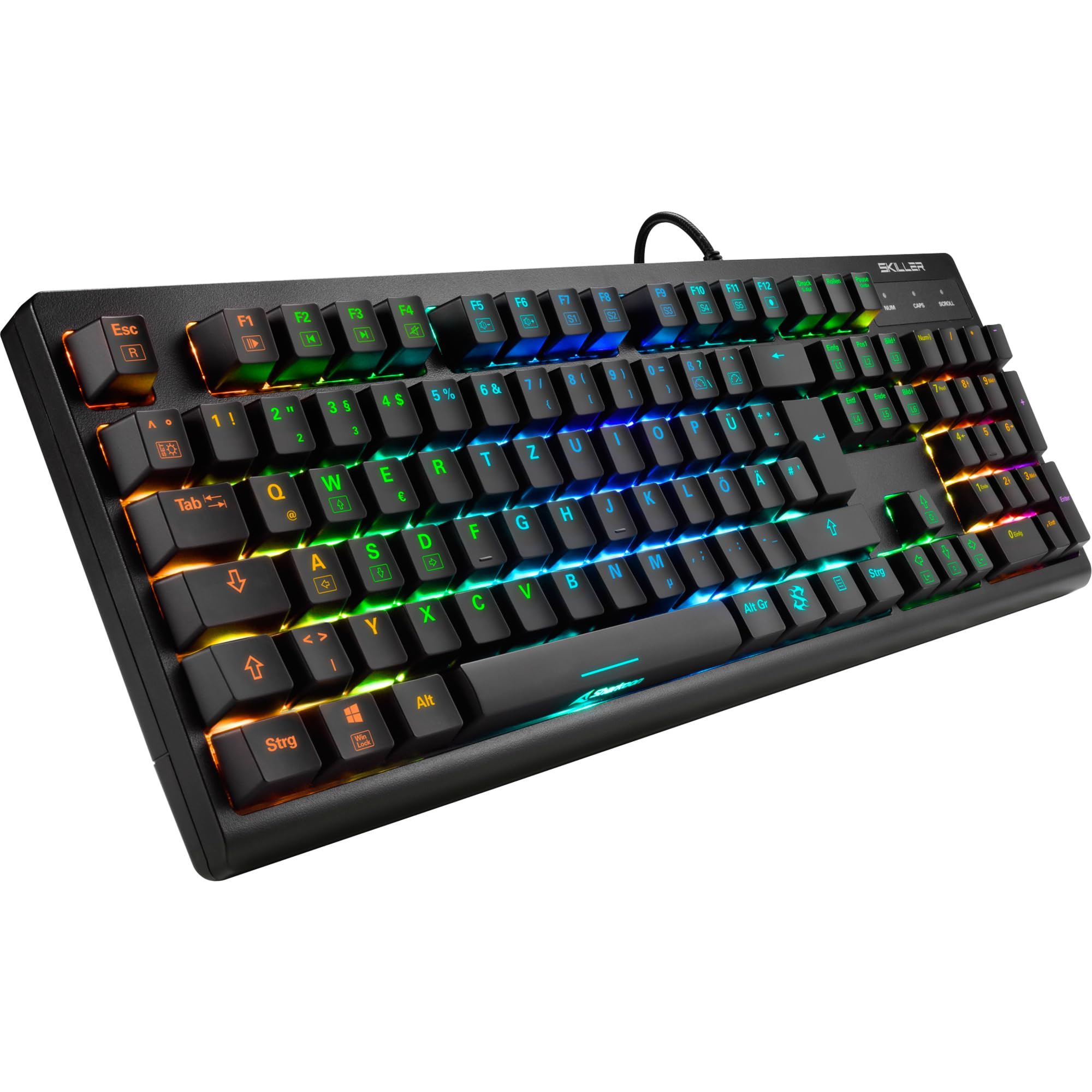
Whakaahua: He runga-iho view of the Sharkoon Skiller SGK30 mechanical gaming keyboard, showcasing tona tahora katoa me te rama whakamuri RGB hihiri.
Ka mutu te huaview Ataata
Ataata: Kua mutu te hua whai manaview of the Sharkoon Skiller SGK30 Mechanical Gaming Keyboard, demonstrating its features, RGB lighting effects, and mechanical switches.
Tatūnga
Follow these steps to set up your Sharkoon Skiller SGK30 keyboard:
- Wewetehia te Papapātuhi: Carefully remove the keyboard and the included USB cable from its packaging.
- Hono ki Rorohiko: Plug the Micro USB end of the cable into the keyboard's port and the standard USB-A end into an available USB port on your computer.
- Tāuta Atekōkiri: The keyboard is plug-and-play. Your operating system (Windows 10 or later recommended) should automatically detect and install the necessary drivers.
- Tāuta Pūmanawa (Kōwhiringa): For advanced customization of RGB lighting and key assignments, download the official Sharkoon software from the manufacturer's webpae.

Image: The Sharkoon Skiller SGK30 keyboard positioned on a desk, ready for connection.
Nga Tohutohu Whakahaere
Nga Mahi Matua Matua
The Sharkoon Skiller SGK30 features a standard layout with additional function keys accessible via the FN kī.
- FN + F1-F12: Access multimedia controls (e.g., play/pause, volume up/down, mute).
- FN + Kī Windows: Maukati/wetehia te kī Windows hei ārai i te pēhi tūpono i te wā e petipeti ana.
- Huringa K-Kihi: All keys are registered simultaneously, ensuring every keystroke is detected, even during rapid input.
Mana Rama RGB
The keyboard offers extensive RGB lighting customization. Use the following combinations to adjust lighting effects:
- FN + Insert/Home/Page Up/Delete/End/Page Down: Hurihurihia ngā momo pānga rama kua whakaritea i mua.
- FN + Arrow Keys (Up/Down): Adjust brightness levels of the lighting.
- FN + Arrow Keys (Left/Right): Whakaritea te tere o nga paanga rama hihiri.
- Custom Illumination: Use the dedicated software for advanced per-key lighting customization.

Whakaahua: He tata view of the keyboard keys highlighting the adjustable RGB illumination capabilities.
Whakaritenga Pūmanawa
For advanced settings, macro programming, and detailed RGB customization, download and install the Sharkoon Skiller SGK30 software from the official Sharkoon webpae. Mā te pūmanawa ka taea e koe te:
- Create and save custom lighting profiles.
- Program macros for specific keys.
- Remap key functions.

Image: A screenshot showing the graphical user interface of the Sharkoon Skiller SGK30 customization software, illustrating various options for lighting and key remapping.
Te tiaki
Mā te tiaki tika ka roa te ora me te mahi a tō papapātuhi:
- Te horoi: Use a soft, dry cloth to wipe the surface of the keyboard. For deeper cleaning, use compressed air to remove dust and debris from between the keycaps.
- Tango Kuputuhi: If necessary, keycaps can be carefully removed using a keycap puller (not included) for thorough cleaning of the switches. Reinstall keycaps by pressing them firmly onto the switch stems.
- A ape i te Wai: Kaua e tukuna te papapātuhi ki te wai. Ki te pakaru, wetewete tonu te papapātuhi ka tuku kia maroke katoa i mua i te hono ano.
- Rokiroki: Whakaorangia te papapātuhi ki te waahi hauhautanga, maroke atu i te ra tika me te wera nui.

Whakaahua: He tata view of the mechanical switches on the Sharkoon Skiller SGK30 keyboard, illustrating their design for durability and ease of maintenance. Note: This model is available with Red switches, while the image shows Blue switches.
Raparongoā
If you encounter issues with your Sharkoon Skiller SGK30 keyboard, refer to the following common solutions:
| Raruraru | Take pea | Rongoā |
|---|---|---|
| Karekau te papapātuhi whakautu | He hononga USB kore, he tauranga USB he, he take taraiwa. |
|
| Ko te rama RGB kaore i te mahi, i te he ranei | Lighting settings incorrect, software conflict. |
|
| Kī kāore i te rēhita | Te puehu/parapara i raro i te taapu matua, te huri hapa. |
|
Whakatakotoranga
| Āhuahira | Taipitopito |
|---|---|
| Waitohu | Mango |
| Tau tauira | 4044951030026 |
| Momo Papapātuhi | Papapātuhi Taha Ahumahi |
| Momo Whakawhiti | Red Switch (Blue switches are also available for this model series) |
| Hononga | USB moroiti |
| Reiti Pooti | 1000Hz |
| Huri N-Kihi | Tautokohia |
| Rarama RGB | Customizable RGB |
| Pūnaha Mahi | Windows 10 (and compatible with other Windows versions) |
| Ahu (LxWxH) | 44 x 14.4 x 3.5 cm |
| Taumaha | 867 g |
He aha kei roto i te Pouaka
The Sharkoon Skiller SGK30 package includes:
- Sharkoon Skiller SGK30 Mechanical Gaming Keyboard
- Tauira USB
Pūtāhui me te Tautoko
Mō ngā mōhiohio pūtāhui me te tautoko hangarau, tirohia te paetukutuku mana o Sharkoon webpaetukutuku, whakapā atu ranei ki to kaihokohoko o to rohe. Puritia to tohu hoko mo nga kereme whakamana.
Tuhipoka: Ko nga korero me nga ahuatanga o te hua ka huri noa me te kore panui i mua.