1. Kupu Whakataki
The Poly Studio is an all-in-one USB video and audio conferencing system designed for home offices and small meeting rooms. It integrates a 4K camera, smart microphones, and a speaker into a single, sleek bar, offering a plug-and-play solution for enhanced virtual meetings.

Image: Poly Studio Premium USB Video & Audio Conferencing System, showcasing tona hoahoa kiato.
Āhuatanga matua:
- Rongoā Katoa-i-Kotahi: Combines a 4K camera, smart microphone, and speaker into a single bar, ideal for small meeting rooms and home offices.
- Hononga USB Mono me te Purei: No software required for basic functionality. Connect via USB to instantly elevate your Zoom, Teams, Skype, and Google Meet experience.
- Exceptional Audio Clarity: Features Polycom noise-blocking technology and beamforming microphones for crystal-clear sound.
- Smart Camera Framing: Automatically adjusts framing and tracking based on speaker movement and participants in the room.
2. Tatūnga
Follow these steps to set up your Poly Studio conferencing system:
- Wewetehia te Pūrere: Carefully remove the Poly Studio bar and all accessories from the packaging.
- Kōwhiria he Kōwhiringa Whakapuru: The Poly Studio can be mounted on a tabletop, wall, or tripod.
- Maunga Ripanga: Whakanohoia te taputapu ki runga i te mata pumau.
- Maunga Maunga: Use the provided wall mount bracket and hardware to securely attach the device to a wall, typically above or below your display.
- Maunga Takitoru: Attach the device to a standard tripod using the integrated tripod thread.
- Hono Hono: Plug the power cable into the Poly Studio and then into a power outlet.
- Hono ki Rorohiko: Connect the USB cable from the Poly Studio to an available USB port on your laptop or PC.
- Te Mōhiotanga Pūmanawa: Your computer should automatically recognize the device as a USB camera, microphone, and speaker.

Image: Poly Studio connected to a display, highlighting its compatibility with various video conferencing applications.
3. Nga Tohutohu Whakahaere
The Poly Studio is designed for ease of use with popular video conferencing platforms.
- Select Device in Application: In your preferred video conferencing application (e.g., Zoom, Microsoft Teams, Skype, Google Meet), navigate to the audio and video settings. Select "Poly Studio" as your camera, microphone, and speaker.
- Utilize Smart Camera Features: The device's smart camera framing and speaker tracking features will automatically adjust the view to keep participants in frame and focus on the active speaker.
- Experience Clear Audio: Polycom's noise-blocking and beamforming technologies work automatically to ensure clear audio transmission and reception.
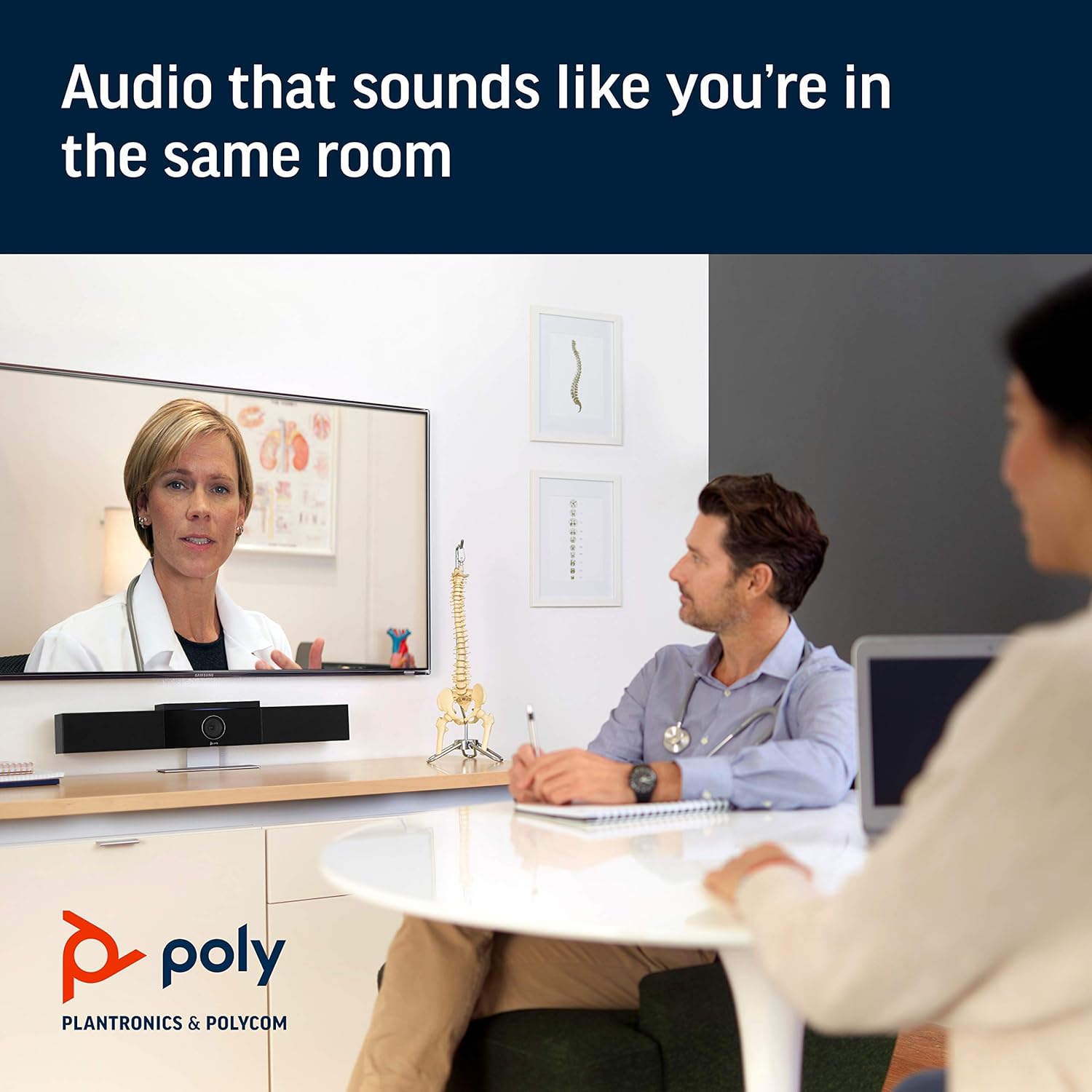
Image: Poly Studio in a meeting room, illustrating its capability to deliver clear audio for all participants.

Image: Poly Studio capturing vivid details and facial expressions of meeting participants.
4. Tiaki
To ensure optimal performance and longevity of your Poly Studio, regular maintenance is recommended:
- Te horoi: Gently wipe the device with a soft, dry cloth. Avoid using harsh chemicals or abrasive materials.
- Whakahōu Pūmanawa: Regularly check for and install software updates. These updates often include performance improvements, new features, and bug fixes. Poly Lens remote device management software can assist with this.
- Whakaha Uepu: Ensure all cables are neatly organized and not under strain to prevent damage.
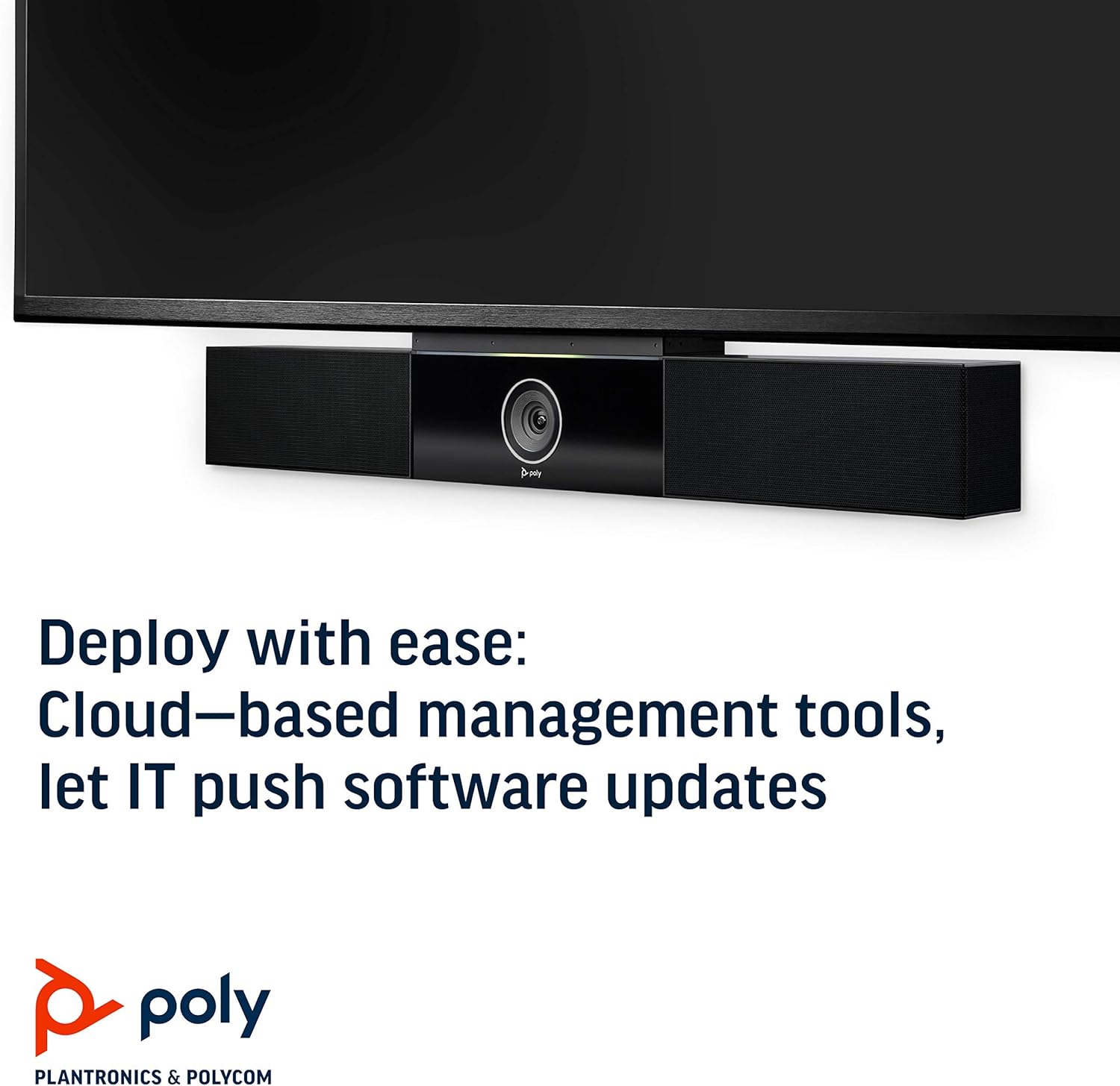
Image: Poly Studio, illustrating its compatibility with cloud-based management tools for easy software updates.
5. Te Raru
If you encounter issues with your Poly Studio, try the following troubleshooting steps:
- Kore Mana: Ensure the power cable is securely connected to both the device and the power outlet. Try a different outlet if necessary.
- Kāore he Ataata/Ororongo: Verify that the USB cable is securely connected to both the Poly Studio and your computer. Check your video conferencing application settings to ensure the Poly Studio is selected as the active camera, microphone, and speaker.
- Kounga Ororongo Kino: Ensure the device is placed in a central location in the room. Check for any physical obstructions blocking the microphones or speakers. Update the device firmware via the Poly Lens app.
- Camera Not Tracking: Ensure the room is adequately lit. Check the Poly Lens app settings for camera tracking modes and adjust as needed.
- Pūrere Kaore i te Mohiotia: Try connecting the USB cable to a different USB port on your computer. Restart your computer.
6. Whakatakotoranga
| Āhuahira | Taipitopito |
|---|---|
| Momo Whakaeke | Maunga Ripanga |
| Ingoa Tauira | 649661882596 |
| Momo Kaikorero | Tirooro |
| Āhuahira Motuhake | Maama iti |
| Whakamahinga Manakohia mo te Hua | video conferencing in home offices and small conference rooms |
| Pūrere Hototahi | Pona |
| Whirihoranga Hongere oro a tawhio noa | 2.0 |
| Tae | Pango |
| Nga Waahanga kei roto | camera, stereo speakers, microphones, control unit |
| He parewai | He teka |
| Momo Rarangi | He iti |
| Te maha o nga mea | 1 |
| Tikanga Mana | Reo |
| Hangarau Whakawhitiwhiti Ahokore | Kāore he Hangarau Whakawhitiwhiti Kōrero Ahokore |
| Rahi Kaioro | 21.59 Henemita |
| Puna Mana | Hiko Hiko |
| Taumata Atete Wai | Ehara i te wai ātete |
| Momo Atekōkiri Ororongo | Atekōkiri Hihiko |
| Hangarau Hononga Subwoofer | Waea |
| Nga Whakamahinga Motuhake mo te Hua | Home office, Small conference rooms, Video conferencing with Zoom and Microsoft Teams |
| UPC | 649661882596 |
| Mahinga o roto/waho | Roo-roto |
| Kaihanga | Polycom Inc. |
| Hanga | tapawhā tapawhā |
| Hunga Hua | 30 x 6 x 4 inihi |
| Taumaha Tūemi | 10.58 pauna |
| ASIN | B091YCFF84 |
| Tau tauira tūemi | 649661882596 |
| Te Ra Tuatahi Wātea | Paenga-whāwhā 7, 2021 |
| Waitohu | POLY |
| Kaikorero Te Mana Putanga Morahi | 40 Watts |
| Whakautu auau | 120 KHz |
| Hangarau Hononga | USB |
| Aratau Putanga Ororongo | Tirooro |
7. Pūtāhui me te Tautoko
Your Poly Studio Premium USB Video & Audio Conferencing System comes with a Rarangi Whakaiti. For specific details regarding the warranty period and coverage, please refer to the official Poly documentation or contact Poly support.
This product is also eligible for a Whakahokinga moni/whakakapinga 90-rā policy under the Amazon Renewed Guarantee, as it is a renewed product. For support or to claim warranty/return, please contact the seller or refer to the product's official support channels.


